

Capturing leads on HubSpot streamlines gathering and managing potential customer information. Small businesses can enhance their sales pipeline and improve follow-up efficiency by integrating lead capture directly into Hubspot.
Automating lead capture for HubSpot using AI chatbots empowers anyone to convert more prospects into customers, improve communication, and drive growth. This integration not only boosts productivity across sales teams but also fosters stronger customer relationships.
Additional benefits:
- Automate Lead Collection: Capture leads through an AI chatbot without manual entry.
- Enhance Lead Segmentation: Automatically segment leads based on the information they provide, allowing for more targeted marketing and follow-up efforts.
- Real-Time Analytics: Monitor lead capture performance with built-in analytics, helping you optimize your strategies for maximum impact.
By adding an AI chatbot for lead capture, you can provide a dynamic and interactive experience for potential customers. The Kore.ai XO platform allows for easy integration with any system—including HubSpot.
Below is a guide on how to get started.
Sign up for a Kore.ai account
The first step is to sign up for an account on the Kore.ai XO Platform.
Once signed in, select ‘New App’ to start your AI Chatbot build

Begin your new app project by selecting Automation AI. Once you’ve chosen, select ‘Custom Setup’ and follow the prompts to build your AI chatbot.
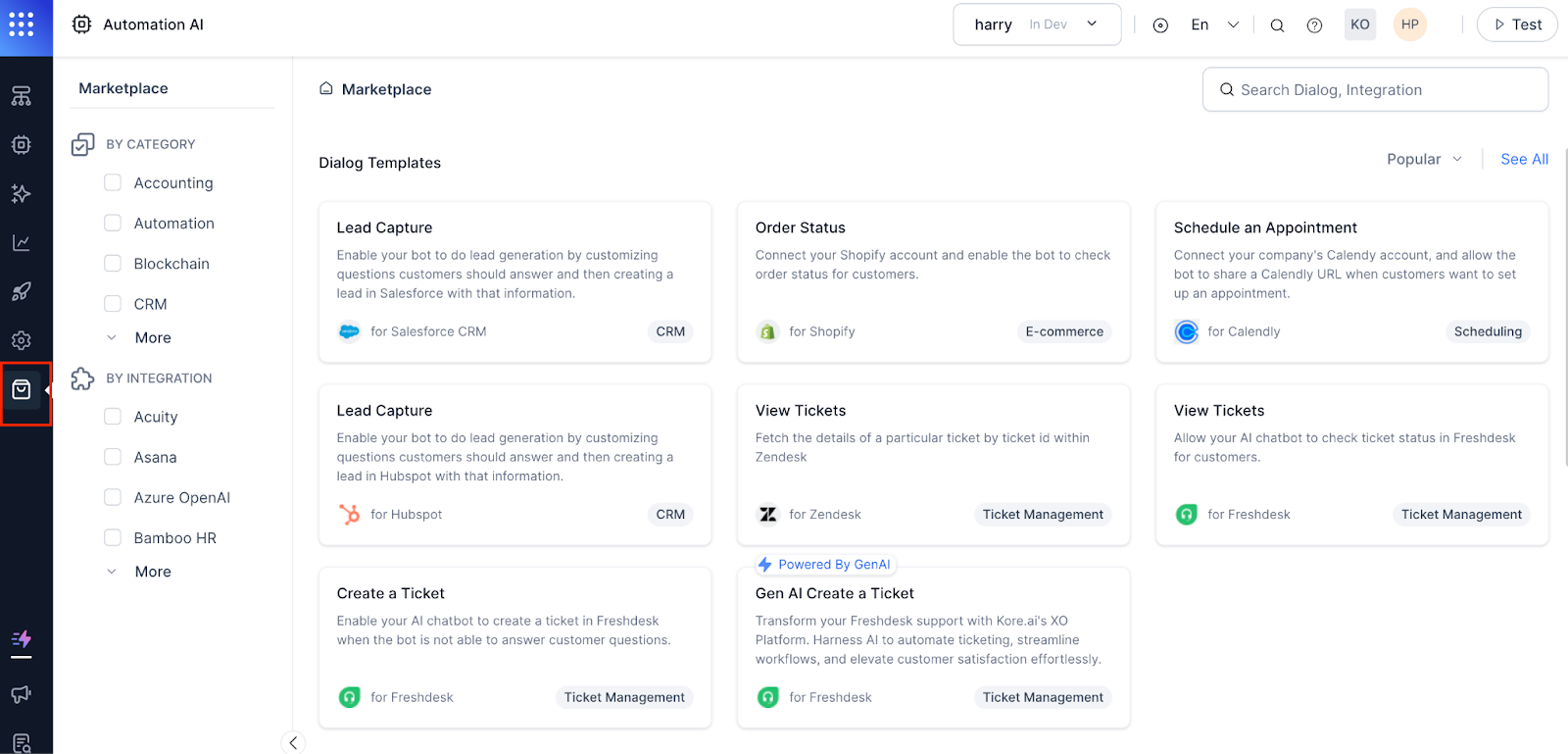
Navigate to the marketplace and add the HubSpot integration
Select ‘integrations’ from the dropdown menu. From there, you can configure HubSpot including instructions and authorization.
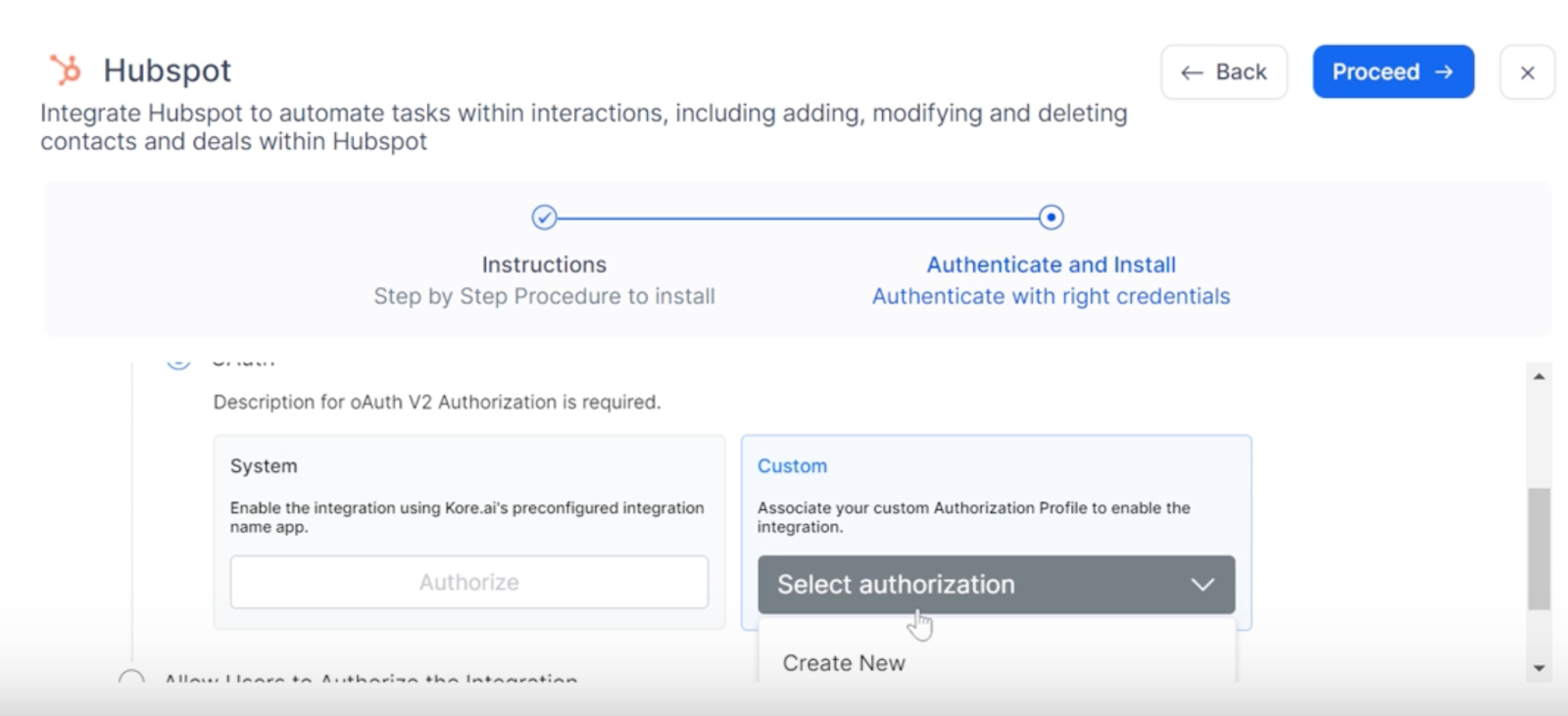
Authenticate and install
After you add the HubSpot integration, follow the step-by-step instructions and proceed to ‘Authenticate and Install.’ Under Custom authorization, select ‘Create New’ from the dropdown menu.
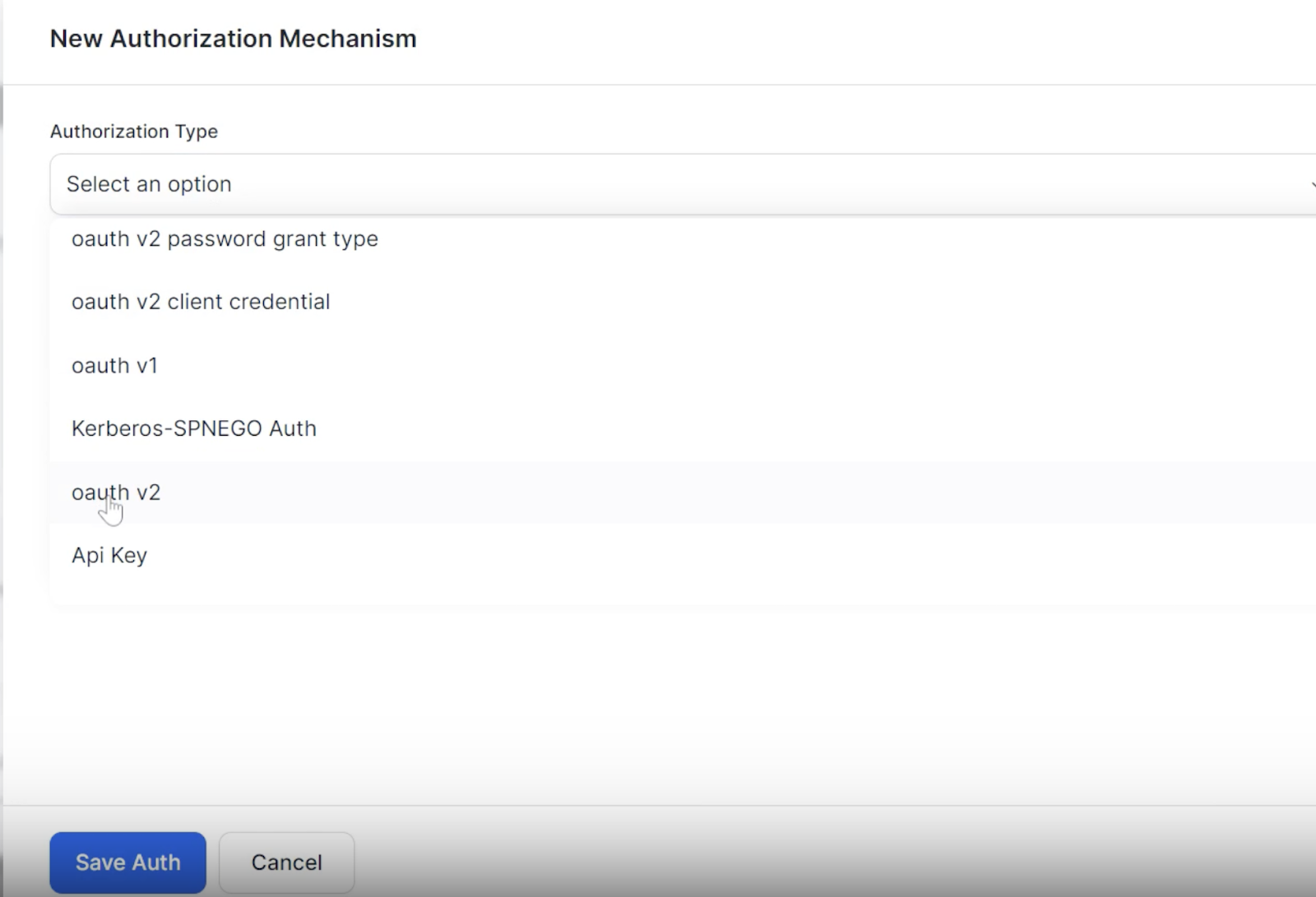
You will be instructed to select a New Authorization Mechanism. You can use the ‘oauth V2’ authorization type for this integration.
Enter the Identity Provider Name (HubSpot), Client ID, Secret Key, Authorization URL, Token Request URL, Scope, and Refresh Token URL.
Save your authorization with the blue button at the bottom of your screen.
Authorize your HubSpot integration
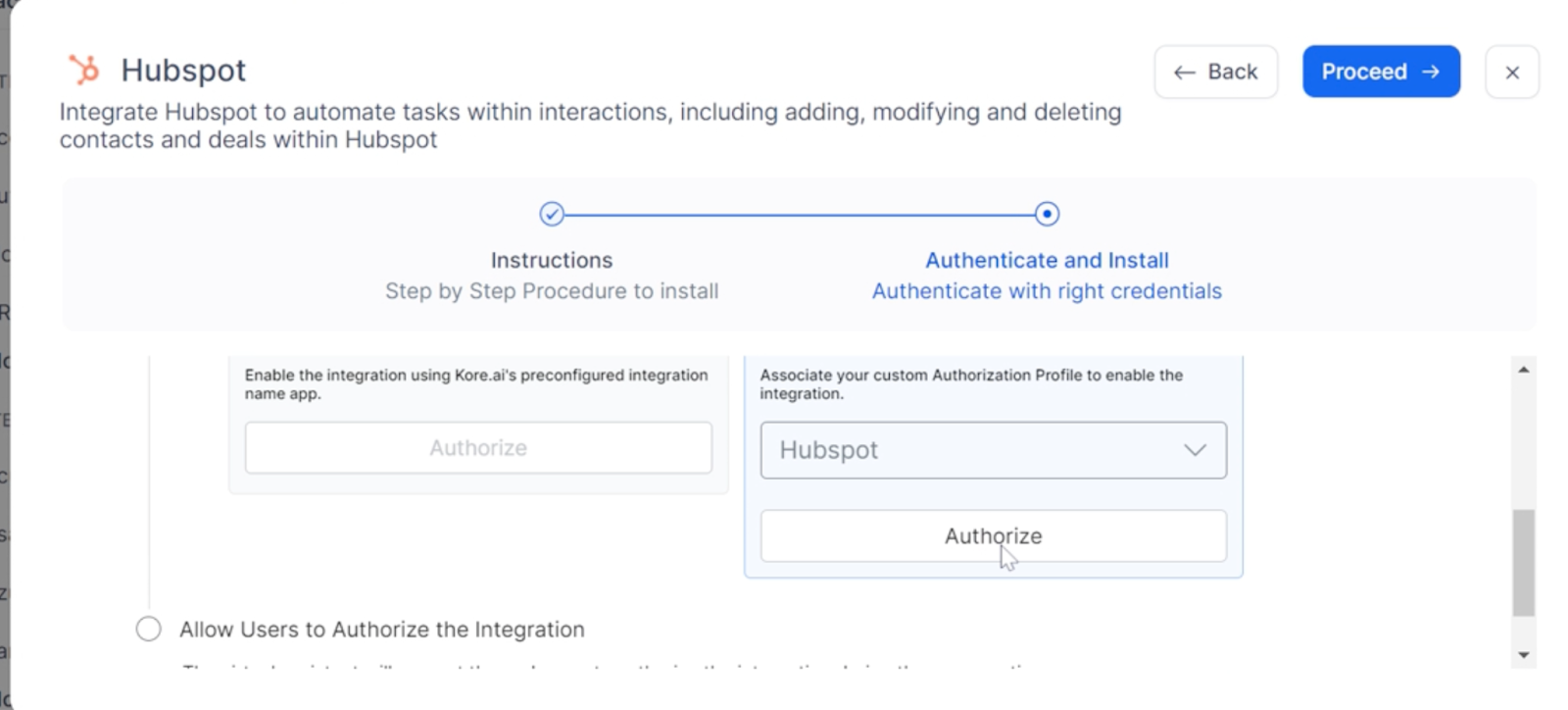
Follow the install template
Progress through the guided steps to finalize your template integration.
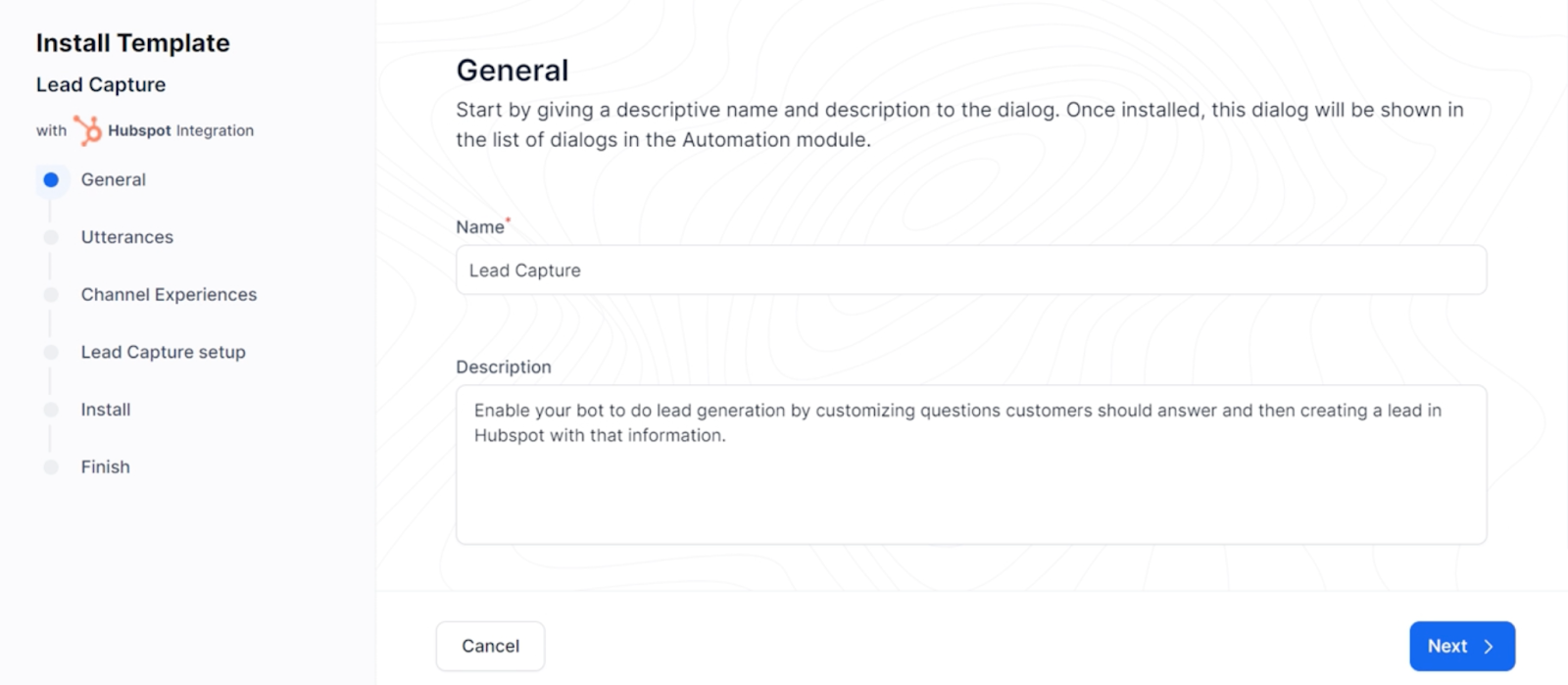
Test your new AI chatbot integration
After the template installation, you’ll be brought to the Dialog page. Click ‘Test’ in the upper right-hand corner of your display. You will be given the option to select a Voice or Chat Conversation for testing the flows.
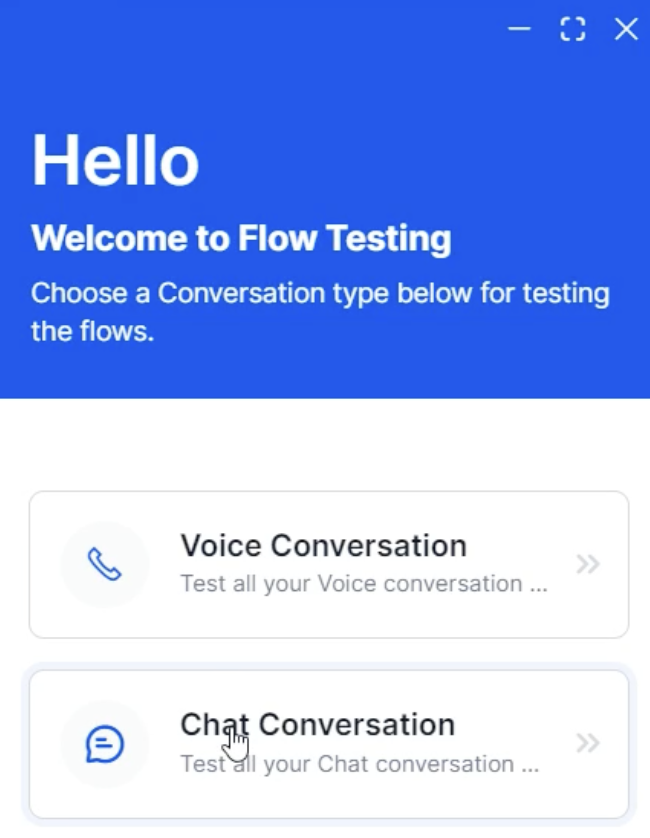
For this example, we’ll focus on Chat Conversation. Once selected and your AI chatbot pops up, you can ask it anything about lead capture. You can even simply type, ‘Can I connect with someone from sales?’
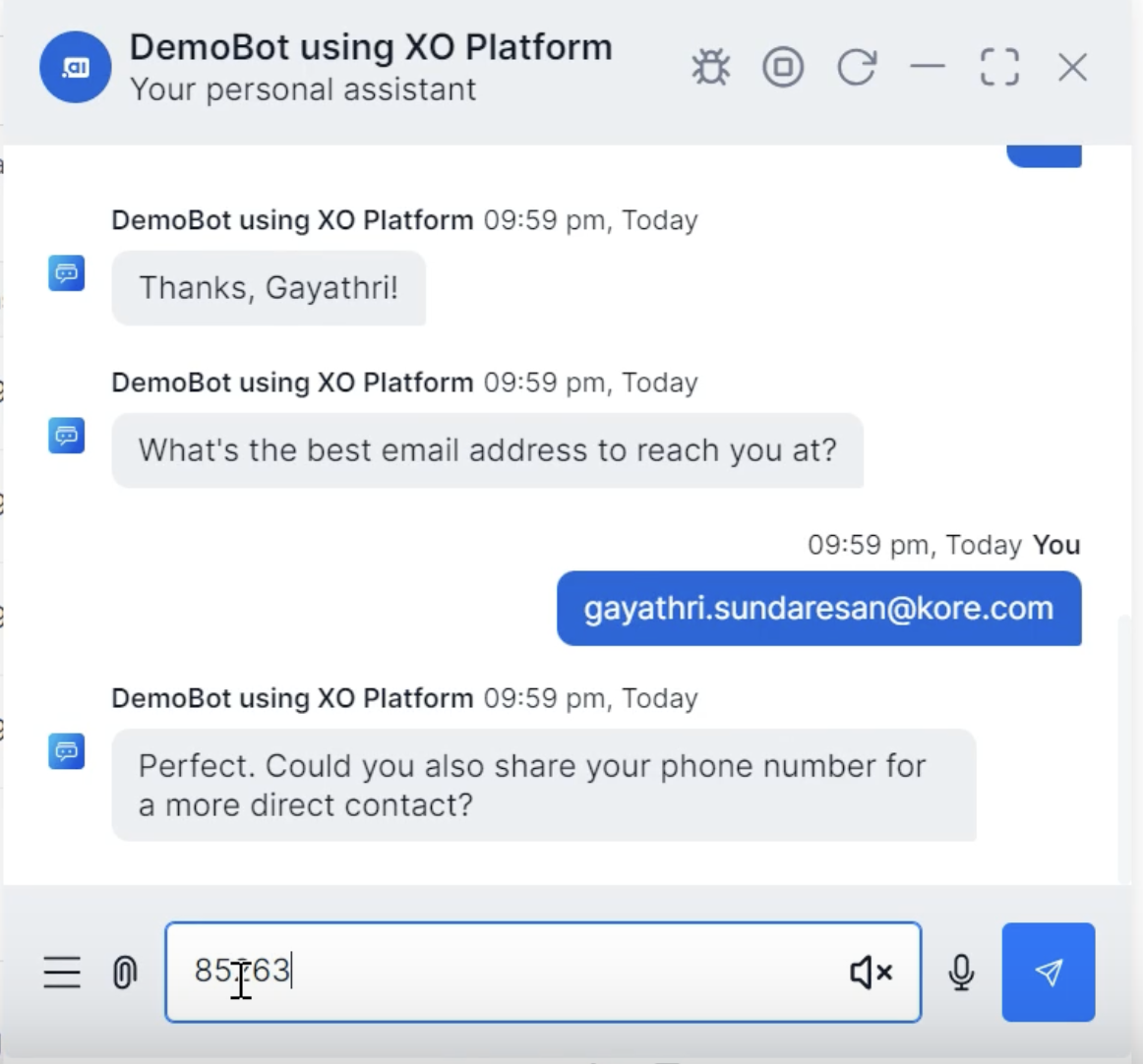
The AI chatbot will collect lead capture information from the customer in a conversational way.
Confirm your integration is working
While logged into HubSpot, you can view the lead capture events created by Kore.ai.
Feel free to run tasks like qualify leads, nurture contacts, and track interactions, easily and efficiently from a unified platform.

