



I’ve sat through enough dropped calls and 40-minute cutoffs to know that not all free video conferencing tools are built the same. After testing, I’ve found GoTo Meeting, Google Workspace, Microsoft Teams, RingEX, Webex Suite, Zoom Workplace, and Zoho Meeting to be the best free video conferencing software solutions for remote teams. Each one turned out to have a distinct sweet spot worth knowing about before you commit.
I’ve been part of remote and hybrid teams for a few years now, and the video conferencing tool your team runs on shapes more of the workday than most people give it credit for. Most free plans sound generous until your team hits the time limit mid-planning session, or a client can’t figure out why the meeting link won’t open on their phone.
For this guide, I went through the top products on G2’s free video conferencing software category page and evaluated each one on what it actually gives you for free, how it holds up under real remote work conditions, and where each one pushes you toward upgrading. Here’s what I found about the best free video conferencing software for remote teams in 2026.
What are the best free video conferencing software solutions for remote teams in 2026?
- GoTo Meeting: Best for consistent high-quality audio and video meetings
Consistently clear audio and stable video across connections, with a simple experience that works well for external participants. - Google Workspace: Best for teams already using Google products
For organizations already using Gmail and Google Calendar, who want Google Meet as an addition. - Microsoft Teams: Best for hybrid and enterprise collaboration
Merges persistent chat and video into a single workspace, with a free plan that genuinely covers most daily remote work needs. - RingEX: Best for teams needing voice, video, and SMS unified
For customer-facing remote teams, where phone calls and video meetings are equally important. - Webex Suite: Best for security-focused enterprise teams
For regulated industries where enterprise-grade security and free noise cancellation are non-negotiable. - Zoom Workplace: Best for external collaboration and AI meeting summaries
For teams that prioritize universal join experience, AI meeting summaries, and a wide app ecosystem. - Zoho Meeting: Best for Zoho ecosystem users and budget-conscious teams
For teams already using Zoho products who want the most generous free plan at the lowest upgrade cost.
*Tools are listed alphabetically. These tools offer free trials, free forever options, or freemium models.
Comparison of the best free video conferencing software for remote teams
Here’s a side-by-side look at free plan limits and pricing before diving into the full reviews.
| Tool | G2 Rating | What the free plan covers | Paid Starts At |
| GoTo Meeting | 4.2/5 ⭐ |
|
$12/user/month |
| Google Workspace | 4.6/5 ⭐ |
|
$6/user/month |
| Microsoft Teams | 4.4/5 ⭐ |
|
From $4/user/month |
| RingEX (RingCentral) | 4.2/5 ⭐ |
|
$30/user/month |
| Webex Suite | 4.2/5 ⭐ |
|
$14.50/user/month |
| Zoom Workplace | 4.5/5 ⭐ |
|
$13.33/user/month |
| Zoho Meeting | 4.5/5 ⭐ |
|
$1/host/month |
*All pricing details mentioned in this article are based on publicly available data at the time of publication and are subject to change.
Remote workers attend an average of 7.3 video calls per week, nearly three times the 2.6 calls their fully in-office peers sit through. When that many meetings run through a single tool, the choice of platform shapes a significant chunk of your team’s workday, whether you notice it or not.
How did I find and evaluate these free video conferencing tools?
I started with G2’s free video conferencing software category page, which lists tools that offer free plans, free trials, or freemium models. From there, I took the top products as they appear on the page and tested the free plan or trial on each one, specifically looking at how well each holds up for remote team use: how stable the calls are, what the join experience is like, which collaboration features work without paying, and exactly where the free tier ends.
I cross-referenced verified G2 user reviews for each tool to understand real-world patterns beyond my own testing, what remote teams consistently praise, what frustrates them over time, and how the free plan holds up in practice. G2 review data referenced throughout was pulled in 2026. Some reviews have been lightly edited for clarity.
The screenshots featured in this article may be a mix of those taken from the vendor’s G2 page or from publicly available materials.
What I look for in free video conferencing software for remote teams
Testing seven video conferencing tools back to back makes certain things obvious that aren’t always obvious from a feature list. Here’s what I actually paid attention to:
- Call stability across different connections: Remote teams span time zones and internet quality. A tool that drops calls or degrades badly on a slower connection is a different product from one that stays stable.
- How frictionless the join experience is: If an external client or new hire needs to download an app, create an account, or troubleshoot a browser plugin just to join your call, that’s friction you’re absorbing. The best tools on this list make joining a one-click experience.
- What collaboration features actually work for free: Screen sharing is table stakes. But recording, whiteboarding, and in-meeting chat matter differently when your team is distributed. I noted specifically which of these are free and which require a paid plan.
- Time and participant limits: A 40-minute limit sounds manageable until you’re in week three of a sprint and every planning session gets cut off. I recorded the exact limits for each tool so you can match them to your actual meeting patterns.
- Integration with remote work tools: Calendar sync, Slack integration, CRM connections reduce friction for teams that can’t rely on hallway conversations to stay aligned.
- The specific upgrade trigger: Most free plans have a wall. Knowing where it is before you hit it is the difference between a smooth transition and a disruptive last-minute decision.
To be included on this list, a tool must:
- Provide online video and audio communication between two or more parties
- Allow video conference hosts to modify meeting specifications and invite guests
- Offer features such as screen sharing and chat within individual conferences
- Offer recording capabilities for future reference or presentations
*This data was pulled from G2 in 2026. Some reviews may have been edited for clarity.
1. GoTo Meeting: Best for consistent high-quality audio and video meetings
GoTo Meeting has been around long enough that it doesn’t feel the need to compete on features, and honestly, that’s a good thing for a certain kind of team.
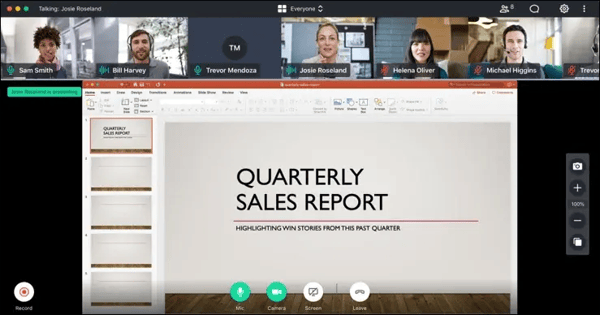
I set up and ran several test calls, specifically trying to stress-test the stability. GoTo held up consistently well. The audio quality was clean even on weaker connections, screen sharing loaded fast, and the interface stayed out of the way. It’s not a tool that tries to become the center of your workflow. It’s a tool that schedules meetings, runs them reliably, and ends them. For some remote teams, that’s exactly what they need.
What does GoTo Meeting’s free plan include?
- 14-day free trial with full platform access, no credit card required
- Unlimited meetings with no time limit during the trial
- HD video, screen sharing, and dial-in conferencing
- Mobile apps for iOS and Android
- Basic free plan after trial: 3 participants, 40-minute meetings
When should you upgrade your GoTo Meeting free plan?
The 14-day trial is a meaningful evaluation window. Once it ends, if your team has more than 3 people or runs meetings longer than 40 minutes, which is almost every remote team, you’ll need to commit. The Professional plan at $12/organizer/month gives unlimited meetings with up to 150 participants and meeting recording.
Where GoTo Meeting genuinely stands out:
- Holds up on low-bandwidth connections. G2 reviewers with distributed international teams specifically call this out as the reason they stick with it over alternatives.
- Browser-based joining means external participants don’t need to download anything, which removes a consistent friction point for client-facing remote teams.
What G2 users like about GoTo Meeting:
“GoTo Meeting is easy to use and very reliable for virtual meetings. I like how quickly I can join or host a meeting without complicated setup. The video and audio quality are consistently clear, which makes communication smooth and professional. Features like screen sharing, recording, and meeting links are very helpful for collaboration and staying organized.”
– GoTo Meeting Review, Nagesh S.
Is GoTo Meeting right for your remote team?
Best for: Remote teams that want video calls to work reliably without managing a feature-heavy platform, particularly those that already have separate tools for chat and collaboration and just need a dependable meeting layer.
Not ideal for: Teams that need a permanent free plan beyond the trial, or anyone looking for an all-in-one workspace where meetings, chat, and docs live together.
What I dislike about GoTo Meeting:
- The interface feels dated compared to Zoom and Teams, and reviewers flag this independently. For teams that only need reliable calls without the bells and whistles, the simplicity of the interface is actually fine for day-to-day use.
- It’s a standalone tool with no native Google or Microsoft ecosystem integration beyond calendar sync. For teams that already have separate collaboration tools and just need a dependable meeting layer, this is less of an issue than it sounds.
What G2 users dislike about GoTo Meeting:
“One important drawback of GoTo Meeting is that the user interface can feel a bit outdated compared to newer platforms. Occasionally, there are minor connectivity or audio issues, especially with larger meetings.”
– GoTo Meeting Review, Barzakh T.
Looking at multiple options for your team’s meetings? See the full best video conferencing software guide on G2 for a broader comparison across free and paid tools.
2. Google Workspace: Best for teams already using Google products
Google Workspace has the largest verified user base of any tool on this list, by a lot. That number exists because for most teams, Google Meet isn’t something you evaluate. It’s just there, embedded in the ecosystem you’re already using.
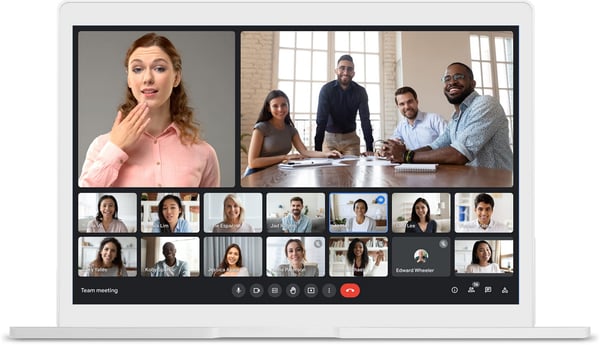
I tested Google Meet from a deliberate remote-team perspective rather than just as a feature check. What struck me most is how much of the friction typically associated with video calls simply doesn’t exist here. I sent a meeting invite through Gmail, it created a Meet link automatically, and someone joined from a laptop with no Google account through a browser. No friction at any step.
What does Google Workspace’s free plan include?
- Personal Google account: unlimited 1:1 calls, 60-min group meetings, 100 participants, free forever
- 14-day trial for full Workspace business plans
- Browser-based joining, no app download required
- Native integration with Google Calendar, Gmail, and Drive
- Live captions, noise cancellation, and meeting recordings on paid plans
When should you upgrade your Google Workspace free plan?
The personal free tier covers most small remote team needs. The triggers are meeting recordings for async sharing, meetings that regularly run beyond 60 minutes, or needing admin controls for a growing team. Business Starter starts at $6/user/month and unlocks those features without a significant jump in cost.
Where Google Workspace genuinely stands out:
- I didn’t have to think about scheduling once. Gmail creates the Meet link when you send the calendar invite, it syncs across time zones, and participants just show up. That kind of invisible setup adds up across a week of remote calls.
- The external join experience is the smoothest I’ve tested. A browser link, no download, no account needed. I’ve had clients join in seconds without a single “how do I get in?” message beforehand.
What G2 users like about Google Workspace:
“The best thing about Google Workspace is how everything just flows together. You can jump from an email to a shared doc or a quick video call without missing a beat. It turns “where is that file?” into “here it is,” making it easy to actually get things done.”
– Google Workspace Review, Dinesh B.
Is Google Workspace right for your remote team?
Best for: Remote teams already working in Gmail and Google Calendar, where Meet adds video as a free, frictionless layer on top of tools they’re already using daily.
Not ideal for: Microsoft-centric teams, or teams that need meeting recordings and advanced admin controls without upgrading to a paid Workspace plan.
What I dislike about Google Workspace:
- Recording isn’t available on the free plan, which is a gap for remote teams that rely on async catch-up. That said, the free tier covers live collaboration well enough for most daily meeting needs.
- Without Gmail and Google Calendar already in your stack, the integration advantage largely disappears. But for teams that are already there, Meet slots in so naturally that you barely notice it as a separate tool.
What G2 users dislike about Google Workspace:
“What I dislike about Google Workspace is that some advanced features and storage options are limited in the basic or free versions, which can become restrictive for larger teams or users managing heavy workloads. Another issue is that while the platform works very well online, certain features can feel limited when internet connectivity is weak or unstable.”
– Google Workspace Review, Kunal N.
3. Microsoft Teams: Best for hybrid and enterprise collaboration
Microsoft Teams is available as a standalone free plan, no Office subscription required. That distinction matters because the free Teams plan is genuinely capable for daily remote work: 60-minute group meetings, 100 participants, unlimited chat, and 5GB of storage.
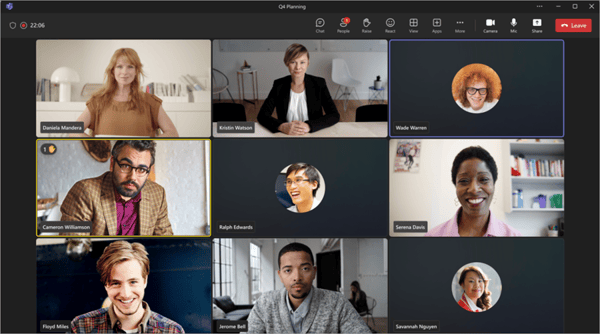
What I noticed when testing Teams in a remote context is something that doesn’t show up in feature lists. The tool creates a natural rhythm between quick text conversations and video calls. One minute you’re in a channel thread resolving a question, and 30 seconds later you’re on a call sharing your screen without ever leaving the app or finding a calendar link. That kind of immediacy matters when your team is distributed and can’t walk over to someone’s desk.
What does Microsoft Teams’ free plan include?
- Free forever: group meetings up to 60 minutes, 100 participants
- Unlimited 1:1 meetings with no time limit
- Persistent channels, chat threads, and @mentions
- 5GB cloud storage per user
- Screen sharing and background blur on the free plan
- Desktop and mobile apps
When should you upgrade Microsoft Teams free plan?
The free plan covers most daily remote work without pressure. The upgrade triggers are meeting recordings for async distribution, sessions that consistently run longer than an hour, or needing more than 5GB of storage. Microsoft 365 Business Basic at $6/user/month unlocks all of that and adds Outlook and SharePoint.
Where Microsoft Teams genuinely stands out:
- The chat-to-video transition is the smoothest on this list. Going from a message to a live screen share happens in one click without any scheduling overhead, a feature G2 reviewers in remote roles consistently highlight as making their workday feel less fragmented.
- The mobile app gets specific praise in G2 reviews for feeling complete rather than stripped down. For remote team members who need to stay connected while traveling or away from their desk, this matters more than it sounds.
What G2 users like about Microsoft Teams:
“You can chat, join video meetings, share files, and collaborate on documents without having to switch between apps. That kind of integration, especially with tools like Outlook, Word, Excel, and SharePoint, makes teamwork feel a lot more streamlined and connected. It’s also a strong option for remote and hybrid work. Features like meeting recordings, screen sharing, and channels make it easier to keep everyone aligned, even when people aren’t in the same location.”
– Microsoft Teams Review, Lokesh G.
Is Microsoft Teams right for your remote team?
Best for: Remote and hybrid teams that want chat, video, and file sharing in one workspace without needing a separate Office subscription.
Not ideal for: Teams on older or lower-spec hardware, or those that want a simpler, more focused tool without the full channel and notification infrastructure.
What I dislike about Microsoft Teams:
- Teams is noticeably resource-heavy. On mid-range machines or older laptops, running a large meeting with screen sharing active can slow everything else down. That said, for smaller daily standups and 1:1 calls, the performance holds up fine.
- Notifications across multiple channels can become genuinely overwhelming. Without deliberate management, the tool turns into noise. Most remote teams find that spending 10 minutes configuring notification settings on day one makes a significant difference.
What G2 users dislike about Microsoft Teams:
“While Teams has improved over time, it can still be quite resource-heavy, especially during video calls or when multiple apps are running simultaneously. Performance on lower-end devices could be further optimized. The interface, although cleaner than before, can still feel cluttered when managing many teams and channels. Simplifying navigation and offering better customization options would make it more user-friendly.”
– Microsoft Teams Review, Abhi J.
Running a Microsoft-first remote setup? Explore the best UCaaS platforms for unified voice, video, and messaging at scale.
4. RingEX: Best for teams needing voice, video, and SMS unified
RingEX (RingCentral) comes at this from a different direction than every other tool on this list. RingCentral built its reputation as a business phone system first, and the video product grew out of that infrastructure. For this guide, we’re looking at RingCentral Video Pro, the free standalone video plan that sits within the broader RingCentral ecosystem, and for a free tool, it punches well above its weight.
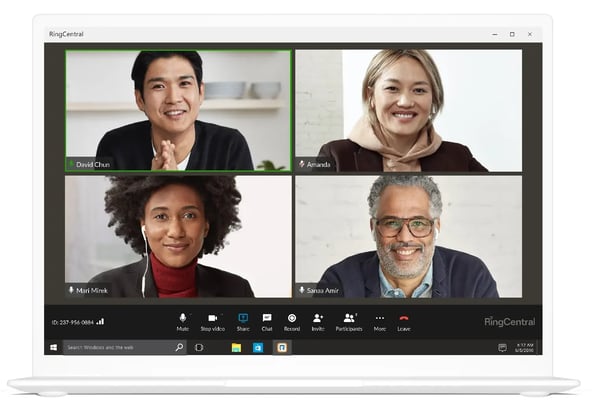
For a free video tool, the quality feels grounded. Calls are stable, the browser-based join experience is clean, and the interface doesn’t get in the way. Where it starts to get interesting is when your team outgrows basic video and needs phone calls and SMS in the same workflow; that transition is built in rather than bolted on.
What does RingEX’s free plan include?
- Free forever (RingCentral Video Pro): 50-minute meetings, up to 100 participants
- End-to-end encryption included on the free plan
- Screen sharing, virtual backgrounds, and in-meeting chat
- Browser-based joining, no download required
- Mobile and desktop apps
When should you upgrade your RingEX free plan?
The free video plan covers regular remote meeting needs well. The upgrade makes sense when your team needs phone calls to external numbers, SMS, or team messaging beyond what the free tier offers. It’s worth noting that while RingCentral Video Pro is the free standalone video product, the broader RingEX platform, which includes the full unified communications suite, starts at $30/user/month. If video is all you need, the free plan holds up on its own for a long time.
Where RingEX genuinely stands out:
- The free video plan is backed by enterprise-grade infrastructure. Reviewers consistently note call stability and security as strengths, which makes sense given RingCentral’s background in business communications.
- CRM integrations with Salesforce and HubSpot are more mature than most tools on this list. Reviewers in sales and support roles call these out as genuinely useful rather than surface-level checkboxes.
What G2 users like about RingEX:
“What I appreciate most about RingEX is how it seamlessly bridges the gap for international business. It provides a fully functional virtual number with all the essential features, SMS, voicemail, and even fax, that work exactly like a physical line. The AI-powered tools, specifically the automated call recordings and summaries, have been incredibly helpful for staying organized.”
– RingEX Review, Youcef A.
Is RingEx right for your remote team?
Best for: Remote teams that want a free, reliable video plan today with a clear upgrade path into a full business communications platform when they need it.
Not ideal for: Teams looking for an all-in-one workspace with persistent chat and document collaboration built in alongside video.
What I dislike about RingEX:
- The free plan is video-only. Teams expecting the full RingCentral communications suite on a free tier will need to upgrade, though the video plan alone is solid enough for most remote meeting needs.
- The broader platform can feel complex to navigate for teams that only need video. For pure video conferencing, simpler tools exist, but the depth here pays off as your communication needs grow.
What G2 users dislike about RingEX:
“One thing I dislike about RingEX is that sometimes the app can lag or experience minor call quality issues, especially during peak hours or when the internet connection is unstable. The interface can also feel a bit cluttered at times, making it slightly harder to quickly find certain settings or features. While it’s generally reliable, occasional sync delays between desktop and mobile can interrupt workflow.”
– RingEX Review, Remi K.
Need a full business phone system alongside video? Explore the best VoIP providers for remote and distributed teams on G2.
5. Webex Suite: Best for security-focused enterprise teams
Cisco’s Webex Suite has over 18,000 G2 reviews at 4.2 stars, and there’s a specific type of organization where it shows up as the obvious answer: enterprises in regulated industries, including financial services, healthcare, and government, where security and compliance requirements aren’t flexible.
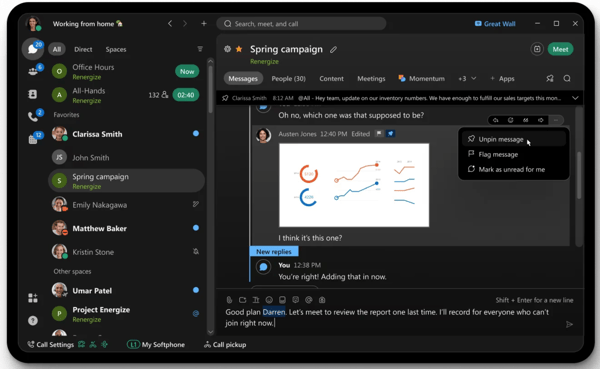
When I tested Webex, the thing that immediately stood out on the free plan was the noise cancellation. Most tools make you pay for this. Webex includes AI-powered noise suppression at no cost, which is a genuinely practical feature for remote team members dialing in from kitchens, co-working spaces, or open-plan home offices. I ran calls in deliberately noisy environments and the noise suppression noticeably outperformed what I saw on Zoom’s free tier.
What does Webex Suite’s free plan include?
- Free forever: 40-minute group meetings, 100 participants
- Unlimited 1:1 meetings with no time limit
- AI noise cancellation is included on the free plan, no upgrade is required
- Screen sharing, collaborative whiteboarding, in-meeting chat
- End-to-end encryption across all tiers
- Meeting recordings on paid plans only
When should you upgrade your Webex Suite free plan?
The free plan is legitimately useful for regular team meetings, especially given the noise cancellation. The upgrade triggers are recording for async distribution, meetings that run longer than 40 minutes, and advanced admin and compliance controls for regulated environments. Paid plans start at $14.50/user/month.
Where Webex genuinely stands out:
- Noise cancellation on the free plan was the first thing I noticed during testing. I ran calls from deliberately noisy environments and it held up better than any other free tier on this list. For remote team members dialing in from home or co-working spaces, this alone makes it worth considering.
- Security and compliance credentials are the strongest here. Reviewers in financial services, healthcare, and enterprise IT specifically choose Webex for this reason, not as a nice-to-have but as a hard requirement.
What G2 users like about Webex Suite:
“We use Webex Suite in Infosys for meetings, calls, and team messaging, and it works reliably for daily communication. The audio and video quality are consistent, and features like screen sharing, recording, and chat make collaboration easier during meetings. It’s especially helpful for connecting with team members across locations and keeping communication organized in one place.”
– Webex Suite Review, Anbuselvam S.
Is Webex Suite right for your remote team?
Best for: Enterprise remote teams in regulated industries where security, encryption, and compliance are non-negotiable requirements.
Not ideal for: Small teams or startups looking for a quick-to-onboard tool, where the interface complexity will show up as a real cost early on.
What I dislike about Webex Suite:
- The interface has a steeper learning curve than Zoom or Teams. Navigating between meetings, messaging, and settings takes more clicks than it should, though once familiar, the layout is logical and consistent.
- Performance can slow on lower-bandwidth connections or when switching between features mid-call. For teams in stable network environments, this rarely surfaces as a real issue.
What G2 users dislike about Webex Suite:
“It gets difficult to engage with people outside our team since most of them rely on the mainstream tools. It has a steep learning curve; not most people can get around it the very first time, and it’s heavy on resource consumption.”
– Webex Suite Review, Verified User
6. Zoom Workplace: Best for external collaboration and AI meeting summaries
No other tool on this list comes close to Zoom Workplace‘s scale of adoption, and for remote teams, that familiarity has a practical value that doesn’t show up in feature comparisons.
When I invite someone external to a Zoom call, a contractor, a client, or a new hire still setting up their laptop, there’s essentially no join friction. They know Zoom. They’ve probably already used it. That pre-existing familiarity reduces a category of small, repeated support overhead that adds up across a remote team’s week.
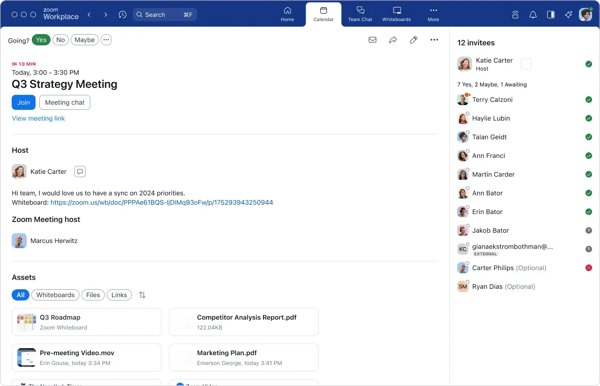
The AI Companion is the thing that’s changed most about Zoom recently. I used it across several calls, and the meeting summaries it produces automatically after the call ends are genuinely useful. Not perfect, but accurate enough that team members who missed a call could catch up on key decisions and action items without sitting through a recording. For remote teams managing async communication across time zones, this is a real productivity lever.
What does Zoom Workplace’s free plan include?
- Free forever: 40-minute group meetings, 100 participants
- Unlimited 1:1 meetings with no time limit
- Screen sharing, whiteboard, and in-meeting chat
- AI Companion for meeting summaries, available with limited use on the free plan
- Virtual backgrounds, noise suppression, touch-up filters
- 1,500+ app integrations in the Zoom marketplace
When should you upgrade your Zoom Workplace free plan?
The 40-minute limit is the clearest decision point. If your team’s meetings regularly hit it, Zoom Pro at $13.33/user/month removes it, adds cloud recording, and unlocks the full AI Companion. The cost is easy to justify if meeting length is the sticking point on the free tier.
Where Zoom genuinely stands out:
- The AI Companion’s post-meeting summaries are the most practically useful AI feature I tested on this list. For remote teams where not everyone can attend every call, having auto-generated action items keeps everyone aligned without someone manually taking notes.
- The external join experience is the easiest on this list. Browser-based, no account required, and universally recognized. If your team regularly brings in external collaborators, Zoom removes more friction than anything else here.
What G2 users like about Zoom Workplace:
“Zoom Workplace makes it easy to run meetings, collaborate with teammates, and communicate with clients fro