


When it comes to PowerPoint presentation design, there’s no shortage of avenues you can take.

![→ Free Download: 10 PowerPoint Presentation Templates [Access Now]](https://no-cache.hubspot.com/cta/default/53/2d0b5298-2daa-4812-b2d4-fa65cd354a8e.png)
While all that choice — colors, formats, visuals, fonts — can feel liberating, it‘s important that you’re careful in your selection as not all design combinations add up to success.
In this blog post, I’m sharing some of my favorite PowerPoint tips and templates to help you nail your next presentation.
Table of Contents
What makes a good PowerPoint presentation?
In my opinion, a great PowerPoint presentation gets the point across succinctly while using a design that doesn’t detract from it.
Here are some of the elements I like to keep in mind when I’m building my own.
1. Minimal Animations and Transitions
Believe it or not, animations and transitions can take away from your PowerPoint presentation. Why? Well, they distract from the content you worked so hard on.
A good PowerPoint presentation keeps the focus on your argument by keeping animations and transitions to a minimum. I suggest using them tastefully and sparingly to emphasize a point or bring attention to a certain part of an image.
2. Cohesive Color Palette
I like to refresh my memory on color theory when creating a new PowerPoint presentation.
A cohesive color palette uses complementary and analogous colors to draw the audience’s attention and help emphasize certain aspects at the right time.
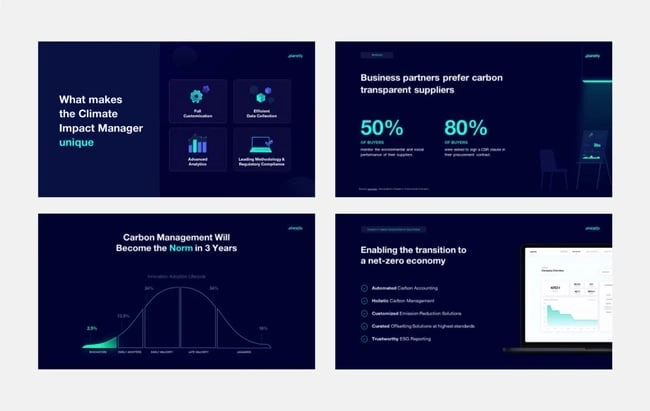
3. Contextualized Visuals
An image does speak more than words. And it’s been proven that the human brain is wired to process visuals much faster than words.
I take advantage of that by including graphs, photos, and illustrations to help me build upon my point.

Pro tip: When you include visuals, make sure you contextualize them by explaining verbally why the image is there. That way, you don’t risk confusing your audience.
PowerPoint Design Ideas
It‘s impossible for me to tell you the specific design ideas you should go after in your next PowerPoint, because, well, I don’t know what the goal of your presentation is.
Luckily, new versions of PowerPoint actually suggest ideas for you based on the content you’re presenting. This can help you keep up with the latest trends in presentation design.
PowerPoint is filled with interesting boilerplate designs you can start with. To find these suggestions, open PowerPoint and click the “Design” tab in your top navigation bar. Then, on the far right side, you’ll see the following choices:
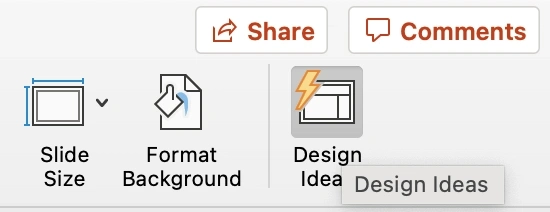
Click the “Design Ideas” option under this Design tab, as shown in the screenshot above. This icon will reveal a vertical list of interesting slide layouts based on what your slides already have on them.
Don’t have any content on your slides yet? You can easily shuffle this vertical list of slide design ideas by clicking various themes inside the color carousel to the far left of the Design Ideas icon, as shown below:

As you browse and choose from the themes shown above, the Design Ideas pane to the right will interpret them and come up with layouts.
Here are 15 PowerPoint design ideas I love:
1. Use neon colors.

Mesmerize your audience by adding some neon colors and effects to your PowerPoint slides. Adding pops of color to your presentation will create visual interest and keep your audience engaged.
What I like: Neon will add personality and depth to your presentation and will help the information you’re providing stand out and be more memorable.
2. Use an interesting background image.

Do you have some interesting nature photos from a recent road trip? Or maybe a holiday passed, and you have gorgeous photos to share? If so, consider incorporating them into your PowerPoint.
What I like: PowerPoints don’t have to be stuffy and boring. They can be fun and a unique or interesting background will enhance the experience of your presentation.
3. Or be minimal.
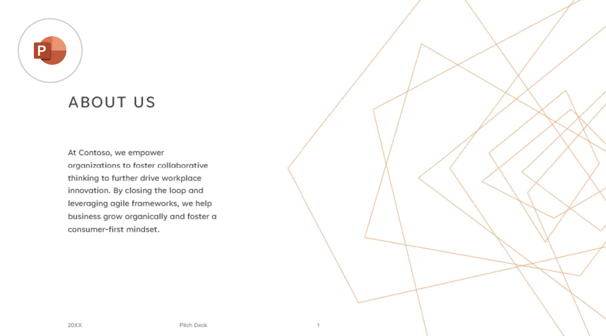
Have you ever heard of K.I.S.S.? Not the band! I mean, Keep It Simple, Sweetheart. If you’re worried too many colors or visuals could take attention away from the message of your presentation, consider going minimal.
Pro tip: Stick to no more than three colors if you’re going for a minimalist design in your slides.
4. Incorporate illustrations.

Illustrations are a great way to highlight or break down a point in your presentation. They can also add a bit of whimsy and fun to keep viewers engaged.
5. Use all caps.
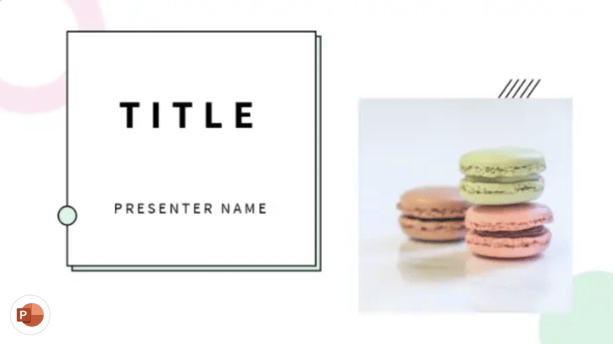
Using all capital letters can draw your audience’s eyes to where you need them, helping cement your message in their minds. It can also just be aesthetically pleasing.
Pro tip: If you choose to use all capital letters, use varying fonts so readers can tell which information is important and which are supporting details.
6. Alternate slide layouts
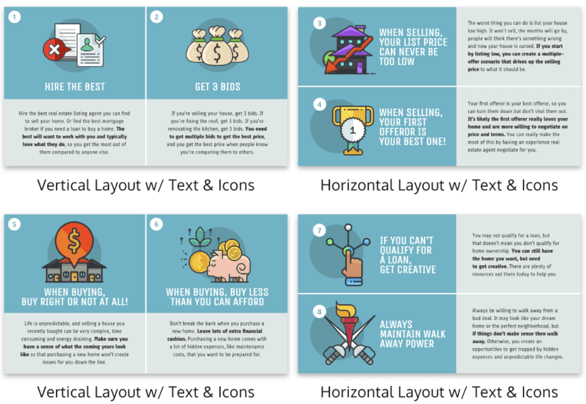
You don’t want readers to grow bored with your presentation. So, to retain visual interest, use alternating slide layouts. The example above shows PowerPoint slides alternating between vertical and horizontal layouts.
This keeps things interesting and ensures your presentation isn’t monotonous.
7. Inject a little humor.
Humor is a great way to drive a point home and help people remember the information you’re presenting. People remember a good joke, so if you have a funny pun to connect to a concept in a presentation, why not use it in a slide?
Pro tip: Remember you’re in a professional setting, so keep your jokes appropriate. If you’re worried a joke can get you a meeting with HR, then keep it to yourself.
8. Use duotones.

Duotones (or gradience) can take the aesthetic of your PowerPoint to new levels. They can provide a calming energy to your presentation and make viewers feel relaxed and eager to stay focused.
9. Include printed materials.
Let’s say you have a PowerPoint you’re proud of, but you want to go that extra mile to ensure your audience understands the material. A great way to do this would be to supplement your presentation with printed materials, as such as:
- Pamphlets
- Worksheets
- Printed slides
- Short quizzes on the material
10. Keep it to one chart or graph per slide.
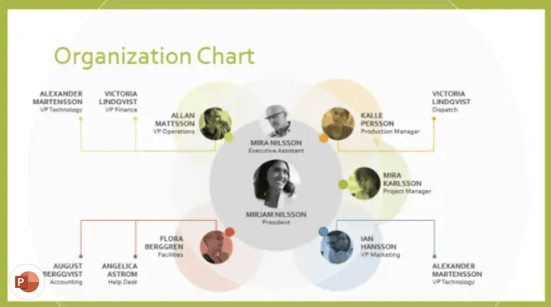
This is both a design example and a warning. Graphs and charts are an excellent way of displaying quantitative data in a digestible format.
However, you should have no more than one graph or chart per slide so your presentation doesn’t get too confusing or muddled.
11. Use a large font.
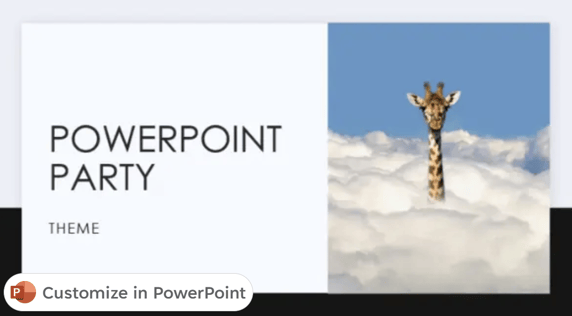
Just like capital letters, a large font will help your shift your audience’s focus to key points in your presentation.
Pro tip: You can combine large fonts and capital letters to boost its effectiveness.
12. Include videos.
Embedding a video into your PowerPoint can help you expand on a point or effectively break down a complex topic. You can either embed a video from a platform like YouTube or TikTok or use HubSpot’s Clip Creator to make your own.
Pro tip: Try to keep videos short, like, under a minute, and don’t use more than one or two.
13. Use GIFs.
GIFs add more visual interest, and they can be a great way to add humor or personal touch to your PowerPoint presentation.
14. Use contrasting colors when comparing two ideas or arguments.
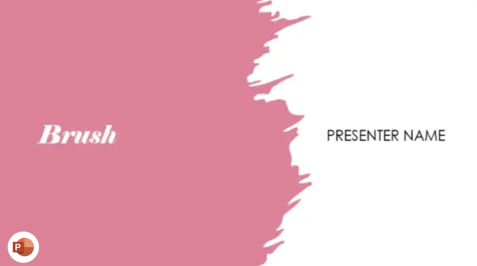

Contrasting colors can convey the difference between two opposing thoughts or arguments in a way that is visually appealing.
15. Add a touch of nature.

If you want your presentation to exude a calming energy to your audience, including images of trees, flowers, and natural landscapes can do the trick.
PowerPoint Theme Ideas
Atlas (Theme)
Covering a more creative subject for a younger or more energetic audience? I’d recommend using the cover slide design below. Its vibrant red color blocks and fun lines will appeal to your audience.
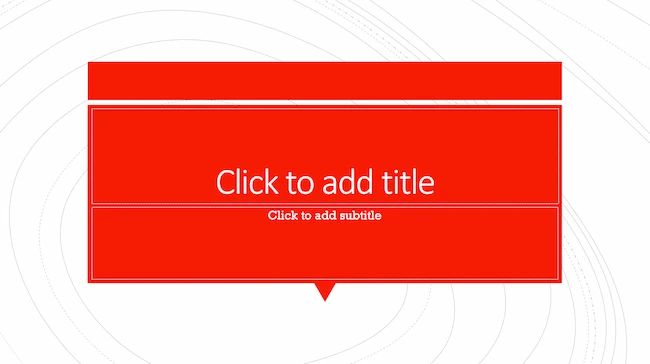
PowerPoint Ideas for This Theme:
- Use this simple theme to focus on key elements of your presentation.
- Customize the colors to match your brand or try contrasting colors for text and background for readability and visual appeal.
Madison (Theme)
This design doesn’t have the intensity of the first slide on this list. But I like how it has a simple structure that can make any PowerPoint presentation a good slideshow.
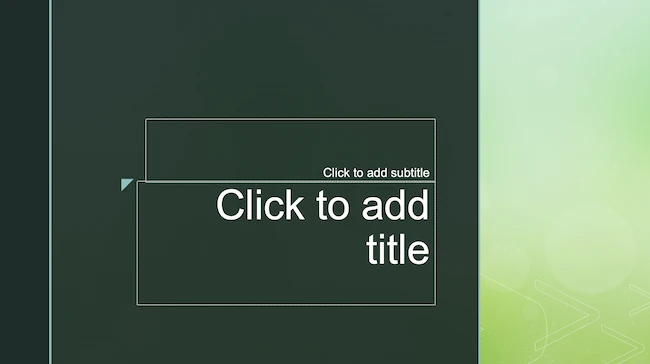
PowerPoint Ideas for This Theme:
- Add unique and on-brand fonts, textures, and borders to this theme for classic and cool presentations.
- Add an image collage or textured photograph to create distinct and consistent PowerPoints for your brand.
Parcel (Theme)
Parcel offers a variety of slide layouts with geometric shapes. Add these shapes to your slides to create interesting visual elements. I’ve used them for backgrounds, content, and decoration.

PowerPoint Ideas for This Theme:
- Add a color-blocked background for a fun but relaxing tone for your audience, or use color blocks to highlight sections of text.
- Experiment with this PowerPoint theme’s contemporary fonts for cool slides that feel professional.
- Add a chart or graph to visualize data in your presentation.
Crop (Theme)
This is one of my favorite PowerPoint design ideas because it uses graphic elements such as lines and bars to give structure, contrast, and modern flair to your slides.

PowerPoint Ideas for This Theme:
- Make the most of this theme with high-quality images. Simple compositions with lots of negative space or bold focal points can help your slide’s design pop.
- Use this theme‘s grid layout to create clean, organized layouts, even if design isn’t your strength.
Badge (Theme)
I’m particularly fond of this PowerPoint design style.
By using lines and contrasting elements — like a burst, as shown below — you add depth to your slides. This can help your content capture and hold your audience’s attention more easily.

PowerPoint Ideas for This Theme:
- Add badges to highlight key points and sections, or to showcase achievements.
- Add original illustrations to your presentation’s design. You might think you need to use professional illustrations for this. But adding quick doodles or sketches to this theme can help you create authentic and creative PowerPoint presentations.
If you’re not loving my curated list of built-in PowerPoint design themes, no hard feelings. You can always download a free PowerPoint template and input your content onto pre-made slide styles.
Let’s take a look at the best ones you can download below.
Creative PowerPoint (Template)
I like how this presentation template uses bright colors and plenty of white space to convey a modern but fun design. Organic shapes and geometric lines and patterns add an extra visual element (and personality) to the slides. Get it here.

Download These Templates for Free
Design Ideas for This Template:
- Create custom graphics or textures and layer them on top of this template’s image layers to create beautiful slides for your brand. Be sure to use consistent styles and colors for a cohesive design.
- Get inspired by the clear visual hierarchy of this template as you customize it. Use font sizes, color, and graphics to highlight each section. This can help you make sure that important information stands out from supporting details.
Professional Style PowerPoint (Template)
These PowerPoint slides use more neutral colors and fonts to create a calm and elegant vibe. It also highlights quality images to communicate key points which is great in my opinion. Get it here.

Download These Templates for Free
Design Ideas for This Template:
- This template works best with subtle pastels and muted colors. Try non-traditional color combos, like peach and mint green, for a unique PowerPoint presentation.
- Images and data visualizations will stand out in this template, so make sure you have excellent photos and illustrations to showcase.
Data PowerPoint (Template)
This template uses a rounded font to draw sharp contrast with the lines and graphs that will populate the presentation. If you want to offer engaging visuals with number-crunching content, I think the slide design ideas in this template are a great choice. Get it here.

Download These Templates for Free
Design Ideas for This Template:
- Try an on-brand duotone color scheme or use a dark background with this template to give your slides a simple but trendy look.
- Use the built-in icon library or import custom icons into your slides. You can use icons to represent important topics or concepts for easier skimming. This visual feature can also make your slides more exciting.
Simple PowerPoint (Template)
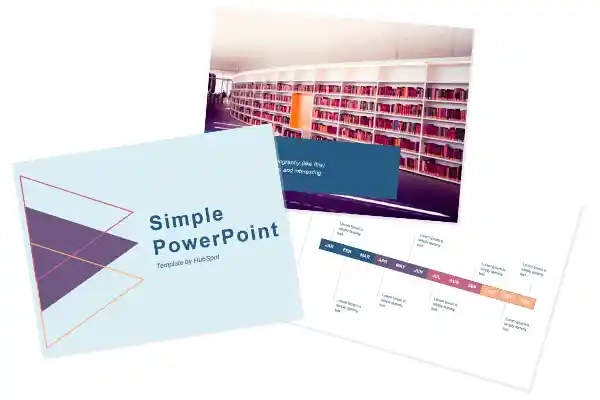
By pairing vibrant colors with pale ones, this PowerPoint gives an understated feel. I’d go with this one if you want to draw attention to your content while still being visually engaging. Get it here.
Download These Templates for Free
Design Ideas for This Template:
- Combine multiple images with vertical or horizontal formatting in this template for dynamic and beautiful slides.
- Play with contrasting typography styles. Try combining a bold heading font with a simple body font. This can help you draw attention to important information and make your PowerPoint design easy to read.
Best PowerPoint Presentation Slides
- Business Presentation Slides
- Business Plan Template
- Company Profile Template
- Marketing Plan Template
- Project Status Report Template
- Annual Report Template
- Product Launch Template
- Visual Brand Identity Template
- Infographic Template
- Financial Report Template
- Industry Trends Template
Want some inspo as you create your next presentation? Look no further — whether you’re projecting your slides in person or sharing them online, I pulled together some examples that will help you impress your audience.
Business Presentation Slides
Business presentations can be intense. This set of PowerPoint slides could include a wide range of important information such as:
- Company history
- Mission and vision
- Business goals
- Market analysis
- Competitive landscape
- Growth strategies
So, business presentations can be overwhelming for an audience to consume. This makes great presentation design essential.
Download These Templates for Free
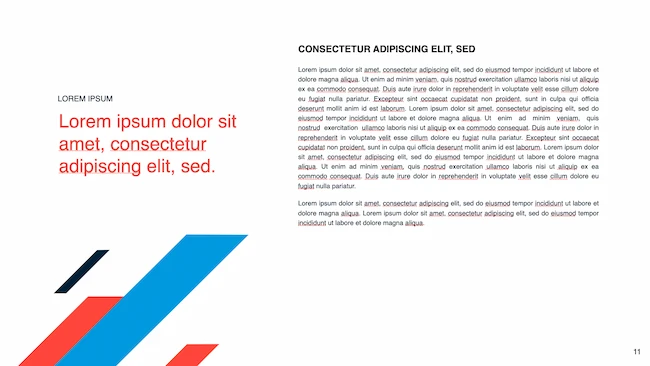
The Modern PowerPoint Template featured here is sleek and modern. But it’s also fun and appealing, with a streamlined design that leaves a lasting impression.
Pro tip: I like to use headers to communicate top priorities in a business presentation. Then, you can use body copy and images to add details that will support and enhance your PowerPoint.
Business Plan Template
A well-crafted business plan is vital to any business, whether it’s a startup, scale-up, or established company. A business plan can be just as complex as a business presentation, but it also needs to entice investors and partners.

Download These Templates for Free
I think this Retro PowerPoint Template is fun, interesting, and unique. It also has easy-to-read text and plenty of space for useful images and charts.
Company Profile Template
Like your business plan, your company profile is key to developing your business. But your company profile is more than a peek at your biz plan. It’s a chance to highlight your team, culture and values, major clients, and your company history.

Download These Templates for Free
When done right, this presentation can show your competitive advantage and build trust for your brand. Download the company profile template featured above and five more great company profile templates today.
Marketing Plan Template
The right marketing plan presentation can decide whether your team will have the budget and resources it needs to meet your goals. That’s why marketing plans need great presentation design.
After using a marketing plan template to write out your completed plan, use an eye-catching presentation template to share your ideas.

Download These Templates for Free
This Typographic PowerPoint Template will make it easy to use custom graphics and typography that will make your brand presentation shine.
Pro tip: Use different charts and graphs to highlight the data you used while making marketing plan decisions. This will reinforce the logic of your ideas while adding more visual interest.
Project Status Report Template
Project status reports keep stakeholders informed about project milestones, timelines, risks, and budget. Try this template to add transparency, manage expectations, and stay proactive with your project presentations.

Annual Report Template
Annual reports offer a company’s performance summary, achievements, finances, and more. This means that an organized layout is essential to showcase growth and wins for the year.
This presentation needs to be well-designed so that it inspires the trust and confidence of employees, shareholders, and members of the community.

Try this annual report template if you want to create a PDF or this template for PowerPoint.
Pro tip: Choose the right presentation software for your presentation. While most presentation design is created in PowerPoint or Keynote, sometimes it’s a good idea to try out new tools.
Product Launch Template
Product launch is an exciting time at any company. A great PowerPoint presentation for product release will include:
- Product features
- Benefits
- Target audience
- Pricing
- Marketing strategy
- Launch timeline
Besides generating excitement, this deck keeps stakeholders consistent and connected. To me, it’s central to driving customer interest, engagement, and sales.

Download These Templates for Free
The Doodle Template is a great choice for