


In my half-decade as an SEO content marketer, I’ve spent a good chunk of my time either testing or working with any number of free website builders: CMS Hub, WordPress.com, WordPress.org, Wix, Weebly, Webflow, you name it.
These website builder tools have been essential for me to publish content, either for my current employer or for my side projects. I’ve therefore been able to get well acquainted with their capabilities over time.

But if you’re new to the website builder game, you might be confused about where to start. What is the best choice if you don’t know how to code? And which is budget-friendly? I’m going to cover that and more. First, let’s go over the basics.
Table of Contents
What is a website builder?
A website builder is a web-based tool that allows you to create and publish a website online, with various features depending on the provider. Free website builders typically include hosting, branded domain names, visual web page editors, and themes and templates.
If you’ve been considering building a website for some time, then you’re likely familiar with your options. The most common method is buying a web hosting plan and a domain name, and then installing your preferred CMS on your website, such as WordPress.org or Joomla.
From my experience, the problem with this option is that when you install WordPress or Joomla out of the box, it doesn’t come with a handbook or page content. With this method, my websites started as blank pages, which meant that unless I hired a developer or spent a lot of time building it, the result would look unfinished and unprofessional.
When testing out free website builders such as CMS Hub or WordPress.com, I found that I could shorten my workflow considerably. For instance, the themes came with placeholder text and images making my website feel more complete than if I’d started with an out-of-the-box CMS.
How I Tested the Best Website Builders
When trying to find the best website builders for this post, I considered workflow to be the most important factor. Is it easy to set up a website from the start, or do you need extensive time and experience to do it?
Chances are, if you’re looking for a free website builder, you’d like the set up to be painless and seamless. For that reason, I chose tools that had:
- The standard required features: placeholder content, blogging tools, SEO tools, mobile-optimized and responsive, and templates and themes
- A fully free option with strong capabilities out of the box — no need to upgrade at every turn
- A relatively easy workflow from signup to completion
With that, let’s go over the absolute best website builders I’ve used and tested before.
Best Free Website Builders
- Best for Growing Businesses: HubSpot
- Best for Beginners: WordPress.com
- Best for Ecommerce Websites: Weebly
- Best for Web Developers: Webflow
- Best for Local Business Owners: Wix
- Best for No-Fuss, Short-Term Websites: Google Sites
- Best for Solopreneurs: Dorik
1. Best Free Website Builder for Growing Businesses: HubSpot Drag-and-Drop Website Builder
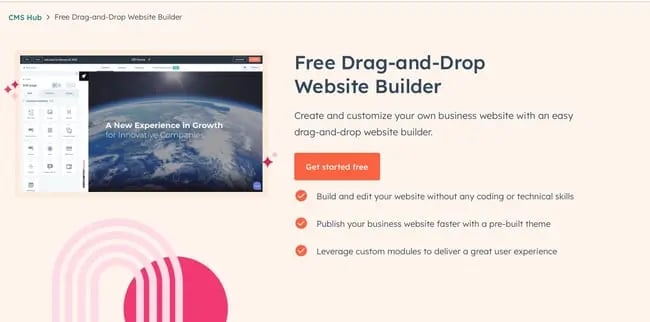
Get started with HubSpot’s free drag-and-drop builder!
I use HubSpot’s drag-and-drop website builder (inside CMS Hub) as a content marketer on the HubSpot blog team and have used it for two of my side website projects.
Hands down, this is one of the best website builders available for free — not only because of the ease of signing up, but also because it includes built-in tools for a handful of other functions, such as marketing and sales.
The website creation process is so easy, anyone could do it — mainly because the setup dashboard includes an interactive checklist for you to build your site step-by-step.
I loved this signup workflow when I was building a few side projects. It’s one of the best in terms of user- and beginner-friendliness.
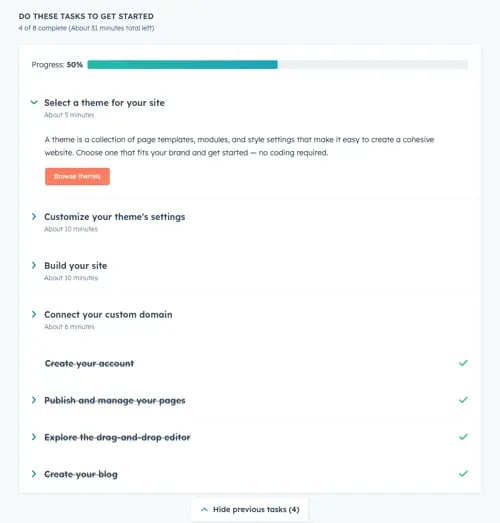
Once you install a free theme, you start customizing the site right away with your preferred colors and fonts.
The bar at the top of the page shows you where you are on the setup workflow, which is supremely useful for skipping between tasks. Note that this is only active during the onboarding phase.
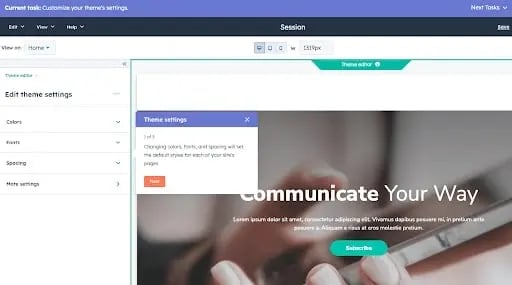
After you’re finished, you’re taken right back to the user guide, where you can begin exploring HubSpot’s suite of tools for business. You also have the option of connecting a custom domain, which is free.
All you have to do is buy the domain through a domain registrar such as GoDaddy, and then go through the domain connection process.
This might be the most difficult part of signup due to the verification step. But you can always move forward with a free HubSpot domain name, which looks like this:
[randomly generated token].hs-sites.com
It’s not beautiful and is definitely my least favorite feature, so I’d recommend moving forward with a custom-branded domain.
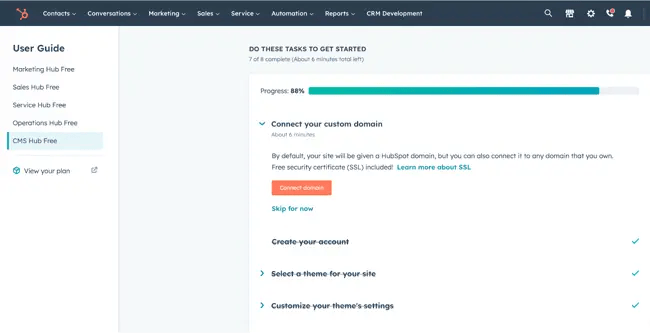
Now, it’s time to edit our site. The website editing process is a little more compartmentalized than in other tools.
Others might take you to the page editor right away, but HubSpot takes you to the entirety of its suite dashboard, allowing you to access its marketing, sales, and service tools in addition to its website tools (located under the “Marketing” menu).
To access it, simply go to Marketing > Website > Website Pages.
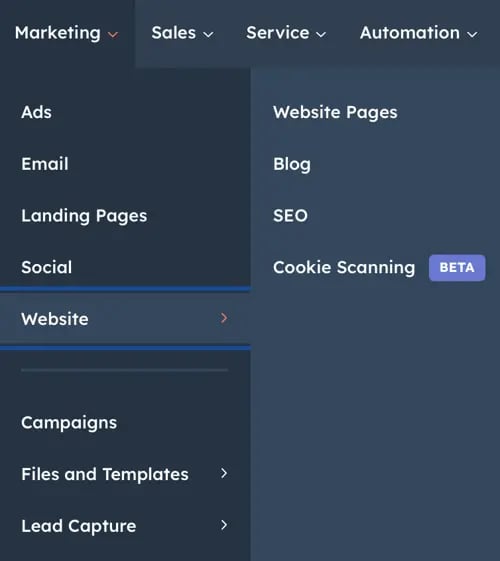
Then, click Create. Something I loved here was the option to create either a website page or a landing page. This makes HubSpot a great fit if you’re using your site to drive leads in any capacity.
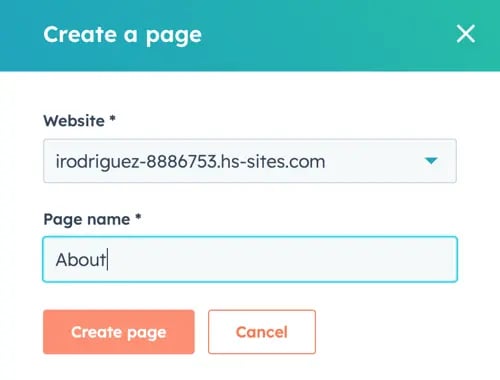
After you create your first page, the process is then easy and familiar. You can choose a template, but be sure to install a theme first (which is part of the setup workflow).
The free themes and templates are very good, and the HubSpot marketplace offers plenty of options.
That said, most themes are business-oriented; if you’d like to build an artsy or eclectic website, other website builders include more “fun” designs.
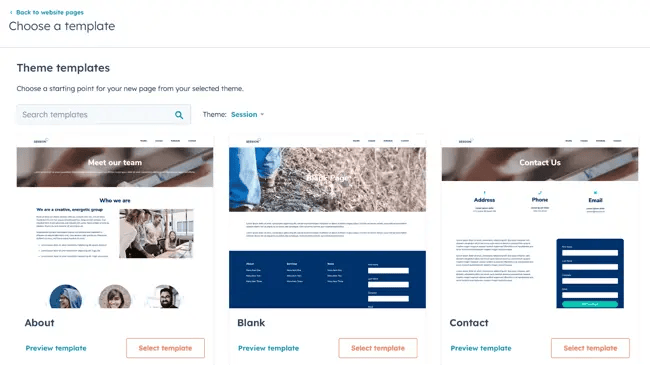
One thing I loved was that you can switch between themes and mix and match them. Other tools don’t allow you to use different themes on the same site, so CMS Hub is a great choice if you’re concerned about limited design options.
Once you’ve chosen your template, you’re ready to begin editing. CMS Hub pulls in demo content so you can see what your page will look like when you’re finished.
I can’t tell you the amount of times I’ve used a template on WordPress, only to get a fully blank page with the “Hello World!” heading. The demo content is a definite plus.
Finally, the drag-and-drop page builder is nothing to scoff at. The page builder works based on modules, which you drag onto the page.
It then creates a live element you can edit directly, allowing you to see your changes in real-time, instead of to having to open a preview tab.
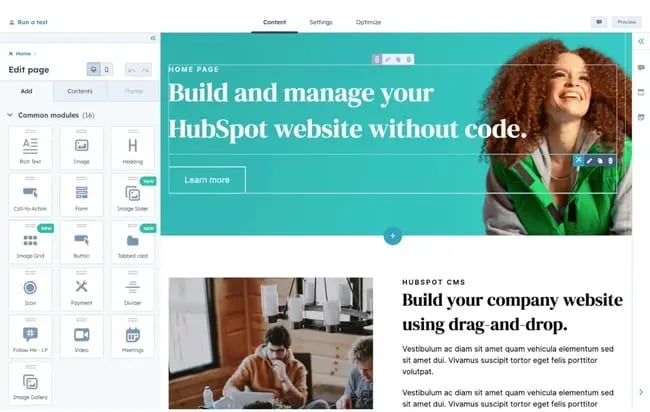
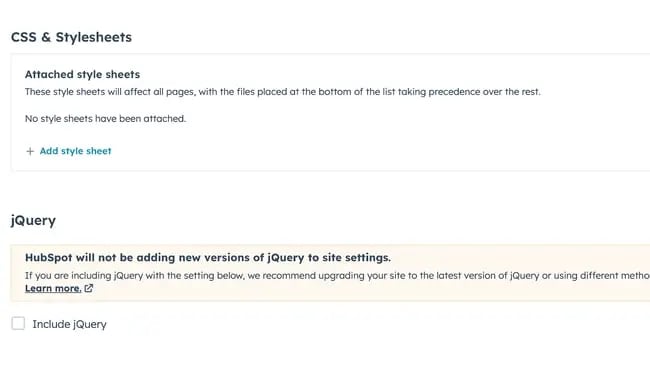
Another thing I loved is that it’s easy enough to use for a beginner but also gives developers the ability to create advanced custom modules and tinker with the site’s source code.
For instance, you can upload a custom CSS stylesheet in your settings.
Here’s the impressive part: For all of its simplicity and user-friendliness, HubSpot’s website builder is more than equipped to handle business-level demands, with marketing, sales, and service software already built-in.
Most of those are free to use at the basic tier, allowing you to send an email a month, for example, and use HubSpot CRM without paying a single cent.
Of course, it comes with everything you need to build a website, including content management system (CMS) tools, themes and templates, security features, and a built-in content delivery network (CDN) to ensure pages load quickly.
Overall, I can’t recommend this tool enough for any type of business that wants more than a basic website builder.
Core Features
Advantages
- Includes web hosting
- Personalization (thanks to HubSpot’s CRM)
- Security
- Responsive themes and templates
Disadvantages
- The free version displays HubSpot’s branding
- If you want to build custom modules and templates, you’ll need to learn HuBL, HubSpot’s templating language
Pricing
A limited free plan is available. The premium CMS plans with additional features start at $23 a month when billed annually.
Brands Using HubSpot
2. Best Free Website Builder for Beginners: WordPress.com
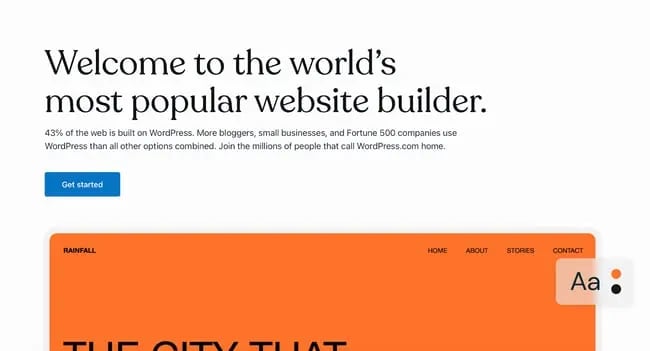
I can’t count the number of WordPress.com sites I’ve built for fun. It’s easy to sign up, it’s free, and its included domain name is not as ugly (and more recognizable) than others on this list. “Brandname.wordpress.com” has a nice ring to it, right?
First, though, I’d like to point out that WordPress.com is different from WordPress.org. WordPress.com is a free, fully-hosted website-building service, whereas WordPress.org is a content management system you can install on your website.
If you’re looking for a simple free website builder, WordPress.com is the way to go. But if you have a little bit of website development knowledge and are willing to learn the ins and outs of WordPress hosting, WordPress.org is a great choice.
For this list, though, I recommend WordPress.com. Why? It’s an all-in-one option that doesn’t require you to buy separate WordPress hosting or test out different WordPress page builders.
It’s not as customizable as WordPress.org, but it’s more than sufficient for beginners, bloggers, and hobbyists. Due to the free tier’s limitations on bandwidth and lack of CDN, business owners should probably consider another tool.
Just like CMS Hub, setting up your website on WordPress.com is very easy. As it guides you through the setup process, WordPress will ask you about your goals and immediately prompt you to choose a free theme for your website.

The themes are modern and mobile-optimized — I was surprised to find that I liked quite a few of the designs. When I’ve used WordPress in the past, I found the themes lackluster, but it seems to have updated its library.
From there, WordPress will take you to an abbreviated checklist that’s similar to HubSpot’s. By the time you’ve picked your theme, you’ve already completed the first three steps.
All you have to do is publish your first blog post, edit the website’s design, and launch your site.
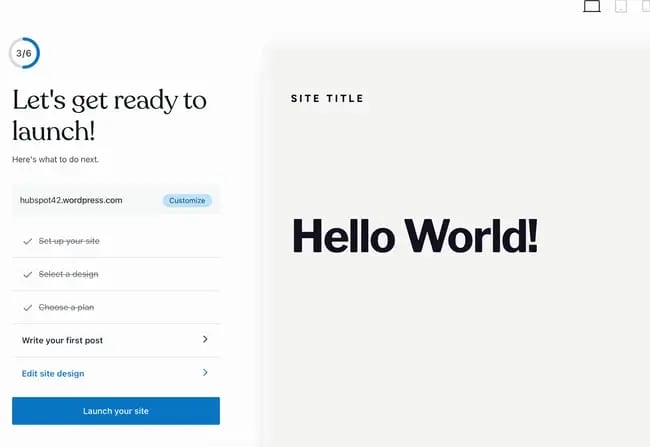
Keep in mind that the site is still in the bare minimum stages — you still need to go into the dashboard and add pages and content.
Unfortunately, on the free version, you can’t install plugins, including the HubSpot WordPress marketing plugin.
Now, let’s talk about the drag-and-drop page builder. WordPress.com’s is much more minimal than other options on this list, and that’s because it primarily includes plain content formats such as paragraphs, headings, lists, and tables.
A drawback for me is that it’s not a live editor, so you can’t see your changes on the page without previewing it on another tab.
If you want live changes and previews, I’d recommend looking into a free website builder with a WYSIWYG editor like Webflow (discussed further below).
That said, its simplicity makes it a great option for beginners just starting to build their first website — no need to fiddle with complicated modules.
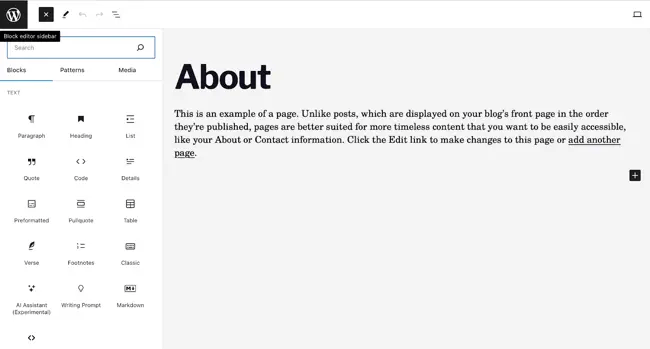 If you are looking for more built-out modules — such as banners, headers, pre-built sections, and more — you’d be better off with a website builder that offers these options on the free tier, such as HubSpot’s CMS Hub or Webflow.
Core Features
- Large collection of themes
- Mobile-friendly and optimized for SEO
- Managed website hosting and security
Advantages
- Customizable
- Flexible
- Mobile and desktop apps available
Disadvantages
- The free version displays ads
- More limitations compared to WordPress.org
- Although intuitive, it’s more difficult to learn than other drag-and-drop builders
Pricing
A limited free plan is available. Premium plans start at $4 a month when billed annually.
Brands Using WordPress.com
3. Best Free Website Builder for Ecommerce Websites: Weebly
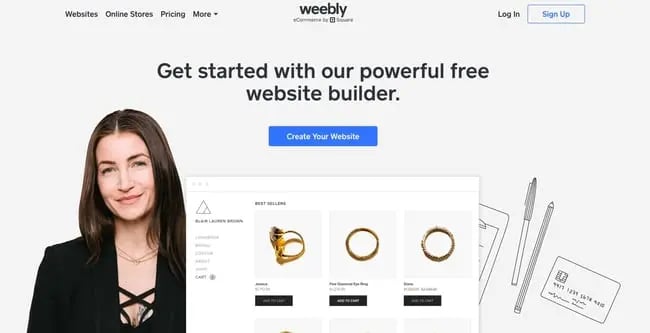
Weebly is a classic website builder that offers a unique bundle of web hosting, domain registration, web design, and built-in ecommerce functions.
This last feature is of note because, with other tools on this list, like WordPress, you’d have to install an ecommerce plugin to start a shop, and even on CMS Hub, you’d need a third-party integration.
On Weebly, you can open a store as part of the sign-up process. Because of this, I highly recommend it if you’d like to build an ecommerce website. This website builder already integrates with Square, a popular online payment gateway.
As part of my test, I created a website for an online store. What I liked about this part of Weebly’s setup is that it’s so simple — you don’t have to go on and on about your goals or the type of website you’d like to build.
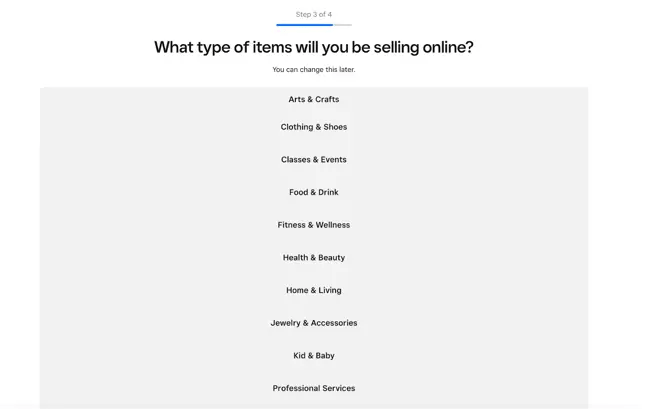
During the next few phases, you’ll choose a name for your store and designate the type of products you’ll be sell. I’m not sure what this step is for — it must be for metadata or for Wix’s tracking purposes, but it’s good to fill out either way.
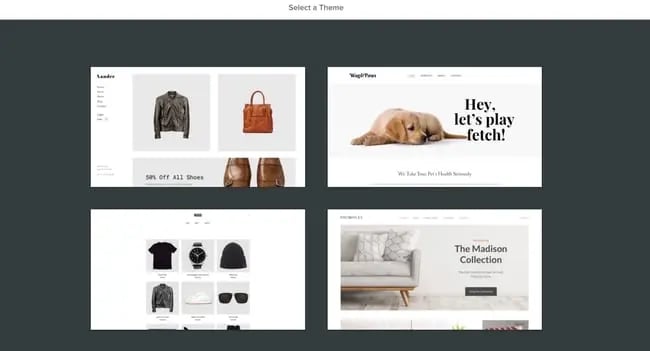
As with CMS Hub and WordPress.com, you’ll be prompted to choose a theme. If you’re setting up an ecommerce website, Weebly will automatically sort the themes so that you get storefront options first — no need to go hunting for them.
I found the theme selection a little less diverse than other options on this list, but the options are reasonable free ecommerce site builder.
While testing this website builder, I also found that it offers a nifty product listing tool that allows you to set up your inventory for sale immediately.
I loved how easy and simple this was, and it’s a great fit for someone who’s trying out ecommerce for the first time.