



Not all “free” e-signature tools are free in the same way, and for a small business, that distinction is the whole game. After testing, I found Box Sign, DocuSign, Dropbox Sign, Foxit eSign, Jotform Sign, PandaDoc, SignNow, and Xodo Sign to be the best free e-signature software for small businesses in 2026. Each one turned out to have a distinct sweet spot worth knowing before you commit.
As someone who’s been a part of a small business, I’ve noticed that there are often a lot of contracts that require e-signatures. If you run or work in one, you’re probably sending the contract, chasing the signature, and filing the signed copy, which can take focus away from very important work. The free e-signature software I have looked at aims to solve this by making e-signature painless, while giving you free options to use or test the tool. When you’re watching every dollar, this really does make a difference.
For this guide, I went through the 50+ products on G2’s free signature category page and evaluated each one on what it actually gives a small business for free, how quickly you can get a document signed, and exactly where the free tier or trial runs out. Here’s what I found about the best free e-signature software for small businesses in 2026.
What are the best free e-signature software for small businesses in 2026?
- Box Sign: Best for teams already running on Box storage
For small businesses that keep their files in Box and want signing built into the same workspace. - Docusign: Best for name recognition that gets documents signed fast
For anyone that that have external clients and wants a signing request that everyone already trusts. - Dropbox Sign: Best for teams working out of Dropbox
Ideal for companies that use Dropbox and want built-in signing. - Foxit eSign: Best for small businesses that also live in PDFs
Fit for those who work extensively with PDFs and want to sign alongside their existing tools. - Jotform Sign: Best for signing built into forms you already use
Businesses that collect information and signatures in a single workflow will find this most useful. - SignNow: Best for simple, template-driven signing on the go
Ideal if you are looking to reuse the same documents often and sign from a phone or tablet. - Xodo Sign: Best for low-volume signing on a genuine free plan
Best for those who send a few documents a month and want to keep it free and simple.
*Tools are listed alphabetically. These tools offer free trials, free forever options, or freemium models.
Comparison of the best free e-signature software for small businesses
Here’s a side-by-side look at free plan limits and pricing before diving into the full reviews.
| Tool | G2 Rating | What the free plan covers | Paid Starts At |
| Box Sign | 4.6/5 |
|
$15/user/month (Business, min 3 users, billed annually) |
| Docusign | 4.5/5 |
|
$11/user/month (Personal, billed annually) |
| Dropbox Sign | 4.7/5 |
|
$15/month (Essentials, 1 user, billed annually) |
| Foxit eSign | 4.6/5 |
|
$120/user/year (eSign Essentials) |
| Jotform Sign | 4.7/5 |
|
$34/month (Bronze, billed annually) |
| PandaDoc | 4.7/5 |
|
$19/seat/month (Starter, billed annually) |
| SignNow | 4.6/5 |
|
$8/user/month (Business, billed annually) |
| Xodo Sign | 4.8/5 |
|
$10/month (Basic, 1 seat, billed annually) |
*All pricing details are based on publicly available data at the time of publication and are subject to change.
For a small business, the appeal isn’t just going paperless; it’s the money and time back. E-signatures save an average of about US$36 per agreement compared with paper-based signing, and adoption is still young for most teams, with two-thirds of businesses currently using e-signature having adopted it only in the last two years. What sweetens the deal is that simple e-signature tools offer many free plans for those SMBs that need to watch their balance sheet.
How did I find and evaluate these free e-signature tools?
I started with G2’s free e-signature software category page, which lists tools that offer free plans, free trials, or freemium models. From there, I took the top products as they appear on the page and evaluated each one from a small business perspective on the free plan or trial: how quickly you can get a document out for signature, how simple it is for the person signing, and exactly where the free tier or trial ends.
I cross-referenced verified G2 user reviews for each tool to understand real-world patterns beyond my own testing, what small businesses consistently praise, what they wish were different, and how the free offering holds up in practice. G2 review data referenced throughout was pulled from Small Business segment reviews in 2026. Some reviews have been lightly edited for clarity.
The screenshots featured in this article may be a mix of those taken from the vendor’s G2 page or from publicly available materials. Something to also note is that the tools on this page have been taken from G2’s free category page at the time of writing. I’ve included some bonus tools to help your evaluation at the end of this article!
What I look for in free e-signature software for small businesses
Testing eight e-signature tools back to back makes certain things obvious that a feature list never will. Here’s what I actually paid attention to as a small business:
- Whether signing is genuinely free: Some tools give you a real free-forever plan; others only a trial. I noted exactly which is which, so you know what you’re committing to.
- Based on how quickly you can send a document: For a small team, minutes matter. I looked at how quickly you can upload, drop in fields, and get a document out the door.
- How easy it is for the person signing: If a client has to create an account or download an app just to sign, that’s on you to explain. The best tools make signing a one-click, no-account experience.
- Free plan or trial limits: Document caps, template limits, and trial lengths decide how far free actually takes you. I recorded the exact limits for each tool.
- Templates and reuse: Small businesses send the same documents over and over. Being able to save a template and reuse it saves real time.
- The upgrade trigger: Every free plan has a wall. Knowing where it is before you hit it is the difference between a smooth upgrade and a scramble.
To be included on this list, a tool must:
- Allow both sender and recipient to sign documents on a variety of devices and operating systems
- Encrypt and secure communications and shared documents between users
- Track document status and notify users when actions such as signing or approving are required
- Enable users to define user roles and permission rights for internal and external users
- Offer built-in document creation and storage, or integrate with third-party solutions that provide these
*This data was pulled from G2 in 2026. Some reviews may have been edited for clarity.
1. Box Sign: Best for teams already running on Box storage
Box Sign comes at e-signing from a different starting point than most tools here. It isn’t a standalone signature app you bolt on; it’s signing built directly into Box, the cloud storage many small businesses already use to keep their files in order.
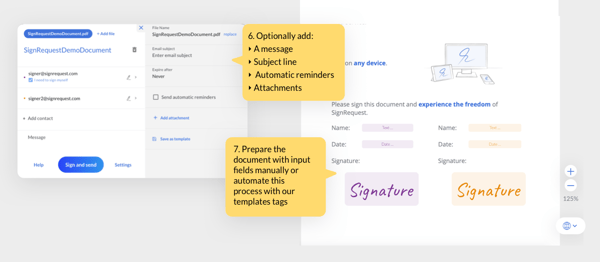
I tested it from the angle that matters for a small team: how little stands between a document already sitting in your Box folder and a signature request going out. Uploading, dropping in signature fields, and sending felt like a natural extension of file management rather than a separate task. The honest trade-off is that Box Sign only really makes sense if you’re already a Box customer, since signing up lives inside Box’s paid plans rather than a free standalone tier.
What does Box Sign’s free plan include?
- No standalone free-forever e-signing plan; Box offers a 14-day free trial of its paid plans
- Unlimited e-sign requests are bundled into Box’s paid Business plans, not a free tier
- The free route is the Box trial, which lets you test signing before committing
When should you upgrade your Box Sign free plan?
I would upgrade from Box Sign’s free trial when the 14 days run out, and I still need to send documents for signature, or when e-signing becomes part of how my team handles files, rather than a one-off test. Box Business at $15/user/month (Business, at a 3-user minimum, billed annually) is the practical next step because e-sign requests are bundled into the paid plan rather than offered on a standalone free tier.
Where Box Sign genuinely stands out:
- What won me over was how signing stays inside the same place your documents already live, so there’s no exporting, re-uploading, or hunting for the signed copy afterward. Small Business reviewers on G2 point to how well it streamlines onboarding paperwork like NDAs and policy acknowledgments.
- I also liked how quickly the updated signature layout let me place fields and send documents for e-signatures. In the reviews, small business reviewers described the flow as simple and easy to manage day-to-day, which tracks with what I saw.
What G2 users like about Box Sign:
“I use Box Sign to send, manage, and track documents requiring electronic signatures for onboarding, which helps streamline agreements like NDAs, contracts, and policy acknowledgments. It eliminates the need for manual document handling and back-and-forth emails to collect signatures. I like how simple Box Sign is to use. It’s very easy to upload documents, add signature fields, and with the latest update of the signature layouts, it’s even easier. The updated signature layouts are intuitive and structured, making the document setup feel more organized, which speeds up the process and reduces errors. Everything stays organized and securely stored, which adds to its overall efficiency.”
– Box Sign review, Keici P.
Is Box Sign right for your small business?
Best for: Small businesses already using Box for storage, who want signing to live alongside their files without adding another tool.
Not ideal for: Teams that want a genuinely free-forever signing plan, or businesses not already invested in the Box ecosystem.
What I dislike about Box Sign:
- Some G2 reviewers point to template management being less flexible than they’d like, with limited options to duplicate and quickly adjust similar documents. For small teams reusing a handful of standard forms, the core signing flow still holds up well day to day.
- Others note that finding an earlier draft after a document with the same name is re-uploaded can take a few extra steps. It’s a minor organizational quirk rather than something that affects the signing itself, and it stays manageable once you settle into a naming habit.
What G2 users dislike about Box Sign:
“I don’t currently have the paid version, so my only complaint is that the files lock after 2 days when they are signed. But this would be solved with a premium version.”
– Box Sign review, Ben C.
2. Docusign: Best for name recognition that gets documents signed fast
Docusign is the name most of your signers will already recognize, and for a small business, that familiarity quietly removes a lot of back-and-forth. When a client sees a DocuSign request, they usually know exactly what to do.
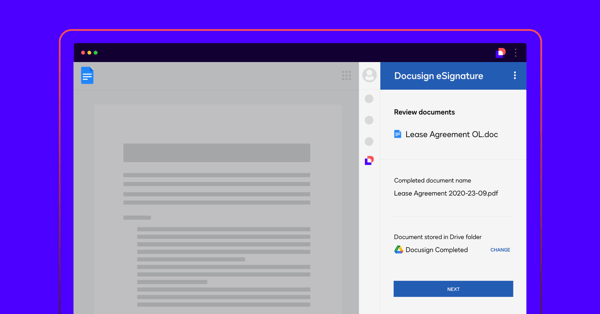
I tested how it feels to get a document out the door and signed. Preparing an envelope, dropping in fields, and sending was quick and clear, and the signing experience on the recipient’s end is about as smooth as it gets. The honest trade-off for a small business is cost: the true free option is a trial plus a limited plan for signing documents others send you, rather than a free-forever plan for sending your own.
What does Docusign’s free plan include?
- A free 30-day trial (based on the Business Pro plan, no credit card required) to send documents for signature
- A separate free option aimed at people who primarily need to sign and store agreements sent to them
- Sending your own documents for signature requires the trial of any paid plan, as it is not a part of any existing plan
When should you upgrade your Docusign free plan?
My main conditions for upgrading to the free plan are when I need to send my own documents for signature rather than only sign and store what others send me, or when the 30-day trial ends, and agreements are still going out. The Personal plan at $11/user/month (Personal, billed annually) makes more sense once sending is a regular part of my week because it covers a set number of envelopes each month instead of cutting off when the trial expires.
Where Docusign genuinely stands out:
- What struck me most is how little explaining a Docusign request needs. Small Business reviewers on G2 repeatedly describe getting legally binding documents signed in minutes, often straight from a phone, without the signer printing or scanning anything.
- I also found the setup reassuringly simple for a tool this established. Reviewers in this segment call out how easy it is to mark where signatures go and save a signature for reuse, which speeds up repeat sending.
What G2 users like about Docusign:
“I love the swiftness of the whole process with Docusign and how simple it is to use. The e-signature feature is particularly valuable to me; I just click and drag to where I need the document signed, and I’m done.”
– Docusign review, Hadiyah W.
Is Docusign right for your small business?
Best for: Small businesses that send documents to external clients and want instant signer familiarity with no learning curve on the recipient’s side.
Not ideal for: Very low-volume senders who want a free-forever plan, since the envelope caps and paid entry point become relevant quickly.
What I dislike about Docusign:
- Some reviewers point to the envelope caps on lower tiers feeling tight, with extra sends counting against a monthly limit. For a small business sending a predictable, modest volume, the entry plan’s allowance is often enough to work within comfortably.
- Others note that document organization could be stronger, wishing for better folder sorting. It’s more of a housekeeping preference than a signing limitation, and most teams settle into a workable filing routine fairly quickly.
What G2 users dislike about Docusign:
“The price. They operate on a capped number of envelopes system. So I was paying a significant amount more to only be able to send 5 signatures a month.”
– Docusign review, Tyler S.
3. Dropbox Sign: Best for teams working out of Dropbox
Dropbox Sign (formerly HelloSign) is the signing layer for businesses that already keep their files in Dropbox. If that’s your setup, pulling a document straight from your folders and sending it for signature is about as smooth as it gets.
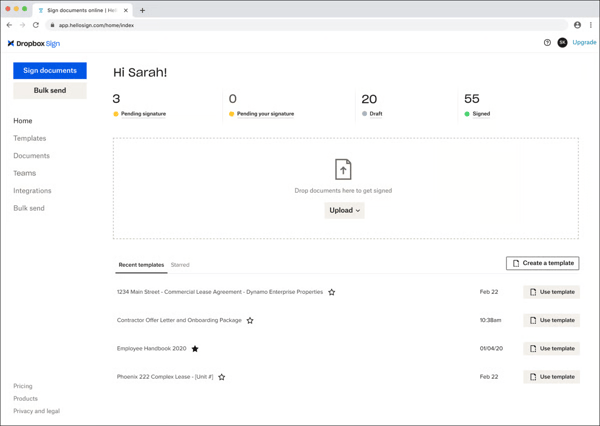
I tested how fast it is to go from “document ready” to “signature requested,” and the flow is genuinely clean, with a fast control panel, clear signer ordering, and automatic reminders when someone forgets to sign. What a small business needs to know upfront is that the sending experience runs through the paid Essentials plan after a free trial, rather than a free-forever tier, so it’s best judged as a trial-first tool.
What does Dropbox Sign’s free plan include?
- A free trial of the paid plans; no free-forever plan for sending signature requests
- The entry paid plan, Essentials, includes unlimited signature requests, 5 templates, signer fields, and data validation
- Free signing is available in the sense of a trial window, not an ongoing free plan
When should you upgrade your Dropbox Sign free plan?
I would upgrade from Dropbox Sign’s free trial when the trial window closes, and I still need to send signature requests, or when I want saved templates for documents I send repeatedly. The Essentials plan at $15/month (Essentials, 1 user, billed annually) is the practical next step because it covers unlimited signature requests and 5 templates for a single user.
Where Dropbox Sign genuinely stands out:
- What won me over was how naturally it fits if Dropbox is already your home base, documents come straight from your folders, and signed copies save back automatically. Small Business reviewers highlight this tight fit as a real time-saver.
- I also liked the signer controls. Reviewers in this segment single out setting a signing order and the automatic reminders that nudge signers who haven’t completed the document yet.
What G2 users like about Dropbox Sign:
“I’ve been using Dropbox Sign (formerly HelloSign) for around three to five years, mainly for our signature needs, whether internal or client-facing documents. It’s been a significant cost-saving measure, reducing the money we spend on printing. The platform is faster, simpler, and more convenient, and you don’t have to be tech-savvy to use it. I really appreciate the ease of use, especially the drag-and-drop features for initials and text. Everything about it has been very efficient. I like that we’re able to set queues on who gets to sign first and send signature requests in a predetermined sequence. One of the good features is the automatic reminders it sends if someone forgets to sign, and there’s also the option to manually send reminders to wherever the sequence has stopped.”
– Dropbox Sign review, Shoaib S.
Is Dropbox Sign right for your small business?
Best for: Small teams already working in Dropbox who want signing built into the files they already manage.
Not ideal for: Businesses wanting a free-forever plan, or teams whose files don’t live in Dropbox in the first place.
What I dislike about Dropbox Sign:
- Some reviewers point to data export being limited unless you move to a higher tier, which matters if you like to keep local backups. For everyday sending and signing, the core workflow still runs smoothly on the entry plan.
- Others mention wanting more customization options, such as colorful stamps and signatures. These are finishing touches rather than core signing needs, and getting a document signed stays quick and reliable.
What G2 users dislike about Dropbox Sign:
“Don’t allow you to download your own data, without upgrading to their highest level plans. How do you not have a download all??? Bad interface, can only download one at a time.”
– Dropbox Sign review, Josh
4. Foxit eSign: Best for small businesses that also live in PDFs
Foxit eSign comes from Foxit, a company small businesses already know for PDF tools, and that heritage shows. If your day involves a lot of PDF work, signing feels like a natural continuation rather than a separate app to learn.
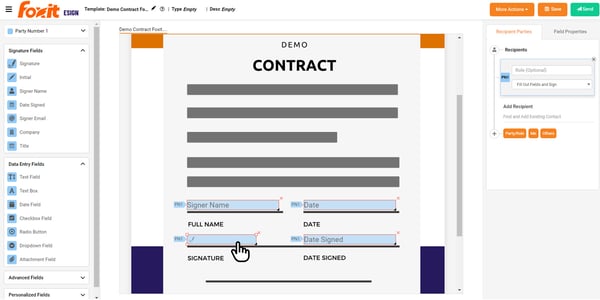
I tested how straightforward it is to upload a document, place fields, and send it for signature, and the process is refreshingly no-nonsense. Recipients don’t need an account to sign, which keeps things easy for clients. The honest trade-off for a small business is that e-signing sits behind a paid plan after a free trial, so it’s best approached as a trial-first tool rather than a free-forever one.
What does Foxit eSign’s free plan include?
- A free trial of eSign Essentials; no free-forever e-signing plan
- eSign Essentials includes 250 envelopes annually, 10 templates, legally binding eSignatures, and payment collection via Foxit Pay
- Requesting eSignatures is confirmed on the paid plans, not the free tier
When should you upgrade your Foxit eSign free plan?
I would upgrade from Foxit eSign’s free trial when I need to keep requesting signatures after the trial ends, or when I want reusable templates for documents I send often. eSign Essentials at $120/user/year (eSign Essentials) makes more sense once signing is a routine task because it covers 250 envelopes a year and 10 templates. I would move up to eSign Business when I need custom branding, signable web forms, or unlimited envelopes.
Where Foxit eSign genuinely stands out:
- What struck me is how little the recipient has to do; they just open the link and sign, no account required. Small Business reviewers repeatedly describe this simplicity as the reason it fits into everyday client work.
- I also found it reliable for straightforward, repeated signing. Reviewers in this segment value how it handles the core signing job without overcomplicating the basics, especially for teams already comfortable in the Foxit PDF world.
What G2 users like about Foxit eSign:
“What I like best about Foxit eSign is that it is straightforward and does the main job without overcomplicating things. When I need to send a document for signature, I can upload the file, add sign fields, and send it quickly. I don’t have to go through many confusing steps. Another thing I like is that it works well with PDF documents, which is what I mostly deal with. Since Foxit already has a strong PDF ecosystem, eSign feels natural if you are already using Foxit tools. The signing experience for recipients is also simple. People don’t need to create an account to learn anything new; they just open the link, sign the document, and submit it. This helps a lot when dealing with clients or external partners. I also like that it supports multiple signers and signing orders, which is useful for agreements that need approvals from more than one person. So Foxit eSign feels reliable for everyday document signing needs without unnecessary complexity.”
– Foxit eSign review, Sanket P.
Is Foxit eSign right for your small business?
Best for: Small businesses that already work heavily in PDFs and want signing that fits alongside their existing Foxit tools.
Not ideal for: Teams looking for a free-forever plan, or those wanting a highly polished, modern interface out of the box.
What I dislike about Foxit eSign:
- Some reviewers point to the interface feeling more functional than modern, wishing for touches like setting a standard font type and size. For a small business that values reliability over polish, that plainness rarely gets in the way of getting documents signed.
- Others note that sharing team templates can be confusing at first. It asks for a little setup before it clicks, but once your team is familiar with where things live, the day-to-day signing stays simple.
What G2 users dislike about Foxit eSign:
“I’d like it to be more user-friendly. The ability to set a standard font type and size would be incredibly helpful. Sharing team templates is confusing.”
– Foxit eSign review, Tina H.
5. Jotform Sign: Best for signing built into forms you already use
Jotform Sign is the tool to reach for if collecting information and collecting a signature are really the same job for you. It folds e-signing into the forms Jotform is already known for, so a customer can fill in their details and sign in one smooth pass.
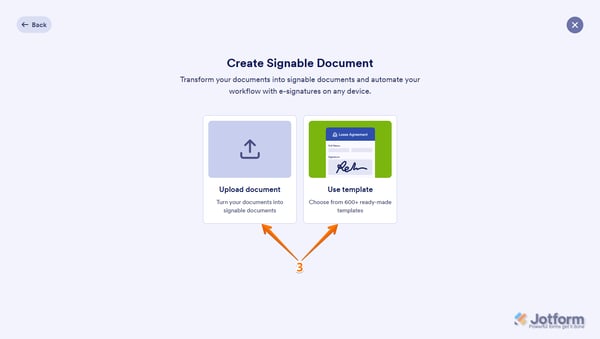
I tested it as a small business would use it day to day: building a form, adding signature fields, and sending it out. The field detection and drag-and-drop setup made it quick, and it genuinely has a free-forever plan rather than just a trial. The honest trade-off is that the free plan caps how many documents you can sign each month and carries Jotform branding until you upgrade.
What does Jotform Sign’s free plan include?
- Free forever: the Starter plan
- 10 signed documents per month
- All standard features included
- Signed documents carry Jotform branding until you upgrade
When should you upgrade your Jotform Sign free plan?
I would suggest upgrading from Jotform Sign’s Starter Free plan when I pass 10 signed documents in a month, or when I want signed documents free of Jotform branding for a more polished client-facing look. The Bronze plan at $34/month (Bronze, billed annually) is the practical next step because it raises the allowance to 100 signed documents a month and removes Jotform branding.
Where Jotform Sign genuinely stands out:
- What won me over is how signing rides along with the rest of Jotform, so collecting a client’s information and their signature happens in a single workflow instead of two tools. Small Business reviewers repeatedly call this out as a genuine time-saver.
- I also liked how approachable the setup is. Reviewers in this segment describe it as easy for both the person creating the form and the person signing, with helpful field detection that fills much of it in for you.
What G2 users like about Jotform Sign:
“Jotform Sign has been a huge asset for my business. It’s simple to set up, easy for customers to use on their phones, and has helped streamline my entire booking process. I also like how well it integrates with the rest of Jotform, making it easy to collect customer information and signatures in one workflow.”
– Jotform Sign review, Christopher P.
Is Jotform Sign right for your small business?
Best for: Small businesses that already collect information through forms and want signing folded into the same workflow, for free.
Not ideal for: Teams that need high monthly signing volume on the free plan, or that want branding removed without upgrading.
What I dislike about Jotform Sign:
- Some reviewers point to the free plan’s limits, noting they feel tight once signing up, with a noticeable step up to the next tier. For genuinely low-volume signing, though, the free plan covers the essentials without asking for a card.
- Others mention wanting more customization on signed forms. It’s more of a finishing-touch wish than a barrier, and the core task of collecting information and a signature together stays quick and easy.
What G2 users dislike about Jotform Sign:
“The limited options with the free version are kind of frustrating. The next plan after free is pretty costly.”
– Jotform Sign review, Heather B.
6. PandaDoc: Best for a genuine free plan with unlimited signatures
PandaDoc is the rare tool on this list that pairs a polished, professional feel with a genuinely useful free plan. For a small business that wants documents to look sharp without paying from day one, it’s an easy one to recommend starting with.
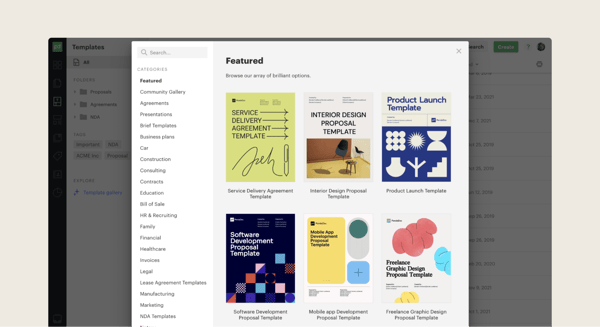
I tested the free plan the way a small team would lean on it: uploading a document, letting it auto-detect signature fields, and sending it off. The setup was quick, the finished documents looked professional, and 5 e-signatures per month on the free plan mean signing volume isn’t the thing that trips you up. The honest trade-off is that the more advanced document and workflow features live on the paid tiers.
What does PandaDoc’s free plan include?
- Free forever plan, no credit card required
- 5 e-signatures per month
- Up to 60 documents per year
- Advanced document editing and workflow features sit on the paid plans
When should you upgrade your PandaDoc free plan?
I would recommend upgrading from PandaDoc’s Free plan when I reach 5 legally binding e-signatures in a month, or when I need the richer templates and workflow tools available on the paid tiers. The Starter plan at $19/seat/month (Starter, billed annually) is the practical next step because it lifts that monthly signature limit.
Where PandaDoc genuinely stands out:
- What won me over was how professional the finished documents look with almost no effort, paired with automatic field detection that sets up signature blocks for you. Small Business reviewers repeatedly mention switching from other tools for exactly this combination of ease and polish.
- I also valued that the free plan gives you 5 legally binding e-signatures, which reset every month. Reviewers in this segment point to the free plan and ease of use as the reasons they chose PandaDoc over pricier alternatives.
What G2 users like about PandaDoc:
“I really like how user-friendly PandaDoc is. It’s such a time saver because when it detects signature blocks, it sets them up automatically. The free plan and user friendliness were actually the reasons my team switched from DocuSign to PandaDoc.”
– PandaDoc review, Jeff S.
Is PandaDoc right for your small business?
Best for: Small businesses that want professional-looking documents and unlimited e-signatures without paying, and then room to grow into paid features later.
Not ideal for: Teams that need high document volume or advanced workflow tools, which are available only on the paid tiers.
What I dislike about PandaDoc:
- Some reviewers would like to see more subscription tiers to make the paid plans more affordable for smaller organizations. Even so, they tend to describe the overall value as strong, and the free plan keeps the entry point genuinely low.
- Others mention wanting richer text formatting options, like finer control over page breaks and numbering. For everyday contracts and proposals, the templates and merge tags still make the documents quick to assemble and easy to send.