



I’m one of those people who can’t resist tweaking photos until they look just right. You know, the kind of vibrant, scroll-stopping images that make you do a double take (and hopefully a double tap).
Photo editing software has been my secret weapon, whether fixing a slightly dull sunset, popping the colors of a flower, or turning a simple portrait into Picasso’s work.
But I know (believe me!) how challenging it can get to spend hours fiddling with settings and filters only to end up with a photo that still doesn’t feel right. That’s why I set out to find the best photo editing software that struck the perfect chord between powerful features, ease of use, and creative freedom. After testing 25 options, I discovered 8 photo editing apps that truly stood out, turning my photos into stunning artworks all without the editing process, making me want to chuck my device at the wall.
And it’s not just a personal obsession, the photo editing software market is set to grow from $1.15B in 2024 to $1.82B by 2034 at 4.7% annually.
So, whether you’re a pro photographer, an Instagram enthusiast, or someone who wants their photos to look amazing, this list has something for everyone. Let’s make those pictures (picture) perfect.
8 best photo editing software for 2025: My top picks
- Adobe Photoshop: Best photo editing software for professional creators
Offers advanced retouching, compositing, and image manipulation tools for precise editing. (Pricing from $22.99/mo) - Canva: Best for beginners and quick photo edits
Combines simple photo editing with a user-friendly design platform for social media and marketing visuals. (Pricing from $120/mo) - Adobe Photoshop Lightroom: Best for photographers managing large image libraries
Delivers powerful non-destructive editing and organization tools for professional photo workflows. (Pricing from $9.99/mo) - Photos (Apple): Best built-in photo editor for Apple users
Provides essential editing tools, filters, and seamless integration across iPhone, iPad, and Mac. (Included with Apple devices) - Picsart: Best for creative filters and social media visuals
Features a wide range of filters, effects, and a vibrant creator community for inspiration. (Pricing from $5/mo) - Adobe Firefly: Best AI-powered photo editing tool for creative enhancement
Leverages generative AI for content-aware fills, object creation, and creative editing support. (Pricing from $4.99/mo) - Spyne: Best automated photo editor for the automobile industry
Specializes in AI-powered background replacement and enhancement for car images. (Pricing from $127/mo) - Luminar Neo: Best for AI-driven portrait and landscape enhancements
Uses AI to improve lighting, color, and detail for natural, high-quality photo results. (Pricing from $69/mo)
* These photo editing tools are top-rated in their category, according to G2’s Winter 2025 Grid Reports. I’ve also added their monthly pricing to make comparisons easier for you.
8 best photo editing software: My favorites
Photography is one of those skills that always warrants improvement. But when it comes to editing and sharing my pictures, I want my tools to help me perfect those shots.
Today’s photo editing tools go far beyond basic filters. They have the power and “intelligence” to revamp pictures, whether taken on a smartphone or a digital single-lens reflex (DSLR) camera. The tools I rely on for editing help me reshape images, enrich details, adjust hues, add special effects, and easily remove unwanted elements.
That said, choosing the right editing tool isn’t always straightforward. What am I looking to enhance? Where do I plan to share these images? And how much does image quality matter to me? Answering these questions helped me find tools that fit my style.
How did I find and evaluate these best photo editing apps?
My goal was simple: to find marketing calendar software that keeps campaigns organized, teams aligned, and deadlines on track. I started with G2’s Grid Report to create a shortlist, balancing user satisfaction and market presence.
Then I rolled up my sleeves and tested each tool, evaluating how well they handled campaign planning, scheduling and dependencies, collaboration and approvals, reporting, and key integrations. I also used artificial intelligence to analyze hundreds of verified G2 reviews to understand what marketers loved most, where they felt let down, and which platforms consistently delivered real value.
The screenshots featured in this article come from G2 vendor listings and publicly available product documentation.
What sets a photo editing program apart: My perspective
Photo editing apps are everywhere — free ones, expensive ones, basic tools, and advanced programs. Some focus on overall improvements, while others excel at detailed, pinpoint editing. So, how do you find the best fit? Here are the six things I look for in photo retouching software.
- Ease of use: Nobody wants to spend hours hunting down tools or watching tutorials to figure out how to crop a photo. I love it when everything’s laid out logically on a clean and intuitive interface. Built-in tutorials or little pop-up tooltips are also much appreciated. If I can jump in and start tweaking without reading a 50-page manual, the tool is doing something right.
- Creative freedom: I need complete control — layers, masks, blending modes, and brushes that let me manipulate every little detail. I want to apply adjustments to just one layer or selectively mask part of an image to really get creative. To this effect, AI-driven tools are also becoming total game-changers. Like automatic sky replacement, yes, give me that!
- Performance and speed: I’ve had photo editors crawl when handling big RAW files or high-res images. If I click something and have to wait for it to respond, I’m leaving the window with the next click. Laggy performance disrupts workflow and stifles creativity, which is why speed is a big factor for me. I like knowing I can throw a ton of files at the software, and it just powers through them without choking.
- Advanced features and tools: Basic editing is fine for quick fixes, but sometimes, you need to jazz up the photos a little. I’ve grown to appreciate tools like advanced color grading, precise retouching, tone mapping, frequency separation, and auto object removal. Also, I love presets! Sometimes, you just slap one on and call it a day.
- Compatibility and file support: I always check that whatever software I use plays nice with every image file format — JPEG, PNG, RAW, TIFF, you name it. I need a tool to support me while I bounce between my laptop and tablet. If I can switch between devices without losing progress, I’m sold. Bonus points if it connects directly to my cloud storage or lets me post straight to Instagram.
- Value for money: I don’t mind paying for good software, but some programs get expensive for no reason. I always check what’s included — does the plan offer free updates, extra filters, or templates? The best value I’ve found comes from software that provides a solid mix of pro tools and everyday features.
Considering all of this, I tested over 25 applications in the past few weeks, and the eight best photo editing software listed here are the ones that I liked best. I was impressed by their extensive photo enhancement features, intuitive design, AI automation, and creative possibilities.
To be included in the photo editing application category, a solution must:
- Be able to import and export a variety of image file types, such as JPEG, PNG, GIF, and more
- Apply effects, corrections, and manipulations to image files
- Be able to edit up to pixel level rather than vector level
*This data was pulled from G2 in 2025. Some reviews may have been edited for clarity.
1. Adobe Photoshop: Best photo editing software for professional creators
Adobe Photoshop is widely popular — and for good reason. Whether I’m retouching portraits, adjusting colors, or completely transforming images, the tools at my disposal blow my mind. My favorite feature is the layering system, which lets me stack edits, play with transparency, and blend everything perfectly. Layer access makes it easy to separate different parts of an image, apply adjustments independently, and merge elements without altering the original file.
Masks are another of my favorites. I can selectively apply changes to specific areas without affecting the entire image. It’s no wonder professionals across creative industries rely on it. Even for tasks that seem simple, Photoshop offers a dozen different approaches, letting me choose the one that fits best. The flexibility is truly unmatched.
Plus, I rarely need other programs since Photoshop bundles everything into one platform — graphic design, photo editing, and even 3D rendering are all covered.
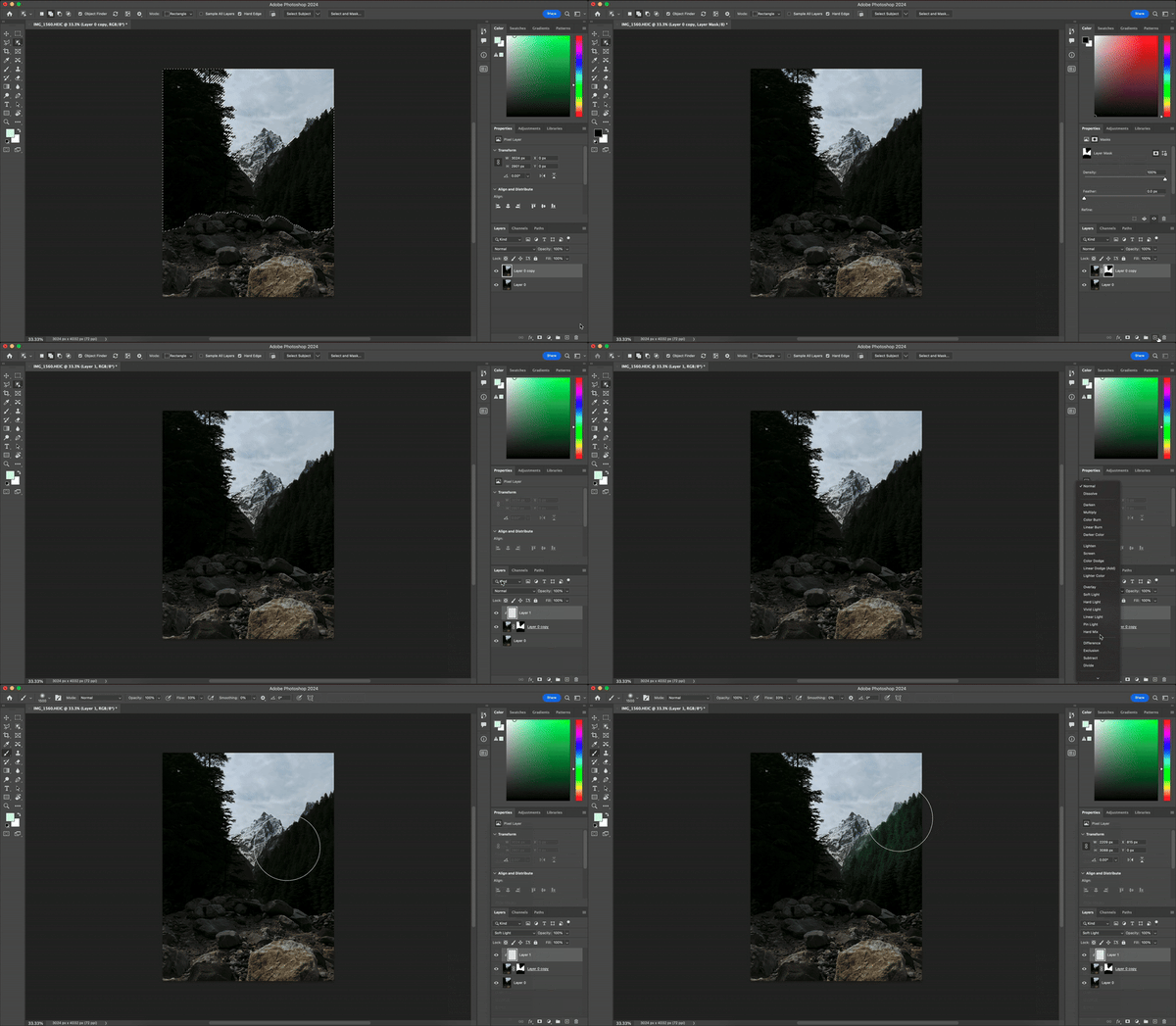
Photoshop remains one of the most powerful and versatile photo editing tools I’ve ever used. The depth of control it gives over layers, retouching, and creative effects is unmatched, once you get the hang of it, it feels like there’s nothing you can’t create.
What really stands out is how much G2 users echo this sentiment. With a 93% overall satisfaction rating and an impressive 95% “meets requirements” score, Photoshop is clearly living up to expectations among professionals who demand precision.
Adobe Photoshop remains the industry standard for image editing, offering unmatched creative control, precision, and versatility. From retouching and compositing to digital painting and graphic design, it’s built to handle virtually any creative workflow with professional-grade results.
Because of its depth, Photoshop is designed for users who want complete creative freedom. Some G2 users mentioned that mastering its vast range of tools and menus takes time, but that learning curve is part of what makes it so powerful, once you understand the interface, the possibilities are endless. With abundant tutorials, built-in guides, and a thriving creative community, getting comfortable with Photoshop becomes a rewarding process for both beginners and pros.
The software is optimized for high-performance systems, ensuring smooth operation when handling large files and advanced effects. While some users noted that it runs best on newer hardware and comes at a premium price, those factors reflect its professional-grade capabilities. For frequent creators, the value is clear, you’re investing in a platform trusted by the world’s top designers and photographers.
Adobe even makes it easy to explore before committing to the 7-day free trial, which lets users experience the full creative suite and decide how it fits into their workflow.
What I like about Adobe Photoshop:
- The flexibility provided by non-destructive editing lets me experiment freely, knowing I can always revert or adjust without altering the underlying image.
- The range of editing and designing tools is unmatched. I can tackle everything from basic retouching to complex projects.
What G2 users like about Adobe Photoshop:
“I always tweak my photos in Photoshop before uploading them to any social media platform. It’s a great tool for photo enhancement. You can do various things, such as color correction, image manipulation, and optimizing for social media resolution, all while maintaining the highest quality. I frequently use the incredible Generative Fill tool, which makes the process very easy. Photoshop integrates seamlessly with After Effects, which is a great feature.”
– Adobe Photoshop Review, Sonu Kumar J.
What I dislike about Adobe Photoshop:
- Adobe Photoshop’s vast toolkit offers exceptional creative flexibility for professionals. Some G2 users mentioned that mastering its many tools takes time, but this depth is what makes Photoshop so powerful, allowing designers to explore advanced editing, retouching, and compositing techniques once they’ve learned the basics.
- The platform’s high-quality outputs naturally produce larger file sizes. A few G2 reviewers noted that this can make storage and management more demanding, though it’s a reflection of Photoshop’s focus on preserving detail and maintaining professional-grade resolution for print and digital projects.
What G2 users dislike about Adobe Photoshop:
“Due to its extensive features and tools, Adobe Photoshop can be quite complex and overwhelming for beginners. It’s also resource-intensive, making it run slowly on older computers, and the frequent updates may disrupt familiar workflows. Additionally, the subscription may be expensive for some users.”
– Adobe Photoshop Review, Sanampreet K.
2. Canva: Best for beginners and quick photo edits
While Canva is best known for its design templates, I’ve found its photo editing tools surprisingly handy. The intuitive interface and drag-and-drop functionality make editing effortless without dealing with the complexities of professional software.
I can fine-tune colors, add text or image overlays, and use simple retouching tools to polish images without spending hours editing. Cropping, rotating, and resizing is as easy as it gets, and with just a click, I can apply filters to change the vibe of a photo completely. When I need more precision, brightness, contrast, and saturation adjustments, help me get the look I want.
The background remover (which I unlocked with Pro) is unlike any other. With just a few taps, it completely changes or erases the background of a photo, saving me a lot of time when I want to isolate a subject or create a collage. Magic Switch tool is another gem — I can edit a photo once and resize it instantly for different platforms, which saves so much time when creating social media content.
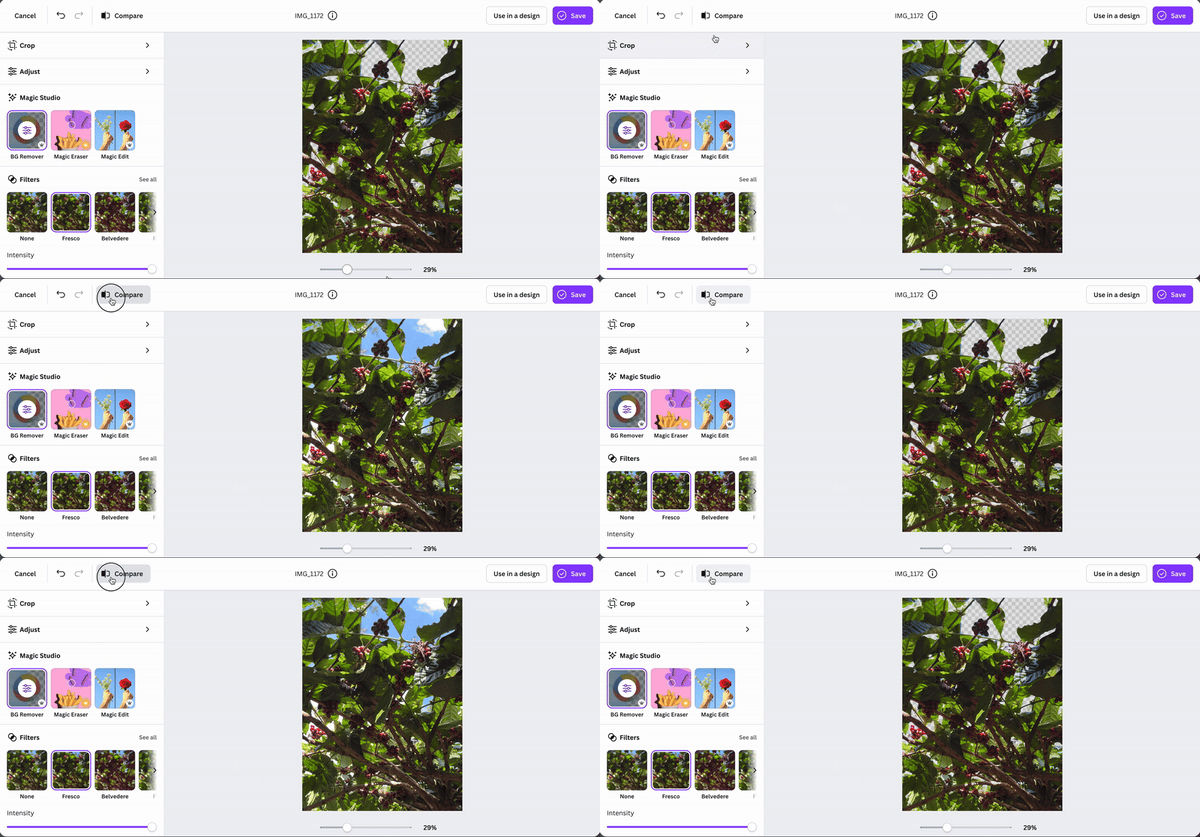
Canva continues to impress me with how simple and accessible it makes design and photo editing. For quick touch-ups, resizing, or adding creative elements, it’s incredibly user-friendly and ideal for anyone who wants professional-looking visuals without needing advanced editing skills.
What’s even more striking is how much G2 data backs this up. Canva has a 95 % satisfaction score and an outstanding 96 % ease-of-use rating, proving that its appeal lies in just how intuitive it feels. Nearly 69 % of its users come from small businesses, showing that it empowers solo creators, startups, and marketers who want to produce studio-quality visuals without a learning curve.
Canva’s strength lies in its simplicity and speed. Some G2 users mentioned that it doesn’t offer the same level of precision as professional editing tools like Photoshop, with more basic controls for things like clone stamping, blemish removal, and gradients, but this streamlined setup is exactly what keeps Canva fast, approachable, and ideal for everyday design needs. The platform focuses on ease of use rather than complexity, making it perfect for quick turnarounds and consistent branding.
The file management system is built for collaborative workflows, giving teams easy access to shared designs. While a few reviewers noted they’d like more structured organization for large volumes of projects, Canva’s integrated folders and tagging tools help maintain efficiency without overcomplicating navigation.
For day-to-day editing, marketing, and content creation, Canva remains one of the most flexible tools available. Starting with the free plan lets you explore its core features, and upgrading to Pro or Team unlocks advanced functionality that’s well worth the investment.
What I like about Canva:
- Canva integrates photo editing into design workflows. I can enhance an image and immediately add it to a project without exporting and re-importing.
- I love that even with the free version, Canva provides a solid selection of editing tools, covering all the basic needs, such as cropping, filters, adjusting brightness, and other elements.
What G2 users like about Canva:
“What I like most about Canva is how easy it is to create posts and the high-quality ideas that are offered for free to new users. For me, Canva is the best image editor because it’s lightweight, allows me to edit from anywhere, and provides many features at no cost. In addition to photo and post-editing, I also edit videos thanks to the updates made in 2022.”
– Canva Review, João Paulo C.
What I dislike about Canva:
- Canva’s free plan provides a wide range of design tools, templates, and assets for quick, professional-quality visuals. Some G2 users mentioned that certain advanced tools, like the background remover, are available only in the Pro plan, but this tiered setup ensures casual users get a free, accessible platform while professionals can unlock premium features as their design needs grow.
- The platform’s export options are optimized for fast, web-ready sharing on the free plan. A few G2 reviewers noted that higher-resolution exports and transparent backgrounds require an upgrade, yet this helps keep the free version lightweight and ideal for everyday projects, while the Pro plan caters to creators who need full control over image quality and formats.
What G2 users dislike about Canva:
“Canva is primarily cloud-based, meaning it requires an internet connection to use, making it inconvenient in situations where connectivity is limited or unavailable.”
– Canva Review, Peter M.
3. Adobe Photoshop Lightroom: Best for photographers managing large image libraries
Adobe Photoshop Lightroom is one of those tools that makes life easier if you’re dealing with a ton of photos. The batch editing feature allows me to throw on a preset and apply it across the board — done in minutes. This massive time-saver eliminates the need to manually edit each image while maintaining consistency and reducing errors.
It’s also easy (after you’ve gotten used to the tool) to adjust shadows, tweak colors, fine-tune details, add effects, and give your photos that professional pop. The sliders and controls make precision editing accessible even to those without advanced editing skills.
Additionally, the organizational capability is a major pro because I can pick up where I left off and, with a few clicks, rate, label, and categorize multiple shots.
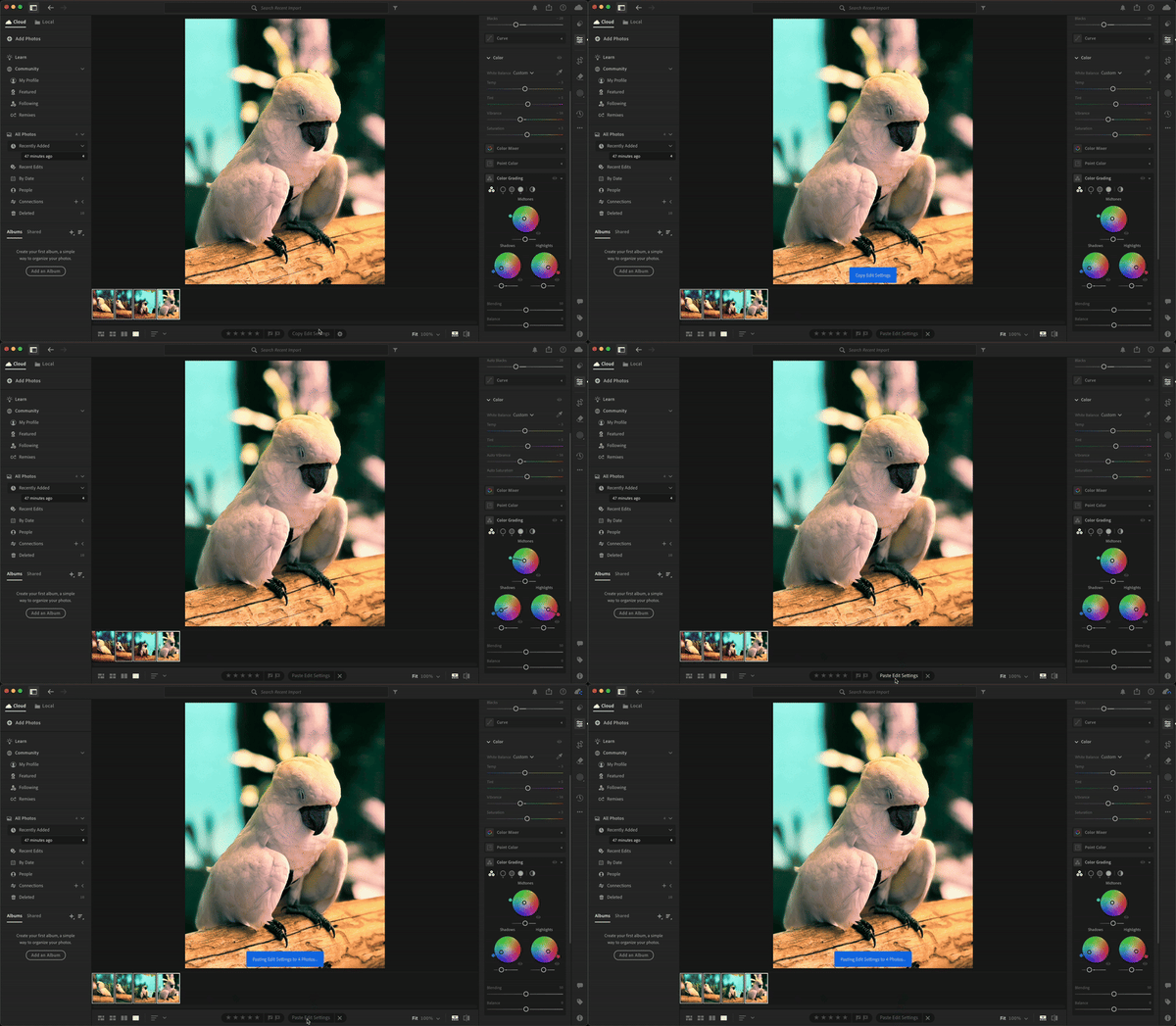
Adobe Photoshop Lightroom stands out for its clean interface, intuitive layout, and professional-grade photo enhancement tools. It’s especially powerful for color correction, exposure adjustments, and batch editing — offering photographers a fast and fluid editing experience without unnecessary clutter. For creators who want polished, natural-looking results, Lightroom delivers both quality and efficiency.
The data backs up its reputation, too. According to G2 reviewers, Lightroom earns an impressive 92% satisfaction rating and a 93% “meets requirements” score, showing that users truly find value in its precision and performance.
Because Lightroom is designed for precision editing rather than manipulation, it has a gentler learning curve focused on mastery. Some G2 users mentioned that it takes a little time to get fully comfortable, but that learning period pays off quickly — once you understand its tools, the workflow becomes second nature. And for advanced compositing or layering, Lightroom seamlessly integrates with Photoshop, letting users switch between the two for a complete editing pipeline.
Lightroom’s subscription model ensures continuous access to updates, cloud storage, and cross-device syncing. While a few reviewers noted they’d prefer one-time purchase options, this approach guarantees users always have the latest features and performance improvements.
Overall, Lightroom remains one of the best tools for achieving clean, consistent, and professional photo edits. The 7-day free trial offers the perfect opportunity to see how it fits into your creative workflow.
What I like about Adobe Photoshop Lightroom:
- One of the things I love the most is the ability to apply presets and batch-edit large volumes of photos in one go. It saves me hours of repetitive work by letting me develop a look I like and use it across an entire set in seconds.
- Lightroom seamlessly integrates with other Adobe products, so switching between editing photos in Lightroom and creating video content in Premiere Pro is easy. This feature is vital for managing all aspects of my creative work.
What G2 users like about Adobe Photoshop Lightroom:
“It has a user-friendly interface and offers almost all the required features, such as color grading, exposure, lens correction, RAW image support, etc. Cloud sync is another great feature for users with multiple devices for editing photos and videos.”
– Adobe Photoshop Lightroom Review, Aniket V.
What I dislike about Adobe Photoshop Lightroom:
- Adobe Photoshop Lightroom offers a rich set of editing tools and fine-tuning controls that allow for incredible creative precision. Some G2 users mentioned that learning how to balance all the sliders takes time, but this depth is what enables photographers to achieve professional, customized results once they’re familiar with the workflow.
- The platform’s built-in cloud storage ensures seamless syncing and access across devices. A few G2 reviewers noted that the base storage fills up quickly, though this approach keeps Lightroom fast and cost-efficient for casual users while professionals can easily expand storage as their libraries and project demands grow.
What G2 users dislike about Adobe Photoshop Lightroom:
“While Lightroom offers a comprehensive desktop experience, its mobile version falls short of expectations, lacking some of the advanced features and capabilities of its desktop counterpart. Additionally, when working with high-resolution files, the software tends to strain in performance, which slows down the editing process and affects overall user experience.”
– Adobe Photoshop Lightroom Review, Baris E.
4. Photos: Best built-in photo editor for Apple users
If you’re like me and love snapping tons of photos, Apple Photos is a fantastic tool for managing and editing your growing library. It’s more than just a photo viewer – you’ll get everything from light adjustments to cropping, filters, and even noise reduction.
One feature I frequently use is the auto-suggested adjustments. With just one tap, the app intelligently tweaks brightness, contrast, and color balance to improve the overall appearance of the photo. While the results aren’t always perfect, they often provide an excellent starting point.
Organization is another area where Apple Photos shines. Location-based sorting and smart tagging make it easier to keep track of your memories without manually creating albums. For someone like me who takes hundreds of photos on trips, having the ability to search by a specific location is incredibly convenient.
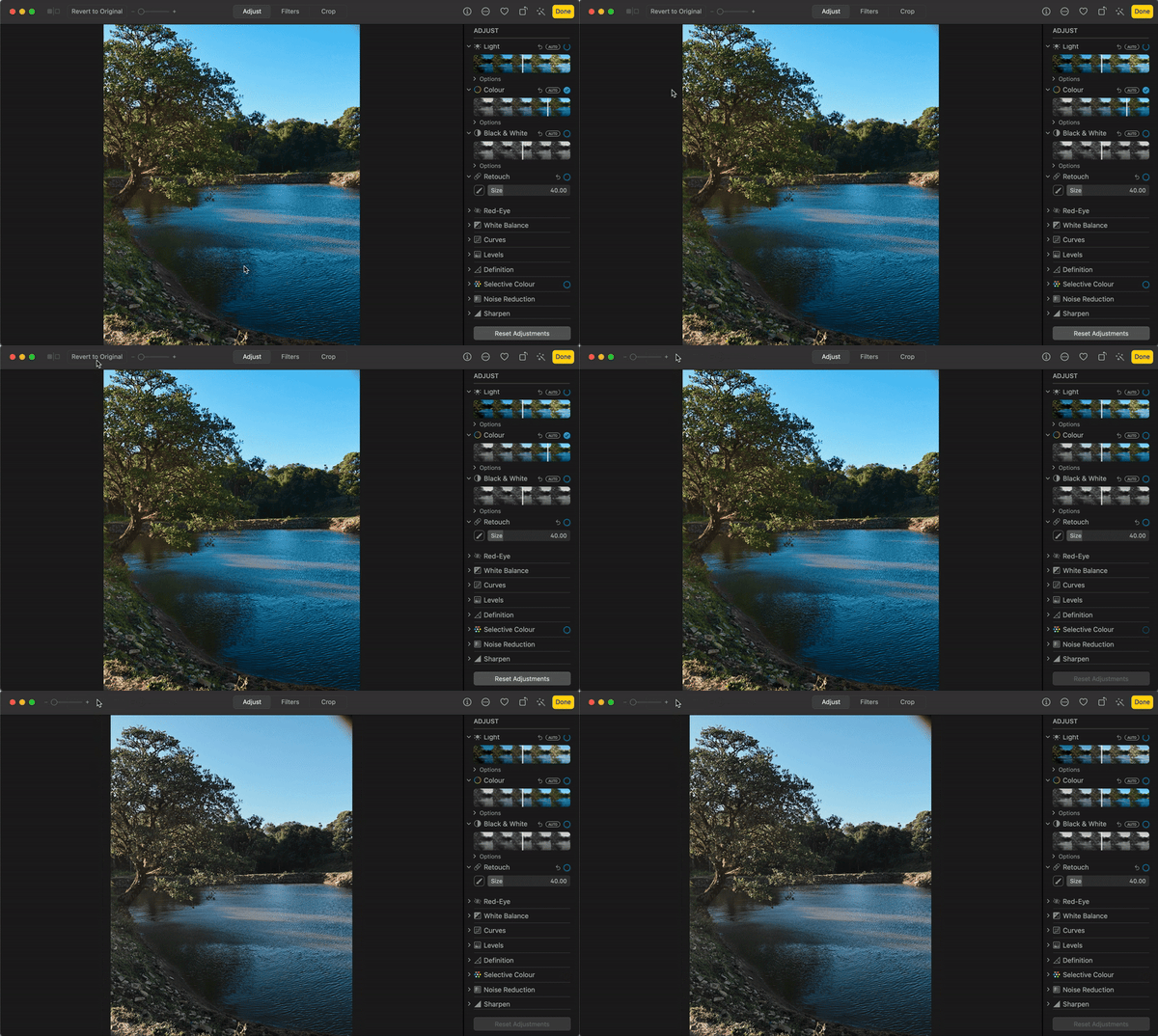
Apple Photos continues to impress with its clean interface, seamless syncing, and effortless organization across iPhone, iPad, and Mac. It’s designed to make managing and accessing photos completely intuitive, automatically sorting images by memories, locations, and people, all while syncing quietly in the background through iCloud.
The experience feels as smooth as it looks, and G2 data supports that impression: 94 % of reviewers rate Apple Photos highly for ease of use, while another 94 % praise its setup experience, confirming just how plug-and-play it feels for Apple users.
The editing tools focus on simplicity and accessibility, offering just the right features for quick, everyday touch-ups. Some G2 users mentioned that it doesn’t provide the same level of precision as pro-grade tools, but that’s what makes it so convenient. Photos is built for fast, polished adjustments rather than advanced retouching. For users who want deeper control, Apple makes exporting to third-party apps seamless, ensuring flexibility without sacrificing ease of use.
Its tight integration within the Apple ecosystem ensures a smooth experience, from automatic device backups to easy media sharing. While a few reviewers noted that syncing with non-Apple devices or managing iCloud storage takes extra steps, this closed-loop design keeps your data secure and your workflow unified. Upgrading to higher storage tiers is quick and ensures that your entire photo library remains available across all devices.
Overall, Apple Photos is a reliable, intuitive choice for everyday image management, perfect for users who value simplicity, smart organization, and seamless cross-device accessibility.
What I like about Photos:
- The application interface is very intuitive, with all the options laid out in front of you. This ease of use is one of the reasons I keep coming back to Apple Photos for quick edits.
- I also love the interconnectivity across the Apple ecosystem (iPhone, iPad, and Mac). I can edit a photo on one device and immediately see those changes reflected across all my devices.
What G2 users like about Photos:
“The filters are very similar to what you would find in a professional photo editor like LightRoom. Their auto tool is also very user-friendly.”
– Photos Review, Alicia C.
What I dislike about Photos:
- Apple Photos excels at simplicity and ease of use, making it great for organizing and editing everyday images. Some G2 users mentioned they’d like more advanced options like selective adjustments or detailed retouching, but this streamlined setup keeps the app fast, intuitive, and approachable for casual photographers.
- The platform’s evolving interface ensures it stays modern and aligned with Apple’s broader ecosystem. A few G2 reviewers noted that frequent layout updates can feel disruptive at first, yet these refinements are what keep Photos optimized for new devices and user experiences across macOS and iOS.
What G2 users dislike about Photos:
“Some of the more advanced features of the Photos app, such as portrait mode editing and AR effects, are only available on the latest iPhones.”
– Photos Review, Shyam P.
Apple Photos does a great job organizing your photos, but if you want to take the matter into your own hands, read this article on photo management.
5. Picsart: Best for creative filters and social media visuals
I’ve been using Picsart for quite a while now, and it was the first photo-retouching software I downloaded on my phone. The range of features is impressive — filters, effects, background changer and remover tools, animation options, and design elements. It’s perfect for turning any basic image into an Instagram-worthy post.
I especially love the selection of filters: everything from turning your photo into art to turning it into a cartoon or making it HDR. The filters are truly unique. Whether I want a bold, vibrant look or a soft, subtle edit, there’s always a filter that fits the mood I’m going for.
What makes Picsart so appealing is how fun and frictionless it feels. The interface is straightforward and beginner-friendly; filters, effects, and adjustments are just a few taps away. G2 data backs up that experience: 93 % of reviewers rated Picsart highly for ease of use, and 95 % say it’s heading in the right direction, which mirrors how regularly it evolves with user feedback.
Picsart also regularly introduces new tools, filters, and templates so I can keep my designs fresh, stay current with visual trends, and add new effects to my projects without needing extra software. It’s great knowing the platform evolves with creative needs.
And for the best part, the application works powerfully on mobile. I can make high-quality edits directly from my phone, whether I’m traveling, at an event, or just relaxing at home — no laptop needed.
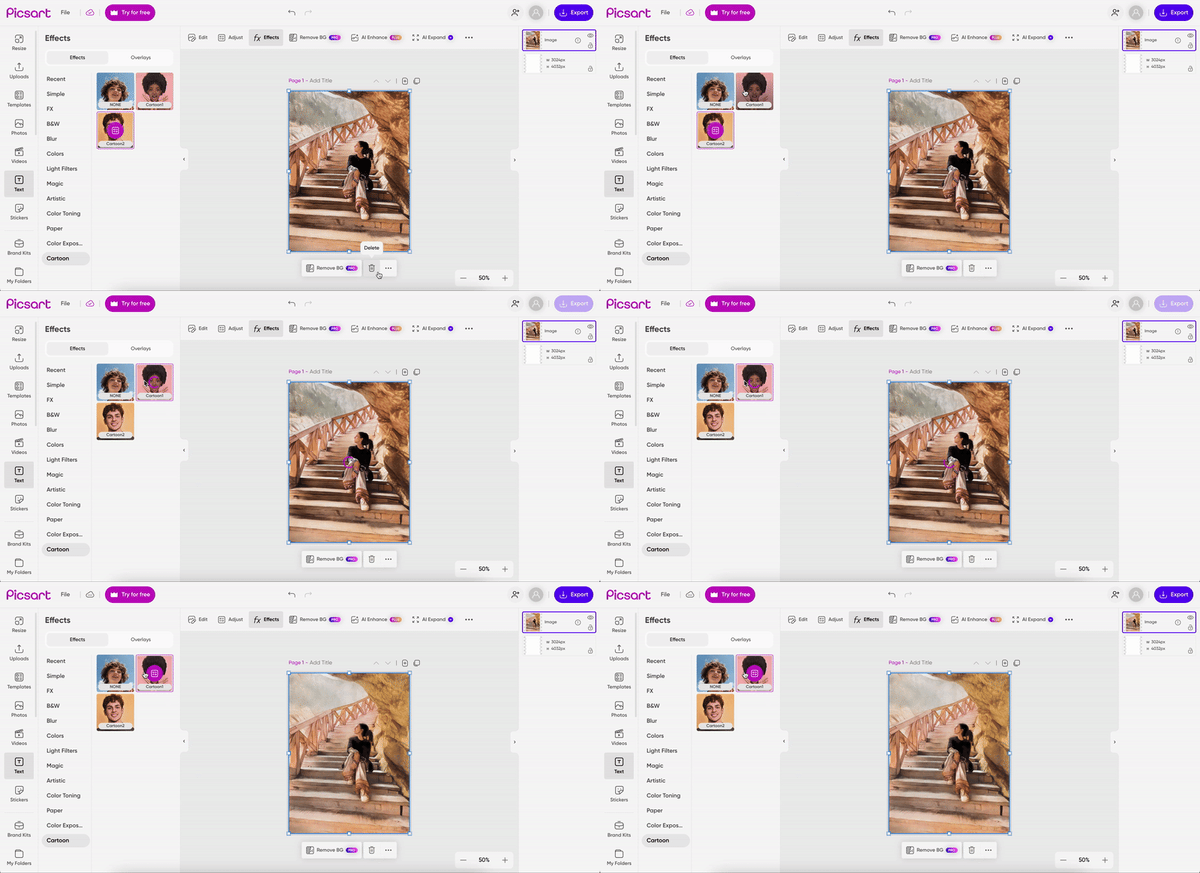
Picsart is one of those rare editing apps that make creativity easy and fun. Its interface feels natural and beginner-friendly — filters, effects, and adjustments are all just a few taps away. Whether you’re designing for social media, creating quick edits, or experimenting with new looks, Picsart delivers instant results without requiring professional editing experience.
The platform is designed to scale with your creativity. Some G2 users mentioned that certain advanced filters and tools are reserved for Pro users, but this tiered setup keeps the free plan lightweight and accessible while allowing professionals to unlock more powerful options when they need them. It’s a structure that fits both casual creators and seasoned editors.
Because Picsart supports high-quality effects and multilayer editing, it can occasionally slow down when working with large or complex files. However, this careful processing ensures that every adjustment maintains color accuracy and visual detail — a fair tradeoff for the depth it provides. A few reviewers also mentioned they’d like expanded export options, but its support for standard formats like JPEG and PNG keeps sharing fast and universal across platforms.
Overall, Picsart strikes a great balance between simplicity and creative control. Whether you’re editing on your phone or computer, it’s an ideal choice for making standout visuals quickly and confidently.
What I like about Picsart:
- Switching between my phone and desktop is easy while working on projects. Whether I start a design on my phone during a commute or refine it later on my computer, my progress stays intact.
- I love the vast selection of stickers, filters, and customizable templates. I can quickly add personality and style to my work without starting from scratch.
What G2 users like about Picsart:
“It includes the most common editing tools such as filters, drawing options, effects, stickers, and text addition. However, the standout feature is layering, which allows for numerous creative possibilities when working on image projects.”
– Picsart Review, Pratush R.
What I dislike about Picsart:
- Picsart offers a wide range of creative tools and effects, giving users plenty of flexibility for photo and video editing. Some G2 users mentioned that the interface takes a bit of exploration to locate specific tools, but this depth is what allows the platform to pack in advanced features while still remaining accessible to beginners once they’re familiar with the layout.
- The app delivers powerful editing capabilities, including multilayer support and complex effects. A few G2 reviewers noted occasional lag when handling heavy edits, though this is common in feature-rich mobile apps — and Picsart’s regular updates continue to improve performance for smoother, more stable editing experiences.
What G2 users dislike about Picsart:
“The app’s filter and effects sometimes lead to over-embellished photos. The text editing feature may feel awkward with few font choices and limited options.”
– Picsart Review, Puja M.
If you’re looking for a beginner-friendly masterclass on photo editing and want to understand the essential elements, check out this article on how to edit photos and get editing ideas.
6. Adobe Firefly: Best AI-powered photo editing tool for creative enhancement
Need to fill in parts of an image or generate new elements from scratch? Run to Adobe Firefly.
Firefly isn’t your typical photo editing tool, but it’s more of a creative sidekick. With Firefly, you can remove objects from images, add new elements, or swap out backgrounds — all powered by AI.
The generative fill option works well when I want to fill in an empty space or remove an object to even out the background. You simply highlight the area you want to make changes to and write your prompt. Then, Firefly will offer multiple generative options for each prompt. The ability to choose from several variations not only saves time but sparks creativity by presenting ideas I may not have considered.
Another highlight is the integration with Adobe’s ecosystem. Since I already use Photoshop and Lightroom, Firefly naturally fits into my workflow. I can start a project in Photoshop, tap into Firefly for AI-powered enhancements, and bring everything together without ever leaving the Adobe suite.