



Tired of wrestling with flowchart roadblocks? I’ve been there. The good news is you don’t need to overspend to create clean, effective, visually polished flowcharts. I’ve found that free flowchart software can be surprisingly powerful, offering the functionality and features individual creators and collaborative teams actually need.
Whether you’ve spent a lot of time using flow charts or none at all, these budget-friendly options will help you visualize your ideas without sacrificing quality.
In this guide, I’ll walk you through the 9 best free flowchart software tools for 2026. For each one, I’ll break down the key strengths and potential drawbacks so you can quickly understand how well it matches your workflow. I’m also including a quick comparison table to help you evaluate them side by side.
By the end of this listicle, you’ll be equipped to make an informed decision and select the free flow chart software that complements your workflow and budget.
9 best free flow chart software for 2026
- Cacoo: Best for collaborative team diagramming in the cloud
For real-time co-editing, built-in chat/video calls, and cross-device flow chart creation. - Cloudcraft: Best for flow-chart-style AWS infrastructure diagrams
For auto-generated cloud architecture maps, real-time sync, and 3D AWS environment visualization. - Creately: Best for multi-purpose visual planning and structured flow charts
For unified diagramming, document collaboration, and workflow mapping in one visual workspace. - Gliffy: Best for simple, quick, browser-based flow chart creation
For drag-and-drop diagramming, team edits, and Confluence/Google Drive workflow support. - Lucid Visual Collaboration Suite: Best for end-to-end diagramming across teams
For seamless flow charts, structured diagrams, and real-time collaboration through Lucidspark + Lucidchart. - Miro: Best for visual collaboration and scalable flow charting
For infinite-canvas brainstorming, team workflows, and flexible flow chart templates. - Sketch: Best for designers who need precise, high-fidelity flow diagrams
For vector-based user flows, interface mapping, and collaborative design systems. - SmartDraw: Best for complex, multi-format diagrams beyond flow charts
For data-linked visuals, engineering/IT diagrams, and integrations with Microsoft and Google tools. - Visio: Best for professional-grade business and technical flow charts
For enterprise-ready diagrams, data-linked visuals, and strong Microsoft ecosystem integrations.
*The software list is arranged alphabetically. These tools offer free trials, free forever options, or freemium models.
Comparison of the best free flow chart software
If you feel overwhelmed by the wealth of information about free flow chart software, this comparison table will help you with all the important aspects:
| Best free flowchart software |
G2 Rating | Free plan | Paid plan |
| Cacoo | 4.5/5 ⭐ | Free plan available | From $6/month |
| Cloudcraft | 4.5/5 ⭐ | Free plan available | From $49/month |
| Creately | 4.4/5 ⭐ | Free plan available | From $5/month |
| Gliffy | 4.4/5 ⭐ | 14-day free trial available | From $6/month |
| Lucid Visual Collaboration Suite | 4.5/5 ⭐ | Free plan available | From $11.93/month |
| Miro | 4.7/5 ⭐ | Free plan available | From $8/month |
| Sketch | 4.5/5 ⭐ | 30-day free trial available | From $144/year |
| SmartDraw | 4.5/5 ⭐ | 7-day free trial available | From $7.95/month |
| Visio | 4.2/5 ⭐ | 30-day free trial available | From $15/month |
*All pricing details mentioned in the article are based on publicly available data at the time of publication and are subject to change.
9 best free flow chart software tools I recommend
The market for flowchart software is growing faster than ever as companies adopt more visual, collaborative ways to map processes and improve efficiency. By 2025, the global online flowchart software market is projected to reach $1.49 billion, growing at a strong 12.88% CAGR through 2031 as enterprises intensify their focus on visual process optimization and real-time collaboration.
And after trying several options myself, I’ve learned that you don’t need a paid plan to build clean, professional flow diagrams. Many free flowchart software options go far beyond the basics, offering intuitive editors, ready-made templates, and real-time collaboration that seamlessly integrates into a team’s workflow.
These tools have made it easier for me to break down complex processes, share ideas visually, and keep projects aligned without adding another expense to the tech stack.
How did I find and evaluate these free flow chart software tools?
To build this list, I started with G2 data, shortlisting the top-rated flow chart and diagramming tools based on their G2 scores, category standing, and consistent performance in the Free Flow Chart Software category.
From there, I dug into product feature sets and recent, verified user reviews to understand how each tool performs in real workflows, what users genuinely love, and where each product shines. This helped me identify which platforms offer genuine value, rather than just impressive marketing.
Since this is a free-focused list, I also paid special attention to what you can actually do on the free plan: whether the free tier includes core flow chart features, the limitations you might run into, and whether a free trial gives enough time to test advanced tools without committing.
The screenshots featured in this article may be a mix of those taken from the vendor’s G2 page or from publicly available materials.
The free flow chart software list below contains user reviews from the best diagramming software category page. It’s important to note that in the context of this list, vendors that offer a free trial are considered free. To be included in this category, a solution must:
- Offer targeted tools for designing one or more types of diagrams, such as organizational charts and floor plans
- Provide industry-related shapes and elements for use in diagrams
- Allow users to create or import custom diagram components
- Allow specific users to view and interact with diagrams online during and after presentations
This data was pulled from G2 in 2025. Some reviews may have been edited for clarity.
1. Cacoo: Best for collaborative team diagramming in the cloud
Overcome all your diagramming challenges with Cacoo! This cloud-based tool allows you to collaborate with your teammates from any device with an internet connection. With drag-and-drop functionality and an extensive library of shapes, it’s easy to create flowcharts, mind maps, and wireframes. Real-time editing ensures everyone knows what they’re doing, and features like in-app chat and video calls keep communication flowing smoothly.
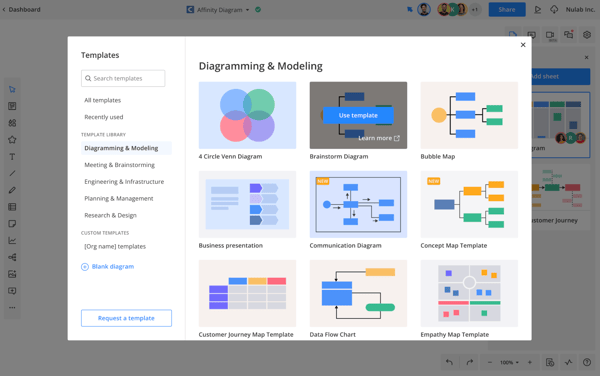
Pros and cons of Cacoo: What stood out to me
| Pros of Cacoo | Cons of Cacoo |
| Cloud-based collaboration features | Limited offline access |
| Built-in chat and video call functionality | Potential lag with large teams |
| Wide variety of pre-built shapes library | Limited customization compared to advanced diagramming software |
What G2 users like about Cacoo :
“I love that I can create custom icons and workflow elements that fit my needs and even save my reusable templates. I also love sharing view-only links with clients that allow them to add their comments without worrying about them messing things up.”
– Cacoo Review, Sarah D.
What G2 users dislike about Cacoo:
“It is difficult to share designs with people not registered with the same company.”
– Cacoo Review, Ana Luna P.
Want to take your workflows even further? Explore the best business process management software to automate, streamline, and optimize the processes you map with these flowchart tools.
2. Cloudcraft: Best for flow-chart-style AWS infrastructure diagrams
CloudCraft simplifies Amazon Web Services’ (AWS) cloud infrastructure visualization. This software automatically scans your existing AWS account and generates professional-grade diagrams. You can see your resources, connections, and estimated costs in one place. CloudCraft helps you design, document, and manage your AWS architecture.
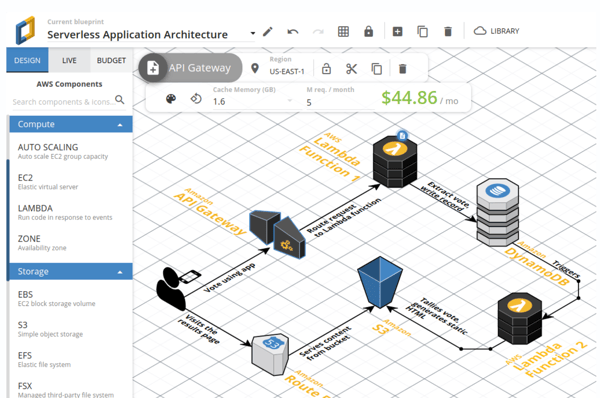
Pros and cons of Cloudcraft: What stood out to me
| Pros of Cloudcraft | Cons of Cloudcraft |
| Effortless AWS visualization | Only designed for AWS cloud infrastructure |
| Real-time synchronization | Limited diagramming features beyond AWS |
| 3D view and clear visuals | Primarily focused on visualization and documentation |
What G2 users like about Cloudcraft:
“The 3D view and integration with AWS (including the synchronization feature) make it incredibly easy to visualize and maintain your cloud infrastructure in real-time. As a cloud architect, I’ve tried many tools, but none of them have had the impact that CloudCraft diagrams produce on clients. They remain amazed at how much they can see about their existing or proposed infrastructure. It’s also a fantastic tool for teaching about AWS cloud infrastructure and services.”
– Cloudcraft Review, Walter J.
What G2 users dislike about Cloudcraft:
“It’s a bit difficult to use the user interface on a laptop due to the trackpad. I always prefer using a physical mouse. Also, if they could provide suggestions based on the resources I use in my architecture diagram, that would be a great feature.”
– Cloudcraft Review, Aman M.
If you enjoy visual thinking beyond flowcharts, check out the best mind mapping software I’ve tested to help you brainstorm ideas, plan projects, and organize complex information.
3. Creately: Best for multi-purpose visual planning and structured flow charts
Creately stands out as a visual collaboration hub for various projects. A digital canvas lets you create flow charts, org charts, and wireframes. You can even collaborate on documents and presentations from ideation to planning to execution – in real-time. This flexibility makes Creately a well-rounded choice for teams of all sizes who need to plan, organize, and communicate ideas visually. According to G2 data, it ranks as the 3rd easiest to use tool.
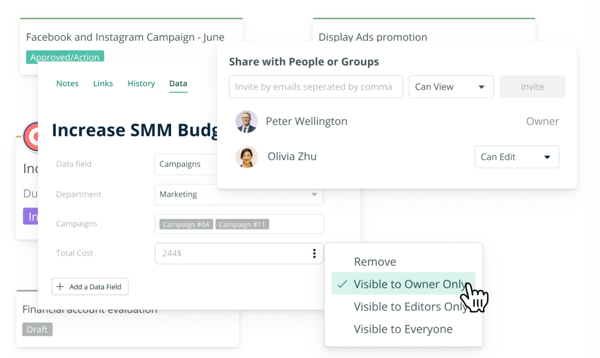
Pros and cons of Creately: What stood out to me
| Pros of Creately | Cons of Creately |
| Versatile platform for different flow charts | Learning curve for advanced features |
| Real-time collaboration features | Limited offline access |
| Intuitive and user-friendly interface | Limited features with the free plan |
What G2 users like about Creately:
“We find it particularly easy to design all our network diagrams for clients in Creately, and exporting them is also a breeze. Creately offers a user-friendly interface that makes it easy for users to create various types of diagrams without extensive training or experience.”
– Creately Review, Surya Prakash M.
What G2 users dislike about Creately:
“The least helpful aspect of Creately might be its limited functionality in the free plan, which may restrict users from fully experiencing the platform’s capabilities without upgrading to a paid subscription. Next is its dependency on an internet connection. Since Creately is a cloud-based tool, it requires a stable internet connection to access and work on diagrams. This dependency on internet connectivity may pose challenges for users in areas with poor internet infrastructure.”
– Creately Review, Padilla P.
Mapping a process is only the first step. Learn how to refine it with proven methods in this guide on process optimization and real-world challenges.
4. Gliffy: Best for simple, quick, browser-based flow chart creation
Gliffy simplifies diagramming with an online drag-and-drop interface. Choose from a library of shapes for flow charts, Unified Modeling Language (UML) diagrams, and wireframes. Enhance teamwork with real-time collaboration features, allowing your team to brainstorm, edit, and create diagrams. Integrations with Confluence and Google Drive enhance workflow.
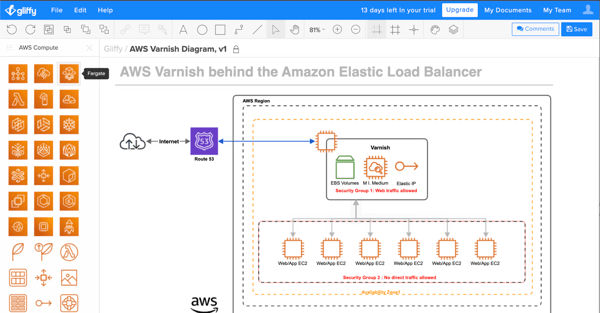
Pros and cons of Gliffy: What stood out to me
| Pros of Gliffy | Cons of Gliffy |
| Pre-built shapes cater to different diagramming needs | Limited customization options |
| Real-time collaboration features | Potential learning curve for advanced features |
| Integration with Confluence and Google Drive | Requires a stable internet connection for functionality |
What G2 users like about Gliffy:
“Gliffy is easy to learn and use. It comes with a significant number of templates, diagramming elements, and examples to build on. Gliffy offers convenient collaboration tools, some simple automation, and is very flexible.”
– Gliffy Review, Jon D.
What G2 users dislike about Gliffy:
“Selecting specific elements of a diagram can sometimes be difficult, especially when elements overlap. This drawback can be particularly frustrating when creating rough user experience mockups.”
– Gliffy Review, Matthew L.
5. Lucid Visual Collaboration Suite: Best for end-to-end diagramming across teams
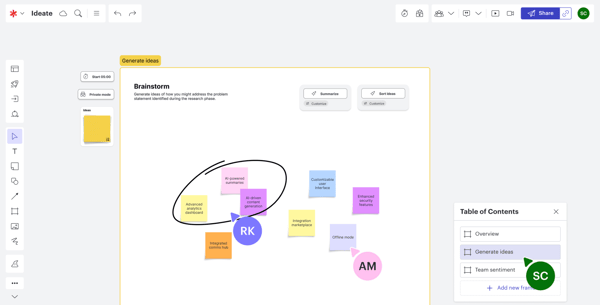
The Lucid Visual Collaboration Suite is a well-known free flow chart maker and a visual thinking powerhouse. This suite offers a toolbox of dedicated programs.
- Lucidspark: Brainstorm freely with a mind-mapping tool built for capturing ideas.
- Lucidchart: Go beyond flow charts with a comprehensive diagramming program.
- Lucidscale: Visualize even the most complex cloud infrastructure with ease.
These programs work together seamlessly, allowing improved team communication for brainstorming, planning, and visualization, all within a connected ecosystem. According to G2 Data, it ranks as the highest-rated tool in this category.
Pros and cons of Lucid Visual Collaboration Suite: What stood out to me
| Pros of Lucid Visual Collaboration Suite | Cons of Lucid Visual Collaboration Suite |
| All-in-one visual thinking hub | Learning curve for multiple tools |
| Seamless integration features | Potential for feature overload |
| Real-time collaboration features | Limited storage with the free plan |
What G2 users like about Lucid Visual Collaboration Suite:
“What I like about the Lucid Visual Collaboration Suite is its blend of user-friendliness and powerful features. The drag-and-drop interface and ready-to-use templates make it easy for anyone to create diagrams and flow charts. Real-time collaboration allows teams to work together seamlessly, seeing changes instantly daily. The suite integrates well with other platforms like Google Workspace and Slack.
Built-in features for comments, chat, and notifications keep everyone aligned, while customizable templates make it versatile for different projects. It also scales well, catering to small teams and large organizations. Overall, it’s great for enhancing productivity and teamwork.”
– Lucid Visual Collaboration Suite Review, Lisa M.
What G2 users dislike about Lucid Visual Collaboration Suite:
“There are a lot of creation options, so make sure you watch their demos and step-by-step instructions so you don’t get lost. Copy/cut/paste are not the same shortcuts in Lucid as in other platforms.”
– Lucid Visual Collaboration Suite Review, Erin H.
6. Miro: Best for visual collaboration and scalable flow charting
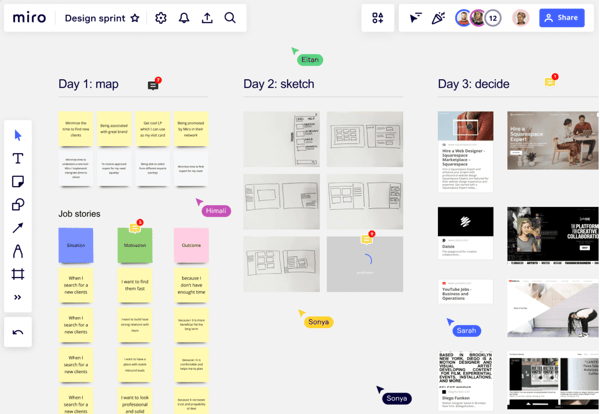
Miro goes beyond basic flow charts. It’s a sprawling digital canvas for brainstorming, teamwork, and project tracking. Imagine a whiteboard with endless space to add sticky notes, mind maps, complex diagrams, and even live video chat with your team. Miro is ideal for remote teams or anyone who thrives on visual organization. Boost productivity with a toolbox that includes flow charts and other visual collaboration tools. According to G2 Data, it ranks as the second-highest-rated tool in this category.
Pros and cons of Miro: What stood out to me
| Pros of Miro | Cons of Miro |
| Visual collaboration | Steep learning curve with advanced features |
| Flexibility and ease of use | Potential performance issues |
| Flow chart template library | Limited storage with the free plan |
What G2 users like about Miro:
“First, I like the scalability of MIRO Whiteboards. You can quickly start with a small drawing and add more and more information, pictures, notes, and references to it. You can also end up with a large-scale drawing that still works and provides a decent overview of what you did. As a proper cloud-based solution, these results are available everywhere: on your PC, in the home office, virtually, and even in real-life meetings. So, results are not lost but can be reused and enhanced in collaboration. That’s the way I love to use whiteboards.”
– Miro Review, Detlev P.
What G2 users dislike about Miro:
“Though it’s a must-have for marketing and salespeople, designers, developers, and project managers may sometimes find that too many things overwhelm it. Also, integration with Zoho apps is missing. And when I add comments, I need to manually link each comment to the elements, which is very frustrating. I wish there could be an easier way to do this.”
– Miro Review, Manish S.
7. Sketch: Best for designers who need precise, high-fidelity flow diagrams
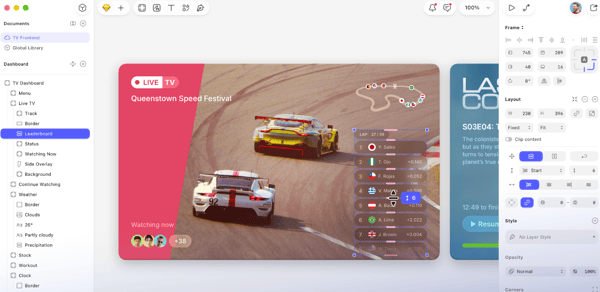
Sketch is a designer’s playground! This flowchart app lets you create digital interfaces, websites, and even mobile apps. With Sketch, you can design everything from user flow charts to high-fidelity mockups within a clean and intuitive interface. Unique features like powerful vector editing, symbol libraries, and real-time collaboration make Sketch a favorite for creating, prototyping, and collaborating. According to G2 Data, it is used by 53% of small businesses.
Pros and cons of Sketch: What stood out to me
| Pros of Sketch | Cons of Sketch |
| Clean interface and intuitive tools | Only available for macOS |
| A vast library of plugins for specific needs | Requires integration with other tools for advanced interactions |
| Precise and scalable graphics | Struggles to handle large or complicated designs |
What G2 users like about Sketch:
“I think the interface of Sketch is efficient, especially for a new designer. The artboard system is also good. I really like how the symbols work and how they can be used and reused throughout. The responsiveness is also a plus.”
–