



I tested several tools to find the best text editors. These are Visual Studio Code, Notepad++, Sublime Text, UltraEdit, Brackets, EmEditor, BBEdit, EditPlus, and Oxygen XML Editor.
In college, I used to think creating something meaningful in tech required superhero-level intelligence. But despite my doubts, I jumped in.
I was constantly juggling code snippets, documentation, and deadlines, switching between tools in what felt like pure chaos. Over time, with practice, I realized the journey wasn’t as daunting as I’d imagined.
I didn’t need genius-level intellect or superhero gadgets—I needed the right tools. Discovering the best text editors transformed my workflow, turning chaos into clarity and helping me work smarter.
After countless hours of research, testing over 15 top text editors, and analyzing expert reviews on G2, I’ve curated a list of the best ones to help you find the perfect fit.
Whether you’re a web developer, writer, or casual coder, these editors will simplify your work and boost your productivity.
9 best text editors: My picks for 2026
- Visual Studio Code: Best for code editing
Built-in debugging, intelligent code comparison and extension marketplace. ($66.59/user/mo) - Notepad++: Best for simplicity and plugin support
Stands out for wide plugin support, syntax highlighting and low system footprint. (Free) - Sublime Text: Best for minimal interface and customization
Provides multiple cursors, a command palette, and a powerful plugin ecosystem. (One-time license fee: $99) - UltraEdit: Best for heavy-duty text processing
Ideal for dealing with large files, big data sets or large codebase including advanced search. ($79.95/year) - Brackets: Best for front-end development
Live preview, real-time browser syncing of HTML and CSS and great for UI-focused coding. (Free) - EmEditor: Best for handling large text files
Built for opening, filtering, and editing massive files, including large CSVs and server logs. ($5/month) - BBEdit: Best for macOS users for text and code editing
Offers robust search, syntax coloring, code folding and macOS integration.
One-time fee: $59.99) - EditPlus: Best for web developers who need built-in FTP
Includes FTP, FTPS, and SFTP support, syntax highlighting, browser preview, and Git integration. ($35/user) - Oxygen XML Editor: Best for XML projects and structured editing
Tailored to working with XML, XSLT, DITA and other structured content.
($34/mo)
*These text editors are top-rated in their category with 25+ verified G2 reviews, according to G2 Summer 2026 Grid Reports. I’ve also added their monthly pricing to make comparisons easier for you.
My top 9 text editor recommendations for 2026
The best text editor is a simple yet powerful tool for writing and editing code in a clean, organized environment.
When I first started learning to code, I didn’t realize just how crucial this tool would be in my journey. I thought I could get by using basic programs or even just plain old Notepad, but I soon learned that a good text editor is the backbone of efficient coding.
By providing features like syntax highlighting, code completion, and easy-to-navigate interfaces, it made coding faster, more enjoyable, and less error-prone.
Now, after years of trial and error, I’ve narrowed down the 9 best text editors that I believe will help you take your coding skills to the next level in 2026. Each of these editors has its own unique strengths, and I’ve personally tested them to ensure they stand up to the demands of modern project development.
How did I find and evaluate these best text editors?
I spent months testing top text editors, using them on real projects to evaluate everything from performance and speed to usability and feature depth. Even with tools I already knew, I reassessed them with a fresh lens.
To deepen my analysis, I used AI to comb through verified G2 reviews that exhibit the product sentiment of consumers. This revealed common user experiences, while highlighting strengths like customization and speed, as well as frustrations with bugs and steep learning curves.
I focused on practical features developers and writers actually use, and considered user feedback around customer support, cross-platform reliability, and workflow compatibility.
Screenshots that have been featured throughout this article come from G2 vendor pages and publicly available product resources, helping illustrate what real users can expect.
In cases I couldn’t personally sign up and evaluate a product, I factored in the opinions of market researchers and professionals who have a hands-on experience working with text editors to improve speed, precision, and accuracy.
Not only do text editors provide pre-syntactical and compilation services, test and run code, but also a centralized platform to save your projects and optimize the application development lifecycle.
The demand for text editors for coding rose to a current market share of USD 4.5 billion in 2024, and is estimated to reach USD 8.2 billion by 2033, growing at a CAGR of 7.5% from 2026 to 2033, as per Verified Market Reports.
Here are my recommendations to make coding smoother, faster, and more effective for you.
What I look for in a text editor: my two cents
When selecting a text editor, I focus on technical features that streamline my workflow and ensure smooth performance, especially when working on complex tasks.
Here’s a deeper dive into what I prioritize and why these features are crucial for me:
- Ease of use: The first thing I look for is an intuitive user interface (UI) that doesn’t overwhelm me with unnecessary options. A simple, clean design with file drag-and-drop functionality makes managing projects easy. I prefer editors with a split-view for multi-file editing and an integrated file explorer to quickly navigate directories. Features like contextual menus that show relevant actions for the file type I’m working with enhance productivity and minimize the time spent looking for tools. These elements help me focus on writing or coding without the distraction of an overly complicated interface.
- Customization: It is essential because every developer or writer has a unique workflow. I look for editors that support a high degree of personalization. Custom themes with syntax-specific color schemes help me stay focused and reduce eye strain, especially during long sessions. Configuring keybindings to suit my specific preferences makes it easier to execute common actions like saving, formatting, or opening a terminal. I also appreciate editors that allow me to tweak the layout, such as arranging panels, tabs, and toolbars according to my needs. Advanced customization, like enabling Vim mode or Emacs keybindings, further enhances the editor’s utility for those comfortable with keyboard shortcuts.
- Performance: It is non-negotiable, especially when dealing with large files, heavy projects, or multiple tabs open at once. I prioritize text editors with low memory usage and efficient resource management. Features like asynchronous processing ensure that even when I load large files or run intensive tasks like find-and-replace or syntax checking, the editor remains responsive.
- Speed: Lazy loading of plugins or files ensures that the editor only consumes my system’s resources when necessary, maintaining speed and preventing lag. This is particularly important for large-scale projects, where performance can easily become a bottleneck.
- Advanced syntax highlighting: It is a must for readability and error detection. I look for editors who can recognize and highlight syntax for a wide range of languages, ensuring I can spot issues at a glance. Tools like language servers provide real-time error detection and immediately flag issues as I code. Linting support helps ensure my code adheres to best practices and style guidelines. Intelligent code completion (IntelliSense) is another key feature, where the editor suggests functions, variables, and methods based on the context of what I’m typing. This saves time and reduces errors, making the coding process smoother and more efficient.
- Plugin and extension support: A key advantage of modern text editors is their ability to be extended through plugins and extensions. I value editors with a robust ecosystem that supports various third-party plugins. Integrating with version control systems like Git, Docker, and terminal emulators directly within the editor allows me to work without switching between different tools. Language-specific extensions for Python, JavaScript, or any framework I work with can further optimize my experience. For example, I can add debugging tools, integrate with task runners, or manage dependency installations all within the same editor. This reduces context switching, improves efficiency, and gives me access to all the tools I need in one place.
- Cross-platform compatibility: I often switch between devices and operating systems, so I need an editor that works seamlessly across multiple platforms. Whether it’s Windows, macOS, or Linux, I want the same features and settings available on all my devices. Editors with cloud-syncing capabilities ensure that my preferences, plugins, and files are synced across devices so I never miss a beat. Additionally, the option to run the editor portably (without installation) on different systems via USB or cloud storage is particularly useful for working on the go or on multiple machines without needing to reconfigure anything. This ensures a consistent and uninterrupted workflow no matter where I am.
- Integration with version control systems: Effective version control is crucial, especially when working on team projects or long-term solo development. I prefer editors with native Git support or easy integration with GitHub, GitLab, or Bitbucket. Features like an integrated diff viewer allow me to compare changes and manage version history without leaving the editor. I look for editors that support branch management, commit staging, and even interactive rebase directly within the interface. This functionality makes it much easier to track changes, collaborate with others, and maintain a clean codebase. It streamlines the development process and helps prevent errors when managing multiple contributors or versions.
- Advanced search and navigation: When working with large codebases, advanced search functionality is essential. Editors with search capabilities allow me to quickly locate specific code patterns across multiple files. I also look for tools with fuzzy file finding, where I can search for files or symbols without remembering the exact name or location. Symbol navigation is another key feature that helps me jump directly to a function, class, or method without scrolling through hundreds of lines of code. These search and navigation features are invaluable for efficiency, particularly when working on complex projects where I need to find specific snippets of code quickly.
- Community and support: A strong community and reliable customer support are essential when I encounter issues or want to explore advanced features. I prioritize editors with active online communities, whether that’s in the form of forums, Slack channels, or Reddit threads, where I can get help from other users or share knowledge. Access to comprehensive documentation and tutorials also helps me get the most out of the editor. Regular updates and patch releases from the development team ensure that the editor stays current with the latest features and security fixes, which is crucial for maintaining a productive and secure workflow.
These features, while technical, play a critical role in how I work with text editors. They directly impact my efficiency, productivity, and the overall quality of my work. By focusing on editors that provide these advanced capabilities, I ensure I have the best tools at my disposal for both personal and professional tasks.
The list below contains genuine user reviews from our best text editor software category page. To be included in this category, software must:
- View and edit plain text documents
- Offer minimal platform integration features and not offer all the features of an IDE unless added with a plugin
This data has been pulled from G2 in 2026. Some reviews have been edited for clarity.
1. Visual Studio Code (VS Code): Best for code editing
I chose Visual Studio Code (VS Code) because I wanted something lighter than a traditional integrated development environment (IDE) without giving up the tools I use for everyday development. It handled JavaScript, Python, and TypeScript comfortably, and the clean interface made it easy to move between projects without feeling overwhelmed.
Its speed was the first real advantage for me. VS Code launched quickly, stayed responsive during regular coding tasks, and didn’t weigh down my machine like some full-featured IDEs I’ve used. That balance made it practical for quick edits as well as longer development sessions.
IntelliSense and GitHub Copilot made writing code much smoother. IntelliSense suggested functions, displayed method signatures, and explained methods while I typed, so I didn’t have to keep jumping to documentation. GitHub Copilot, an AI coding assistant powered by machine learning, added context-aware completions and generated functions from comments, which helped when I experimented with unfamiliar libraries.
The integrated debugger was another feature I relied on heavily. I could set breakpoints, step through code, monitor variables, and run commands through the built-in terminal without switching to another application. Keeping those tools in one place made testing and troubleshooting feel much more cohesive.
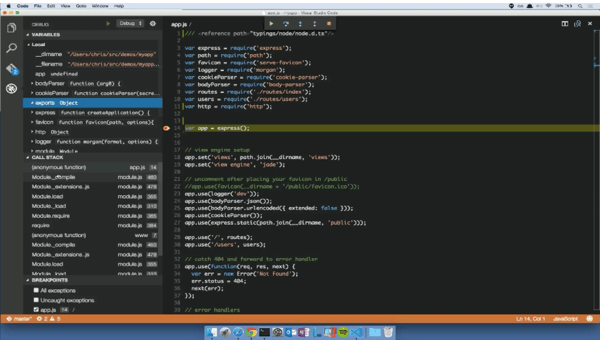
VS Code gives me plenty of flexibility through extensions, but that modular setup can become demanding on larger projects. G2 reviewers report slower searches, higher memory use, and occasional extension issues when working with extensive repositories or running too many add-ons. I found that keeping only the extensions I regularly use helps it remain dependable for small and medium-sized workloads.
For me, VS Code works best when I need a fast editor that can grow with different languages and project requirements. Its coding assistance and built-in debugging tools give me much of the functionality of an IDE while preserving the lightweight experience that drew me to it in the first place.
What I like about Visual Studio Code (VS Code):
- I found VS Code quick and responsive for everyday development, while its clean interface made navigating files and projects straightforward.
- IntelliSense and GitHub Copilot helped me write and understand code faster through contextual suggestions, method details, and AI-assisted completions.
What G2 users like about Visual Studio Code (VS Code):
“I like the code editor a lot and use it for editing even non-code files. It has a lot of plugins for even obscure file formats and schemas, which I find really useful. The editor is very snappy. Its extensibility is another great advantage, allowing for integration with multiple agents.“
– Visual Studio Code review, Lio L.
What I dislike about Visual Studio Code (VS Code):
- VS Code’s extensions make it highly adaptable, but G2 reviewers note that large repositories and numerous active add-ons can increase memory use or slow performance. Keeping the extension setup focused helps it remain a reliable option for most small and medium-sized projects.
What G2 users dislike about Visual Studio Code (VS Code):
“Sometimes extensions don’t work as expected, and you have to reinstall them to get them working again. For example, a lot of the time, the GitHub Copilot extension won’t work after you update VS Code to a newer version.”
– Visual Studio Code review, Vithal S.
2. Notepad++:Best for simplicity and plugin support
Notepad++ has stayed in my toolkit because it makes everyday editing feel uncomplicated. I can open it for a quick code change, clean up a text file, or jot down notes without setting up a larger development environment. The fact that it is completely free also makes it an easy place to start.
Its speed is one of the main reasons I keep returning to it. Notepad++ launches almost instantly, uses very few system resources, and remains responsive when I work through files containing hundreds or thousands of lines. For quick edits, I rarely have to wait for the application to catch up.
Syntax highlighting also makes the editor much more useful than its simple interface suggests. It supports languages such as JavaScript, Python, HTML, CSS, and PHP, helping me distinguish keywords, functions, and variables at a glance. When I switch between different file types, that visual structure makes reviewing and troubleshooting code easier.
I also get plenty of value from its regular-expression search and plugin support. Regular expressions help me find or replace complex patterns across large files, while plugins let me add formatting, comparison, and other utilities when the core editor is not enough. I like that I can expand Notepad++ gradually without turning it into a resource-heavy tool.
That lightweight approach does mean it stops short of the deeper functionality found in a full integrated development environment (IDE). G2 reviewers note that debugging, unit testing, profiling, and advanced code management often require separate tools, while some plugins can behave inconsistently after updates. For straightforward editing and smaller coding tasks, though, its focused feature set keeps the experience fast and approachable.
Notepad++ works best for me when the task calls for speed rather than a complete development workspace. It gives me enough language support and customization to handle day-to-day editing while staying refreshingly simple.Notepad++ has stayed in my toolkit because it makes everyday editing feel uncomplicated. I can open it for a quick code change, clean up a text file, or jot down notes without setting up a larger development environment. The fact that it is completely free also makes it an easy place to start.
Its speed is one of the main reasons I keep returning to it. Notepad++ launches almost instantly, uses very few system resources, and remains responsive when I work through files containing hundreds or thousands of lines. For quick edits, I rarely have to wait for the application to catch up.
Syntax highlighting also makes the editor much more useful than its simple interface suggests. It supports languages such as JavaScript, Python, HTML, CSS, and PHP, helping me distinguish keywords, functions, and variables at a glance. When I switch between different file types, that visual structure makes reviewing and troubleshooting code easier.
I also get plenty of value from its regular-expression search and plugin support. Regular expressions help me find or replace complex patterns across large files, while plugins let me add formatting, comparison, and other utilities when the core editor is not enough. I like that I can expand Notepad++ gradually without turning it into a resource-heavy tool.
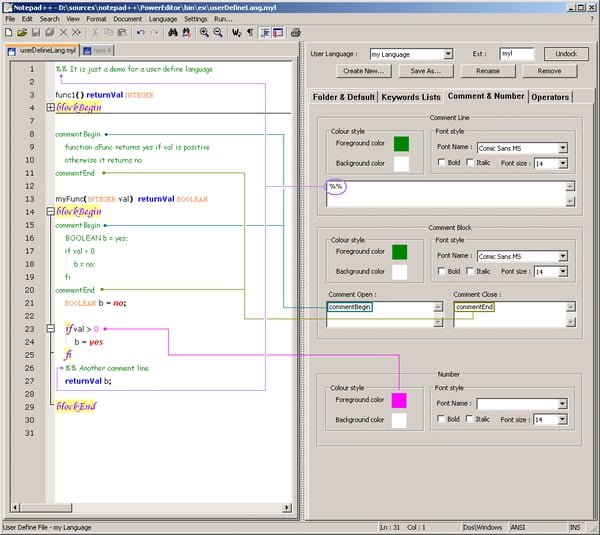
That lightweight approach does mean it stops short of the deeper functionality found in a full integrated development environment (IDE). G2 reviewers note that debugging and unit testing often require separate tools, while some plugins can behave inconsistently after updates. For straightforward editing and smaller coding tasks, though, its focused feature set keeps the experience fast and approachable.
Notepad++ works best for me when the task calls for speed rather than a complete development workspace. It gives me enough language support and customization to handle day-to-day editing while staying refreshingly simple.
What I like about Notepad++:
- I love how quickly Notepad++ launches and how little strain it puts on my system, even when I am editing lengthy code or text files.
- Its broad syntax highlighting, regular-expression search, and plugin support give me useful editing depth without making the application feel bloated.
What G2 users like about Notepad++:
“It is one of the simplest notepads that I have used. Uses very low storage consumption and has a very easy and neat setup. The user interface is very neat and clean, and huge customization is available, and that too for free. It supports almost all the development languages.Just write the code and select the language, and it will automatically format the code in the desired syntax. It doesn’t use many resources and can handle multiple files very smoothly. Before VS Code i used to write code i notepad++ and best for learners. Auto save even if pc is shut or window is maximized, it helps a lot”
– Notepad++ review, Shweta S.
What I dislike about Notepad++:
- Notepad++ is excellent for quick editing, but G2 reviewers point out that advanced debugging, testing, and profiling usually require a separate IDE, and plugins may occasionally need attention after updates. Its streamlined setup still makes it a dependable choice when I do not need a full development environment.
What G2 users dislike about Notepad++:
“The interface hasn’t changed much over the years and definitely looks old compared to modern applications. It works well, but visually it feels like a tool from another era. Sometimes it can also feel a bit overwhelming when you start exploring plugins and advanced options that most people probably never need.”
– Notepad++ review, Fanchon L.
3. Sublime Text: Best for minimal interface and customization
Sublime Text feels deliberately stripped back, and that simplicity is a big part of its appeal. I could open a project and start working without navigating a crowded interface, while still having enough customization to shape the editor around different languages and coding styles.
The Command Palette made navigation especially quick. With a few keystrokes, I could open files, jump between functions, or move to a specific line without taking my hands off the keyboard. During longer coding sessions, that kept me in the flow and reduced the time I spent digging through menus.
Multi-caret editing was another feature I found genuinely useful. It let me place cursors across several lines and update variable names, repeated values, or code snippets all at once. Combined with split editing, it made refactoring and comparing files much faster than working through every change individually.
I also liked how easily I could extend Sublime Text through its package manager. I could add Git support, Python linting, Markdown previews, and other project-specific tools without changing the lightweight feel of the editor. The active plugin community gave me plenty of room to tailor the setup as my requirements changed.
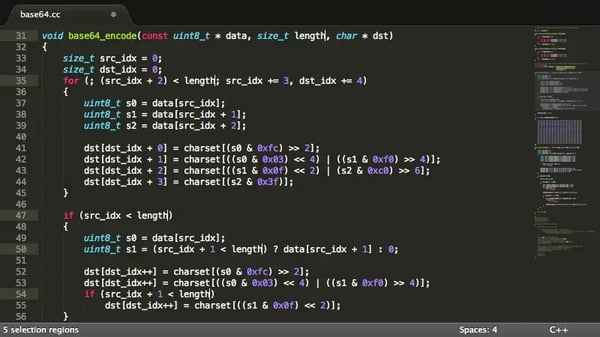
That flexibility comes with a trade-off. G2 reviewers note that features such as advanced debugging, terminal access, version control, and deeper integrations often depend on packages or external tools rather than being built into the editor. For users who enjoy configuring their own setup, that modular approach works well, but those who want a complete development environment from day one may prefer a fuller IDE.
Sublime Text makes the most sense to me when speed, keyboard-driven editing, and control over the workspace matter more than having every development feature included by default. It stays out of my way while giving me enough freedom to build the editing environment I need.
What I like about Sublime Text:
- The Command Palette and multi-caret editing helped me navigate projects and make repetitive code changes quickly without interrupting my concentration.
- Its package manager and smooth performance gave me plenty of customization while keeping the editor fast and uncluttered.
What G2 users like about Sublime Text:
“The best thing about Sublime Text is that it’s a very lightweight and simple code editor for a variety of languages, such as C, C++, JavaScript, etc. It provides a very intuitive user interface and experience while coding and its much begginer friendly.”
– SublimeText review, Safin G.
What I dislike about Sublime Text:
- Sublime Text’s package-based setup gives me flexibility, but G2 reviewers point out that advanced debugging, integrations, and terminal access often require extra tools or configuration. It remains a strong fit for users who prefer a lightweight editor they can shape around their own workflow.
What G2 users dislike about Sublime Text:
“Compared to other code editors, it offers fewer integration options and less editor functionality overall.”
– SublimeText review, Ishan A.
4. UltraEdit: Best for heavy-duty text processing
UltraEdit earned a place in my workflow when lighter editors started struggling with the size and complexity of my files. It is a feature-rich text editor built for demanding tasks, particularly when I need to work with large logs, databases, or raw data without sacrificing responsiveness.
Its large-file handling impressed me most. I could open and edit files several gigabytes in size without the lag or crashes I had experienced elsewhere. When I was reviewing lengthy server logs or analyzing raw exports, UltraEdit remained stable enough to keep the work moving.
Multi-caret editing and regular-expression search also made repetitive changes much easier. I could update several areas simultaneously or locate and replace complex patterns across an entire project. Together, these tools saved me from working through large blocks of text one line at a time.
The integrated FTP/SFTP client gave UltraEdit another practical advantage. I could open files from a remote server, edit them, and upload the changes without switching to a separate file-transfer application. That kept remote web development and database work contained within one workspace.
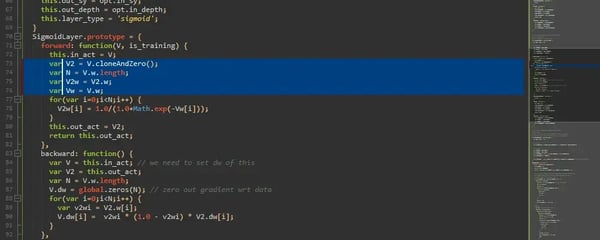
UltraEdit’s depth does take time to learn. G2 reviewers say that its many menus, settings, and advanced functions can feel overwhelming before you know where everything is. I found the interface easier to manage once I became familiar with the features I used regularly, making it better suited to users who need its processing power than those looking for a bare-bones editor.
For heavy text processing, UltraEdit gives me the stability and control I need without forcing large files into tools that were not built for them. Its combination of high-volume editing, advanced search, and remote access makes it especially useful when my work extends beyond ordinary code changes.
What I like about UltraEdit:
- UltraEdit handled multi-gigabyte files smoothly, while multi-caret editing and regular-expression search helped me make extensive changes without working through every line manually.
- The integrated FTP/SFTP client let me edit and transfer remote files from the same workspace, which simplified my web development and server-based tasks.
What G2 users like about UltraEdit:
“UltraEdit is a functional and stable editor. It supports customizable macros to automate repetitive tasks—like log cleanup or bulk file formatting—saving us significant time. Its true multi-language support makes it easy to work across Python, C++, bash, XML, JSON, and more—with accurate syntax highlighting and clear structure across the board. It handles large files effortlessly and has proven remarkably stable.”
– UltraEdit review, Verified User in Computer Software
What I dislike about UltraEdit:
- UltraEdit offers considerable depth, but G2 reviewers note that learning its menus and advanced features can take time. Once I focused on the tools relevant to my work, it became a capable option for handling demanding editing tasks.
What G2 users dislike about UltraEdit:
“While it is easy to jump in and start programming, it does have a bit of a learning curve to fully learn it and get the most out of it.”
– UltraEdit review, Fernando F.
5. Brackets: Best for front-end development
Brackets feels purpose-built for front-end work rather than adapted to it later. Its interface stays focused on the connection between HTML, CSS, and the browser, which makes it easier for me to move from writing code to checking the result without breaking my flow.
Live Preview was the feature I relied on most. When I changed HTML or CSS, Brackets updated the browser automatically, so I could test layouts, spacing, and styling without refreshing the page each time. That immediate feedback made visual tweaks much faster.
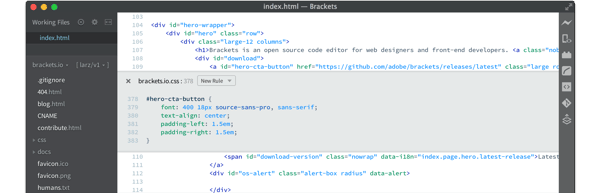
Inline Editors were just as useful when I needed to adjust styles tied to a specific element. Instead of jumping between separate HTML and CSS files, I could open the relevant CSS rule directly inside the code I was already viewing. For front-end projects, that reduced a lot of unnecessary back-and-forth.
Brackets also gave me enough language support to move beyond basic web pages. HTML, CSS, and JavaScript worked out of the box, while extensions added support for languages such as PHP and Python. Syntax highlighting and autocomplete helped me spot errors and move through mixed-language projects more confidently.
Brackets still works well for focused front-end tasks, but there is an important support limitation to consider. Adobe ended support for the original Brackets project on September 1, 2021, and the current Brackets site recommends moving to Phoenix Code, its community-supported successor. G2 reviewers also note that some older extensions no longer work reliably, so Brackets is better suited to legacy or lightweight projects than workflows that depend on ongoing official development.
For learning front-end fundamentals or maintaining an existing Brackets-based setup, its live browser feedback and inline styling tools are still genuinely useful. For a new long-term workflow, though, I would start with Phoenix Code to get a similar experience on a platform that continues to evolve.
What I like about Brackets:
- Live Preview lets me see HTML and CSS changes in the browser immediately, which makes testing layouts and visual adjustments much faster.
- Inline Editors and built-in front-end language support helped me update styles and navigate web projects without constantly switching between files.
What G2 users like about Brackets:
“With HTML and CSS, it doesn’t feel bloated, so it’s easy to jump in and get things done without digging through a ton of unnecessary features.
I also really like the Beautify and Beautify on Save features. Being able to automatically clean up and format code keeps everything consistent without having to think about it, which is a small thing but makes a big difference when you’re working through a lot of files.
The interface is very straightforward as well. Everything is where you expect it to be, which makes it a solid option whether you’re doing quick edits or working through a larger project.
Overall, it’s just a reliable, no-frills editor that works really well for day-to-day HTML and CSS development.”