



Video has quietly become one of the most important tools in my day-to-day work as a marketer. Best video communication software solutions help me walk teammates through campaigns, share asynchronous updates, and explain ideas to clients when a long message just won’t cut it. When the goal is clarity, “let me show you” almost always works better than another meeting on the calendar.
The challenge isn’t deciding whether to use video; it’s choosing the right tool. In a large organization, I’ve seen teams test everything from simple screen recorders to AI-powered presenters and enterprise-grade video platforms. Every product claims to save time, reduce meetings, or improve communication, and after a while, the feature lists start to blur together.
That’s what pushed me to look past marketing promises and focus on how these tools actually perform for real teams. I analyzed verified G2 reviews, tracked recurring user sentiment, and compared features across 20+ video communication software products to understand which platforms truly help teams communicate faster and more clearly, and which ones add unnecessary friction.
The result is a curated list of the 9 best video communication tools for 2026. These are platforms that consistently help teams replace unnecessary meetings, speed up knowledge sharing, and make recording and sharing videos feel effortless.
9 best video communication software for 2026: My top picks
-
Synthesia: Best for camera-free training and communication videos
Turns scripts into polished presenter-style videos using realistic AI avatars. ($29/month) -
Loom: Best for fast async screen and camera recordings
Let’s teams record and share walkthroughs instantly with no setup required. ($15/user/month) -
VEED: Best for quick browser-based video editing
Offers fast trimming, captions, and simple edits without advanced tools. (Pricing from $12/mo per user) -
Snagit: Best for precise screenshots and annotated visuals
Captures screens with accuracy and adds clear markup for training and documentation. (Pricing from $39/year) -
Riverside: Best for high-quality podcast and multi-track recording
Delivers studio-grade audio and video recordings for interviews and content creators. ($15/user/month) -
Camtasia: Best for structured tutorials and step-by-step screen demos
Combines reliable screen recording with a built-in timeline editor for training videos. (Pricing from $39/year) -
AKOOL: Best for AI-driven face swaps and personalized video creation
Provides realistic, frame-accurate swaps and fast AI edits for marketing and creative teams. ($21/month) -
Vidcast: Best for async video updates inside Webex workflows
Makes it easy to record and share walkthroughs, updates, and explanations asynchronously. (Pricing available on request) -
Vimeo: Best for polished, customizable video hosting
Offers high-quality playback, privacy controls, and clean embeds for professional content. (Pricing from $20/mo)
*These video communication tools are top-rated in their category, according to G2’s Fall 2025 Grid Report. I’ve also added their monthly pricing to make comparisons easier for you.
9 best video communication software I recommend
For me, the best video communication software is the one that stays out of the way. If recording or sharing takes more than a few seconds, people won’t use it. The strongest video communication software is built for speed and simplicity, making video feel as easy as sending a quick message when teams need to explain something fast.
Clarity matters just as much. Video should reduce confusion, not add to it. Whether it’s a walkthrough, bug explanation, sales update, or onboarding step, the right tools help teams communicate visually in ways text and screenshots can’t.
Scalability is the final piece. As teams grow, they need more storage, better editing, stronger collaboration, analytics, or AI-driven features. The platforms that stand out are the ones that evolve with these needs instead of forcing teams to add more tools.
This shift is reflected in the market itself. The global video conferencing market is projected to reach $24,459.2 million by 2033, growing at a CAGR of 8.2%. As video becomes more central to work, expectations for video communication software continue to rise.
How did I find and evaluate the best video communications software?
To build this list, I analyzed top-rated platforms in G2’s Video Communication category and examined how real users describe them across ratings, Grid placements, and detailed feedback. Instead of relying only on scores, I used AI-assisted analysis to review thousands of verified G2 reviews, looking for consistent themes around recording quality, ease of sharing, collaboration impact, editing limitations, performance, and overall reliability.
Because video tools vary by team size and workflow, I focused on practical factors that matter in daily use: how quickly users can start recording, how intuitive the interface is for non-technical teams, how well storage and sharing work, and how effectively each tool supports async communication.
I cross-referenced professional use cases with broader G2 review patterns to keep the analysis balanced and accurate. This helped surface how each platform performs in real scenarios like onboarding, documentation, client communication, and internal updates.
Screenshots in this article are either vendor-provided G2 images or publicly available UI visuals to show the user experience, without implying hands-on testing.
What makes the best video communication software: My perspective
As I evaluated platforms in the video communication space, one thing became clear: the tools that stand out are the ones that fit naturally into how teams already work. The right video communication tool can replace long emails, prevent unnecessary meetings, and make complex ideas easier to understand.
To finalize this list, I reviewed 20+ video communication tools and selected the 9 that consistently performed best based on verified user feedback, product capabilities, and real-world usage patterns. The criteria below explain what I prioritized and why each factor matters when choosing a video communication platform.
- Clarity and recording quality: I prioritized platforms that consistently deliver crisp visuals and reliable audio across different devices and setups. Clear communication depends on stable, high-quality recording, especially for walkthroughs, demos, and internal training.
- Low-friction recording and sharing: The strongest tools make it incredibly easy to start recording, finish, and share a link within seconds. If the platform adds friction, teams simply won’t use it consistently.
- Strong support for asynchronous communication: Async video is one of the biggest productivity boosters for modern teams. I looked closely at how well each tool supports instant sharing, easy playback, automatic transcripts, and the ability to revisit videos without digging through folders.
- Editing that helps, not complicates: Not every team needs full post-production capabilities. The tools that stood out offered intuitive trimming, captions, and light editing without forcing users into complex timelines or multi-layer workflows.
- Collaboration features that genuinely support teams: Comments, reactions, shared folders, analytics, and integrations all play a crucial role in making a tool useful once videos are created. I prioritized platforms that help teams communicate around the video, not just inside it.
- Scalability and performance under pressure: Upload times, playback stability, browser compatibility, and library management all surfaced repeatedly as real-world pain points. Tools that perform consistently, even with long recordings or large libraries, ranked higher.
Not every platform excels in all areas, and that’s expected. Some shine for quick async communication, others for training content, others for client-facing presentations. The goal here is to surface the trade-offs so you can choose the tool that fits your workflow perfectly, not just the one with the strongest marketing.
This list features platforms from G2’s Video Communication category. To be included in this category, a product must meet the following criteria:
- Record a user’s screen, camera, or both simultaneously
- Provide multiple ways to share the recorded video, such as links, email, text message, or integrations with other tools
- Allow users to engage with the content via comments, shares, and likes
- Provide a library to store and organize recordings
- Provide the ability to edit recorded videos
*This data was pulled from G2 in 2025. Some reviews may have been edited for clarity.
1. Synthesia: Best for camera-free training and communication videos
I’ve always known Synthesia as an AI video generator that turns text into avatar-led presenter videos, making it ideal for scalable training and camera-free communication. As I read through Synthesia’s G2 reviews, it became clear that teams choose this platform because it turns written scripts into polished, presenter-led videos without the complexity of filming or editing. In fact, it’s also ranked a Leader on the G2 Video Communication Grid.
Reviewers consistently described the workflow as smooth and predictable, which aligns closely with its G2 Scores: 92% satisfaction for ease of use, 95% for ease of setup, and 93% for ease of doing business with. These numbers align with the experiences described: quick onboarding, minimal friction, and a production process that fits into day-to-day communication.
Many G2 reviewers emphasized how the utility of Synthesiar creating structured updates, onboarding materials, and training content. The AI avatars play a significant role here, helping teams deliver information in a clear, standardized style that doesn’t require recording talent or managing reshoots. Synthesia’s 95% likelihood-to-recommend rating reflects how confidently teams incorporate it into their communication routines, especially when they need predictable, professional output.
G2 reviewers noted how the range of avatars and languages helps them create videos for different audiences without sacrificing consistency. This was especially important for organizations that shared formation across regions. The data supports this as well: with a 90% “meets requirements” rating, Synthesia seems to align well with what teams need when they produce recurring communication in multiple languages or formats.

Several reviewers also mentioned how quickly they were able to produce new content once they settled into the workflow. The repeatability of the script-to-video process makes Synthesia a practical tool for environments where updates, training modules, or internal explanations need to be delivered repeatedly, particularly those that operate on tight schedules or lack dedicated video resources. This consistency helps them keep communication flowing without delays.
Synthesia continues to impress reviewers with its ability to create polished, professional videos quickly using realistic AI avatars and voices. Some G2 reviewers mention that while the avatars look professional, they aren’t always as expressive as real presenters, making the platform better suited for structured training, product demos, and internal communication rather than emotionally driven storytelling.
A few reviewers also note that certain languages, like Chinese, can sound slightly more mechanical than others, so Synthesia works best for teams prioritizing clear, multilingual communication over highly natural or personality-driven delivery.
On the whole, Synthesia stands out as a dependable platform for creating consistent, presenter-style videos without the logistical overhead of traditional production. For teams focused on training, internal communication, and process explanations, it fits smoothly into existing workflows and delivers results that are both scalable and predictable.
What I like about Synthesia:
- The variety of avatars and strong language support make it easy to maintain consistent communication across regions.
- It helps teams produce polished videos quickly, supporting environments where updates and training content need to be created regularly.
What G2 users like about Synthesia:
“I initially chose Synthesia after it was recommended for AI-powered video translation. There are three standout features in this area:
1. It translates spoken content with about 90% accuracy,
2. It preserves the speaker’s original voice, tone, and intonation, and it offers a lip sync function that elevates the experience by making it appear as though the person is genuinely speaking the selected language. This works best with front-facing footage rather than side views.
3. Uploading a video for translation is straightforward, and the user interface is very intuitive and easy to navigate.
Being a new user, I was very impressed with customer support helping answer questions to my problems (learning curve issues).”
– Synthesia review, MarkandLera H.
What I dislike about Synthesia:
- Synthesia is praised for its realistic AI avatars and easy multilingual video creation. Still, some G2 reviewers mention that avatars can lack expressive or emotional delivery, a small watch-out for teams producing public-facing or narrative-heavy videos.
- Its language support is broad and reliable, though a few G2 users noted that certain voices, like Chinese, sound slightly more mechanical than English ones. For most global teams, however, the clarity and consistency make Synthesia a strong fit for professional, multilingual video production.
What G2 users dislike about Synthesia:
“I find it challenging that, when I write a script, the pronunciation can be completely inaccurate, even after I try to adjust the script. Additionally, the cost of the enterprise plan is unreasonable. There really should be an option between the creator and enterprise plans that would be more suitable for a wider range of users.”
– Synthesia review, Rhianna K.
For teams using video tools to support training, onboarding, or SOPs, our guide on how to make instructional videos will walk you through creating content that’s clear, repeatable, and scalable.
2. Loom: Best for fast async screen and camera recordings
From what I’ve seen, Loom is built for fast, no-friction async screen and camera recordings that help teams explain ideas without scheduling meetings. What stood out immediately in Loom’s G2 reviews is how often users highlight the speed and simplicity of recording. Many mentioned that they can start capturing their screen or camera within seconds, without configuring anything beforehand.
According to G2 Data, Loom holds a 95% satisfaction score for ease of use and 96% for ease of setup, which matches how reviewers describe the experience of recording and sharing a link almost instantly. This immediacy also makes Loom a practical, real-world answer to the question “What is the best video platform for remote business collaboration?” because it lets distributed teams visually explain things faster than typing long messages or scheduling unnecessary meetings.
Reviewers also point to Loom’s usefulness in clarifying work across distributed teams. Walking through tasks, explaining bugs, sharing updates, or reviewing work visually helps reduce the need for back-and-forth messages. The link-based sharing structure was often cited as a strong positive; users appreciated that recordings could be viewed immediately without needing to download or export. According to G2 Data, Loom maintains a 94% “meets requirements” rating, which aligns with how seamlessly reviewers said it fits into their daily async communication.
Another notable pattern in the feedback is the effectiveness of Loom in supporting recurring internal content. Teams described using it for onboarding explanations, process walkthroughs, internal demos, and weekly updates. Because videos are automatically saved and accessible across devices, reviewers found it easy to build a lightweight internal library without needing dedicated storage or editing tools. For fast-paced environments, this helps reduce repetitive explanations and allows people to absorb information at their own pace.
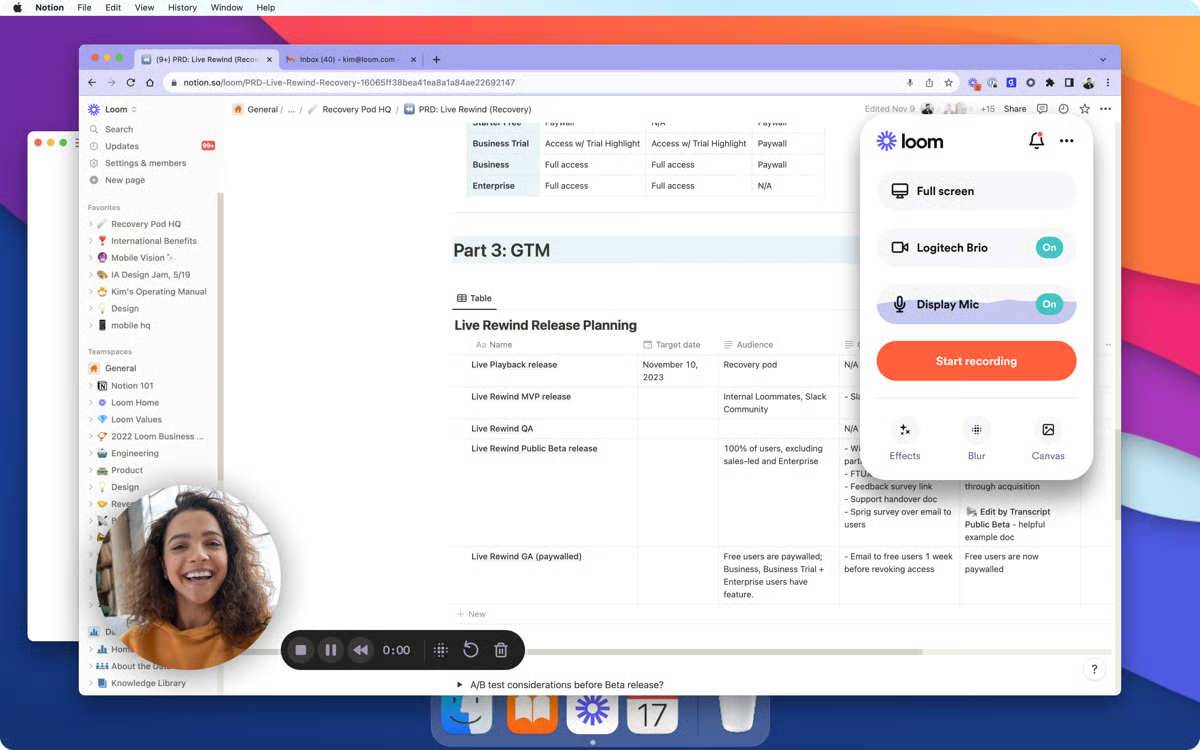
Loom continues to stand out for its simplicity and speed, helping teams communicate quickly through short, shareable videos. Some G2 reviewers mention that as libraries grow, organizing and managing recordings can become challenging, making it best suited for teams focused on quick updates or lightweight documentation rather than long-term video storage.
A few reviewers also note minor instability with the Chrome extension or desktop recorder, such as the camera not loading or needing a quick restart, so Loom is ideal for everyday async communication and brief walkthroughs rather than continuous, high-volume video production.
All things considered, reviewers describe Loom as a tool that fits smoothly into everyday communication workflows, especially when quick explanations or visual context are needed. For use cases centered on walkthroughs, clarifications, and short internal recordings, many teams found that Loom supports their work in a straightforward and efficient way.
What I like about Loom:
- I can record and share useful explanations in seconds, and reviewers consistently appreciate how naturally Loom supports async communication.
- Users appreciate how well it works for walkthroughs, updates, and quick visual explanations, without requiring any editing skills.
What G2 users like about Loom:
“Loom is a software that helps us in recording our mobile screen, and after recording the screen, it generates an automated link that can be shared through email or WhatsApp to all of our employees so that they can access the video without even downloading. This software makes the video detailing process much easier for us.”
– Loom review, Abhijeet K.
What I dislike about Loom:
- Loom is praised on G2 for its ease of use and speed, making it a favorite for quick, shareable video communication. That said, some G2 reviewers mentioned that managing large video libraries can get tricky as content scales, a small watch-out for teams producing frequent documentation videos. For smaller teams or quick updates, though, its organization tools work seamlessly.
- Its recorder and Chrome extension are noted for their simplicity, though a few G2 users reported occasional lag or delayed camera loading during back-to-back recordings. Still, Loom remains well-suited for day-to-day team communication and quick, collaborative video creation.
What G2 users dislike about Loom:
“A few of our field-team folks have said the buffered video stalls, which interrupt the “watch on the go” benefit we were hoping for. Additionally, because it’s built for speed over deep editing, if I need fine-grained video editing (cutting between multiple scenes, layering graphics), I still end up moving to a dedicated video editor. So for “quick and clear” it’s excellent; for “studio-grade polished”, less so.”
– Loom review, Avyan S.
Using video tools to keep your teams aligned? Strengthen the foundation behind every message with our guide to building an effective internal communications strategy.
3. VEED: Best for quick browser-based video editing
VEED is a browser-based video editor that makes it easy to trim, caption, and polish videos quickly, which is why it fits perfectly for everyday video communication. One of the clearest trends in VEED is how quickly they can make essential edits, especially when they need to trim clips, clean up recordings, or add captions without using advanced editing tools. Many described being able to prepare communication-ready videos in minutes, which aligns well with VEED’s 93% satisfaction score for ease of use and 94% for ease of setup, according to G2 Data.
For people who record on the fly and need their videos ready to share quickly, that simplicity is what makes VEED a practical choice. This makes it a natural fit for anyone wondering “Which video communication platform offers the most reliable conferencing features?”, because VEED excels at turning raw recordings from any conferencing tool into clean, shareable clips in seconds.
A recurring theme across the reviews is the convenience of the built-in captioning and text tools. Reviewers appreciated being able to add subtitles automatically and make quick adjustments without additional software. This is especially useful for teams sharing product walkthroughs, internal explainers, or training content where clarity helps reduce follow-up questions. Many users rely on these features to make their videos more accessible for distributed teams or colleagues who prefer or require captioned content.
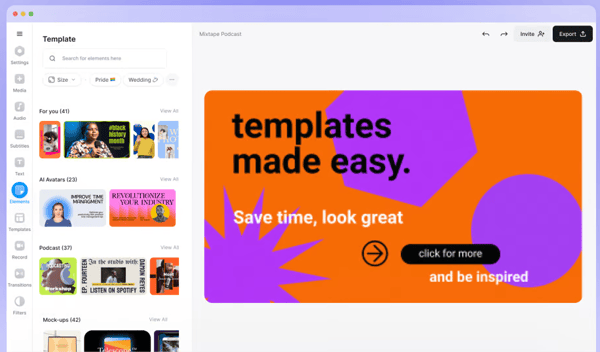
Another recurring point in the dataset is how helpful VEED’s browser-based editing environment is when teams collaborate on video communication. Users often highlighted that being able to edit from any device without installing a separate program made it easier to jump in, update a clip, or finalize a recording before sharing it across their organization.
VEED is praised for its accessibility and ease of use, allowing teams to create professional videos quickly without needing advanced editing experience. Some G2 users mention that performance can slow with longer or more complex projects, making it best suited for teams producing short explainers, updates, or social clips rather than high-resolution, multi-layer productions.
A few reviewers also note that exports can take extra time for larger or more detailed videos, so VEED is ideal for creators managing light to moderate video workloads rather than those working on tight, high-volume production schedules.
When you weigh it all up, reviewers consistently describe VEED as a straightforward, browser-based editor that supports modern video communication without requiring specialized skills. Its fast editing tools, accessible interface, and helpful captioning features make it a strong fit for teams creating short walkthroughs, internal updates, and polished explainer content.
What I like about VEED:
- It makes trimming, captioning, and polishing recordings quick and easy, which reviewers often credit for helping them prepare videos more efficiently.
- Users appreciate being able to edit directly from the browser without needing to install software, especially when collaborating across teams.
What G2 users like about VEED:
“VEED is incredibly easy to use and is fairly versatile. The learning curve is relatively small, even if you have little to no video editing experience. It creates great-looking videos quickly and has so many options for voiceovers, stock footage ,and effects. Implementing VEED has been easy, and the onboarding was smooth. The customer support is top-tier tier and people are very responsive. I use VEED frequently for my role, and have very few issues”.
– VEED review, Erin B.
What I dislike about VEED:
- VEED is well-regarded on G2 for its intuitive interface and ease of use, making video editing accessible even to non-professionals. Some G2 reviewers mentioned that performance can slow down with longer or multi-layer videos, a small watch-out for teams working on heavy, complex edits. For shorter clips, walkthroughs, or social videos, VEED maintains smooth and efficient performance.
- The platform’s export quality and range of file options earn consistent praise, though a few G2 users noted that exporting larger or high-detail projects can take longer than expected. This is more noticeable for creators managing tight deadlines, while everyday users producing quick updates or lightweight edits will find the processing times perfectly manageable.
What G2 users dislike about VEED:
“I find VEED to be fairly buggy, which can be frustrating. The application undoes some of my actions occasionally, necessitating frequent page refreshes to restore functionality. Furthermore, accessing certain controls, like changing the theme, font, and color after setup, is cumbersome. Many features are locked behind a higher-tier subscription, which I find too costly to justify upgrading, thereby limiting my usage of those potentially beneficial tools”.
– VEED review, Ben S.
4. Snagit: Best for precise screenshots and annotated visuals
Snagit is best known as a precise screen capture and annotation tool, helping teams explain processes visually when screenshots or short recordings say more than text. Many Snagit reviewers emphasized how dependable the tool is for capturing high-quality screenshots in different formats, whether it’s a single window, a fixed region, or an entire webpage.
According to G2 Data, Snagit’s 98% rating for screen capture reflects how consistently users rely on it to get clean, accurate visuals without any setup. For teams that need to show exactly what they’re seeing rather than describing it in text, this ability to capture on demand is a core strength that appears throughout the reviews. This makes Snagit a strong answer for teams asking “What is the most affordable video communication software for SMBs?”, because its one-time pricing and dependable capture tools give small teams professional-quality visuals without the higher cost of full video suites.
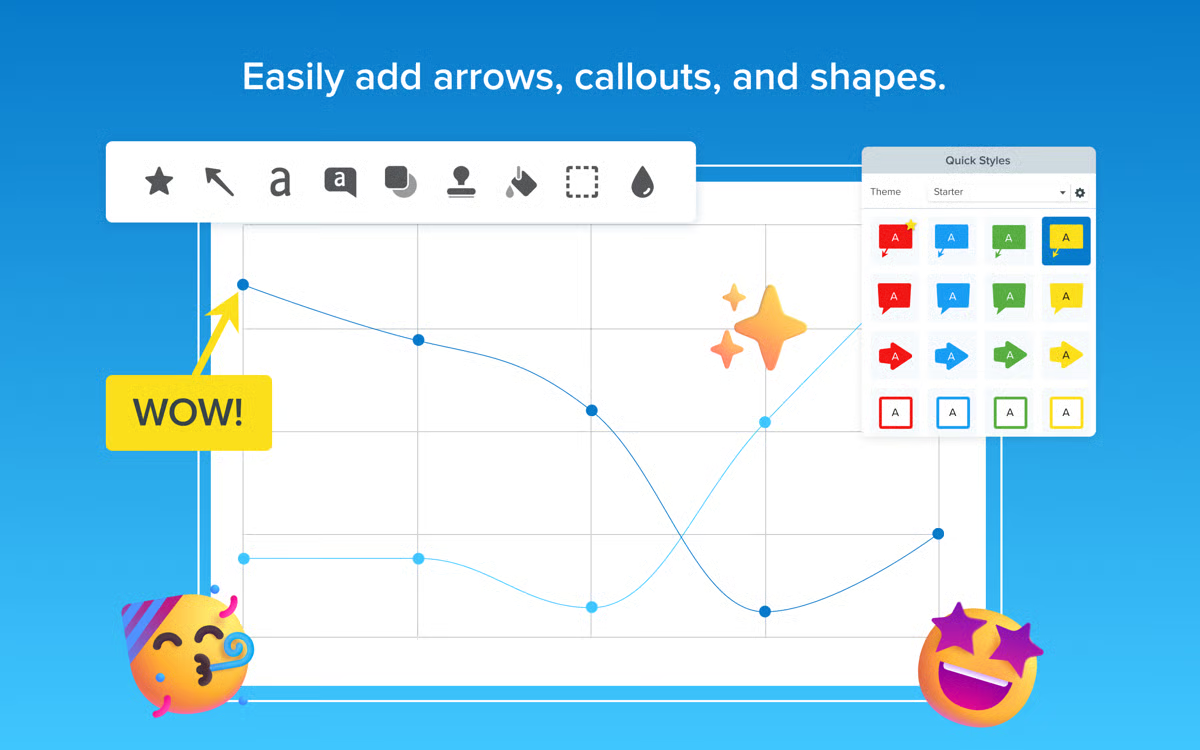
Reviewers also talked extensively about Snagit’s annotation tools and lightweight editing features. They often mentioned how easy it is to add callouts, highlight steps, mark errors, or build visual instructions using Snagit’s editor. The tool’s 93% image editing score, according to G2, reinforces how well Snagit supports this type of everyday documentation work. Many reviewers said they use these features when creating internal training materials, process guides, or simple explainer visuals where clarity matters more than complex design.
A third theme across the dataset is how helpful Snagit is for recording short, instructional clips. Users rely on the built-in recorder to capture quick demos or walkthroughs when screenshots alone won’t tell the full story. This is supported by Snagit’s 95% rating for screen recording, which aligns with reviewers describing the tool as fast, predictable, and easy to use for short-form communication. In many cases, teams used Snagit for the initial demonstration and only moved to heavier editing tools if a project needed more advanced production.
However, G2 reviewers noted that Snagit’s video editing capabilities are intentionally lightweight and may feel limited for teams looking to produce polished, long-form videos. This mostly affects users who need multi-track editing or motion graphics, but for teams focused on step-by-step explainers or quick visual instructions, the simplified workflow tends to be a good fit.
A smaller group pointed out that exporting larger recordings can take more time, especially on older devices. This matters more for teams producing long, high-resolution videos on tight deadlines. For users who primarily rely on screenshots, short recordings, or annotated visuals, these delays are minimal and don’t disrupt day-to-day workflows.
Snagit’s one-time pricing and simple workflow make it a strong video communication software for small businesses. Its strong capture performance, reliable recording options, and clear annotation tools help teams turn complex processes into easy-to-understand visuals, making it especially useful for training, support, and documentation work.
What I like about Snagit:
- It makes capturing and annotating visuals simple and fast, and reviewers often mention how dependable it is for training and documentation tasks.
- Users appreciate how consistently Snagit handles both screenshots and short recordings without extra setup.
What G2 users like about Snagit:
“Snagit is very handy and easy to use. We can capture the whole screen or a small part of it, or even a scrolling page. It allows editing easily post taking a screenshot, like adding arrows, text, shapes, or even highlighting things. It also helps to record the screen, which can be used for evidence or tutorials. Snagit also stores all captures in one place, so we can find them easily later. I personally use Snagit on a daily basis for my project work evidence to capture and edit evidence. It also has helpful features like auto-numbering steps, removing backgrounds, etc. And in case of any help or support, the customer support feature is also very handy and quick in response.”
– Snagit review, DISHA B.
What I dislike about Snagit:
- Some reviewers noted that its editing tools feel limited for advanced or long-form video projects, which is more relevant for teams creating complex content. For trainers and professionals focused on short, visual explainers, its streamlined setup works perfectly.
- The tool’s capture and export quality earn strong feedback, though a few G2 users mentioned slower export times for large or high-resolution recordings. Still, for everyday clips and documentation tasks, Snagit remains fast, stable, and easy to use.
What G2 users dislike about Snagit:
“Sometimes it won’t select the specific required window on Figma. Also, at least they should have given basic features for editing the captured screen recordings. I know this is an image editing tool, but while modifying the GIF, if i want to highlight the specific part the way we do it for images, we have to change it through Camtasia, then convert it to GIF.”
– Snagit review, Atul B.
5. Riverside: Best for high-quality podcast and multi-track recording
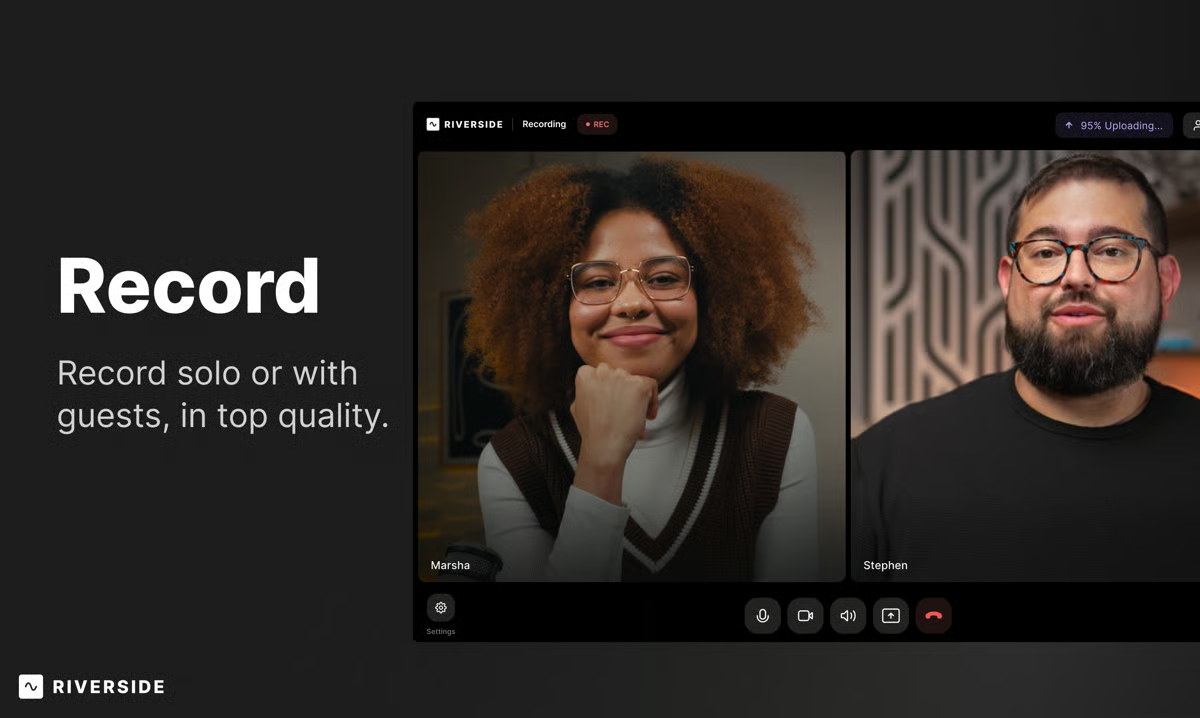
Riverside is designed for high-quality podcast, interview, and multi-track video recording, making it a strong “record once, repurpose everywhere” communication tool. What makes Riverside immediately stand out is its multi-track recording setup. Being able to capture each participant’s audio and video separately gives you far more control when shaping the final version of a conversation.
If your workflow depends on refining dialogue, adjusting levels independently, or cleaning up background noise without affecting the entire recording, this structure becomes one of Riverside’s biggest advantages. It is the kind of flexibility that matters when you’re producing interviews or podcast episodes where clarity and editability are essential. This level of control is why Riverside is often viewed as a strong solution for teams asking, “Which solution supports large-scale webinars and virtual events?” Its studio-grade capture makes complex, multi-speaker content easier to edit and repurpose at scale.
Another key strength is Riverside’s ability to maintain consistently high-quality recordings across different environments. Because the tracks are captured locally, you’re not relying on internet stability to produce clean footage. According to G2, the platform holds a 94% rating for video capture, which reflects how effectively Riverside preserves quality even when guests join from different devices or locations. This makes it well-suited for creators working with remote speakers or those who regularly produce content with participants in different time zones.
Riverside is also used for screen-based recordings when creators want to combine interviews with visual demonstrations. The platform’s 89% screen-capture score supports this kind of workflow, allowing users to record browser activity, product walkthroughs, or presentation materials without switching tools. When paired with multi-track audio and video, this makes Riverside practical for producing more complex content such as tutorials, explainer videos, or mixed-format sessions where both conversation and visuals matter.
Some teams also rely on Riverside for repurposing content, especially when they need written material or highlights from their sessions. The platform’s 90% text-extraction rating, according to G2 Data, aligns with workflows where transcripts or pulled text are used for summaries, documentation, or quick editing references.
A few G2 reviewers did mention that older devices may feel strained during longer recordings, especially in multi-participant setups. This tends to affect teams working on extended interviews or high-resolution, multi-camera sessions. For users focused on shorter conversations, lightweight interviews, or quick content segments, this is far less likely to be an issue.
Another group pointed out that longer episodes sometimes require re-uploads or additional syncing during post-production. This is more relevant for teams producing long-form podcasts or detailed multi-track projects with heavier editing needs. For creators focused on shorter clips, straightforward interviews, or internal conversations, these occasional interruptions generally don’t impact the overall workflow.
Riverside ultimately offers a dependable way to produce high-quality recordings without needing a physical studio. Its multi-track control, strong capture performance, and browser-based setup make it especially useful for teams and creators who want professional results while working remotely.
What I like about Riverside:
- Riverside gives you separate audio and video tracks to work with, making editing far more flexible for interviews and podcast workflows.
- The platform’s strong capture tools, including video, screen recording, and text extraction, make it easier to repurpose and refine content in post-production.
What G2 users like about Riverside:
“Although the feature set is packed with impressive technology and powerful tools, the learning curve remains gentle, largely due to the excellent tutorials provided. Even as you are getting started, you can create your first podcast right out of the box, while Riverside continues to work its magic behind the scenes. The improved video quality, made possible by importing localized video, leads to even better final results. I really love it!”
– Riverside review, Dr. F. Gianmichael S.
What I dislike about Riverside:
- Riverside earns strong G2 feedback for its studio-quality audio and video, ideal for podcasters and creators seeking professional results. However, some reviewers noted that older devices may slow down during long, multi-guest sessions, mainly affecting extended recordings. For shorter interviews and regular podcasts, it performs smoothly.
- Its local recording and backup tools are highly rated, though a few G2 users mentioned occasional syncing or re-upload needs in longer sessions. This is mostly relevant for teams producing long-form content, while those creating quick, high-quality clips find Riverside fast and reliable.
What G2 users dislike about Riverside:
“What I like least about Riverside.fm is the long export times. After an otherwise efficient recording and editing process, waiting for exports can be frustrating and slow down the overall workflow—especially when working on tight timelines. Reducing export time would make the experience feel truly seamless from start to finish.”
– Riverside reviews, Mike C.
6. Camtasia: Best for structured tutorials and step-by-step screen demos
I see Camtasia as a screen recording and editing tool built for structure, combining reliable capture with a timeline editor that works well for step-by-step tutorials. The strongest thing about Camtasia is how naturally it blends high-quality screen recording with a full editing timeline.
Instead of stitching together multiple tools or exporting files back and forth, everything happens in one place. You can record your screen, webcam, or both simultaneously and drop the footage straight into the editor to refine pacing, structure, and emphasis. According to G2 Data, Camtasia’s 96% rating for screen recording and 96% for screen capture reflect how reliably it handles this core workfl