



There are two types of people in this world: those who see a blank spreadsheet and panic and those who see infinite possibilities. I used to be the latter until a poorly formatted dataset, a rogue formula, and a sluggish cloud sync conspired against me on the same afternoon.
If you’ve ever watched your carefully crafted formulas implode because of one misplaced character or tried to collaborate on a document only to find someone has mysteriously deleted an entire column, you know the struggle of not working with the best spreadsheet software.
Spreadsheets are supposed to make life easier, but pick the wrong tool, and suddenly, you’re in an endurance test of patience and CTRL+Z reflexes. After one too many near-breakdowns, I decided to test different spreadsheet tools to see which ones could handle the chaos of my daily work. Some solutions handled massive datasets like a dream. Others made collaboration feel effortless. And a few? Let’s just say they reminded me why people still print things out.
If you live and breathe spreadsheets or just want a tool that won’t betray you, my list of best spreadsheet software breaks down the 8 top solutions I tested, what they excel at, and which one might save you from a data-induced meltdown.
Let’s get into it.
8 best spreadsheet software for 2025: My top choices
- Google Sheets for real-time collaboration with seamless integration with Google Workspace.
- Microsoft Excel for powerful data analysis and visualization capabilities.
- Quip for combining spreadsheets with documents and chat.
- Zoho Sheet for integrating with other Zoho apps, data validation, and automation.
- Apple Numbers for creative and visually appealing spreadsheets.
- Equals for simplicity, power, and providing transparency.
- Minitab Statistical Software for statistical analysis and quality improvement.
- LibreOffice for versatile spreadsheet features compatible with multiple formats.
These spreadsheet software solutions are top-rated in their category, according to G2 Grid Reports. Most of them are free to use; for others, pricing is available on request.
8 best spreadsheet software
Spreadsheet software is the tool I can’t escape, mostly because I don’t want to. It’s where I plan, organize, and analyze everything from marketing metrics to content schedules. At its simplest, it’s just a grid of rows and columns. But in reality? It’s a financial tracker, a reporting powerhouse, a calculator, a lightweight database, and occasionally a last-minute problem solver when no other software can do exactly what I need.
I’ve used spreadsheets for everything from budgeting ad spending to tracking marketing performance, and I’ve seen them morph into full-blown databases with automation, advanced formulas, and real-time collaboration. The best spreadsheet software isn’t just a place to dump numbers; it’s a tool that helps you make sense of them, spot patterns, and (hopefully) avoid costly mistakes.
Whether you’re crunching data, managing workflows, or just trying to stay organized, the right spreadsheet software can make a difference. The wrong one? Let’s just say I’ve lost enough unsaved work to know better.
How did I find and evaluate the best spreadsheet software?
I used G2 Grid Reports to see which spreadsheet software ranked highest based on real user feedback. I used AI to comb through thousands of reviews, paying close attention to comments about usability, performance, collaboration features, and how well each tool handled large datasets and complex formulas.
From there, I tested each spreadsheet tool myself. I built sample reports, imported messy datasets, ran formulas, and pushed collaboration features to their limits. I looked at how easy it was to automate workflows, whether the software slowed down under pressure, and how smoothly it integrated with other tools.
In cases where I couldn’t personally test a tool due to limited access, I consulted a professional with hands-on experience and validated their insights using verified G2 reviews. The screenshots featured in this article may include those captured during testing and those obtained from the vendor’s G2 page.
My formula for finding the best spreadsheet software
I wasn’t just looking for a spreadsheet that worked. I wanted one that made my job easier. So, I put the best spreadsheet software through the wringer, testing everything from speed to collaboration to how well they handled messy, real-world data.
- Performance and scalability: I’ve worked with spreadsheets that beg for mercy when you dump too much data into them. So I stress-tested each tool by importing large datasets—tens of thousands of rows, calculations running in the background, real-time collaboration in progress. A great spreadsheet tool shouldn’t just work for a few hundred rows; it should be able to handle heavy formulas, live data imports, and multiple users editing at once without turning into a frozen nightmare.
- Formula capabilities and automation: Basic addition and subtraction are fine for grocery lists, but I needed something that could handle complex formulas, nested logic, and automation that saved me from repeating the same task. I tested how well each tool supported advanced formulas like INDEX/MATCH, ARRAY FORMULA, and custom scripting. Some tools even let me set up automated workflows, like triggering emails when a threshold is met or pulling real-time financial data from external sources.
- Collaboration and version control: Spreadsheets are rarely a solo sport. I tested how easy it was to work with a team: can multiple people edit at once without things breaking? What happens when someone deletes a formula they definitely shouldn’t have touched? I also dug into version history, testing whether I could roll back changes easily. The best spreadsheet software made it impossible for a rogue teammate to break my workflow.
- Integration and connectivity: I find a spreadsheet that exists in isolation useless. I needed a spreadsheet tool that imported data from CRMs, APIs, and live databases without forcing me to update everything every five minutes manually. I tested how well each software tool connected with other tools, whether through built-in integrations, add-ons, or automation platforms. The best ones let me pull in real-time data, sync with cloud storage, and even automate repetitive reporting tasks with a few clicks.
- Data visualization and reporting: Numbers are great, but if I can’t quickly turn them into charts, pivot tables, or dashboards that make sense, what’s the point? I tested how flexible each spreadsheet software was with graphs, conditional formatting, and advanced reporting features. If a spreadsheet made it easier to spot trends, highlight key metrics, and present data in a way that tells a story, it scored major points.
- Advanced features: Beyond the basics, I looked for spreadsheet tools that offered features that weren’t just “nice to have” but improved my workflow. Some of the standout capabilities I tested included database-style functionality, AI-powered insights, formula suggestions, no-code automation, etc.
The best spreadsheet software didn’t just handle numbers—it extended what I could do with them, making my work more efficient and, honestly, a lot less frustrating. After testing over 30 tools over several months, I have my final cut.
The list below contains genuine user reviews from G2’s best spreadsheet software category. To be included in this category, a solution must:
- Provide review and editing tools
- Filter data for future analysis
- Provide data presentation functions, such as charts and graphs
- Offer collaboration and sharing tools
- Provide convertible files
*This data was pulled from G2 in 2025. Some reviews may have been edited for clarity.
1. Google Sheets (part of Google Workspace)
I’ve used Google Workspace for years, but I wanted to go beyond the usual budgeting and content tracking for testing Sheets.
I put Google Sheets through a deep test: handling large datasets, automating workflows, integrating live data, and stress-testing formulas. My goal was to see if it could replace a more heavy-duty spreadsheet tool or if it would start showing cracks under pressure.
First, the real-time collaboration is still unmatched. I invited multiple people to edit a live document, tested simultaneous changes, and set up protected ranges to prevent accidental overwrites. Everything was updated in real-time without lag, and I could tag people with @mentions in comments to assign tasks. The built-in chat centralized discussions, making it feel more like a living document than a static spreadsheet.
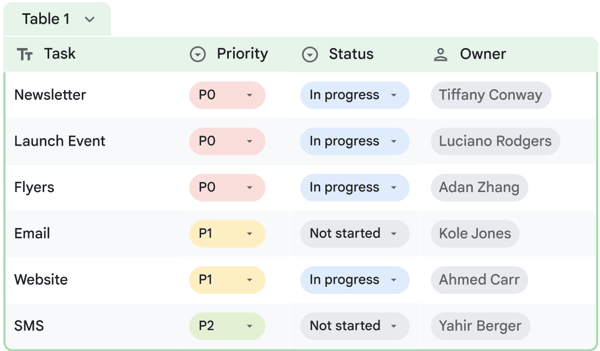
But I wanted to push automation next. Google Apps Script is a serious advantage if you know JavaScript. It allowed me to create custom workflows, like pulling live stock market data from an API or automatically generating reports. Sheets still offers basic automation through Macros for non-coders, which let me record and repeat repetitive tasks. I tested setting up an automated workflow to copy data from one sheet to another when a condition was met, and it worked well but only within Sheets itself.
Google Sheets also has impressive live data import capabilities. I used functions like IMPORTXML to scrape website data and IMPORTRANGE to pull values from other spreadsheets. Connecting Sheets to Google Analytics and BigQuery was smooth, but it required setup through Google Cloud, which isn’t as intuitive for beginners.
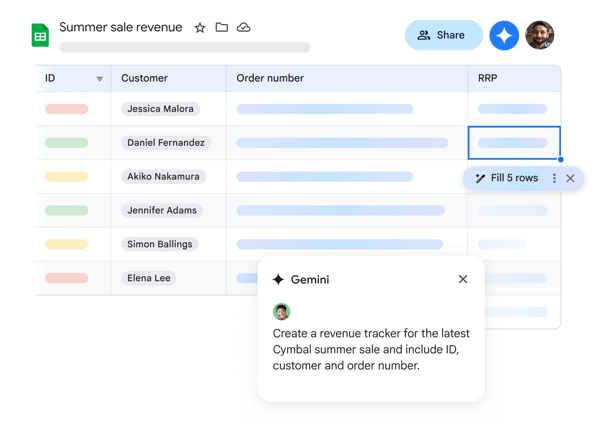
What also intrigued me was Gemini for Google Sheets, Google’s AI-powered assistant. Instead of manually building formulas or sifting through rows of data, I typed simple prompts like “Summarize sales trends from the last quarter” or “Highlight underperforming products,” and Gemini returned structured insights. It wasn’t always perfect—I still had to refine results—but it sped up analysis significantly. Gemini made trend-spotting and data summaries effortless for marketers and analysts working with extensive reports.
Then came the stress test. I uploaded a dataset with 100,000 rows of financial transactions and ran a series of calculations using QUERY and FILTER. At around 50,000 rows, performance started taking a hit: lagging refresh times, occasional freezing, and sluggish formula processing. Large pivot tables were also noticeably slower than Excel or dedicated data tools. This confirmed that Sheets is fantastic for light to mid-level analysis, but performance declines fast when you throw massive datasets at it.
Another pain point was offline functionality. I switched off my internet and tried editing a spreadsheet with offline mode enabled. While it worked for simple edits, loading large files without a stable connection felt unreliable. I wouldn’t trust it for critical work if I were traveling or in a low-connectivity environment.
What I like about Google Sheets:
- Real-time collaboration is effortless. I could edit alongside my team without version conflicts, and tagging people with @ mentions kept everyone accountable. Changes showed up instantly, and the ability to leave cell-specific comments made tracking edits easy.
- Google Apps Script unlocks serious automation. I automated daily report generation, live data pulling, and customized conditional formatting—all without touching third-party software. If you know JavaScript, you can turn Sheets into a low-code powerhouse.
What G2 users like about Google Sheets:
“We use Google Workspace for our custom domain emails for our entire team. We use a regular drive to share files. We work with sheets to maintain our work records. We collaborate with Google Meet for stand-up calls for very Quick rounds ups. Overall, it’s one place where we spend more time in our regular work lives.”
– Google Workspace Review, Santosh R.
What I dislike about Google Sheets:
- Offline mode is available but unreliable. Working on large files without an internet connection was frustrating, and syncing changes felt slow when I returned online.
- Automation is powerful but not user-friendly. Google Apps Script is outstanding for advanced users, but non-coders like me are stuck with limited built-in automation tools or have to rely on third-party add-ons.
What G2 users dislike about Google Sheets:
“One downside of Google Workspace is its limited offline functionality. While offline access is possible with some apps (like Docs, Sheets, and Gmail), it requires setting up beforehand, and certain features may not work as well or require a steady internet connection to update smoothly once you are back online. Additionally, if your organization relies heavily on advanced spreadsheet or document features, Google Sheets and Docs may lack the in-depth functionality of traditional software like Microsoft Excel and Word, especially for complex data processing or advanced formatting.”
– Google Workspace Review, Gadwin O.
Spreadsheets are great for crunching numbers, tracking data, and even managing projects—until they aren’t. A free project management tool may be the right step if you’re juggling multiple tasks, deadlines, and team collaborations. Check out my recommendations now!
2. Microsoft Excel
I’ve always seen Excel as the spreadsheet software that can do everything—if you know how to use it. While Google Sheets wins in collaboration, Excel dominates in raw power, making it my go-to for large datasets, advanced financial modeling, and automation that doesn’t break under pressure.
I started by loading a massive dataset with over 500,000 rows to see how Excel handled large-scale data analysis. Excel barely flinched, unlike Google Sheets, which started lagging at around 50,000 rows. Filtering, sorting, and running complex calculations felt smooth, even when I stacked multiple pivot tables and conditional formatting rules.
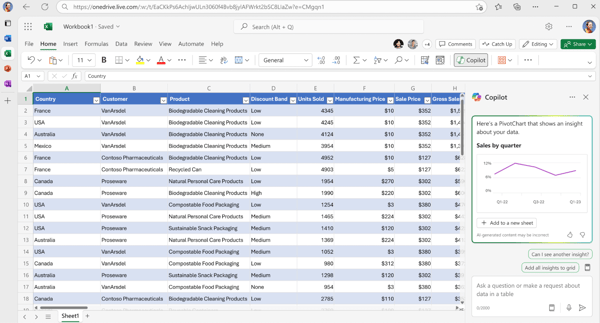
What impressed me was Copilot, Microsoft’s AI-powered assistant. Instead of manually figuring out formulas or creating pivot tables from scratch, I simply typed what I needed in plain English. Copilot suggested the correct formulas, created visualizations, and even summarized trends in my data. It wasn’t perfect; I still had to tweak results occasionally, but it was a massive time-saver for quick insights and first drafts of reports.
However, Excel shines in Power Query and Power Pivot. These tools aren’t just for cleaning up messy data; they let you manipulate and transform datasets with incredible precision. I tested Power Query by pulling in raw CSV files, merging tables, and automatically refreshing reports with new data. It worked flawlessly, saving me hours of manual cleanup. On the other hand, Power Pivot let me build relational data models, which is a lifesaver when working with multi-sheet reports that need to stay connected.
For automation, I tested Excel’s built-in Visual Basic for Applications (VBA). I wrote a macro to generate weekly marketing reports, pulling data from multiple sheets, applying formatting, and even sending an email summary—all with one click. It took some initial setup, but it saved me from a tedious manual process once configured. If VBA feels too technical, Excel also integrates with Power Automate, allowing no-code automation that connects with other Microsoft tools like Outlook, Teams, and SharePoint.
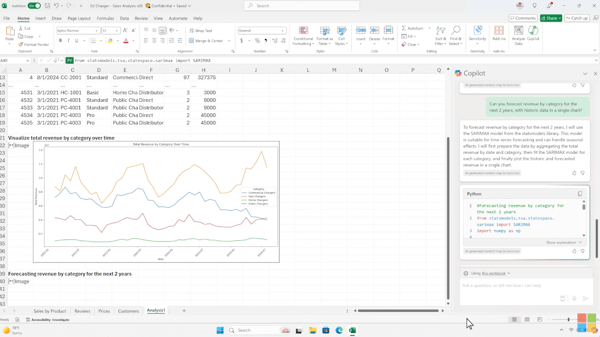
I also tested Excel’s data visualization tools, and this is where it pulls ahead for reporting. The charting features go far beyond simple bar graphs; I created interactive dashboards with slicers, custom trend lines, and dynamic formatting that made reports more insightful at a glance. If you work in analytics-heavy fields, Excel’s ability to handle forecasting, trend analysis, and predictive modeling gives it an edge.
One drawback I ran into was cloud collaboration. While the Excel for Web version allows real-time editing, it’s not nearly as smooth as Google Sheets. The desktop version is still the best for performance, but sharing files requires saving them to OneDrive or SharePoint, which adds an extra step compared to Google’s instant sharing.
What I like about Microsoft Excel:
- Handles large datasets without breaking a sweat. I loaded a spreadsheet with over 500,000 rows, added pivot tables, and ran complex calculations, and Excel still ran smoothly. Excel is built for this level of heavy lifting.
- Data visualization is far more advanced than most spreadsheet tools. I created interactive dashboards with slicers, custom charts, and trend lines that updated automatically. The level of control over formatting and presentation is impressive.
What G2 users like about Microsoft Excel:
“Excel has become a powerful tool and a required skill for almost any professional. I have used Excel workbooks in many business scenarios, and you can easily create many solutions. It has many formulas and powerful features like Power Query and Power Pivot, besides VBA, if you have programming knowledge and require specific operations. The Power Query feature allows you to integrate Excel with many file types and databases, and as a data analyst, this is gold.”
– Microsoft Excel Review, Germán Andrés C.
What I dislike about Microsoft Excel:
- While Excel for Web allows real-time editing, it wasn’t as smooth or instant as I’d like. The desktop version is still better, but relying on OneDrive or SharePoint for sharing adds extra steps.
- Excel requires a powerful machine for extensive calculations. It handles big datasets well, but when I tested it on my older laptop with complex formula-heavy sheets, there was a noticeable lag. Hardware can be a limitation if you’re working with massive files.
What G2 users dislike about Microsoft Excel:
“I wish there were times when the formulas were more explanatory. At times, the formulas do not seem to make sense, and experts need to be consulted, or self-help videos need to be reviewed to solve the issue of why certain logic paths/formulas aren’t working.”
– Microsoft Review, Michael R.
If you want to turn raw data into beautiful, interactive dashboards, you’ll need the right tool. Luckily, I’ve also tested the best free dashboard software to help you visualize your data like a pro.
3. Quip
Quip isn’t your typical spreadsheet software. It’s what happens when a spreadsheet, a document editor, and a chat tool get combined into a single workspace. At first, I wasn’t sure if this mashup was a brilliant idea or an unnecessary complication, but after testing it for real-world tasks, I can see why teams who need an all-in-one workspace love it.
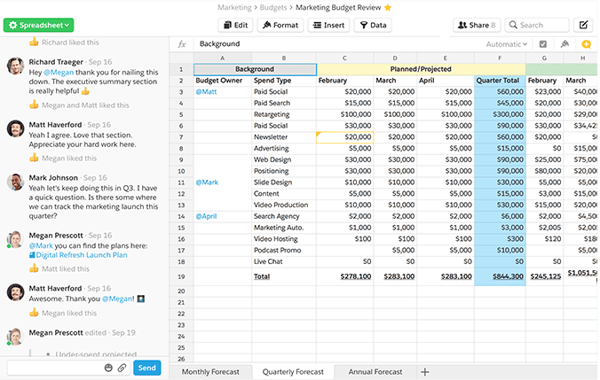
Right away, Quip felt less like a spreadsheet tool and more like a live workspace. Instead of being dropped into a blank grid, I started inside a document where I could embed spreadsheets directly alongside text, checklists, and even live discussions. This was a massive win for marketing reports, content calendars, and campaign planning, where I constantly switch between analyzing numbers and explaining trends. Instead of bouncing between spreadsheets and separate Google Docs, I could keep everything in one place.
I tested the real-time collaboration tools, and this is where Quip really stood out. Unlike Google Sheets, where comments are tied to specific cells, Quip allows inline discussions anywhere in the document, whether it’s in a paragraph, a checklist, or inside a spreadsheet itself. My team and I could chat inside a financial report, adjust projections, and assign action items directly inside the file. Plus, I loved that I could add interactive checklists and task lists right inside the document, making it more than just a spreadsheet.
Then, I tested live sync capabilities, and this was where things got interesting. Because Quip is owned by Salesforce, it has deep integrations with Salesforce data, allowing teams to pull live CRM records and reports directly into a Quip document. I could edit a sales forecast spreadsheet, and the numbers automatically updated from Salesforce data, ensuring we were always working with the latest figures. This feature alone could replace messy email chains and outdated reports for sales and finance teams.
However, I wanted to see how Quip handles large datasets and automation, and this is where it struggled. I imported a spreadsheet with 30,000+ rows, and while it didn’t crash, performance noticeably slowed down. Filtering and sorting data wasn’t as fast as I’d expect from a spreadsheet built for heavy data crunching.
Quip also lacks advanced automation tools like macros, scripting, or complex formula-building. It has standard spreadsheet functions but no VBA-like scripting or Google Apps Script equivalent. That means if you rely on automated workflows, large dataset manipulation, or advanced financial modeling, Quip might feel limited.
What I like about Quip:
- Unlike standard spreadsheets where comments are tied to individual cells, Quip allows inline discussions anywhere. My team and I could review a plan, add notes next to key data points, and even assign tasks.
- If your team works in Salesforce, you can pull CRM data directly into a Quip spreadsheet. I tested this with a sales pipeline report, and instead of manually updating numbers, the spreadsheet synced in real-time.
What G2 users like about Quip:
“Quip has a very intuitive UI that is adaptable to any device, such as laptop and smartphone, making it easy to make quick edits at any time. I really like its automatic backup feature for my documents, plus it has a revision history (to retrieve any version of a document easily), and it sends me notifications every time a document is modified.”
– Quip Review, William H.
What I dislike about Quip:
- Limited formula and automation capabilities. While Quip handled my basic calculations fine, it lacked advanced features like macros, scripting, and automation tools. If you need to build complex financial models or automate repetitive tasks, you’ll hit a wall quickly.
- I found the customization options pretty basic. Unlike Excel, where I can deeply format reports and fine-tune every chart, Quip’s spreadsheet formatting tools felt limited. It works well for simple reports, but it may not be enough if you want highly detailed visualizations.
What G2 users dislike about Quip:
“Handling with tables is not that smooth for me. I think we can add some more features present in google sheets if doesn’t exist till now. Like Formula support and all. Also, if you paste some photos in the last line of a quip doc it gets tough to work in the next line by inserting a new one, so I would just paste the photo in the second last line to not face that issue.”
– Quip Review, Yash R.
Finding spreadsheet software is good, but knowing how to analyze data is what matters. Whether you’re working with sales numbers, marketing performance, or financial forecasts, understanding descriptive statistics can help you turn raw numbers into real insights.
4. Zoho Sheet
Zoho Sheet doesn’t just try to be another cloud-based spreadsheet—it goes a step further by integrating collaboration, workflow automation, and business intelligence features in ways that most spreadsheet software doesn’t. While it may not have the brand recognition of Excel or Google Sheets, I found it packed with tools that make data management more efficient, especially for teams already using Zoho’s ecosystem.
The first thing that stood out was how customizable the experience felt. Unlike most spreadsheet software that forces a rigid interface, Zoho Sheet lets me tweak everything from the toolbar layout to default formatting options. I even set up custom button-triggered actions inside the sheet, which is something I hadn’t seen in other tools. This made everyday tasks—like updating reports or shifting datasets—feel smoother and more intuitive.
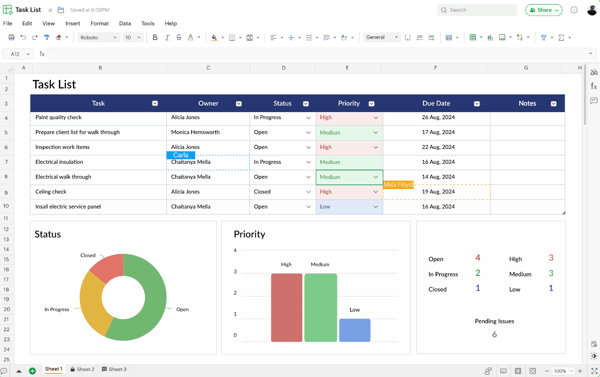
I also tested its built-in data validation and automation tools, and this is where Zoho Sheet really impressed me. The data linking feature allowed me to create dynamic references across multiple sheets and workbooks, meaning that when one dataset changed, all connected reports updated automatically. This removed the hassle of manually syncing reports—a huge time-saver for anyone dealing with recurring data updates.
Zoho Sheet also offers form-driven data collection, which lets you build interactive forms directly inside the spreadsheet. I tested this by creating a marketing campaign tracker where my team could submit new campaign details through a form, and the data populated into a structured table automatically. This feature is handy for teams that frequently collect data from multiple contributors.
For those who need team collaboration, Zoho Sheet includes granular access controls, letting me set user roles at a much deeper level than Google Sheets. I could allow some teammates to edit only specific ranges, restrict formula changes, and even set expiration dates on shared files—something that’s incredibly useful for managing temporary collaborations.
While Zoho Sheet excels at automation and team workflows, it’s not the strongest at external integrations. It works beautifully with Zoho’s suite of apps (like Zoho CRM and Zoho Books), but I found it noticeably more difficult to connect to third-party tools outside the Zoho ecosystem.
Another limitation I noticed was charting and visualization. While Zoho Sheet includes a variety of graph types, I found the customization options more limited than Excel or Google Sheets. I struggled to tweak trend lines, add dynamic filtering, or build interactive dashboards as smoothly as I could in other software.
What I like about Zoho Sheet:
- Built-in form integration eliminated manual data entry. I created a campaign tracking form that automatically populated data into a structured table. This is an excellent tool for teams that frequently collect data from multiple sources.
- Granular access control allowed better security and collaboration. I could restrict editing for specific ranges, prevent formula changes, and even set expiration dates for shared files, which is something missing from most cloud-based spreadsheets.
What G2 users like about Zoho Sheet:
“One of the best and easiest spreadsheets available on cloud. It’s an amazing tool to have all our data organized in a systematic manner in one place. The multiple-user collaboration feature is one of the software’s best features, which is a lifesaver and enhances the team’s productivity and collective decision-making. Also, numerous features help us in the easiest processing and computation of loads of data.”
– Zoho Sheet Review, Ashab M.
What I dislike about Zoho Sheet:
- There are limited third-party integrations outside Zoho’s ecosystem. While it connects seamlessly to Zoho CRM and finance tools, integrating with non-Zoho platforms like Zapier, Slack, or external APIs requires extra steps.
- There is no advanced scripting language for deep automation. Zoho provides some built-in automation tools, but it lacks a powerful scripting option like Google Apps Script or VBA, making complex workflow automation more difficult.
What G2 users dislike about Zoho Sheet:
“I understood that this tool is a special purpose tool and may not be as easy to deal with as a regular Microsoft Excel or Google Sheets. For example, I cannot just paste a date from Excel into a Zoho Sheet and expect it to work across date formats. It doesn’t. Similarly, null value handling is different in Excel and Zoho sheets. So I had to be careful while even copying and pasting so that the actual value is retained irrespective of format changes.”
– Zoho Sheet Review, Arpit J.
5. Apple Numbers
Apple Numbers is the spreadsheet software that refuses to be just another grid of rows and columns. Right from the start, it felt less like a traditional spreadsheet tool and more like a canvas for data-driven design, with a focus on aesthetics, layout flexibility, and a surprisingly intuitive approach to organizing information.
It’s perfect for people who want their spreadsheets to look as good as they function, but it definitely has its quirks.
The first thing that stood out was the freeform layout. Unlike Excel or Google Sheets, where you’re locked into an endless sea of gridlines, Numbers lets you place tables anywhere on the canvas. I tested this by creating a multi-section report with multiple tables, text explanations, and even interactive charts; all arranged exactly how I wanted, without being confined to a single rigid sheet.
This made it ideal for presentations, dashboards, and reports that needed to be visually structured rather than just data-heavy.
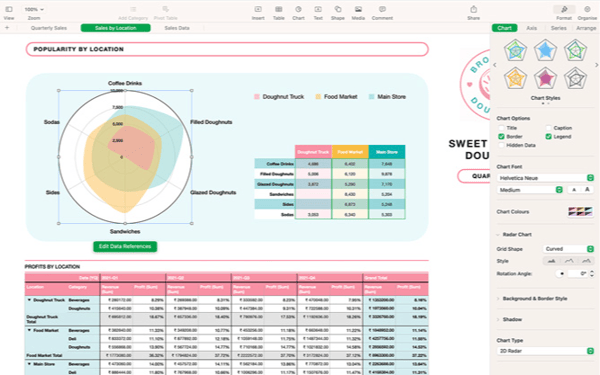
Another unique feature I tested was Apple’s interactive sliders and stepper controls. Instead of manually changing values in cells, I added adjustable sliders to financial projections, making it easy to tweak numbers and see instant updates in charts without constantly retyping values. This made scenario analysis feel far more intuitive, especially for forecasting models.
I also explored real-time collaboration, which works seamlessly across Apple devices through iCloud. My team edited the same file on Mac, iPad, and even iPhone without any sync issues. However, collaboration outside the Apple ecosystem was limited—unlike Google Sheets, which anyone can access with a browser, Numbers requires collaborators to have an Apple ID, which made sharing files with non-Apple users more complicated.
Apple’s built-in data categorization also felt unique. Numbers allow for automatic grouping and collapsible category views within tables, which made breaking down datasets by region, department, or sales category incredibly smooth. I tested this with a marketing budget report, organizing expenses by campaign type, and I loved how I could collapse and expand sections dynamically without needing separate pivot tables.
One of Numbers’ most substantial aspects is its stunning data visualization tools. Charts and graphs are far more polished and customizable than what I’ve seen in Excel or Google Sheets. I created a 3D interactive pie chart where I could rotate sections by dragging them, making it a powerful tool for visually engaging reports.
However, advanced statistical and financial modeling is noticeably limited despite the gorgeous presentation options. Unlike Excel, there’s no Power Pivot, and while it supports basic formulas, it lacks more profound data analysis tools like regression modeling or complex statistical functions.
Numbers excel in ways that traditional spreadsheets don’t. But if you need deep data analytics, scripting, or enterprise-scale automation, it may not be robust enough for the job.
What I like about Apple Numbers:
- A fully customizable layout that makes reports look great. Instead of being locked into a grid, I could freely place tables, charts, and images on a blank canvas, making it perfect for visual reports and dashboards.
- Deep integration with Apple’s ecosystem improved workflow efficiency. I could drag and drop live charts into Keynote presentations, and any updates in Numbers were reflected automatically in my slides—perfect for report-heavy work.
What G2 users like about Apple Numbers:
“I really love the simplicity that numbers provide. Every feature and every formulation and all the changes everything is super easy to do and very user-friendly. Even if you don’t know the know House of this app, you would be able to learn it on your own pretty quickly because everything is pretty straightforward, so I really appreciate the fact that it is very user-friendly.”
– Apple Numbers Review, Suraj D,
What I dislike about Apple Numbers:
- Limited automation and scripting capabilities. There’s no built-in scripting language like VBA or Google Apps Script, so repetitive tasks and significant data transformations require manual work or third-party tools.
- Collaboration works best within Apple’s ecosystem. While real-time editing through iCloud was smooth on Apple devices, sharing with non-Apple users was less intuitive, and the web version lacked some functionality.
What G2 users dislike about Apple Numbers:
“Coming from a background as a data analyst, I found that Apple Numbers lacks the features that I’ve grown accustomed to with Excel and Google Sheets. While Numbers is fantastic for basic tasks and presents data in a visually pleasing manner, for anything more advanced or for business use, the functions and formulas are limited. If you have also used Excel or Google Sheets, Numbers’s entire approach is quite different, making it challenging to adapt to a different workflow. I’ve tried to switch to Numbers many times but always find myself returning to the other options.”
– Apple Numbers Review, Skyler B.
6. Equals
Equals is a spreadsheet built for modern analytics, and after testing it, I can confidently say it’s one of the most unique tools in this space. Unlike Excel or Google Sheets, which are general-purpose spreadsheets, Equals is explicitly designed for business intelligence, live data connections, and SQL-powered reporting. If you constantly work with databases and need a spreadsheet that automa