


I’ve tested 11 best collaboration tools—everything from big names like Slack and ClickUp to lesser-known gems designed for niche workflows. I’ve spent countless hours exploring their features, figuring out what works (and what doesn’t), understanding how they fit into different team dynamics, and analyzing what G2 reviewers say about these collaboration tools. My goal? To cut through the noise and help you find the right tools.
11 best collaboration tools: My picks for 2025
- Smartsheet for tracking projects with a spreadsheet-like interface ($9/mo)
- monday Work Management for work management and collaboration ($9/mo)
- Asana for collaborating on projects and managing task dependencies ($10.99/mo)
- ClickUp for project collaboration and productivity management ($7/mo)
- Slack for communicating and collaborating with teams ($7.25/mo)
- Trello for task and project management with Kanban-style boards ($5/mo)
- Wrike for team collaboration with strong reporting capabilities ($10/mo)
- Bordio for organizing tasks and projects efficiently ($3.99/mo)
- Teamwork.com for collaborating with teams on projects ($10.99/mo)
- Runrun.it for time tracking and task management ($8/mo)
- ProofHub for centralizing task management and collaboration for teams ($45/mo)
* These collaboration tools come with free trials, free forever options, or freemium models. I’ve also included their monthly pricing for easy comparison.
Here are my top 11 collaboration tools for 2025
Best collaboration tools are basically the secret sauce that keeps teams running smoothly, especially when everyone’s spread out or juggling a million things at once. They make it super easy to chat, share files, track projects, and just stay in sync without the chaos of endless emails or random messages getting lost.
For me, they’ve been lifesavers—helping me keep everything organized and making sure no one’s left in the dark. Honestly, once you start using the right ones, it’s hard to imagine working without them.
How did I find and evaluate these best collaboration tools?
I spent weeks testing these collaboration tools—creating accounts, playing with features, and putting them to work on real projects to see what they’re made of. For the collaboration platforms I already use, I took a step back to reassess them with a fresh perspective. The goal was to see if they’re as good as they claim, what they’re best for, and whether there’s a free option for you to try without any risk. I also went through tons of user reviews on G2 for some real-world feedback and used their grid reports to see how these tools stack up against each other.
What I look for in a collaboration tool (and why it matters)
Choosing the right collaboration software or app can save you from endless headaches, but it takes a bit of thought. Here’s what I looked for when evaluating these collaboration tools:
- Ease of use: If a tool isn’t straightforward, I know it’s not going to stick. I always look for clean interfaces and features that make sense without needing constant help or a manual. I’ve noticed that tools with built-in tutorials or onboarding guides are a huge plus—they make it easy for me and my team to hit the ground running.
- Integration capabilities: I need my tools to work together. I’ve had the best experience with platforms that integrate seamlessly with things like my email, calendar, and other apps like Trello or Google Drive. If it doesn’t save me from hopping between programs, it’s not worth it. Bonus points if the tool has an API for custom workflows because that’s been a lifesaver for some of the teams I’ve worked with.
- Security: Security is a big deal for me, especially when dealing with sensitive projects or client data. I always check for things like end-to-end encryption and two-factor authentication. Tools that follow standards like GDPR or SOC 2 compliance make me feel confident about data protection. It’s also great when they let me control who has access to what—that’s been essential for keeping things organized and secure.
- Scalability: I think about where my team is now and where we’re headed. A tool might work for a small group, but will it still be helpful when we scale up? I look for platforms that make it easy to add new users and features as we grow. It’s also a bonus if the pricing is flexible—so I’m not paying for things I don’t need until I really need them.
- Cost-effectiveness: Let’s be honest—price matters. I always look for tools with a free trial or a freemium plan so I can test them out before committing. That way, I can see if the features are actually worth the cost. I’ve learned to dig into the details of pricing tiers, so I don’t get hit with hidden charges later on.
- Real-time collaboration: For me, real-time collaboration is non-negotiable. Whether it’s chatting with teammates, jumping on a quick video call, or editing a document together, I need things to happen instantly. Tools with features like tagging teammates, assigning tasks directly in documents, or tracking changes in real-time have saved me from so many miscommunications.
- Mobile accessibility: I’m not always at my desk, so I need tools that work just as well on my phone as they do on my laptop. A mobile app with push notifications and offline access is a must for me. It’s saved me more times than I can count when I needed to check something on the go.
Over the past few weeks, I tested more than 50 collaboration tools to narrow down the best ones for this article. The 11 that made the cut really stood out. They’re super easy to use, won’t blow your budget, integrate smoothly with other apps, and ease real-time collaboration with your team.
The list below contains genuine user reviews from our free project collaboration category page. Please note that in the context of this list, software that requires payment after a free trial is considered free.
To be included in this category, software must:
- Provide features for chat, discussions, and internal or external communications
- Allow users to share documents and content, including version control
- Manage private and team calendars by department or at the company level
- Help users collaborate, comment, or share tasks and project details
- Define custom workspaces and project views for internal and external sharing
- Manage access rights to documents, chat, calendars, and project views
This data has been pulled from G2 in 2024. Some reviews have been edited for clarity.
1. Smartsheet
When I started using Smartsheet, I honestly didn’t know what to expect.
I’ve tried so many collaboration tools that overpromise and underdeliver, but Smartsheet quickly became one of my favorites. The flexibility is incredible—I’ve used it for everything from planning content projects to organizing my daily tasks. It feels like the tool grows with you and your needs, instead of forcing you to fit into its box.
The Gantt charts? Total game-changer. I rely on them all the time to keep track of timelines and make sure everything’s running smoothly. And the templates? Lifesavers. I’m not exactly a project management guru, but Smartsheet makes me feel like one because it does half the work for me. All I have to do is customize the templates, and I’m off to the races.
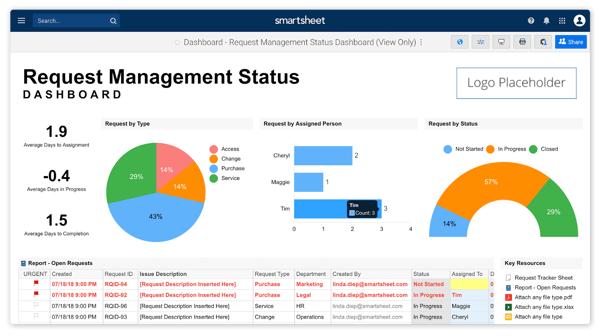
Not everything’s perfect, though. Setting up task dependencies—like linking dates and times—can feel like wrestling with a Rubik’s Cube. It’s not the easiest thing to figure out, but once you do, it’s super satisfying to see everything snap into place. Integrating with other tools is another area that could use a little polish. Sometimes I wish it was as smooth as clicking a button, but it takes some effort to get it all connected.
And, the interface isn’t the prettiest or the most intuitive. There’s a learning curve, but it’s nothing a little patience and experimentation can’t fix.
What I like about Smartsheet:
- I love how easy it is to tweak templates and create a setup that works for me.
- The Gantt charts and templates make me feel like a pro in terms of organizing projects and staying on top of timelines.
What G2 users like about Smartsheet:
“I’ve been using Smartsheet for quite some time now, and overall, it’s been a great tool for managing large-scale projects and keeping things organized. One of the things I really like is how customizable it is. I can create dashboards, automate workflows, and track progress in real-time, which makes it much easier to stay on top of tasks and deadlines. It’s like a powerful spreadsheet but with so much more functionality, which has been a big plus for our team’s collaboration.”
– Smartsheet Review, Valeria Mazo T.
What I dislike about Smartsheet:
- Linking tasks with dates and times can be a headache at first—it feels unnecessarily complicated until you figure it out.
- Connecting Smartsheet with other tools isn’t as smooth as I’d like; making everything work together seamlessly requires more effort than expected.
What G2 users dislike about Smartsheet:
“What is challenging about Smartsheet is that while there is a ton of capability with the software, learning how to use it can be overwhelming. The sheer number of training videos available is a deterrent as you try to find what you are looking for and trying to learn.”
– Smartsheet Review, Scott H.
Did you know you can use collaboration tools to train and provide technical support from a remote environment? Check out the best AR collaboration tools.
2. monday Work Management
You know what I love about monday Work Management?
It’s like the ultimate organizer that keeps my work life in check. I use it to track projects, manage my team, and even as a mini-CRM, and it does all this without breaking a sweat. The automation is a game-changer—no more repetitive tasks eating up my time. Plus, the workflows are super easy to set up, so even my less tech-savvy colleagues got the hang of it quickly.
Uploading documents, making notes, tracking progress—it’s all right there in one place. And don’t get me started on the flexibility. I’ve customized it to fit every need of my department. Plus, there’s this massive app store where you can find tools to expand its capabilities.
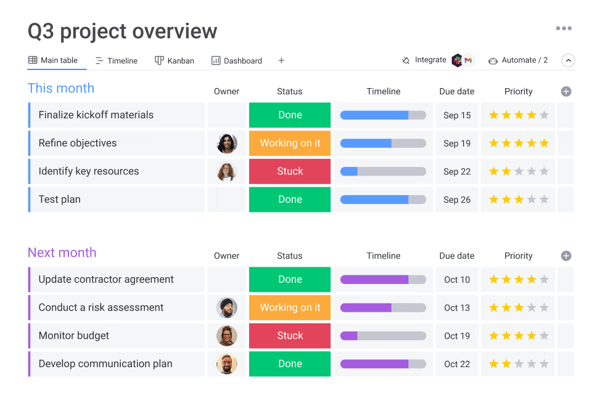
That said, it’s not perfect. Editing tables can be a bit clunky, and copying multiple fields to other docs takes some workarounds. Also, the pricing differences between plans? Yes, that’s a thing. If you’re on the basic plan, you might feel a little left out. But hey, the enterprise features are worth it if you can spring for them.
What I like about monday Work Management:
- Setting up workflows is simple, and it keeps everything running smoothly, no matter how chaotic my projects get.
- What I love most is how flexible it is. I’ve customized it to handle everything from task management to full-on CRM duties.
What G2 users like about monday Work Management:
“Monday.com has been a game-changer for our creative team, making collaboration and feedback effortless. What I like best is how intuitive it is for different teams to share feedback and collaborate on projects in one place. The subtask cards are particularly useful, as they allow team members to leave comments and track progress with ease. I use Monday.com every day to attach my copy documents, which my creative senior accesses to provide feedback. It’s seamlessly linked to our Slack channel, so I’m instantly notified of any messages or tags. For a creative team like ours, the ability to attach high-res PDF files directly to task cards is a lifesaver—no need to download files just to view them. It’s a streamlined, efficient platform that keeps everyone on the same page!”
– monday Work Management Review, Charisse B.
What I dislike about monday Work Management:
- One thing that drives me a little crazy is copying multiple fields or entries. It’s not as straightforward as it should be, and I sometimes have to find workarounds to get it done.
- The pricing structure can be a bit annoying. Some of the best features, like advanced controls, are locked behind the more expensive plans,
What G2 users dislike about monday Work Management:
“While I find the guest access features essential, there’s room for improvement in providing more granular restriction options and making everything even more customizable to fit specific needs. Additionally, when working with very large boards, the platform’s performance can slow down slightly, which can hinder efficiency in those cases”
– monday Work Management Review, Sören M.
3. Asana
Asana has honestly been a lifesaver for managing my projects and keeping my team in sync.
One of the first things I noticed—and still love—is how easy it is to coordinate everything. The ability to organize tasks into neat sections, link related tasks with subtasks, and set dependencies makes even the most chaotic projects feel manageable. Visual boards are my go-to for seeing the big picture at a glance. Drag-and-drop simplicity meets next-level clarity.
The project timelines are another game-changer. I can lay out all my deadlines, connect them, and instantly see how one delay can impact the rest of the project. It’s saved me from so many last-minute scrambles. Plus, Asana’s integrations are chef’s kiss. Whether I’m pulling in data from Slack, syncing with Google Calendar, or tying things into our CRM, everything just works together seamlessly.
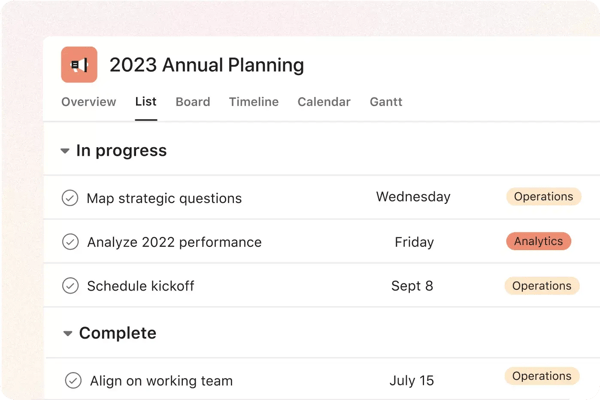
I can also update statuses, assign tasks, and even add custom fields to track things like budgets or approval stages. It’s all so intuitive—no more digging through email threads or spreadsheets to figure out what’s happening.
Nested tasks are super powerful, but they can get a little overwhelming in really big projects. Sometimes, I catch myself clicking through layers of subtasks, wondering where I am. And exporting data could be smoother—it’s fine for basic stuff, but if you want a clean, detailed report export, it takes some manual work.
The free plan is great for small teams, but I really wish there was an option tailored for individuals who don’t need all the team-focused features.
What I like about Asana:
- I love the way Asana lets me break down big tasks into subtasks, set dependencies, and track progress visually with boards and timelines.
- Whether I’m syncing with Google Calendar to track deadlines or pulling updates from Slack, everything just fits together seamlessly.
What G2 users like about Asana:
“Asana is very easy to use and intuitive for my team members who don’t have tech backgrounds but need to start and contribute right away. It’s our six-person org’s collective “brain” that allows us to self-organize and move quickly. Implementation can be a little tricky if you don’t have a good information architecture model or exposure to work-planning tools, but it’s easy to find someone who can set it up for a small fee, too. Once configured, ongoing support needs are really minimal. We use it all day long, every day, managing everything from our own internal operations and marketing work through our marketing, sales, permitting, project management, build, and delivery process for construction. Integration with Google Drive & Gmail is simple, and provides even more efficient use of our tools.”
– Asana Review, Sarah G.
What I dislike about Asana:
- While super useful, nested tasks can become a little overwhelming in larger projects. Sometimes, it feels like I’m clicking through a rabbit hole of subtasks just to find what I need.
- Some of the best features, like advanced controls, are locked behind the more expensive plans.
What G2 users dislike about Asana:
“Some of the best features require the paid version. There are a few features that I would use in the paid version, but a lot of the features are not needed. If there was an option for add-ons or a low-tier package that just included a few essentials, that would be better for my budget.”
– Asana Review, Daniel S.
What are the four types of collaboration? Communication-oriented collaboration, task-oriented collaboration, network-oriented collaboration, and community-oriented collaboration.
4. ClickUp
Alright, let me get into the nitty-gritty of what ClickUp is really like, based on my experience (and yes, I’ll also do a bit of digging into its features).
If you love a powerful tool for getting stuff done, ClickUp might just feel like a Swiss Army knife—lots of tools, but you need to know how to use them.
So, here’s what I love. First off, campaign planning and analytics—wow. I use this to map out everything from content publishing schedules to tracking costs, and it’s been amazing. You’ve got all these tools to break down tasks, assign responsibilities, and even forecast budgets. The dashboards are super customizable. You can drag and drop widgets, tweak the layout, and make it look exactly how you need it. I’ve set mine up to track daily tasks, deadlines, and even some fun stuff like team progress stats.
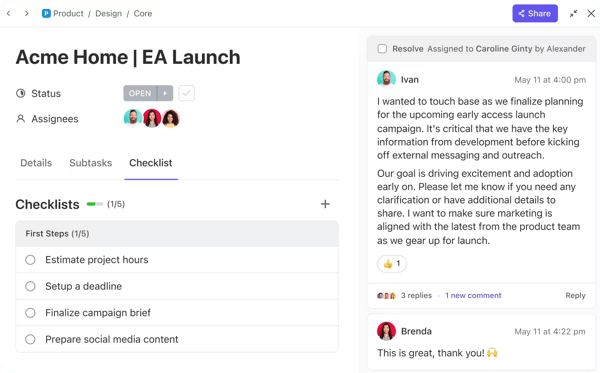
The Task Status feature is one of my favorites. It’s not just about “To Do” or “Done”—you can create custom statuses like “In Review,” “Waiting on Client,” or “Need More Coffee” (okay, I made that last one up, but you could if you wanted to). And the calendar feature? Perfect for scheduling campaigns and setting deadlines. I love how I can drag tasks directly on the calendar to reschedule—it’s so intuitive.
There’s this feature called “Me Mode”—sounds simple, right? Wrong. Figuring out how to filter tasks just for me took me days. I even had to chat with their support team (who, to their credit, were really patient). It’s like the feature is hiding in plain sight. And don’t get me started on the sync issues. I thought everything would update instantly across my team’s screens, but nope. Sometimes I have to refresh manually, which feels a bit dated for a tool that’s supposed to make collaboration effortless.
Also, while I love the clean, minimalist user interface, there are times it feels like form over function. For example, loading times can be annoyingly slow when I’m pulling up big projects. And the search? Good luck if you’re looking for something specific—it’s not the most intuitive system out there. I find myself clicking around way more than I should have to.
What I like about ClickUp:
- ClickUp is amazing for campaign planning and analytics. I can plan, schedule, and track everything in one place.
- Assigning and tracking tasks is ridiculously simple, and the Task Status feature is so handy. I don’t just have a basic “To Do” list; I’ve got custom statuses that fit my workflow perfectly.
What G2 users like about ClickUp:
“Clickup has been the most straightforward and easy-to-set-up project management tool for us. Task tracking is super easy with lots of granular details. Sharing with teams and inviting new members to collaborate with the board and task is super easy. Integration with 3rd party tools is also possible with many apps available. Datadog and Clickup integrations help a lot in creating incident tasks in Clickup for the events that need to be addressed, and the team can then start working on the incidents. Customer support is very helpful. It’s been the most used tool throughout our project.”
– ClickUp Review, Nabeel S.
What I dislike about ClickUp:
- I assumed updates would be real-time across all team members’ screens—it’s a collaboration tool, after all. But nope, I have to refresh manually sometimes, which feels so outdated.
- Performance can be a bit hit-or-miss, too. The system tends to lag or load slowly when I’m working on larger projects, and that can really kill the momentum.
What G2 users dislike about ClickUp:
“Unfortunately, if it seems too good to be true, its cause it is. This is an amazing platform destined for greatness. But regrettably, I say, there always seems to be a major bug that gets in the way of fully falling head over heels. The customer service is awesome, but the resolution time could be better. I imagine it could be due to having so many issues arise that they are backed up in application support – but it seems a lot of technical strength is applied more for the next big updates they implement instead of ensuring already established features run smoothly.
Unfortunately, the company I work for is pressing us to redirect services to a more reliable source so we, too, can be reliable to our users.”
– ClickUp Review, Naomy G.
5. Slack
Let me tell you about my go-to collaboration tool: Slack.
You’ve got channels to organize conversations by topic (or random memes), private messages for one-on-ones, and even these quick-call features called “Huddles” for when typing just isn’t cutting it. The huddles are great for those “Hey, can we talk real quick?” moments—though I’ve hit a couple of snags with delays, but I’ll get to that later.
Now, the integrations are the real stars of the show. It’s like Slack knew exactly what tools I needed and just made them all play nice together. Plus, the customization options are a lifesaver. I’ve tailored notifications, so I only get pinged about the important stuff—no more drowning in alerts.
And can I just say, the interface is super clean? It’s one of those tools where you don’t need a manual or a two-hour onboarding session. You just dive in, and it works.
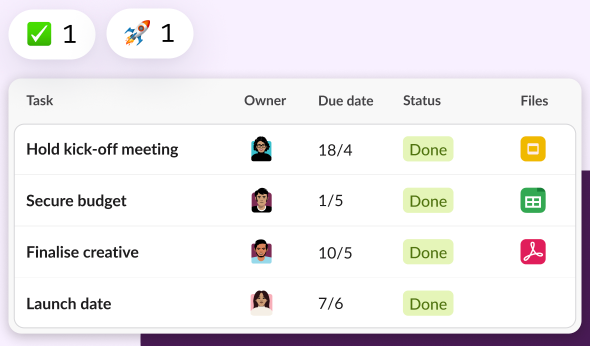
Okay, now for the flipside. I’ve had my fair share of “Ugh, why?” moments. First up: the price. If you’re on the free plan, it’s solid—but the premium features come with a price tag that feels a bit steep, especially for smaller teams.
And those huddles I mentioned? I love them, but sometimes they glitch or lag. It’s not the end of the world, but it’s annoying when you’re trying to hash out a quick idea. If you don’t set up the notifications right, Slack will ping you like it’s trying to win an award for the most annoying roommate.
The search feature is another sticking point. It works fine for recent stuff, but when I need to dig up something from months ago, let’s just say it’s a bit of a treasure hunt. And file management could definitely be smoother—it’s not bad, but I’ve had moments where I’m like, “Why can’t I just find that one file?”
If you’re looking for a way to collaborate with your team and ensure they’re on the same page, try Slack.
What I like about Slack:
- I love how Slack organizes everything. Whether I’m chatting in channels, DMing a colleague, or jumping into a quick huddle, it’s all smooth and super intuitive.
- One of my favorite things is how Slack integrates with other tools I already use—Google Drive, Jira, you name it.
What G2 users like about Slack:
“The best aspects of Slack are its intuitive communication channels, which enable organized collaboration within our teams. Features like thread discussions, file sharing, and integration with tools like Google Drive, Trello, and Zoom make workflows seamless. Slack’s search functionality and customizable notifications ensure users stay on top of tasks without being overwhelmed. The platform’s flexibility for remote work and team coordination is a significant advantage, fostering efficient communication in both small and large organizations.”
– Slack Review, Alper U.
What I dislike about Slack:
- Honestly, the free version is great, but the paid plans can feel a bit steep.
- Huddles are awesome when they work, but sometimes they lag or bug out, which can be frustrating.
What G2 users dislike about Slack:
“Slack’s enormous number of channels and notifications can make it difficult to keep track of everything, especially for users who participate in numerous active discussions.”
– Slack Review, Anusha P.
6. Trello
If you’re looking for a way to organize your life, your team, or your next big project, Trello might just be the best collaboration tool.
It is ridiculously easy to use. I’m talking drag-and-drop simplicity here. You’ve got boards, lists, and cards. Need to move something? Drag it. Want to assign a task? Add someone’s name. It’s all so intuitive that I didn’t even need to read a manual—or watch a YouTube tutorial.
What really hooked me, though, is how customizable it is. You can create boards for anything—work projects, vacation plans, grocery lists. The labels and due dates? Lifesavers. I color-code everything and those little deadline reminders are the only reason I meet half my commitments. Plus, I can attach files or add comments directly to cards.
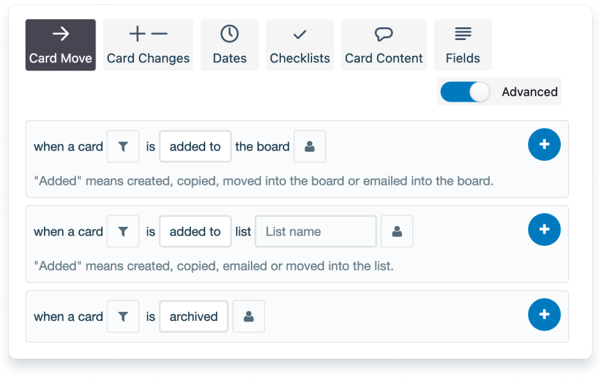
Trello also makes collaboration feel effortless. You can assign tasks, leave comments, and watch as your team crushes through the to-do list in real-time. It’s also great for brainstorming—throw all your ideas on a board, shuffle them around, and suddenly, you’ve got a game plan. Linking my Google Drive and calendar means I don’t have to bounce between a million apps.
However, I felt that the notification system could use some improvement. If you’re on multiple boards like me, things can get messy. Either you’re drowning in notifications, or you miss something important. It’s a bit of a balancing act, and I wish there were more options to fine-tune how alerts work.
While I love the visual organization, I feel like Trello’s time management features could be better. Sure, you can add deadlines, but if you’re looking for detailed time tracking or advanced analytics, you’ll probably need to install extra add-ons.
What I like about Trello:
- The drag-and-drop feature makes organizing tasks so smooth, and I didn’t have to spend hours learning how to navigate it.
- I’m obsessed with how customizable it is—it has color-coded labels, deadlines, and even attachments that can be added directly to tasks.
What G2 users like about Trello:
“Trello’s visual simplicity and flexibility are what I like best. Organizing tasks, moving them across stages, and collaborating with my team is easy. Whether I’m working on blog content, YouTube videos, or other marketing projects, Trello’s intuitive drag-and-drop interface allows for smooth management. I also appreciate the wide range of power-ups and integrations, especially with Google Drive and Slack, which help streamline our workflows. The ability to automate tasks using Butler is another huge time-saver for our team.”
– Trello Review, Çağrı M.
What I dislike about Trello:
- The notifications can get overwhelming, especially when I’m part of multiple boards.
- While it’s great for tracking tasks, I wish it had more built-in time-tracking or analytics features without needing extra add-ons.
What G2 users dislike about Trello:
“It has options to create flowcharts. However, this feature lacks advanced options and is a bit difficult to manage.”
– Trello Review, Roberto A.
Want to learn the basics of visual collaboration? Check out the glossary from our team to stay on top of design collaboration.
7. Wrike
Wrike is the project collaboration tool I didn’t know I needed until I tried it.
What makes Wrike stand out for me is its flexibility. I can customize workflows, set up unique dashboards, and create templates that suit every project type, whether I’m handling a large campaign or a quick internal task.
Here’s what impresses me: Wrike lets me track every detail precisely. I can break down tasks into subtasks, assign them to specific team members, and attach files or comments directly within the task. Deadlines are crystal clear, and the Gantt chart feature gives me a bird’s-eye view of project timelines. Plus, the time tracking tool helps me see exactly how resources are being used—it’s a lifesaver for keeping projects on budget.
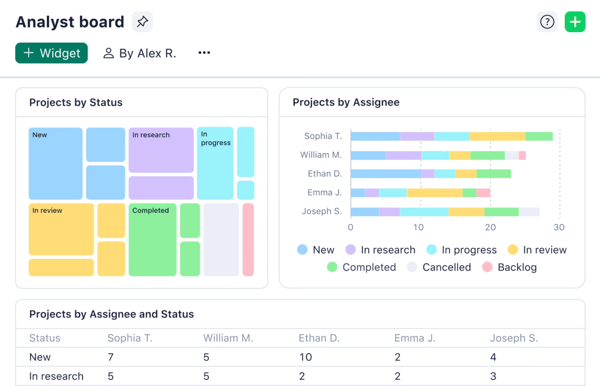
Collaboration is the area where Wrike excels. My team and I use shared task boards to stay aligned, and real-time updates ensure no one is left out of the loop. It even integrates seamlessly with tools we already rely on, like Google Drive, Slack, and Microsoft Teams. That means no more switching between apps—we can keep everything centralized in Wrike.
Another standout feature is the reporting. Wrike lets me generate custom reports with just a few clicks. Whether I’m tracking task completion rates or monitoring resource allocation, the data is presented clearly and helps me make better decisions on the fly.
Wrike does have a learning curve, especially if you’re new to project management platforms. And while I appreciate the robust notification system, it can sometimes feel overwhelming with alerts for every minor update. For simpler projects, Wrike’s extensive features might feel like overkill. I’ve also noticed gaps in financial management features, which would make it even more comprehensive.
What I like about Wrike:
- Wrike allows me to tailor workflows, dashboards, and reports to suit the unique needs of every project.
- I love how the shared task boards and real-time updates make it so easy to collaborate with my team.
What G2 users like about Wrike:
“Wrike allows you to fulfill most business needs in one place. This program keeps your space organized, let’s you create workflows, request forms, and bridge the communication gap. It reduces the email load, assigns related tasks and deadlines, and helps create a pathway to meeting the business needs. Wrike has become essential in my day and keeps me organized and on top of my tasks. I communicate with my team, get approvals and feedback, and work on projects. It was easy to implement into the business; I could search for help and answers on their website, and it integrated well with my email. It has been a life changer!”
– Wrike Review, Paige T.
What I dislike about Wrike:
- The learning curve with Wrike can be pretty steep. When I first started using it, the sheer number of features felt overwhelming, and it took me a while to get the hang of everything.
- The notification system can be a bit overwhelming at times—there are so many alerts that it’s hard to focus on what’s really important.
What G2 users dislike about Wrike:
“I don’t like that we only get so few licenses for the price, but it is a true powerhouse so I won’t complain too much! I also wish that collaborators could add to the description field; that would be a huge plus.”
– Wrike Review, Ephe N.
8. Bordio
Bordio made me feel like I had a personal workspace that kept on top of my tasks, projects, and schedules. What really stands out about Bordio is its simplicity and accessibility—you don’t need to be a tech wizard to figure it out.
The single-board view? Absolute genius. Everything you need, all in one place, without the clutter of multiple tabs or endless menus. If you’re a visual thinker like me, you’ll love the way it keeps things neat and organized. Plus, the workspaces are super flexible, perfect for both personal and professional planning.