



It all started when I was buried under a mountain of paperwork that needed signatures — fast. My inbox was flooded with contract requests, approval forms, and freelancer agreements. I was printing, signing, scanning, and emailing back and forth like I was stuck in a time warp from 2005. It wasn’t just time-consuming — it was downright exhausting.
After one particularly chaotic day, I realized something had to change. I needed a way to simplify this process, and getting the best e-signature software seemed like the perfect solution.
However, with so many tools promising to “revolutionize” workflows, I didn’t want to pick the first one that came up in a Google search. I wanted the best electronic signature software for my needs — one that combined simplicity, security, and efficiency.
So, I did what any curious person would do: I dove headfirst into research and testing. Over the past few months, I’ve explored dozens of e-signature tools, putting them through their paces to see how they stack up. I tested everything — from user interfaces and integrations to pricing and customer support. I even tried signing real contracts with them to see how they fit into my daily workflows.
Now, I’m here to share my findings. Whether you’re running a business, managing a team, or just looking for a tool to make life a little easier, I’ve got you covered. These are the 8 best e-signature software I’ve personally tested and selected after trying 30+ solutions.
8 best e-signature software for 2025: My top picks
-
DocuSign: Best for fast and secure e-signatures
Streamlined platform to send, sign, and manage documents quickly and securely. ($10/mo) -
Adobe Acrobat: Best for e-signatures with advanced PDF tools
All-in-one solution for signing, editing, and creating PDFs with professional-grade features. ($12.99/mo) -
PandaDoc: Best for automated workflows and integrations
Comes with templates, analytics, and CRM integrations to simplify document processes. ($19/mo) -
Jotform Sign: Best for custom forms and automated documents
Flexible tool for creating tailored documents and workflows with automation. ($34/mo) -
Xodo Sign: Best for secure and flexible e-signature workflows
Provides encrypted signing and adaptable workflows for individuals and teams. ($9.99/mo) -
Dropbox Sign: Best for seamless Dropbox integration
Simple e-signature solution built directly into Dropbox for easy file management. ($15/mo) -
Foxit eSign: Best for legally binding e-signatures with templates
Offers compliance-focused signing services and reusable document templates. ($120/year) -
Signaturely: Best for cloud storage integrations
Integrates with Google Drive, Dropbox, and OneDrive to streamline signing workflows. ($25/mo)
* These electronic signature software solutions are top-rated in their category, according to G2 Grid Reports. I’ve also added their monthly or annual pricing to make comparisons easier.
8 best e-signature software I recommend
When I first started exploring e-signature software, I wasn’t sure what to expect. I mean, what exactly makes one e-signature app better than another?
At its core, e-signature software allows me to sign documents electronically. But it’s not just about adding a squiggly line to a PDF — it’s about ensuring that my signature is secure, legally binding, and incredibly easy to execute.
For me, the real magic of these tools lies in their ability to facilitate the entire document-signing process. Instead of printing, signing, scanning, and emailing, I can sign or request a digital signature with just a few clicks. And it’s not limited to my end — these tools make it just as seamless for the other party to sign, no matter where they are. And did you know? The global electronic signature market, valued at approximately $7.61 billion in 2024, is expected to reach $118.88 billion by 2032, driven by growing government and enterprise investments in digital documentation.
I also love how e-signature software adds layers of security and verification. Many platforms use encryption, audit trails, and identity authentication to ensure your signed documents meet legal standards. According to G2 data, core features like signing, compliance, audit logs, and bulk signing have over 90% user satisfaction.
This means that whether you’re signing a contract, closing a deal, or onboarding a new hire, you can rest assured that the process will stand up to scrutiny.
How did I find and evaluate the best e-signature software?
I started by listing must-have criteria for the best electronic signature software. My goal was to find platforms that were not only reliable but also easy to use and adaptable for different workflows. To refine my list, I turned to G2 grid reports and used AI to analyze hundreds of G2 reviews to see how real users rated these tools based on their experiences, needs, and pain points.
Once I had my contenders, I got hands-on with each tool. I signed real documents, sent contracts for signatures, and explored their features in-depth. I tested how smoothly they integrated with other apps I use, like Google Drive and Slack, and paid close attention to how the tools handled mobile signing since that’s a big part of my workflow.
In cases where I couldn’t personally test a tool due to limited access, I consulted a professional with hands-on experience and validated their insights using verified G2 reviews. The screenshots featured in this article may be a mix of those captured during testing and ones obtained from the vendor’s G2 page.
By the end of my testing, I had a clear sense of which tools excelled and which fell short, giving me a solid foundation to recommend the best options.
What makes the best e-signature software worth it? My assessment
When I started testing e-signature software, I thought the choice would come down to a few simple features — how easy it was to sign a document, how quickly I could send one, and maybe the price tag. But as I dug deeper, I realized that the best tools do much more than just replace a pen.
With all that in mind, I set out to identify the factors that truly separate the great tools from the mediocre ones. Here’s what I found to be the most important:
- User experience: The best electronic signature software is designed with the end user in mind. The process should be intuitive from the moment you upload a document to the point it’s signed. I looked for clean, straightforward interfaces that didn’t require a tutorial. Drag-and-drop functionality for adding signature fields was a big plus, as was the ability to preview and adjust documents before sending.
- Security and compliance: Security isn’t negotiable when dealing with legally binding documents. I paid close attention to tools that offered encryption protocols (like AES-256), robust authentication options (two-factor authentication, identity verification), and detailed audit trails. Compliance with legal standards like eIDAS, ESIGN, and UETA was another must-have, ensuring signatures are valid and enforceable in court.
- Document workflow automation: Signing is just one part of the puzzle—getting documents to the right people and tracking their status is equally important. I evaluated how well the tools handled sending documents to multiple signers, setting signing orders, and sending automated reminders. The ability to create reusable templates for frequently signed documents saved even more time.
- Integration capabilities: A good e-signature tool should fit seamlessly into your existing workflows. I tested how easily these platforms integrated with apps I already use, like Google Workspace, Microsoft 365, Dropbox, and Slack. API access for custom integrations was a bonus for teams with more complex needs.
- Speed and performance: Nobody has time to wait for sluggish uploads or laggy interfaces. I noticed how quickly documents were uploaded, processed, and sent, even with large files. I also tested the platforms’ responsiveness during busy periods, like sending out multiple contracts simultaneously.
- Custom branding options: Maintaining a consistent brand image is important for professionals and businesses. I looked for tools that allowed custom branding, such as adding logos, colors, and personalized email templates to make the signing experience feel polished and professional.
- Advanced features: Some tools offered advanced options like bulk sending for multiple recipients, in-person signing (think tablets at events), and conditional logic to customize workflows. While not essential for everyone, these features can be ideal for specific use cases.
The list below contains genuine user reviews from G2’s e-signature category page. To be included in this category, a solution must:
- Allow both sender and recipient users to sign documents on a variety of devices and operating systems
- Encrypt and secure communications and shared documents between the users of the solution
- Track document status and notify users when actions are required (sign, approve, etc.)
- Enable users to define user roles and permission rights internally and for external users (contractors, partners, customers, etc.)
- Offer built-document creation and storage capabilities or integrate with third-party software solutions that provide document creation or storage features
*This data was pulled from G2 in 2025. Some reviews may have been edited for clarity.
1. Docusign: Best for fast and secure e-signatures
When managing electronic signatures, DocuSign is often the first name that comes to mind — and for good reason. With a 4.5/5 rating on G2, DocuSign finds itself as a leader in the e-signature category.
DocuSign makes signing documents ridiculously easy. Whether on my laptop or using the mobile app, it’s a matter of a few clicks to upload, add signature fields, and send a document off for signing. The user interface is clean and intuitive; even first-timers can figure it out without much effort. I especially appreciate how seamless it is to track the progress of a document — you’ll know exactly when it’s been viewed, signed, and completed.
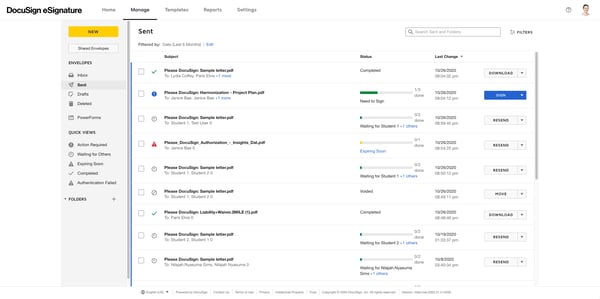
Another thing I love about DocuSign is how reliable it feels. It complies with legal standards like eIDAS, ESIGN, and UETA, which means the signatures are legally binding and secure. They also provide detailed audit trails, so you have all the necessary proof in one place if there’s a dispute.
One standout feature is the bulk send capability, which lets me simultaneously send the same document to multiple recipients. This feature is perfect for large-scale agreements or onboarding processes. Another hidden gem is the smart sections feature, which dynamically adjusts documents based on recipient input, making complex forms easier to manage.
The integration options are another big plus. DocuSign works well with the platforms I use, making it easy to pull documents from wherever they’re stored and send them for signing without switching between apps.
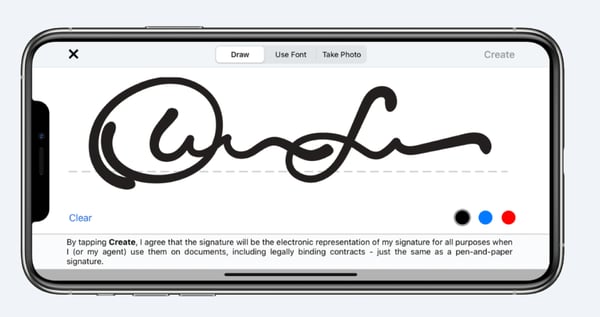
According to verified feedback on G2, DocuSign stands out for its robust set of features and secure signing capabilities. Still, a number of reviewers mention that the cost may climb quickly, especially for businesses needing advanced functionality. Others have commented that finding specific signed files isn’t always as smooth as expected, suggesting enhancements in search and organization would be welcome. Even with the occasional minor system glitch reported by G2 users, the platform continues to be widely recognized as a dependable e-signature tool.
What I like about Docusign:
- Signing documents is ridiculously easy, whether on my laptop or mobile app. The drag-and-drop functionality for adding signature, date, and custom fields makes the process smooth and intuitive.
- I love sending the same document to multiple recipients simultaneously, which is perfect for large-scale agreements or onboarding processes.
What G2 users like about Docusign:
“Docusign is integrated with Salesforce, and it is easy for us to send documents for the signature process, capture the signatures in the documents, and maintain everything based on the workflow we create in the same record for tracking purposes. We also track how many people the signature request has been sent to and a log of parties that signed the document.”
– Docusign Review, Alekhya K.
What I dislike about Docusign:
- I felt like finding specific signed documents was more cumbersome than it should be. A more robust tagging and search feature would go a long way in improving document management.
- Occasionally, I’ve encountered system errors, like issues uploading files or delays in processing signatures. While not frequent, these glitches were disruptive during time-sensitive tasks.
What G2 users dislike about Docusign:
“Documents voiding out is the only issue I have with the process. I know that documents cannot stay open forever, but I don’t get any kind of notification that my document is about to expire like subs receive when their document is set to expire, so that would be helpful, in my opinion.”
– Docusign Review, Jennifer E.
Is DocuSign safe for your e-signature needs? Learn about its safety features, encryption standards, and industry compliance in our detailed breakdown.
2. Adobe Acrobat: Best for e-signatures with advanced PDF tools
Adobe Acrobat is a heavyweight in the e-signature space, combining its renowned PDF tools with a robust suite of signing features. It’s a platform built for professionals who need more than just a signature tool — it’s an all-in-one solution for managing documents seamlessly and securely.
What I love about Adobe Acrobat for e-signatures is how polished and professional the process feels. Sending documents for signatures is incredibly straightforward, whether I’m working from my desktop or mobile app. I can add signature fields, customize workflows, and even collect multiple signatures in a specific order. The guided signing experience ensures recipients know exactly where to sign, reducing errors and back-and-forths.
Integration with other tools allows me to pull a file directly from cloud storage, add signature fields, and send it out in just a few clicks. It’s also great for teams — collaborating on documents, setting permissions, and tracking progress is built right into the platform.
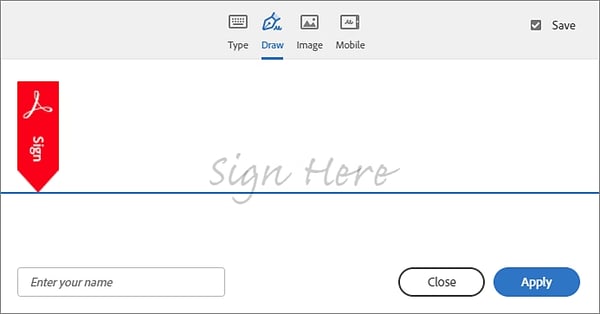
Security is another area where Acrobat shines. I love that I can lock sensitive documents with passwords or even redact confidential information directly in the PDF. And when it comes to e-signatures, every action is meticulously logged in a detailed audit trail, so there’s never any doubt about the document’s authenticity.
Many G2 users value Adobe Acrobat for its comprehensive set of e-signature and PDF editing tools, especially when teams need more than just basic signing functionality. Still, some reviewers mention that the platform’s wide range of features can feel a bit overwhelming at first, requiring extra time to get comfortable. Pricing is another area noted in G2 reviews — while the tools are powerful, the subscription may feel like a heavier lift if you only rely on the essentials. Finally, while the mobile app is considered handy for quick tasks, users have pointed out that it’s not always as smooth for more detailed edits or complex document work.
What I like about Adobe Acrobat:
- The guided signing process is one of my favorite features. It ensures recipients sign in the correct places without confusion, reducing errors and saving me the trouble of follow-ups.
- Its robust security features give me peace of mind. Knowing that my documents are password-protected, compliant with legal standards, and include detailed audit trails helps me handle sensitive files confidently.
What G2 users like about Adobe Acrobat:
“Adobe Document Cloud makes managing and sharing PDFs super easy. I love accessing my documents from anywhere and collaborating with others in real time. The e-signature feature is a game-changer, especially when I need to get documents signed quickly without any hassle. The interface is pretty straightforward, making organizing everything smooth and stress-free.”
– Adobe Acrobat Review, Jim O.
What I dislike about Adobe Acrobat:
- Learning to navigate all the advanced features took me a while. While powerful, the sheer number of tools can feel overwhelming for a new user like me.
- I found the mobile app helpful, but it doesn’t offer the same smooth experience as the desktop version. Editing text or working with complex documents on a smaller screen can be frustrating.
What G2 users dislike about Adobe Acrobat:
“Adobe Acrobat can be quite expensive, especially for individual users or small businesses. The subscription model might not appeal to everyone. Adobe Acrobat can be demanding on system resources, which might affect the performance of other applications running simultaneously.”
– Adobe Acrobat Review, Raj A.
3. PandaDoc: Best for automated workflows and integrations
PandaDoc completely transformed how I manage my e-signature. It’s a dynamic tool that accelerates proposals, quotes, contracts, and more workflows. I’ve used it extensively, and what sets it apart isn’t just its ease of use and ability to adapt to diverse signing scenarios while keeping the process secure and professional.
One feature I absolutely rely on is PandaDoc’s sequential signing capability. This lets me set up workflows where multiple signers must sign in a specific order. It’s been a lifesaver when dealing with contracts or approvals that need hierarchical sign-offs. With just a few clicks, I can ensure that each party receives the document at the right stage, eliminating the confusion of handling parallel signers.
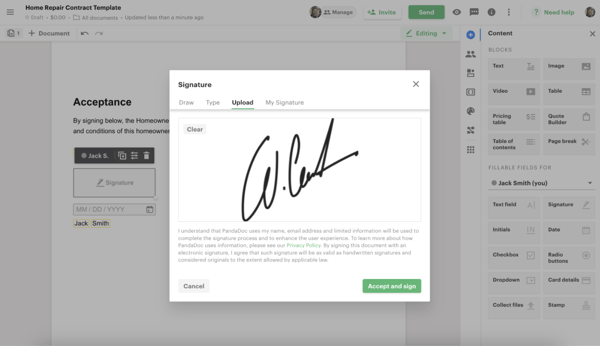
The auto-reminders for pending signatures are super useful for me. Once a document is sent, PandaDoc monitors it for you, automatically nudging signers who haven’t completed their part. I no longer need to follow up manually with stakeholders, which saves me time and keeps my workflows moving smoothly.
What I also love about PandaDoc is its embedded signing feature. When I was a freelancer, I integrated this into my website for client agreements, allowing users to sign directly on the page without needing to download or email documents. It’s a seamless experience that makes me look incredibly polished and professional.
Another standout feature is its ability to handle multi-language support for e-signatures. I worked with clients across different regions, and PandaDoc allowed me to send documents in their preferred language, complete with localized signing instructions. It’s a small detail that goes a long way in creating a client-friendly experience.
PandaDoc is consistently praised on G2 for its strong document automation and template library, which streamline contracts, proposals, and client onboarding. Still, some verified reviews on G2 suggest that signer authentication could be stronger, with additional layers like SMS or biometric options enhancing security.
Insights from G2 reviewers also highlight that while the embedded signing feature is powerful, the setup can be somewhat technical, creating a learning curve for non-developers. G2 customer reviews mention that the analytics dashboard delivers useful detail, but limited customization in reporting can restrict deeper data analysis. Notable patterns in G2 review data further indicate that pricing feels well-matched for heavy users, but smaller teams or those with lighter signing needs sometimes find the cost harder to justify.
Overall, PandaDoc earns high marks from G2 users for its efficiency and breadth of features, but review sentiment points to opportunities in security layers, reporting flexibility, and pricing for leaner teams.
What I like about PandaDoc :
- The sequential signing workflows help me keep everything organized. Whether I’m getting approvals or working with internal stakeholders, it ensures everyone signs in the correct order without confusion or delays.
- I love that PandaDoc takes the responsibility of follow-ups off my plate. The system sends timely nudges to signers, keeping projects moving without me having to send awkward emails.
What G2 users like about PandaDoc:
“What I like best about PandaDoc is how organized it is! I also like how when we apply the box for signatures, it changes colors to specify the person. It also allows you to like where the other person can add their payment info if we wish to request that. The contact list/book is also nice, the way it lets us add all info like email, phone numbers, name, etc. Oh, and when you send an attachment or file, the option at the end lets you type a message like a reminder. That’s also neat.”
– PandaDoc Review, Diana E.
What I dislike about PandaDoc:
- I’d love to see more options for added security beyond email verification, like SMS codes or biometric authentication.
- While I appreciated the feature of embedded signing, setting it up as a new user was slightly challenging for me without technical expertise.
What G2 users dislike about PandaDoc:
“I think the downside of this one is when we need the signature in the middle of the box. Some users can draw the signature, but the placement is sometimes below and above the line or box. To be added feature must be: when a user tries to sign the docs and click accept and sign after that signature must be automatically in the middle of the box to be more user-friendly to some of the senior and not savvy.”
– PandDoc Review, John Wayne N.
4. Jotform Sign: Best for custom forms and automated documents
Having transitioned from freelancing to working as a content marketer, I’ve come to value tools that simplify processes without losing the personal touch. Jotform Sign stands out because it combines simplicity with flexibility, offering features that cater to personalized workflows and dynamic signing experiences. It’s not just another e-signature platform — it’s a customizable solution that adapts to how I work.
One feature I find genuinely unique is Jotform Sign’s interactive documents. Unlike static PDFs, I can create agreements or proposals where signers can make choices — like selecting pricing options or confirming details — that automatically tailor the rest of the document. It’s like giving clients control while keeping everything professional.
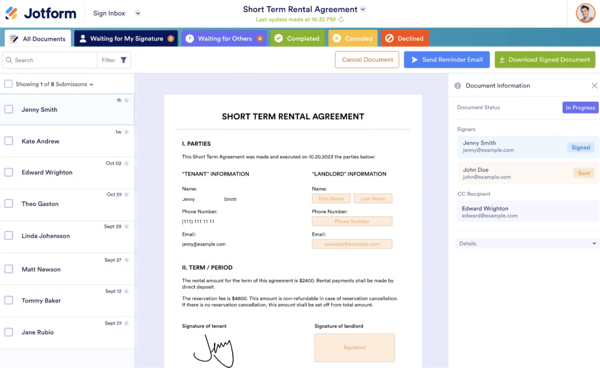
Another standout is the auto-population from forms. As part of the Jotform ecosystem, I can gather client or vendor information through a Jotform form and feed that data directly into an agreement. This has been invaluable for campaigns requiring detailed client input, turning manual data entry into an automated, time-saving process.
For event-based work, Jotform Sign’s kiosk mode for in-person signing is a feature I’ve come to appreciate. It allows me to collect signatures during events using a tablet or shared device without needing paper forms. This is particularly helpful for collecting approvals or waivers at in-person campaigns or workshops.
Security-wise, Jotform Sign excels with multi-factor authentication (MFA) for sensitive documents. I can require email and SMS verification for added protection, which gives me peace of mind when handling confidential agreements. Additionally, the document version history ensures I can track every edit and version of a contract, preventing any confusion or disputes down the line.
Jotform Sign receives positive attention on G2 for its smooth integration with Jotform Forms, making it easy to automate document workflows alongside form submissions. Many users also value its ability to create interactive documents that enhance the signing experience.
That said, G2 user reviews point out a few areas for improvement. Some mention that relying on the broader Jotform ecosystem can feel restrictive if form-building isn’t a priority. Others note that limited offline functionality means a strong internet connection is often required, which can be less convenient for teams working in remote or low-connectivity environments. G2 feedback also shows that while interactive documents are a standout, building highly customized versions can take extra setup time, which isn’t always ideal for quick deadlines.
Overall, Jotform Sign is recognized on G2 as a capable option for teams already invested in the Jotform suite, with opportunities to improve offline usability and reduce setup complexity for advanced use cases.
What I like about Jotform Sign:
- The version history feature is perfect for tracking every edit and version of a contract. It helped me stay organized and provided clarity if changes were questioned.
- The ability to pull data from Jotform Forms into contracts saved me hours of manual work and reduced errors in data entry.
What G2 users like about Jotform Sign:
“As a small but growing non-profit, we greatly value any platform that allows us to automate tasks and develop record keeping so that our team can stay focused on what matters most- our clients. Jotform Sign takes the grueling paperwork from the equation and produces quality documents and a digital trail for us when retaining clients. Couldn’t recommend more!”
– Jotform Sign Review, Diana C.
What I dislike about Jotform Sign:
- The tool shines when paired with Jotform Forms, but some features might seem unnecessary if you don’t need form-building.
- With limited offline support, an internet connection is necessary for using Jotform Sign, which can be inconvenient for remote or on-the-go work.
What G2 users dislike about Jotform Sign:
“One area for improvement in Jotform Sign is the customization options for document templates. While it’s fairly easy to use, some design elements feel limited, especially when matching specific branding or formatting needs. Additionally, though the platform is generally intuitive, setting up more advanced workflows can occasionally feel less streamlined, requiring additional time and testing to ensure everything works smoothly. Some extra guidance or step-by-step tutorials for these complex setups would be a valuable addition.”
– Jotform Review, Rodolfo O.
5. Xodo Sign: Best for secure and flexible e-signature workflows
Xodo Sign caught my attention for its lightweight yet feature-packed approach to e-signatures. Its intuitive design and features make it a perfect fit for anyone who needs to handle document signing quickly and efficiently without getting bogged down by unnecessary complexity.
One of Xodo Sign’s standout features is its real-time collaboration capability. Unlike other e-signature tools, this feature allows multiple people to simultaneously review, comment on, and sign a document. I’ve used it to fasten approvals on contracts and agreements, and it’s completely removed the hassle of back-and-forth edits. Everyone can see updates in real time, which keeps the process moving and ensures no miscommunication.
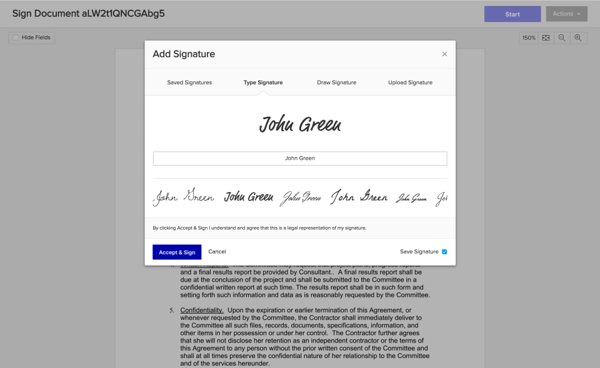
The custom signing link feature is another game-changer for me. Instead of emailing individual documents, I can generate a unique link and share it however I want—via text, chat, or even a shared team platform. It’s quick and makes working with multiple signers in different locations effortless.
Xodo Sign also excels with its mobile-first approach. The mobile app is designed with ease of use in mind, allowing me to prepare, send, and sign documents directly from my phone. Whether in the office or on the go, I can handle contracts without missing a beat, and the experience is just as smooth as using the desktop version.
Another feature I rely on is document locking after signing. Once a document is signed, it’s automatically locked to prevent unauthorized changes, and an audit trail tracks all activity. This is a huge plus for maintaining document integrity and ensuring compliance with legal standards. The notification and reminder system is also worth highlighting. Xodo Sign automatically follows up with signers who haven’t completed their part, which saves me time and ensures deadlines are met without me having to nudge anyone manually.
Xodo Sign is often highlighted on G2 for its secure e-signature workflows and intuitive design that make document signing simple across devices. Users especially appreciate its accessibility and ease of use for quick signing needs.
Still, G2 sentiment analysis points to some areas where the tool could evolve. Several reviewers mention that template management feels limited, with more robust options for organizing and reusing templates being a welcome addition. Feedback from G2 users also notes that while the mobile app works well for basic tasks, handling complex documents with multiple fields can be more difficult on smaller screens. G2 review data further suggests that reporting is functional but would benefit from greater customization and deeper insights into document activity.
Overall, Xodo Sign is seen by G2 reviewers as a reliable solution for straightforward e-signature needs, with opportunities to expand its reporting depth and template management features for power users.
What I like about Xodo Sign :
- I found the mobile app’s interface sleek and intuitive. It made managing signatures on the go super easy. Whether sending out documents or signing one myself, it’s smooth and reliable.
- For me, knowing that signed documents are automatically locked and tracked ensures security and prevents unauthorized edits. This feature gives me complete confidence in the process.
What G2 users like about Xodo Sign:
“With about two years now spent with Xodo Sign, I can say that it’s one of the best services out there concerning e-sign placement on documents. Everything’s gone great about the platform, from the integration to notifications.”
– Xodo Sign Review, Muhammad K.
What I dislike about Xodo Sign:
- There are no permissions for real-time collaboration. Everyone working on a document can edit all fields, which can be risky for sensitive sections restricted to specific collaborators.
- I wish there were additional security features like SMS codes or ID verification for high-security documents instead of only email verification.
What G2 users dislike about Xodo Sign:
“The downside of Xodo Sign is that if you need to edit or update a contract, it needs to be completely canceled and resent. This sometimes confuses my clients who try to keep using the original contract sign link. No matter how small, the contract update also counts as a fully new contract in their system. You cannot edit an uploaded contract document. I also preferred the name Eversign over Xodo Sign. It went from a cool name to a strange name.”
– Xodo Sign Review, Mary A.
6. Dropbox Sign: Best for seamless Dropbox integration
Dropbox Sign (formerly HelloSign) offers a practical and efficient approach to e-signatures, making it a great choice for managing contracts and approvals. Its deep integration with Dropbox and straightforward tools make document signing and sharing quick and organized, particularly for those already familiar with Dropbox.
One feature I’ve come to rely on is the role-based team management. With Dropbox Sign, I can assign permissions to team members, control who can send documents, and track progress across the team. This has been invaluable for collaborative workflows where multiple people must contribute or approve before a document is finalized. It eliminates confusion and ensures accountability at every step.
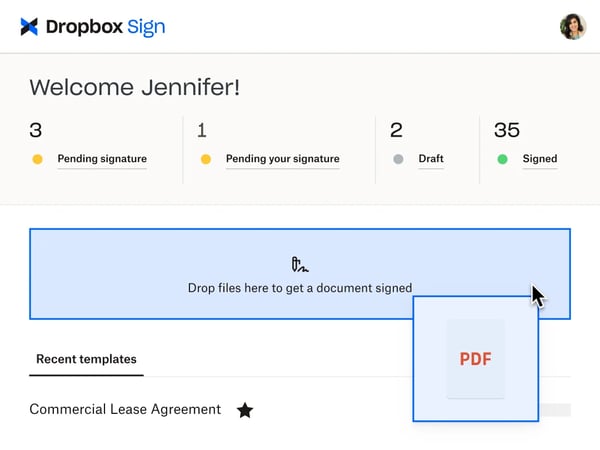
The drag-and-drop editor is simple yet effective for preparing documents. Adding signature fields, checkboxes, and dates is fast and doesn’t require a steep learning curve. I’ve used it to prepare agreements and contracts, customizing fields for specific signers with ease. This functionality ensures that the right fields are always assigned to the right person.
What really sets Dropbox Sign apart is its direct integration with Dropbox. I can pull documents straight from my Dropbox