


Word processing tools form the backbone of many companies’ tech stacks. When it comes to choosing the right word processor for your business, the decision between Microsoft Word and Google Docs isn’t just about personal preference—it’s about finding the tool that will best support your team’s productivity and collaboration style. The software you choose can significantly impact your workflows, enterprise security, and even your bottom line.
In this article, we’ll take a closer look at Microsoft Word and Google Docs, breaking down their unique strengths and where they might fall short for your specific tasks. Let’s dive in and see which platform will best support the way your team works.
Table of Contents
What is Microsoft Word?
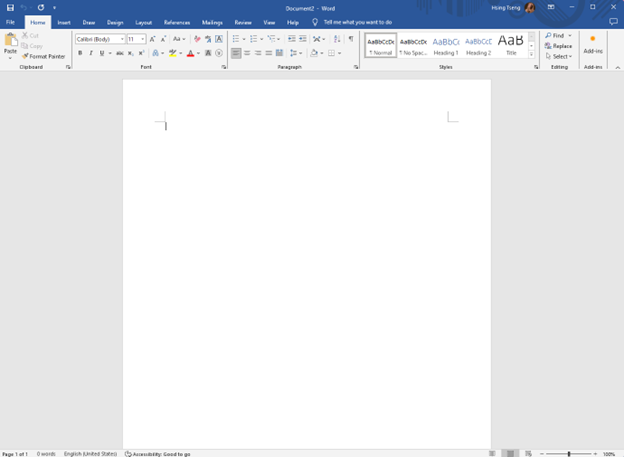
Microsoft Word is a powerful and widely-used word processing software. A cornerstone of the Microsoft Office suite, it has been a technological staple in homes, schools, and businesses for decades. Microsoft Word is well-known for its advanced formatting capabilities, making it ideal for producing polished reports, proposals, and other professional documents.
What is Google Docs?
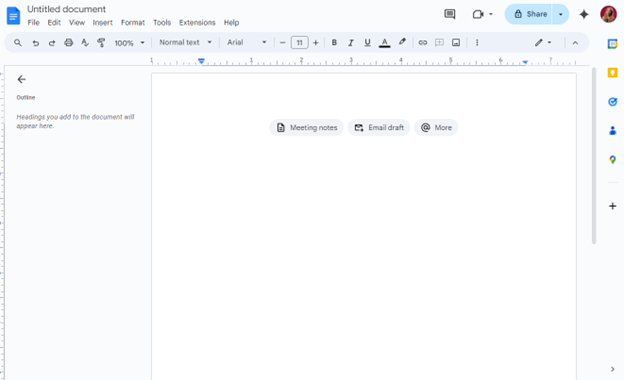
Google Docs is a cloud-based word processor offered by Google as part of its Google Workspace platform (formerly known as G Suite). It has gained immense popularity due to its ease of use, real-time collaboration features, free for personal use –or- low cost for business use, and integration with other Google services.
Top 5 factors to consider
Here are five features to consider when researching document editing tools, and why they matter:
- Ease of Use: A user-friendly interface helps your team quickly adapt to the tool, minimizing training time and boosting productivity.
- Features and Templates: Comprehensive features and a wide range of templates allow you to create more professional-looking, functional documents.
- Collaboration and Editing: Real-time collaboration and editing capabilities are essential for teams working on documents together.
- Document Storage, Security, and Accessibility: Secure, cloud-based storage and easy access from any device keep your documents protected and available whenever you need them.
- Integrations: Connections with all the other software your business uses make it easier to manage projects and data across platforms
Next, let’s see how Microsoft Word and Google Docs stack up in each of these features.
|
Features |
Microsoft Word |
Google Docs |
|
Ease of use |
4/5 |
5/5 |
|
Features and templates |
5/5 |
3.5/5 |
|
Collaboration and editing |
4/5 |
5/5 |
|
Document storage, security, and accessibility |
5/5 |
4.5/5 |
|
Integrations |
5/5 |
5/5 |
Ease of use
Microsoft Word
Microsoft Word can be a bit overwhelming for new users or those unfamiliar with Microsoft Office, thanks to its rich feature set. While familiar to many, its user interface — particularly the ribbon toolbar with its categorized tabs — is jam-packed with a wide array of options that can take some time to master.
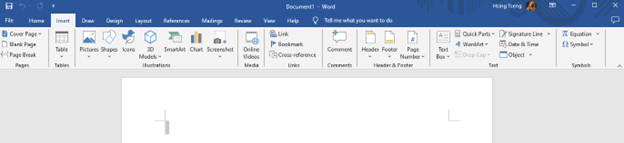
However, once users are accustomed to the layout and overcome its learning curve, Word offers a highly customizable experience that can cater to a variety of document creation needs.
Rating: 4/5
Google Docs
Google Docs prioritizes simplicity and user experience, making it an ideal choice for teams that need to get up and running quickly. Its minimalist, clean interface is intuitive and user-friendly for all skill levels. The learning curve is minimal, allowing users to focus on their work rather than navigating complex operations -— which the platform also guides users through, when necessary.

Rating: 5/5
Features and templates
Microsoft Word
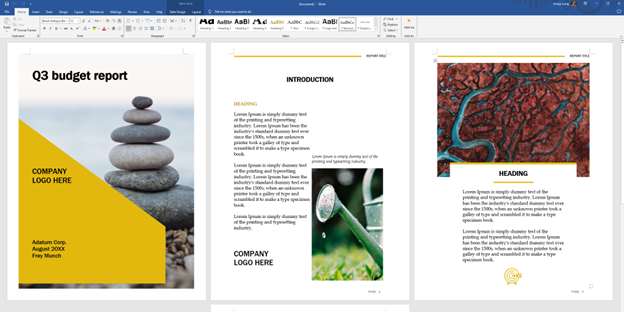
Microsoft Word is renowned for its extensive range of features and templates, making it the gold standard for both basic and professional document creation. With precise control over formatting and customization, it supports complex document types like brochures, newsletters, and books with features like multi-column layouts, text wrapping around images, and detailed paragraph settings.
Word’s mail merge and automation features enable users to create personalized documents (like letters, labels, and emails) at scale by linking to data sources such as Excel spreadsheets or Outlook contacts.
It also offers a vast library of templates for everything from resumes to reports to business letters, allowing users to create polished documents with minimal effort. These templates are highly customizable and rich in both form and function.
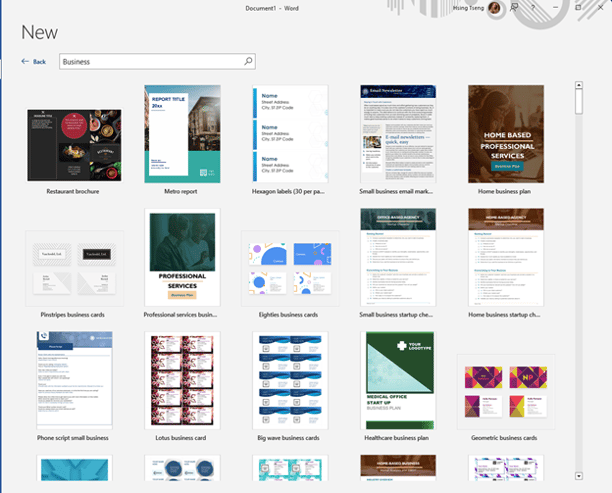
Additionally, Word offers full offline access and supports a wide range of file formats, including .docx, .pdf, and .rtf, ensuring compatibility across platforms. While Word documents generally retain their formatting, minor issues can arise when shared with users on other platforms, especially for complex layouts.
Rating: 5/5
Google Docs
Google Docs provides essential features and a selection of basic templates that cover most standard document needs. While it includes tools like image uploads and table creation, it lacks the advanced features and formatting options found in Word, such as citation management and mail merge.
Google Docs’ template library is more limited, as well. While it serves users well for straightforward documents like resumes, letters, and simple reports, there are fewer options, less variety, and the templates aren’t as complex as those offered by Microsoft Word.
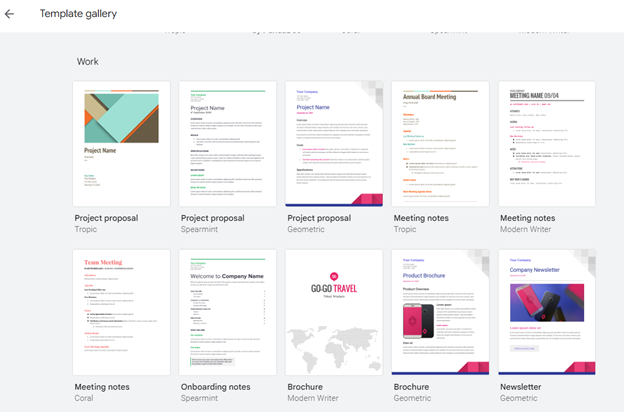
Google Docs uses the .gdoc format by default but can open and export files in formats like .docx and .pdf. However, when converting documents between Google Docs and Word, formatting inconsistencies can occur, especially with complex layouts. Overall, if your business needs a tool that handles a wide variety of file formats and ensures consistent formatting across platforms, Word might be the better choice.
However, teams don’t choose Google Docs because it’s the most powerful document editing tool on the block; they choose it for its simplicity and real-time collaboration. Despite its more modest offerings, the functionality available in Google Docs often suffices for most teams that aren’t doing heavy document customization.
Rating: 3.5/5
Collaboration and editing
Microsoft Word
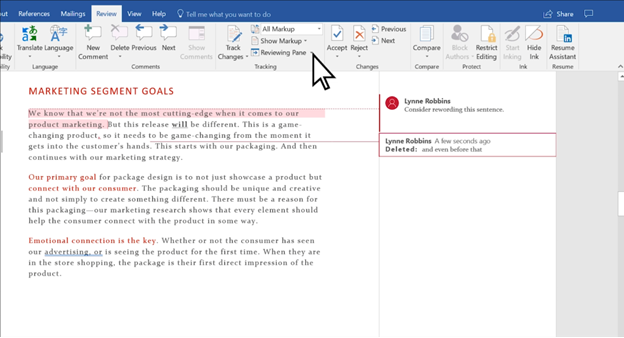
Microsoft Word offers solid collaboration and editing features, particularly within the context of the Microsoft 365 suite. Users can share documents directly through OneDrive, enabling team members to access, edit, and comment on documents. Through Word, you can track changes, co-author, leave comments, and compare document versions — all crucial features for workflows with thorough review processes, such as legal, marketing, or editorial teams.
Source: Microsoft
However, Word’s collaboration features are not as seamless as those in Google Docs, particularly when working in real-time and/or while collaborating with individuals outside the company (i.e., not in the same Microsoft tenant). While multiple users can work on a document simultaneously, they might experience delays or conflicts if not using the cloud-based version through Microsoft 365. Meanwhile, offline edits can create versioning issues if not synced properly.
Rating: 4/5
Google Docs
Google Docs places collaboration at its core, making it the preferred tool for many teams that need to work together in real-time. The platform allows multiple users to edit the same document simultaneously, with changes appearing instantly for everyone. This real-time editing capability, combined with features like comments and “suggesting” mode, makes Google Docs an excellent choice for dynamic collaboration where immediate, traceable feedback is crucial.
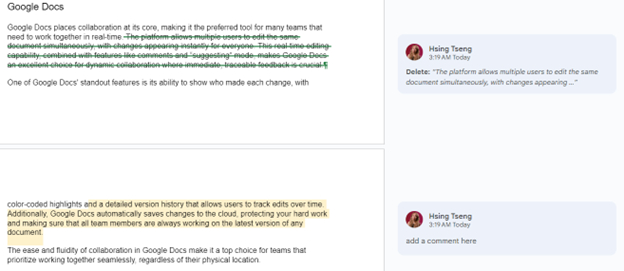
One of Google Docs’ standout features is its ability to show who made each change, with color-coded highlights and a detailed version history that allows users to track edits over time. Additionally, Google Docs auto-saves changes to the cloud, protecting your hard work and making sure that all team members are always working on the latest version of any document.
The ease and fluidity of collaboration in Google Docs make it a top choice for teams that prioritize working together seamlessly, regardless of their physical location.
Rating: 5/5
Document storage, security, and accessibility
Microsoft Word
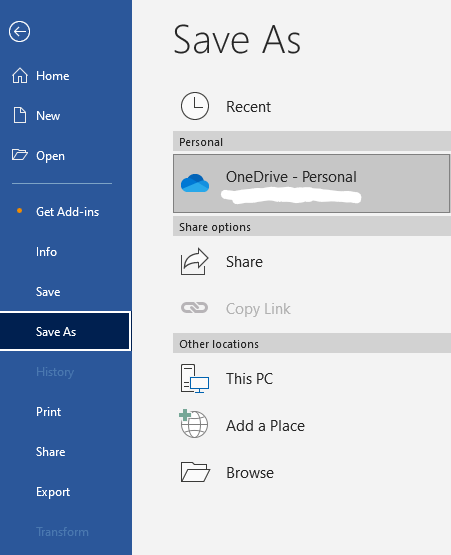
Microsoft Word excels at keeping your documents safe and accessible. You can store Word documents either locally on a user’s device or securely in the cloud through OneDrive or SharePoint.
As part of the Microsoft 365 suite, Microsoft Word benefits from enterprise-grade security, including data encryption, advanced threat protection, and compliance with a wide range of industry regulations like GDPR and HIPAA. This makes Word a top choice for businesses that handle confidential or sensitive information. Furthermore, administrators can set permissions and access controls at a granular level so that only authorized personnel can view or edit certain documents.