


I evaluated 15+ tools to find the 10 best email management software in 2026. These include Microsoft 365, Superhuman Mail, Missive, Front, Hiver, Microsoft Exchange, Hive, Neo, Thunderbird, and Titan.
The constant flood of messages from different teams, clients, and projects was overwhelming. Important updates got lost, and I scrambled to meet deadlines, often realizing too late that I’d missed something critical. Emails became a constant source of stress.
That’s when I started exploring the email management software options.
I wanted a real fix, not another app or productivity hack. So I went deep into G2 reviews, analyzing what users said about each tool and comparing the top email management software on the features that actually mattered.
What I found is that the best of these tools do more than tidy an inbox. Reviewers credit them with restoring order to a chaotic workflow, and bringing back a sense of calm along with it.
If your email is starting to feel like a never-ending source of stress, keep reading. Below are the 10 best email management tools that stood out when I compared more than 5,000 G2 reviews, the ones users credit with taking back their time and productivity.
10 best email management software: My picks for 2026
- Microsoft 365: Best for teams already working across Microsoft apps
Integrates Outlook, OneDrive, and Teams for a unified communication and file management workflow. (starts from $9.99/user/month) - Superhuman Mail: Best for individuals who want keyboard-driven inbox speed
Utilizes keyboard shortcuts and AI-powered triage to manage high-volume email at unparalleled speed. (starts from $30/user/month) - Missive: Best for small teams that want shared inboxes with built-in chat
Combines team inboxes across email, SMS, and social with internal chat and comments so a team replies in one place. (starts from $18/user/month) - Front: Best for customer-facing teams handling high volumes of client email
Routes shared inboxes, assignments, and messages from email, SMS, and social with internal comments so support and account teams answer clients together. (starts from $35/user/month) - Hiver: Best for teams that run shared inboxes inside Gmail
Manages customer, sales, and support emails collaboratively inside the native Gmail interface using assignment and notes. (starts from $35/user/month) - Microsoft Exchange: Best for large organizations that need on-premises email control
Runs Exchange Server SE on infrastructure your organization controls, with deep admin control and built-in protections like MFA, anti-malware, and data loss prevention. (pricing varies with server and client access licenses) - Hive: Best for teams that manage email alongside projects and tasks
Brings email into a project workspace with boards, Gantt views, and assignments so messages become tracked work. (starts from $7/user/month) - Neo: Best for small businesses that want affordable email on a custom domain
Provides professional domain email, plus a free domain option and a one-page AI website, for small businesses starting out. (starts from $1.99/mailbox/month) - Thunderbird: Best for an open-source, customizable email application
A free, desktop-based app with strong security and automatic filtering that supports multiple accounts and interface add-ons. (free, open-source) - Titan: Best for small businesses wanting domain email with built-in productivity tools
Offers a professional domain email with built-in productivity tools like email templates and advanced spam filtering. (available on request)
*These email management tools are top-rated in their category, according to G2’s Summer 2026 Grid Report. I’ve also added their starting prices for paid plans to make comparisons easier for you.
My top 10 best email management software recommendations for 2026
The best email management software is designed to sit on top of your inbox and help you organize, prioritize, and track emails so the ones you need surface and the rest stay out of the way.
Across the G2 reviews I analyzed, the same capabilities came up repeatedly: automatic categorization, priority tagging, fast search, shared inboxes, and reminders that keep a request from slipping past its deadline.
That job gets harder every year. The average worker now receives 117 emails a day, most skimmed in under a minute, on top of a stream of messages and notifications that interrupts them about every two minutes. At that pace, sorting by hand stops working, and one buried message can become a missed deadline.
What I kept seeing across the reviews is that the best of these tools earn their place by taming that overload.
How did I find and evaluate the best email management software?
I started with G2’s latest Grid Report to see which email management platforms stood out for usability, feature completeness, and real-world performance. I worked from G2 Satisfaction scores, feature ratings measured against the category average, and the customer-size mix behind each product.
I then analyzed more than 5,000 verified user reviews across the 10 tools on G2, using AI to surface the themes reviewers raised most often, and read the underlying reviews to confirm each one in their own words. These reviews helped me understand each tool’s strengths and weaknesses, guiding me to what works best for managing emails effectively.
All product screenshots featured in this article come from official vendor G2 pages and publicly available materials.
What I look for in an email management software
When evaluating an email management tool, there are a few key features I prioritize to ensure it suits my needs:
- Ease of organization: Managing a cluttered inbox can be overwhelming, so I look for a tool that can automatically sort and categorize my emails into folders, labels, or priority lists. Features like smart filters are invaluable in ensuring that emails are automatically grouped by subject, project, or urgency. This allows prioritizing tasks without wasting time sorting through irrelevant messages. Using tags or folders for different client communications or team projects helps instantly identify important messages and avoid losing track of time-sensitive information.
- Search functionality: A powerful search feature is non-negotiable. I treat fast, precise search as a baseline requirement — whether it’s from months ago or buried years deep in my inbox. Advanced search capabilities, such as filtering by keywords, sender, date range, or attachments, make it easy to retrieve specific emails even in the most cluttered inbox. I also appreciate tools that offer search indexing or artificial intelligence-based suggestions to improve search accuracy, allowing users to locate important details in seconds rather than scrolling endlessly.
- Collaboration and shared inboxes: I look at how a tool handles shared inboxes: assigning an email to one person, leaving internal notes or comments on a thread, and showing who is already replying, so two people never answer the same customer. This matters most for support, sales, and client-facing teams.
- Integration: Efficiency is key for me, and I look for a tool that cleanly connects with other apps used daily, like calendars, task managers, or project management platforms. The ability to integrate with services means a user can manage appointments, to-dos, and project timelines directly from my inbox. This kind of connectivity simplifies workflow and minimizes the chances of missing crucial updates or deadlines.
- Productivity features: Tools like snooze options, follow-up reminders, email scheduling, and email templates are essential for staying on top of important communications. I especially look for snooze options to temporarily remove non-urgent emails from my inbox that helps focus on higher-priority tasks. Follow-up reminders ensure one doesn’t forget to respond to important messages, while email scheduling allows sending messages at optimal times. The ability to save and reuse email templates for frequent communications also saves significant time.
- AI features: AI has become the clearest differentiator today, so I check what a tool actually automates: triaging and prioritizing incoming mail, drafting replies in your tone, and summarizing long threads. I also note whether the AI is built in or sold as a paid add-on, since that changes the real price.
- Security: Since email often contains sensitive information, security is a top priority. A tool with end-to-end encryption, two-factor authentication (2FA), and advanced spam filters ensure data remains protected from cyber threats. Including anti-malware scanning of attachments and secure email storage that add an extra layer of protection from unauthorized access or potential data breaches. I also look for tools that automatically detect suspicious activity without requiring manual intervention.
- Customizability: A great email management tool should allow personalization. I check how far a buyer can tailor the tool: color-coded labels, custom notification rules, signatures, and layout or theme options. Small adjustments like these let a tool fit an existing workflow rather than forcing a new one.
The list below contains genuine user reviews from our best email management software category page. To qualify for inclusion in the email management category, a product must:
- Sort emails into predefined folders automatically
- Provide advanced filters and search capabilities
- Include snooze, unsubscribe, auto-archive, or blocking functionality
- Integrate with major email software providers and clients
This data was pulled from G2 in 2026. Some reviews have been edited for clarity.
G2 researchers say:
“The email management category on G2 has performed consistently well since its creation. It has grown steadily in category page views month after month, with a steady increase and spike of interest in recent months. The increase in interest likely came from buyers recognizing the value of having a program that can manage their emails by categorizing and prioritizing what should be focused on by the user, thus allowing businesses to run more efficiently and making it easier for client-facing teams to manage conversations and tickets for overall customer success.”
– Marina Schlosser, Market Research Analyst, G2
1. Microsoft 365: Best for teams already working across Microsoft apps
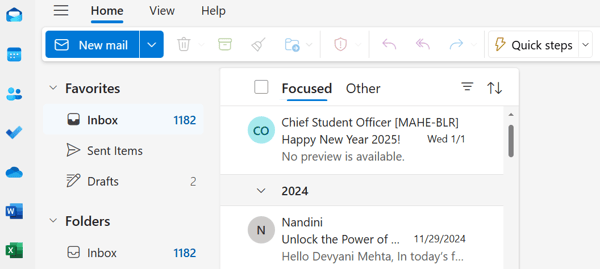
Microsoft 365 is a default choice for managing email inside the Microsoft world, because of how tightly it connects with the productivity apps teams already run. One standout is its connection with Outlook, which keeps a cluttered inbox manageable.
Across 5,700+ G2 reviews I analyzed, Microsoft 365 holds a 4.6 out of 5 rating and its reviewers split almost evenly across small business (35%), mid-market (38%), and enterprise (27%). Even at that scale, G2 Data shows 97% of users rate it 4 or 5 stars, with 94% saying it meets requirements, four points above the category average.
The tightest link, and the one I weight most heavily, is with Outlook. G2 reviewers put Microsoft 365’s Outlook integration at 94%, well above the 83% category average, and in the reviews I analyzed said email, calendar, and contacts behave like one system instead of three. For anyone who already lives in Outlook, that means fewer tabs and no copying details between a mail app and a separate calendar.
The feature I’d flag first for a busy inbox is the focused inbox, which intelligently filters important emails into a dedicated folder while less urgent ones are sorted separately. It learns which senders matter and pulls them into one view, pushing newsletters and low-priority mail aside. Reviewers describe it as the thing that makes a morning of 100-plus messages feel triaged before they’ve start replying.
OneDrive is where the suite’s connectedness shows up in daily email. I saw reviewers repeatedly mention attaching or sharing large files straight from the cloud, sending a link instead of a heavy attachment. For teams that pass big decks and spreadsheets around, that keeps files in one place and sidesteps the bounced-attachment problem.
Automation is a quieter strength. G2 Data rates Microsoft 365’s email automation at 92% against an 86% average, and the reviewers credit rules for doing the sorting that people used to do by hand, including routing client mail to a folder, flagging anything from the boss, filing receipts on arrival.
For people who think in projects rather than folders, tags and categories do the heavy lifting. G2 scores tags at 92% versus an 85% average, and I noticed reviewers using color-coded categories to slice one inbox across several clients or workstreams at once. It is a small feature that makes finding a thread weeks later much faster.
To my reading, what makes Microsoft 365 more than an email app is that the inbox sits in the same place as Teams and SharePoint. The same document moves from a chat to an email to a shared library without re-uploading, and a thread can turn into a meeting in a click. For a team already standardized on Microsoft, I see that continuity as the real reason email management feels native here rather than bolted on.
While Microsoft 365’s feature set is impressive, a few areas could be more intuitive. G2 reviews I analyzed often note that the advanced layer, automation rules, and shared mailbox management can feel overly complex to set up. Once you learn the system, it’s powerful, but simplifying those processes can make advanced tools more approachable for everyday users.
Pricing is easier to justify when Microsoft 365 is replacing more than email. Teams already using Office apps, Teams, OneDrive, and Microsoft’s admin or security tools are more likely to see Outlook as part of a strong bundle. The tradeoff is that licensing can feel complex for email-only buyers, especially when sorting through plans and add-ons. For a Microsoft-first organization, the value becomes much clearer.
For the Outlook-and-Office crowd, Microsoft 365 is the email home I’d recommend first.
What I like about Microsoft 365:
- I keep coming back to the Outlook and OneDrive integration in the reviews. G2 users describe email, calendar, files, and tasks behaving like one system, so they are not hopping between apps to send a single message.
- The Focused Inbox feature is the one I’d highlight for high-volume inboxes. Reviewers credit it with separating the mails that matter from the noise so triage takes minutes, not the morning.
What G2 users like about Microsoft 365:
“Honestly, it’s the integration piece for me. Everything just works together—emails, files, chats—so I’m not wasting time jumping between platforms. I can hop from an Outlook email straight into a Teams conversation, pull in a file from SharePoint, and keep everything moving without breaking my flow.
It’s also been really reliable performance-wise, which makes a difference when you’re in it all day—whether I’m managing multiple projects, sharing large files, or jumping between meetings, it holds up without slowing things down..”
– Microsoft 365 review, Ashley H.
What I dislike about Microsoft 365:
- G2 reviewers mention that advanced features take time to set up, especially automation rules, shared mailboxes, and admin controls. For IT-light teams, that means a little ramp-up time, but basic inbox use stays straightforward and the setup pays off once shared workflows matter.
- The subscription is easier to justify for suite users than email-only buyers. If you only need a standalone inbox, the per-user cost can feel heavier, but teams already using Office, Teams, OneDrive, and admin controls are more likely to see the value.
What G2 users dislike about Microsoft 365:
“Some features can be complicated to use. Sometimes I have to go online and look up what the feature does and what it’s limits are. I do wish it was cheaper.”
– Microsoft 365 review, Tyler C.
Explore our top-rated email software and elevate your business’s email management.
2. Superhuman Mail: Best for individuals who want keyboard-driven inbox speed
Superhuman is the tool I’d hand to someone who lives in their inbox and wants it to feel fast. It layers on top of Gmail or Outlook, so nothing about your email account changes. What changes is the speed. In the reviews I analyzed, that one word, fast, comes up more than any other.
It holds the highest G2 Satisfaction score (98 on 100) of any tool in this roundup and a 4.7 out of 5 rating across 1,200+ reviews, with 99% rating it 4 or 5 stars. G2 Data shows its customer mix skews heavily toward small businesses (79%) and the median purchase size is three users, usually concentrated in email-heavy roles where shaving minutes off the inbox actually matters.
The whole app is built for speed. Opening, searching, and moving between messages happen with almost no lag, and reviewers describe clearing a backlog in a fraction of their old time. For someone facing 100-plus emails a day, that pace is the entire pitch, and the reviews I read return to it constantly.
Most of that speed comes from keyboard-first control. You can read, archive, reply, snooze, and search without reaching for the mouse, and reviewers call the swipe-and-shortcut system the thing that saves an incredible amount of time and mental load. It is the feature I’d point to first for anyone who types faster than they click.
I really appreciate the Split Inbox functionality. It lets me categorize emails automatically, which has really helped with keeping my inbox organized. Superhuman’s smart sorting is spot-on. I can prioritize what matters most and not get bogged down by clutter. It allows me to focus on emails that require immediate attention, which helps boost my productivity. Plus, the ability to quickly triage and archive emails with a simple swipe has been a game-changer.
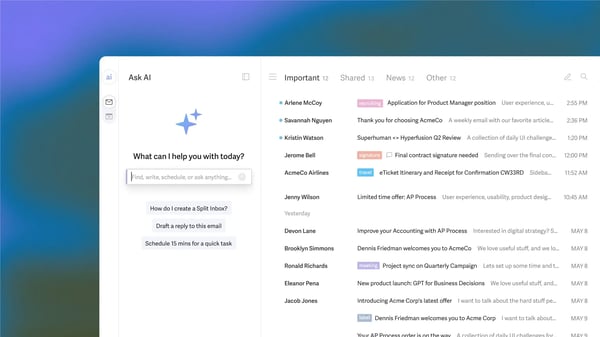
The piece reviewers single out that I’d call underrated is the follow-up system. Snooze, which G2 Data scores at 95% against an 84% category average, lets a message disappear and resurface exactly when you need it, while reminders nudge you when a client has not replied. Reviewers say it turns the inbox into a now or later list, so nothing important quietly slips.
Its newer AI features chase the same goal of less time per email. Reviewers like the AI that drafts replies in their own tone and an AI search that triages and cross-references across the inbox.
Rounding it out are the everyday speed-ups: snippets for the replies you send over and over, and scheduled send that fires a message at the right hour and handles time zones for you. Superhuman makes it easy to schedule emails for a later time.
The main caveat I’d keep is shortcut muscle memory. Several reviewers who liked the speed still said there were many commands to learn. It’s part of the keyboard-first trade-off: once the shortcuts click, reviewers often say the speed is the reason they stay.
Superhuman offers an impressive range of productivity features, though it does come with a learning curve. Some G2 users, myself included, found it takes time to get fully comfortable with all the shortcuts and advanced tools. Once you do, the speed and efficiency easily make up for that initial adjustment period.
Integrations are another area where there’s room to grow. While Superhuman works seamlessly with Gmail and Outlook, reviewers often mention wanting broader connectivity with CRMs or project management tools. Expanding integration options would make it even more valuable for professionals who depend on a connected tech stack.
All in all, Superhuman Mail is the email home I’d recommend to professionals whose day depends on a fast personal inbox, who value how quickly they can sort messages, act on follow-ups, and get back to focused work.
What I like about Superhuman Mail:
- Speed is the headline for G2 reviewers. Many say clearing managing busy inbox feel effortless. The keyboard shortcuts were a game-changer.
- The Split Inbox feature and smart sorting really stood out. They kept my emails organized and helped me focus on what truly mattered.
What G2 users like about Superhuman Mail:
“The keyboard-first navigation saves an incredible amount of time and mental load. It doesn’t seem like it would be a big deal at first, and it takes a brief period to become fluent in Superhuman use, but once you get fast, it’s night and day in terms of ease of swiftly moving through outstanding emails.”
– Superhuman Mail review, Walker W.
What I dislike about Superhuman Mail:
- G2 users found the integration options a bit limited. It works great with Gmail and Outlook, but I’d love to see support for more third-party tools like CRMs or project management platforms.
- Superhuman takes time to master, something I noticed and G2 reviewers mention as well. Once you get familiar with the shortcuts, though, the workflow becomes incredibly fast and efficient.
What G2 users dislike about Superhuman Mail:
“The heavy use of keyboard shortcuts might be a barrier for some people who aren’t power users, as they might have a problem memorizing them, even though there are alternative options like using a mouse. Another issue is the lack of color differentiation for multiple accounts, which can make it difficult to visually separate them, leading to potential mistakes like sending emails from the wrong account.”
– Superhuman Mail review, Ryan E.
3. Missive: Best for small teams that want shared inboxes with built-in chat
For a small team, the hardest part of email usually isn’t the email; it’s coordinating who replies. Missive is built for that. It keeps shared inboxes and a built-in team chat in the same window, so a group can handle one set of client conversations together instead of forwarding messages around. From my read of 800+ Missive reviews on G2, that combination is the thing people value most.
It holds a 4.7 out of 5 rating on G2 and 98% of users rate it 4 or 5 stars. The reviewer mix shows who it fits: about 88% are small businesses, and the top industries are accounting, real estate, marketing, and travel, client-facing teams that live in a shared inbox. Two strong numbers show why it’s valued by small teams: G2 Data puts its quality of support at 95% and ease of doing business with at 97%, both well above the category average.
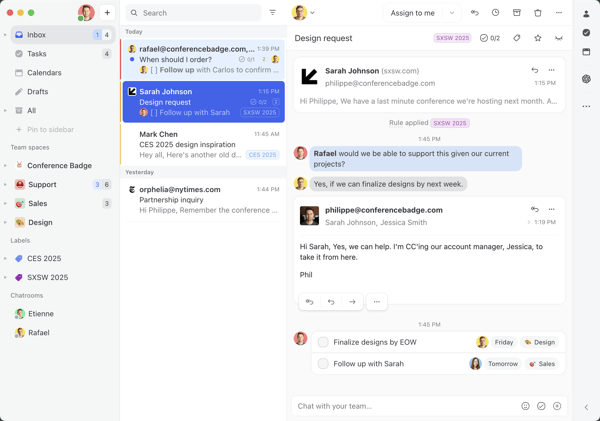
The first capability I’d point users to is email and team chat live together. Inside any conversation you can leave an internal comment or message a colleague right next to the email, with no forwarding and no separate chat app. Reviewers describe sorting out a client thread inside the same thread. For a small team, the talk about an email finally happens on the email.
Shared inboxes are where that coordination shows up day to day, and what I rate most is the ownership they add. You can assign an email to one person so it’s clear who has it, and see when a teammate is already replying, which reviewers credit with cutting out duplicate responses. A few mentioned the result as a noticeable difference in how they handle support.
Missive also pulls more than email into one place. Alongside Gmail and Outlook, it brings in SMS, WhatsApp, and social messages, so a team answers every channel from the same inbox. G2 Data rates its unified inbox at 92%, above the 86% category average, and reviewers in client-facing roles especially appreciate this. That consolidation is a real draw and the reason I’d pick Missive over an email-only tool when a team works across channels.
Because the chat sits next to the email, teams can also write a reply together. Reviewers point to real-time co-editing and shared drafts as a way to agree on the wording before anything goes out, which is useful when a message is sensitive or a junior teammate wants a second pair of eyes. The part I find underrated is that this is collaboration on the reply itself, not just a comment beside it.
For the routine work, rules and snooze keep the inbox moving. Rules can auto-assign or route incoming mail to the right person or inbox, and snooze hides a message until you need it back. Reviewers describe Missive as an operational layer that handles the sorting, and it is the piece I’d lean on to keep a growing shared inbox manageable.
I’d also give Missive credit for how easily it fit an existing stack. Its Gmail integration scores 91% against an 86% average, and reviewers single out the API and configuration options for connecting Missive to the other tools they run. For a team that wants its inbox wired into its own workflow, that openness is part of the appeal.
The one area reviewers wish was better is search. A few say finding older or archived conversations is slow and the filters are limited, and a few admit to jumping back to Gmail to track down an old thread. It doesn’t get in the way of the live collaboration Missive’s main strength: managing live conversations, assignments, and internal comments in one shared workspace, but if your work means digging through past correspondence often, I’d test search against your own archive first.
Missive also does more than a plain inbox, and that depth takes some learning. Reviewers mention that collaboration features like shared conversations, assignments, and internal comments take a little time to click, especially for people coming from a simpler Gmail-style layout. Once those workflows are set up, though, that same depth becomes the reason Missive works well for teams managing email together.
For a small, client-facing team tired of forwarding emails and pinging each other on Slack, Missive solves a specific problem well: it puts the conversation and the coordination in one place. The category-leading support scores tell me teams stay with it, and at a starting price most small teams can absorb, it is the shared-inbox tool I’d shortlist first for collaboration.
What I like about Missive:
- The mix of email and internal chat is what I’d point to first. G2 reviewers describe discussing a client thread right inside the email instead of switching to Slack.
- Shared inboxes with clear assignment stood out to me too, since teammates can see who is handling what, which reviewers say ended their duplicate replies.
What G2 users like about Missive:
“The shared inboxes and internal chat features have completely transformed how our team handles communication. Instead of forwarding emails back and forth or jumping to a separate chat app, we can discuss a client’s email right next to the thread itself. The ability to collaborative-draft responses in real-time saves us hours each week and ensures our messaging is always aligned.”
– Missive review, Saurav K.
What I dislike about Missive:
- While Missive works for everyday inbox use, search is the area reviewers want to see improved. Older or archived threads can take longer to find, so teams that rely heavily on past correspondence should test it with their own archive. For live collaboration, though, Missive’s shared conversations and assignments remain its real strength.
- There is a learning curve, from what I read. The feature depth that makes Missive useful takes a new team a couple of weeks to absorb, though reviewers say it clicks after that.
What G2 users dislike about Missive:
“I do not have many major issues with Missive, but sometimes when there are too many active conversations and tasks together, finding older discussions can take a little extra time. A few settings and workflow options also need some initial adjustment based on personal work style. Other than that, it fits well into my daily clinic communication and follow-up routine.”
– Missive review, Ishan S.
4. Front: Best for customer-facing teams handling high volumes of client email
For a team whose job is answering customers all day, email is a queue to manage, not just an inbox. Front is built around that idea. It turns shared inboxes into a workspace where a support, sales, or operations team can see every conversation, know who owns it, and reply together.
On G2, Front holds a 4.7 out of 5 rating across 2,400+ reviews. The reviewer mix tells where it lands: G2 Data puts about 47% of its reviewers at mid-market companies, the most team-heavy profile here, and the top industries are logistics, supply chain, transportation, and software, essentially operational teams handling steady, high-volume customer contact. This is built for groups, not solo inboxes.
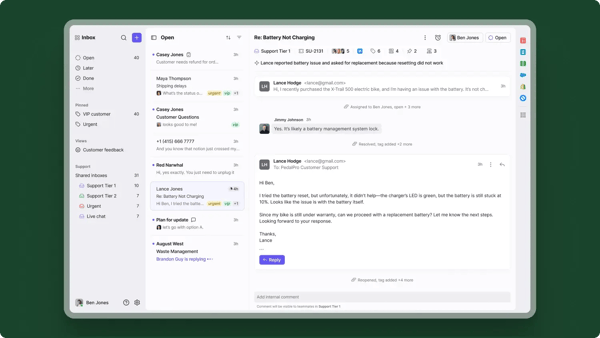
The foundation is a shared inbox that shows who owns what. Reviewers on support teams describe seeing at a glance which conversations are waiting, who is handling each one, and where a follow-up or escalation is needed. For a high-volume queue, I’d rate that visibility as the main reason to move off a plain shared mailbox.
On top of that, the team works inside the conversation. You can assign an email to a colleague, leave an internal comment the customer never sees, and draft a reply together before it goes out. This is the feature reviewers raise most, and the one I’d point to for any team that currently forwards emails or pastes them into chat to ask “how should I answer this?”
What stood out to me is how Front centralizes everything in one place. Reviewers describe handling SMS, WhatsApp, voice, and live chat alongside email, so a customer’s messages across channels sit together. For a team that gets reached five different ways, I’d weigh that consolidation heavily: it is the difference between one workspace and five open tabs.
To keep a high volume moving, Front leans on rules and automation. Reviewers describe auto-assigning incoming mail, auto-tagging by topic, and routing messages to the right inbox with no one touching them. It is the part I’d lean on as a team grows, since it keeps triage from becoming a full-time job, though a few reviewers wish the rules went further for very complex workflows.
Front’s integrations are a strong point overall, but G2 reviewers mention that syncing with external platforms can occasionally require extra attention. In my case, some Salesforce data didn’t always appear as expected, which meant manually refreshing or double-checking records. It’s manageable, but smoother real-time syncing would make cross-tool workflows feel more seamless.
What sets Front apart for managers is its analytics. Reviewers point to built-in reporting on reply times, message volume, and tags, so a team lead can see where time goes and whether they are hitting response targets. I’d call this the feature that turns Front from a shared inbox into something a customer-operations manager can run the team on.
The everyday details are strong too. Snooze, which G2 Data scores at 94% against an 84% category average, clears a message until you need it; tags (92% versus 85%) keep threads organized; and reviewers like that the interface still feels like a familiar inbox. I’