


After years of remote work, online classes, and even the occasional virtual happy hour, I’ve pretty much speed-dated every video conferencing tool out there. But when I look at my daily calendar, the two names battling for dominance most often are Google Meet vs. Zoom.
Let’s be honest. Most of us aren’t picking a meeting tool because it’s “feature-rich.” We pick the one that doesn’t derail a call, waste five minutes of setup time, or make us look flaky in front of a client. That’s exactly the lens I used when I tested both in 2026.
I rotated between them for a full workweek — internal huddles, client calls, and 1:1s — and focused on the stuff that actually shows up in real meetings: setup speed, how quickly people got in, call quality, screen-share smoothness, whether chat was genuinely helpful, and how good their AI assistants are.
If you’re trying to decide between Google Meet and Zoom right now, be it for work, school, side projects, or even family calls, this breakdown is meant to make that choice simple.
TL;DR: Meet wins for simplicity and Google-ecosystem fit, while Zoom wins for power, cross-org meetings, and tighter control.
Google Meet vs. Zoom: At a glance
| Feature | Google Meet (Google Workspace) | Zoom (Zoom Workplace) |
| G2 rating | 4.6/5 | 4.5/5 |
| Ease of use | Super low-friction if you’re in Google Workspace daily; fewer clicks, minimal setup. | Intuitive once you’re in it, but has more buttons and options upfront because it’s feature-heavy. Still easy to join/host. |
| Free plan | Unlimited meetings Participants: 100 Meeting duration: 60 minutes per meeting; unlimited time for 1:1 or mobile calls. |
Unlimited meetings Participants: 100 Meeting duration: 40 minutes per meeting. |
| Pricing and plans | Included with Google Workspace Business Starter: $7/user/month Business Standard: $14/user/month Business Plus: $22/user/month Enterprise: Custom |
Included with Zoom Workplace Workplace Pro: $13.33/user/month Workplace Business: $18.33/user/month Enterprise: Custom (Billed annually) |
| Participant capacity | Free: 100 Starter: 100 Standard: 150 Plus: 500 Enterprise: 1000 |
Free: 100 Pro: 100 Business: 300 Enterprise: 500+ |
| Meeting duration | Free: 60 mins Paid plan: 24 hours |
Free: 40 mins Paid: 30 hours |
| Setup + join flow | Fastest path if you live in Gmail or Google Calendar; click, and you’re in. No app download required. | Join via link or ID in seconds. Desktop app or browser, your choice. |
| Video call quality + stability | Strong for everyday meetings; best when most users are in the Google ecosystem. | Best-in-class and very consistent across mixed orgs, devices, and networks. |
| Video polish (backgrounds, touch-ups) | HD video, background blur or replacement, and light touch-ups — enough for most calls. | HD video plus more background customization and meeting “production” feel. |
| Recordings | Available with Standard, Plus, and Enterprise plans; Recordings land in Google Drive automatically. | Local recordings on free plan: Cloud and local on paid plans. |
| Screen sharing | Simple share of a tab, window, entire screen; great for quick collaboration. | More advanced share controls (portion, second camera, documents, apps, videos); great for demos and guided walkthroughs. |
| In-meeting chat | Clean and lightweight for links and notes without much distraction. Conversations are saved for recorded meetings. | More “collab-forward” and feature-rich for teams that rely on chat. Private messages, continuous chats before, during, and after meetings. |
| AI meeting notes | Not available for Free and Starter plans. In other paid plans, Gemini in Meet can take notes and generate summaries and action items on meetings. | Three in-meeting uses per month for free plan; no limits on paid plan. Zoom AI Companion creates meeting summaries/action items, helps with in-meeting chats; stronger templating and agentic features on paid tiers. |
| Mobile experience | Simple, reliable mobile app; great for quick joins on the go. | Feature-rich mobile app; strong if you need advanced controls away from the desk. |
Note: Both Google and Zoom roll out new updates to their video conferencing software. The details here reflect the most current capabilities as of December 2025, but may change over time.
Google Meet vs. Zoom: What’s different and what’s not?
Before we get into my tests, let’s take a closer look at both the video conferencing tools. At a high level, both tools do the same job: they get people into a video call fast. But once you’re using them week after week, the experience starts to feel different in ways that matter, especially around simplicity, controls, and how meetings fit into the rest of your workflow. Here’s how I break it down.
Google Meet vs. Zoom: What’s different?
This is where the experience starts to split depending on how you meet and who you meet with.
- Access and installation: Google Meet is built for the browser — click a link and you’re in, no install needed. Zoom works in-browser too, but the desktop app is where it feels most full-featured, and Zoom nudges you toward that path
- Ecosystem: Meet is indistinguishable from the Google Workspace. Calendar, Gmail, Drive, and Docs all flow naturally into meetings. It is the ultimate tool for “Google shops.” Zoom is more of a standalone “meeting HQ” that plays nicely with lots of tools, including Google Workspace.
- Feature depth: Meet stays minimalist with fewer settings to fuss over (nice for speed). Zoom gives you more knobs to turn for deeper host controls and customization that power users tend to love.
- Pricing logic: Meet’s value is strongest when you’re already paying for Workspace; Zoom is often a more explicit standalone buy for meetings because that’s your core need.
Google Meet vs. Zoom: What’s similar?
Even with their differences, they overlap in a lot of important places, and either one can handle everyday meetings well.
- Core functionality: HD video and audio, screen sharing, and in-meeting chat are strong on both.
- Platform support: Both run smoothly on desktop and have reliable iOS/Android apps.
- Everyday meeting tools: Virtual backgrounds, noise cancellation, breakout rooms, chat, polls, and hand-raising are all in the mix (with some features depending on plan).
- Scheduling: Both let you schedule ahead and send invites. Meet just does this more natively through Google Calendar.
- Free tiers: Both offer usable free plans with group call time caps (Zoom’s is shorter; Meet’s is longer).
How I compared Google Meet and Zoom: My evaluation criteria
I’ve used both Google Meet and Zoom on and off for years — on free plans, paid plans, and in a mix of personal and work settings. But for this comparison, I wanted a fresh, apples-to-apples look. So I ran both tools through the same routine for a full week inside my normal workflow: internal huddles, client calls, 1:1s, and the “quick syncs that turn into 30 minutes” we all know too well using paid plans. As I used them, I evaluated both tools on the real-world stuff you notice when you’re actually living in them:
- How fast I could set up and schedule meetings (from Calendar/email and from scratch)
- How frictionless it was for guests to join (link vs meeting ID, browser vs app)
- Call consistency through a busy week (audio and video stability, lag, dropouts)
- Screen sharing in real scenarios (tab/window/full screen, presenter handoffs)
- In-meeting chat usefulness (sharing links/notes without distracting the flow)
- Collaboration features when needed (breakouts, whiteboard, polls)
- AI assistant value (summary accuracy, action items, and follow-through help)
- Mobile experience (joining and participating on the go)
- Overall value for the price (what you get free versus what’s worth paying for)
To add other user perspectives, I also cross-checked my findings with G2 reviews to see how other users experience these tools.
Disclaimer: I shared my experience testing the two tools as of January 2026. If you read this after a few months, some features and functionality might have evolved. The companies will be able to give you the most up-to-date information.
Google Meet vs. Zoom: How they actually performed in my tests
This is where the comparison gets real. For each task below, I’ll break it down by my experience with the two tools, what stood out, and my final verdict on which was better. Let’s get into the results.
1. Setting up meetings
For this test, I wasn’t trying to see whether I could set up a call. I’ve done that a thousand times on both tools. I just wanted to slow down and notice the small nuances: how many steps it really takes, where friction shows up (if it does), and which flow feels more natural when you’re moving fast between meetings.
Because I already have a Gmail account and live in Google Apps, getting started on Meet felt almost automatic. I could open Google Meet (web or mobile) and spin up an instant meeting with a link, or schedule one for later without any extra setup.
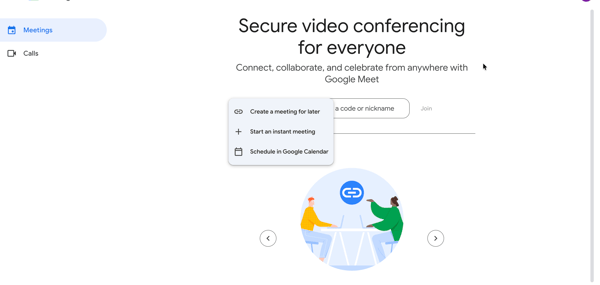
Most of the time, I just used Google Calendar: I’d create an event, add people, click to include Google Meet, and jump in when it was time. The whole flow felt like it was built into what I’m already doing, so there wasn’t a moment where I had to stop and “set up a meeting tool” separately.

Zoom’s setup felt more like building a meeting space before you walk in. As I create a Zoom meeting, I naturally find myself toggling a few “how do I want this to run?” settings — things like waiting room, who can join when, whether participants start muted, and other host controls that are useful when you’re meeting with external people or running anything more structured. It’s not hard to do, but it’s a more deliberate setup moment than Meet, which assumes a simpler default.

Scheduling a Zoom call does feel a bit more standalone when I use the Zoom app — I’d set the meeting up there, then drop the link into my calendar or messages to share it with attendees. That said, Zoom has integrations/add-ins for Google Calendar and Microsoft 365, so if you use those, the scheduling flow can feel a lot more connected and “in-calendar,” closer to what Meet does natively once you connect them.
My final verdict? Split. For setup and getting a call going fast, Google Meet takes the cake. It’s the most seamless, fewest-steps flow in my daily routine. But when I want more say in how the meeting is configured before anyone joins, Zoom wins for me.
Winner: Split; Google Meet wins on simplicity, and Zoom wins on setup control.
G2 user ratings: Which video conferencing tool scores high on scheduling?
- Google Workspace: 9.1/10
- Zoom Workplace: 8.9/10
Users rate Google Workspace slightly higher for scheduling meetings.
2. Call consistency and audio, video quality
All I wanted to see here was simple: once everyone joins, does the call feel steady and predictable, or do little hiccups keep sneaking in?
Across my usual mix of internal huddles, client calls, and 1:1s, Google Meet felt reliably “set it and forget it.” Audio stayed clear, video held steady, and I didn’t find myself thinking about the tool while the meeting was happening. The only thing I noticed occasionally was a slight lag when I switched between the Meet tab and other tabs, or when someone started sharing their screen. Nothing deal-breaking, just a small blip now and then.
On the video side, Meet gives you a strong set of polish tools that feel practical first and fun second. Auto-framing kept me centered, lighting adjustments handled my not-always-perfect setup nicely, and blur/background options worked smoothly. The playful filters are there if you want them (cat on your head, cowboy hats, the whole vibe), but they never feel like the point of the product, just a nice extra.

Zoom felt equally strong on core audio/video — I didn’t see a meaningful quality gap week-to-week. Meet has what I need, but it keeps things simple and streamlined: the interface is clean, the settings are easy to scan, and I’m rarely digging around. Zoom gives you more surface area to play with, such as more options, more toggles, more ways to fine-tune how meetings run and how you show up on camera.
Personally, I loved Meet’s simplicity for everyday calls, but I can also see why someone who likes to customize everything would prefer Zoom. It really comes down to your style.
Zoom’s appearance and background tools also lean harder into customization. You get auto-lighting, touch-up, portrait lighting, and auto-framing right up front. And while the default virtual backgrounds felt a bit lighter than what Meet offered, adding your own is easy. There are also AI avatars and effects.
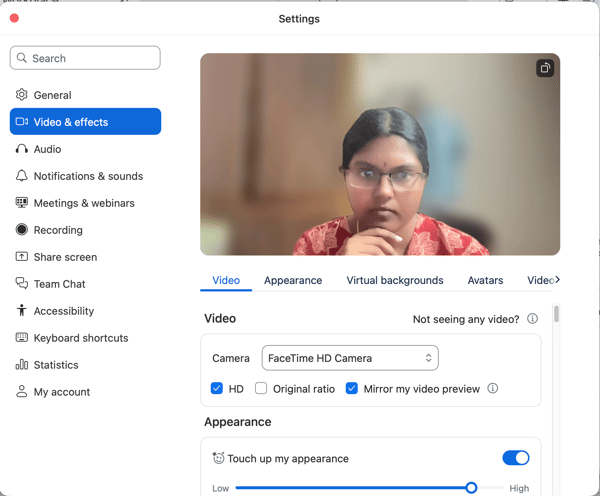
The big surprise for me was Studio Effects. Zoom lets you add small, specific tweaks, such as eyebrow styles, subtle lip colors, and even facial add-ons like a beard or mustache. It gives you a lot more room to design your on-camera look. Totally optional, but genuinely fun and good. (Word of advice: if you’re playing with Studio Effects, double-check you’re not applying them to all meetings… unless you want to show up to your next client call with a surprise beard.)
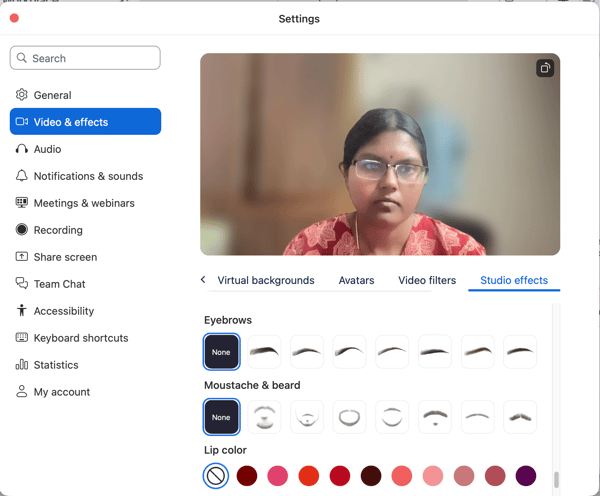
On the whole, Meet wins for “no-thought-needed stability,” while Zoom wins for “stability with extra polish controls.”
Winner: Split; On pure call steadiness, both showed up strong.
G2 user ratings: Which tool scores high for video conferencing?
- Google Workspace: 8.8/10
- Zoom Workplace: 8.9/10
G2 users rate Zoom slightly higher for video conferencing capabilities, performance and reliability.
3. Screen sharing and collaboration
For this test, I wanted to see how smooth screen sharing feels once a meeting is underway. Not just “can you see my screen?”, but how flexible the sharing options are and whether the collaboration tools actually help.
Google Meet covers the core sharing modes well. I could share a Chrome tab, a specific window, or my entire screen in a couple of clicks, and switching between those felt easy and straightforward.
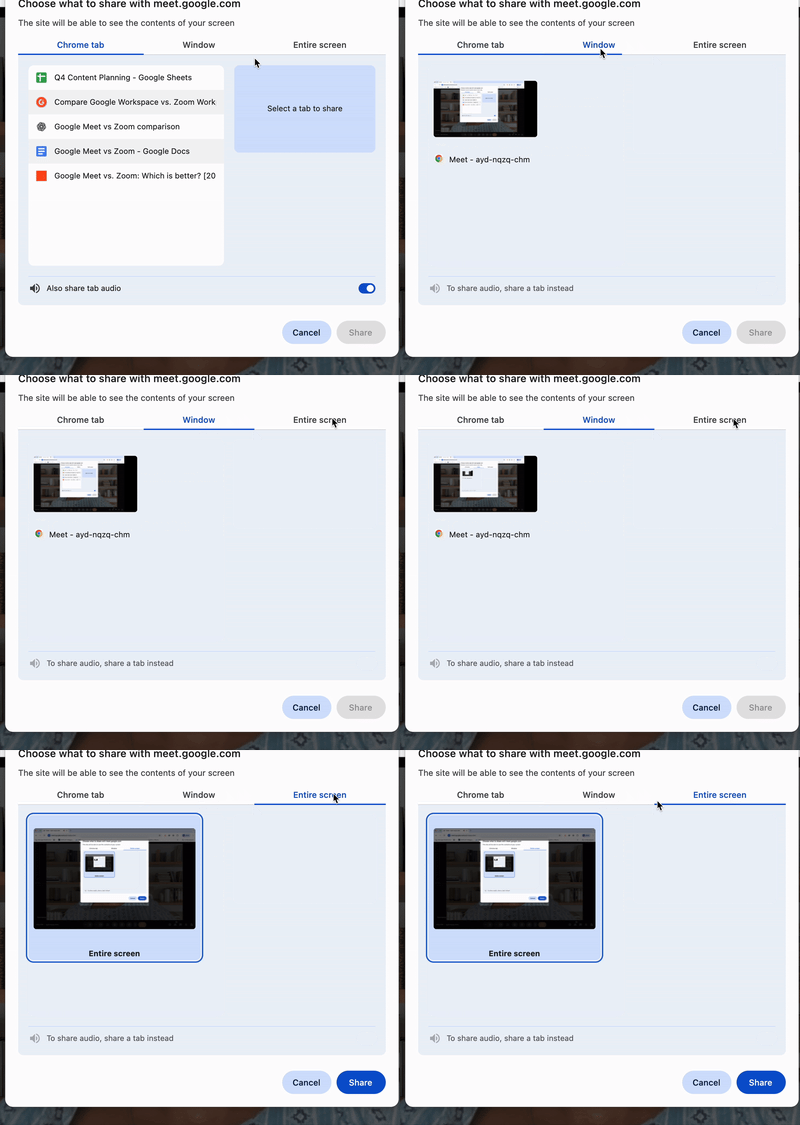
Meet also gives you basic annotation tools like pen, emojis, sticky notes, and even disappearing ink that follows cursor movements during screen share. So quick callouts and mark-ups are easy.
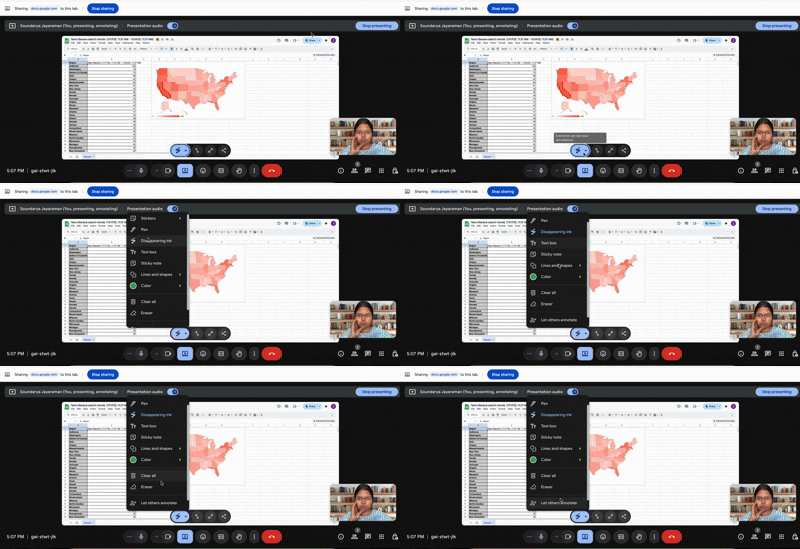
Setting up quick breakout rooms or lightweight polls felt simple. It doesn’t have a built-in whiteboard (it relies on third-party add-ons like Miro or Figma), but for everyday collaboration, it gets the job done without fuss.
But Zoom really blew me away here. Beyond the usual sharing options, it lets you share a portion of your screen, specific documents or apps, content from a second camera, a whiteboard, a locally stored video, device audio, or even an iPhone/iPad screen.
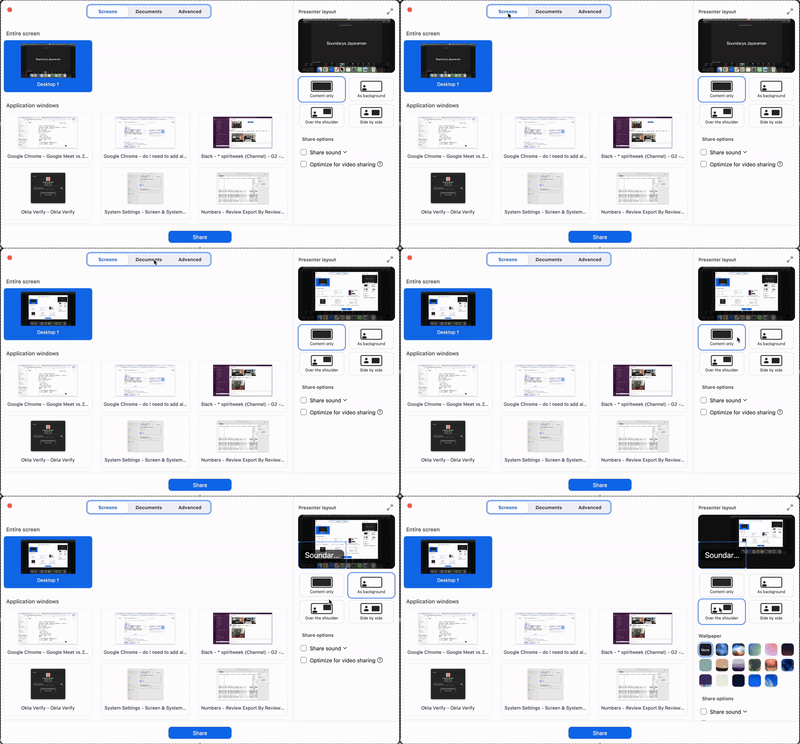
The Presenter Layouts were the real standout for me. As a presenter, I could choose exactly how I appeared next to my content (over-the-shoulder, side-by-side, or content-only). It made presenting feel intentional and engaging, rather than just a static slide dump.
While Meet offers decent annotation tools (pens, shapes, sticky notes), Zoom’s tools felt more professional. Specifically, Zoom’s Spotlight feature, cursor, which highlights your cursor or key areas, made guiding the viewer’s eye much easier than Meet’s equivalent.
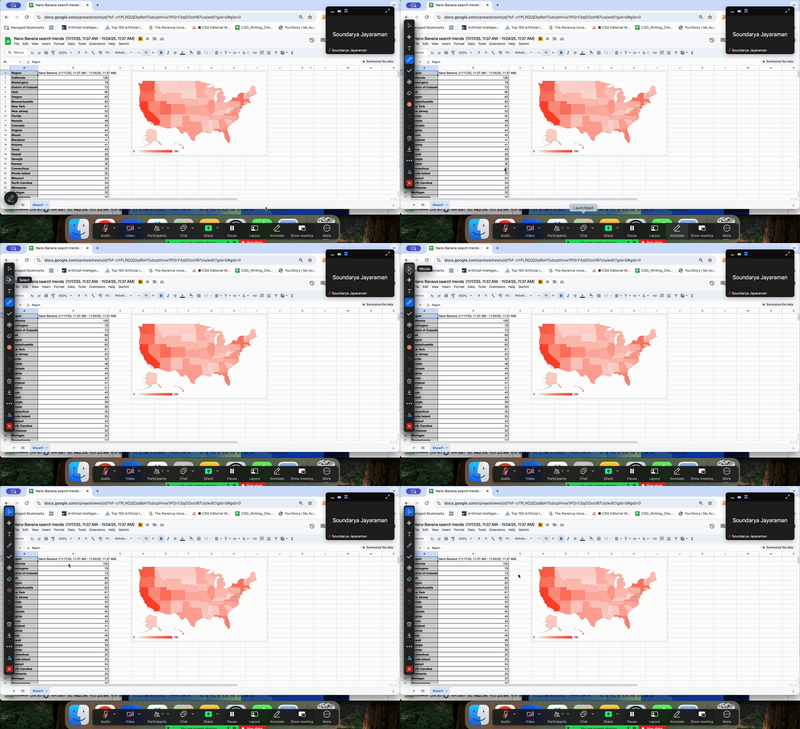
The native whiteboard is excellent, and the polling options are much more robust. If I were running a structured workshop or training session, Zoom gave me more space to “run the room” effectively.
When you combine that with the advanced sharing options (like sharing just a specific portion of your screen), Zoom is in a different league. If you are just sharing a spreadsheet or slides, Meet is fine. But if you want your presentation to look like a production, Zoom has the tools you need.
Winner: Zoom
G2 user ratings: Which video conferencing tool scores high on screen sharing?
- Google Workspace: 9.0/10
- Zoom Workplace: 9.2/10
Users rate Zoom slightly higher for its advanced sharing options.
4. In-meeting chat
Chat is a big part of meetings, especially when there are a lot of people on a call. Now I don’t turn my video app into Slack or Teams, but I want a simple, reliable chat that makes it easy to drop a link, share something quickly, or have a side conversation without hijacking the speaker.
Both Google Meet and Zoom cover the basics: you can send messages, drop links, and react without unmuting yourself. Both also support a form of continuous meeting chat on certain plans, which means that for recurring meetings, the chat history can stick around between sessions, which is a huge perk for long-running projects. On the Google side, meeting chats can flow into Google Chat, which is a big win if your org already lives there for day-to-day IMs.
Where things started to feel different was in the details. On Google Meet, I could drop text and links easily, but I couldn’t upload a file directly from my computer into the meeting chat; I’d have to put it in Drive and share the link instead. It’s not hard, but it adds a tiny extra step. Meet does give you a nice range of emojis and reactions, which helps keep big calls feeling a little more human.

But Zoom clearly impressed me with the little touches. The chat felt more like a fully functional messenger app tucked inside the meeting. I could upload files, drop screenshots, and even format my messages with a surprisingly capable text editor that includes quotes, code blocks, indenting, and the works. (Dangerously close to letting me write half this article inside a Zoom chat.) I could also send private messages in larger meetings, which I love for quick side conversations with the exact people I need, without derailing the main thread.

In terms of reactions, I also appreciated the extra status-style ones in Zoom, like “Be right back” or “Away/I’m back.” They’re small, but they make so much sense in real meetings because instead of explaining that I’m stepping away for a minute, I can tell everyone silently with a button.

On the whole, Meet nails the basics and integrates nicely with Google Chat, but Zoom’s in-meeting chat feels more like a real communication tool with better formatting, file sharing, and small quality-of-life touches that actually show up in day-to-day calls.
Winner: Zoom
G2 user ratings: Which video conferencing tool scores high for live chat in meetings?
- Google Workspace: 9.0/10
- Zoom Workplace: 9.1/10
Users rate Zoom slightly higher for its in-meeting chat features.
5. AI meeting notes
I don’t know about you but I don’t attend a meeting these days without an AI notetaker following me as I join. It helps me keep up, remember decisions, and not scrub through a 45-minute recording to find one action item.
On the Google Meet side, I couldn’t run the same end-to-end test I did with Zoom with my current plan. But from what I can see in the product and docs, the intent is clear: Gemini can take notes into Docs. It can help with translated captions, clean up audio and video, and generate custom backgrounds.
Like other AI meeting notes takers, it lets you ask things like summarize ongoing discussions, or get a recap of what someone said, list key takeaways, decisions, and action items, or while you’re in the meeting. That’s very similar to what I use in Zoom every day. One feature that really caught my eye was using Gemini to enhance video with studio-style lighting that you can actually customize to match how you want to show up on camera.
Zoom’s AI companion can summarize the meeting, pull out topics, list action items (often tied to specific people), and give me quick “catch me up” answers if I join late or zone out for a minute. Afterward, I can skim the recap instead of rewatching the whole thing, and I love being able to ask, “Were there any action items for me?” or “What did we decide about X?” and get a straight answer.
.webp?width=600&height=469&name=Zoom%20AI%20Meeting%20Assistants%20Meeting%20ntoes%20(1).webp)
So for this one, I’d say they are more or less even out here. You can go with the AI that lives in the ecosystem you’re already using most.
Winner: Split
6. Security
Ever since the early “Zoombombing” days, I’ve paid a lot more attention to how well meeting tools let me control the room. Zoom has tightened its security a lot since then, and both Google Meet and Zoom now do the basics really well: meetings are encrypted in transit, you can use two-factor authentication on accounts, and random strangers can’t just stroll into your calls.
I also wanted to see how much control I actually had as a host. If things go off the rails, someone gets noisy, shares the wrong screen, or I suddenly need to lock the room for a sensitive discussion, how quickly can I fix it without turning the meeting into chaos?
Google Meet leans towards safety by default. Because it lives inside the Google ecosystem, it relies heavily on your existing account security and calendar settings. Inside the meeting, the controls are simple but effective: you can mute everyone, limit who can share their screen, turn off chat, and control who can send reactions or join without asking.

It feels genuinely hard to misconfigure anything, because there just aren’t that many levers to pull, and for most everyday meetings, that’s a good thing. I could mute, remove or block a person if need be.
Zoom, on the other hand, gives you more of a full control panel. In addition to the usual options (mute participants, control screen sharing, manage chat, enable/disable reactions), there’s a dedicated “oh no, make it stop” layer in the Host/Security tools.
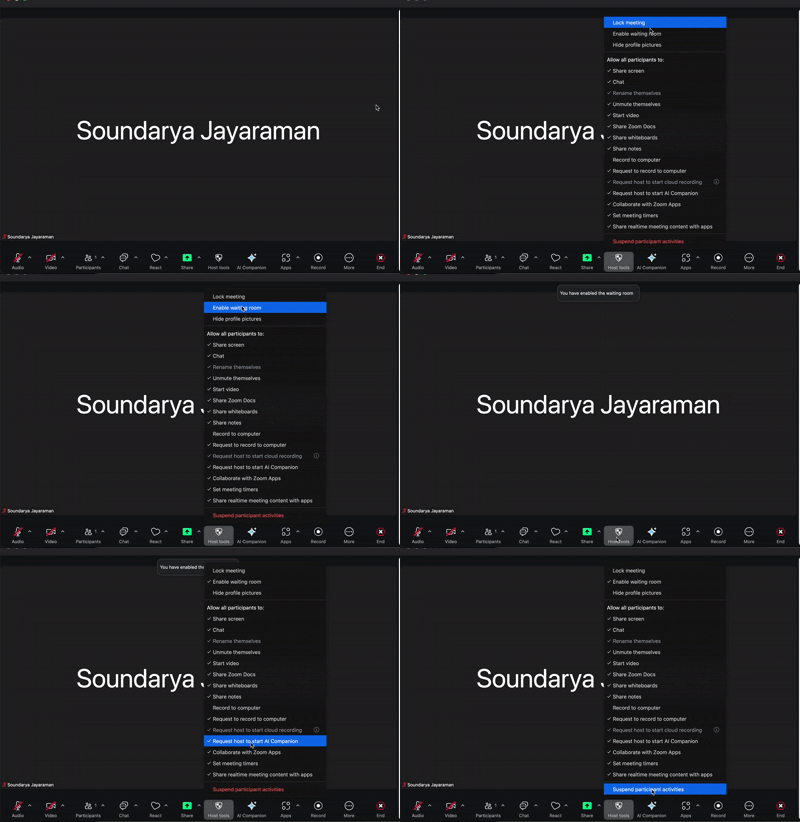
From there, you can quickly lock the meeting, enable the waiting room, hide profile pictures, or hit the nuclear option: Suspend participant activities, which instantly mutes everyone, stops video, pauses screen sharing, and locks things down so you can regain control. It’s very much a panic button for big or public-facing meetings, and it made me feel like I had a clear plan B if s