


Let me tell you a secret: I’m no graphic designer, but I’ve managed to pull off some pretty impressive designs over the years.
From my school days, I have tried more than dozen design tools from the OG Adobe InDesign and Illustrator to now the new and trendier apps like Canva and Figma. I’ve used them to create illustrations and infographics for my blog, designed pages for my website, polished images for LinkedIn posts, and eye-catching Instagram content. I’ve even whipped up logos and flyers for my mom’s business and designed ads for social media and email campaigns.
Of course, designing can feel intimidating at first, especially if you’re not a trained professional. But if there’s one key thing that I have learned over these years, it is that the right graphic design tools make all the difference, whether it’s for professional projects or just for fun.
That’s exactly why I’m sharing the best free graphic design tools for 2025, based on my experience spending hours (okay, days) of testing, tweaking, and experimenting. Spoiler alert: you don’t need a design degree to use these!
Whether you’re looking to design your next viral Instagram post, create a logo for your side hustle, or impress your clients with sleek visuals, they make the creative process so much smoother and way more enjoyable.
And no matter who you are – a fellow marketer like me, or a freelancer aiming to impress clients, or someone just starting your design journey, there’s something here for everyone.
9 best free graphic design software in 2025
- Adobe Express for social media posts and quick marketing materials. ($9.99/month)
- Affinity Designer for professional vector illustrations. ($18.49 for iPad version)
- Canva for social media graphics, posters, marketing designs ($10/month/person)
- CorelDRAW for large-scale print materials and detailed illustrations. ($16.58/month)
- GIMP for photo editing and graphic design experimentation.
- Plasfy for quick marketing designs for small businesses. ($9.99 for a lifetime license)
- PosterMyWall for posters, flyers, and event-specific visuals ($9.95/month)
- Sketch for UI/UX design, web and app interfaces. ($10/month/editor)
- VistaCreate for static and animated social media content. ($10/month)
*These free graphic design tools are listed alphabetically and come with free trials or freemium options. I have included the starting price of the tool’s paid plan for easy comparison.
What makes the best graphic design software?
With over 100 graphic design apps on G2, from vector tools to photo editors and 3D modeling software, choosing the right one can be overwhelming. There’s no one-size-fits-all solution. The “best” tool depends on your goals. But that said, after years of dabbling in design, there are a few non-negotiables that I looked for when testing the graphic design tools:
- Ease of use: I’m not a fan of overly complicated interfaces or features hidden in obscure menus. The best tools are i beginner-friendly, making it easy to jump in and start creating without a steep learning curve.
- Flexibility and features: Whether I’m designing a minimalist logo, a complex infographic, or a colorful social media post, the software needs to have features that allow me to experiment. Bonus points if it lets me play around with both templates and custom designs!
- Cost (or lack thereof!): Graphic design software can be pricey, but I get it–those costs often come with advanced features that professional designers, agencies, or businesses rely on for complex projects. For someone like me, though, free tools with basic functionalities work just fine for simpler design tasks, creative experiments, or quick marketing needs.
- Accessibility: As someone who switches between often, I need tools that are accessible anywhere. Cloud-based software or apps with cross-platform compatibility always stand out to me.
- Speed and performance: Nothing kills creativity faster than laggy software. If a tool slows me down while designing, it’s a dealbreaker.
- Collaboration and export options: Sometimes, I need feedback on a design, or I’m creating something for a team project. Tools that allow easy sharing, collaboration, and export in multiple file formats are always at the top of my list.
- Fun factor: Lastly, the best tools make designing fun. Whether it’s quirky templates or playful fonts, I want something that sparks creativity and makes the process enjoyable.
How did I find and test the graphic design tools?
To begin my search, I turned to G2’s graphic design software category page, focusing on top-rated tools from drawing software, vector graphics software, and desktop publishing software to build my initial list of contenders.
I prioritized software with freemium plans or free trials that allow users to explore their capabilities without any financial commitment.
With my shortlist ready, I tested each tool to create common designs like logos, social media posts, infographics, and marketing materials like flyers. I did this to ensure the tasks reflected the diverse design needs of designers, marketers, freelancers, content creators, small business owners, and hobbyists.
I assessed each tool for the following:
- How intuitive is the interface, and does it provide tutorials or community support?
- Do they have robust templates and tools for editing, and customizing?
- How well does the software handle complex designs and large files?
- Whether it supports multiple file formats (JPG, PNG, PDF, SVG) and team collaboration.
- Are free features sufficient, or do they limit essential functionality?
- Does the software work seamlessly across Windows, macOS, iOS, and Android or on a browser?
Let’s see which tools made the cut.
* This data was pulled from G2 in 2024. The product list is ranked alphabetically. Some reviews may have been edited for clarity.
9 free graphic design software I like
My list of design tools includes a mix of beginner-friendly tools and more advanced options, catering to a wide range of design needs. My experience has taught me that the best design tools are those that balance ease of use, and versatility without compromising on quality. Some even include impressive AI features for image generation, background removal, editing and designing.
While they’re not perfect and have limitations like restricted features or templates on free plans, they still provide excellent functionality for creating stunning designs. Let’s take a look at the tools that made the cut.
1. Adobe Express
As someone who once heavily invested in InDesign, Photoshop, and Illustrator, I found the free plan of Adobe Creative Cloud Express to be a pleasant surprise. It is a fantastic tool for building quick, on-brand social media posts or developing simple marketing materials.
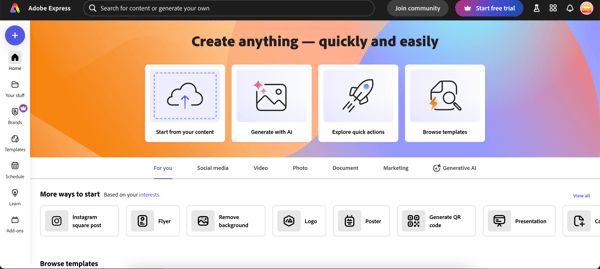 The user interface (UI) of Adobe Express
I was impressed by how user-friendly it was right from the start. From the product tour to tutorials and exercises, I found it easy to get started on the platform. It was pretty clear that the platform is designed with non-designers in mind who aren’t used to working with Adobe’s flagship software like Illustrator or Photoshop, which are technical and feature-rich with a steep learning curve.
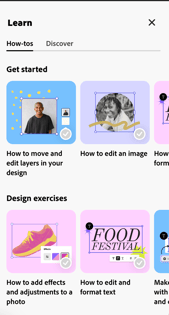
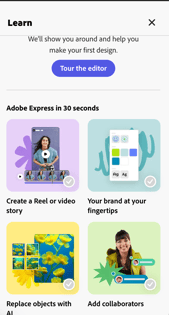
Tutorials to get started on Adobe Express
Creating a logo was one of the first things I tried, and it was an absolute breeze. I liked being able to filter templates by free or premium options, which saved time and kept things clear.
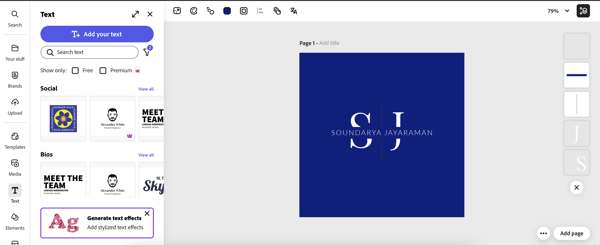
Creating a logo on Adobe Express
One feature I didn’t expect to enjoy so much was the free AI image generator. While it had a bit of trouble fully adhering to prompts, it allowed me to create custom stock photos right within the platform–something that felt innovative and useful. The range of templates was also impressive.
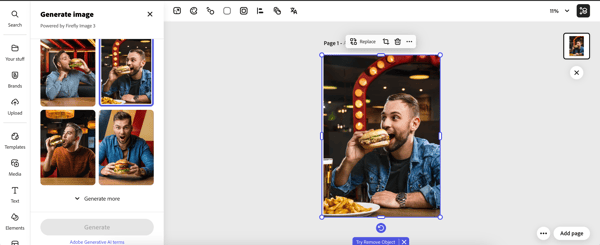
Using AI image generator on Adobe Express
Whether I needed an infographic, a social media post, or marketing materials like brochures, flyers, visiting cards, or ads, I could find a wide range of templates.
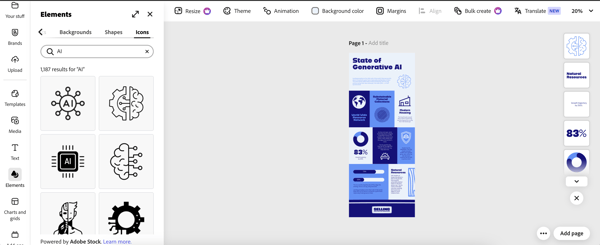 Creating infographics for my blog with templates on Adobe Express
I found the Recommended feature helped me customize designs quickly and effectively.
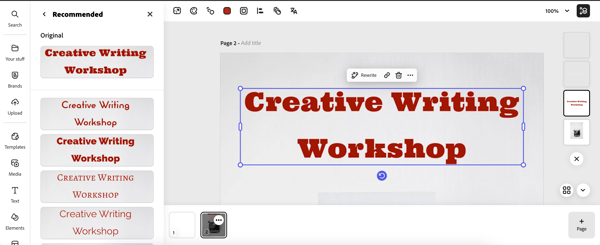 Designing flyers on Express with ideas from the Recommended feature
Of course, the free plan has its limits. For instance, you can’t export PNG files with a transparent background, a must for logos and vector designs. The lack of an erase tool was another drawback. Also, you can’t import .ai or .psd files directly with the free account, which I feel is essential for professional graphic designers.
Storage is capped at 5GB, and templates, stock photos, and videos are all limited in the free plan, which works for smaller projects but might feel restrictive if you’re working on more extensive designs.
That said, I found Adobe Express to shine in other areas. For one, the watermark only appeared when I used premium templates or elements, so most free resources were perfectly usable without any added branding. Collaboration was another standout feature–I loved being able to tag people and edit together in real time, which made it a fantastic option for team projects.
While it’s not as advanced or technical as Illustrator, Photoshop, or InDesign, I see Adobe Express as a solid, no-fuss design tool for quick projects. The variety of templates available for social media posts, flyers, and marketing materials made it incredibly resourceful for someone like me who juggles multiple design needs.
Adobe Express is available on web browser tool and as a mobile app.
What I liked about Adobe Express:
- Intuitive interface and diverse templates.
- Real-time collaboration for team projects.
What are G2 users saying:
“The most helpful part of Adobe Express is how quickly I can open it, find a fun template, and get the job done. Adobe Express throws me into a brainstorming session, and before I know it, my flyer is done. I like that Adobe Express runs on my browser, so I know it’s connected online and has up-to-date designs. I use it pretty often as a first step in my design project. The broad number of categories (flyers, posters, social media, newsletters, etc) are really helpful.”
– Adobe Express Review, Doug L.
What I didn’t like about Adobe Express:
- General limitations on free plan resources like templates, stock photos, and storage.
- No PNG export with a transparent background on the free plan.
What are G2 users saying:
“The only thing I really dislike about Adobe Creative Cloud Express is the difference between free and paid versions. I used the paid version for work, which was great! However, when I tried the free version for personal use, I was sorely disappointed. There are other similar programs that offer much more in their free versions.”
– Adobe Express Review, Ganesha C.
2. Affinity Designer
Affinity Designer is very similar to Adobe Illustrator or, as I like to think of it, the hip version of Illustrator. It’s perfect for professional graphic designers, hobbyists, and anyone working with vector illustrations.
Owned by Canva, Affinity offers a 7-day free trial, giving me enough time to explore its features before deciding. I had to sign up for an account on their website and then download the free trial version for my Mac to try it out. It’s available for MacOS, Windows, and iPad.
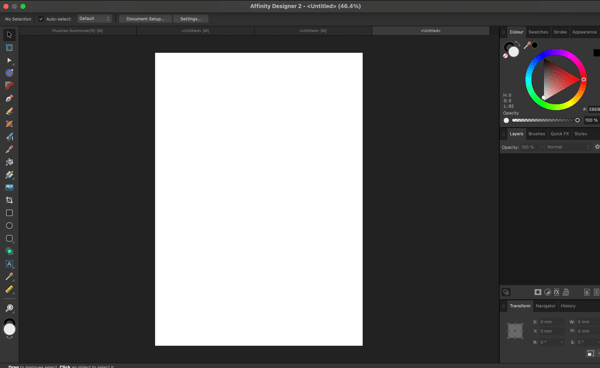
The user interface of Affinity Designer
I felt that it was not beginner-friendly. Especially if you’ve never used graphic design software like Adobe’s tools, Affinity Designer can feel overwhelming at first. The logo I created with the template on Adobe Express in 5 minutes took me a good 20 minutes before I got the hang of the tool. But once you get past the learning curve, it becomes surprisingly easy and fast to work with.
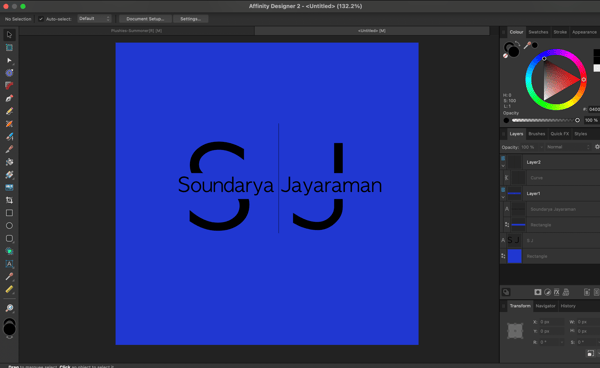
Creating a logo with Affinity Designer
Despite being feature-heavy like Adobe Illustrator, I felt the performance of Affinity is one of its biggest strengths. It’s fast, responsive, and handles most tasks with ease. I also loved its flexibility in exporting files as PNG, JPEG, SVG, and PDF and importing designs from other platforms, including .psd and .ai files of Adobe software. This meant I could easily move files between Affinity Designer and other software to refine my projects.
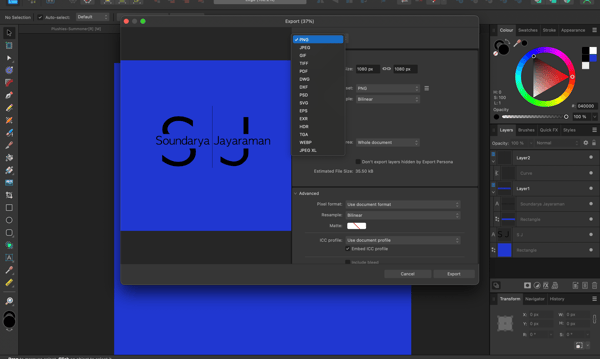
Export options on Affinity Designer
Surprisingly, I could also save the file with version history using Save History with Document. Also, whenever I had a doubt or got stuck, I could turn to the active use base on platforms like Reddit and YouTube.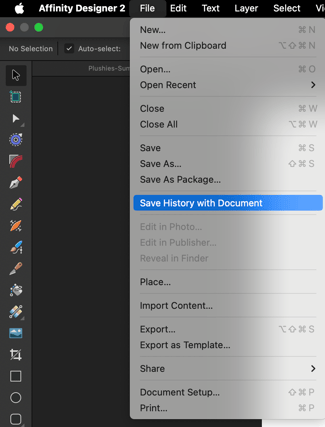
Save History with Document option on Affinity Designer
However, Affinity Designer isn’t without its limitations. As mentioned earlier, it does have a steeper learning curve, especially for beginners. Also, it doesn’t include features like image trace or gradient mesh. While honestly, those aren’t functions I use often for my design needs currently, this is something professional designers definitely care about.
On the performance side, while it’s generally smooth, I did notice a slowdown when I overloaded a project with effects and layers.
Despite these limitations, Affinity Designer remains an impressive tool and appeals to me the most because it requires just a one-time license payment. While it’s not perfect, I feel it’s an affordable and powerful alternative to Illustrator for most professional design needs, like logos, icons, UI design, gaming art, illustrations, and, vector graphics.
What I liked about Affinity Designer:
- Flexible file import and export options.
- One-time payment for a lifelong license, making it affordable and subscription-free.
What are G2 users saying:
“Affinity Designer is a great and comparable replacement to Adobe Illustrator. For a vector illustrator, it offers most if not all the tools necessary to complete any task.”
– Affinity Designer Review, Lindsey P.
What I didn’t like about Affinity Designer:
- Steeper learning curve, especially for beginners unfamiliar with design tools.
- Lacks advanced features like image trace and gradient mesh found in Adobe Illustrator.
What are G2 users saying:
“While Affinity Designer has a lot of great features, there are some areas where it might fall short for certain users. For instance, its compatibility with industry-standard file formats like Adobe Illustrator (.ai) or the lack of some advanced features present in other established design software might be a downside for professionals used to specific tools or workflows.
Additionally, the learning curve might be a bit steep for beginners transitioning from other design software. Also, the availability of third-party resources like plugins or extensions might be more limited compared to other design software ecosystems. These limitations might not affect everyone, but they’re aspects to consider depending on your specific needs and familiarity with other design tools.”
– Affinity Review, Rahul V
3. Canva
Now, if there’s one design tool I keep coming back to, it’s Canva. While it was not the first online graphics design tool, Canva arguably revolutionized the industry by mainstreaming the web-based design tool with its simple interface and extensive templates.
Whether I need social media graphics, blog banners, presentations, or marketing materials, Canva makes the design process quick, intuitive, and, dare I say, fun. It’s the ultimate all-in-one free design tool for non-designers and even seasoned marketers like me who want results without the hassle of complex software.
All you need to do is sign up for an account, and you are set. Canva recently refreshed its user interface. While it’s different from the old one, it’s still the easiest graphic design software to use. You can use it on mobile devices and web browsers.
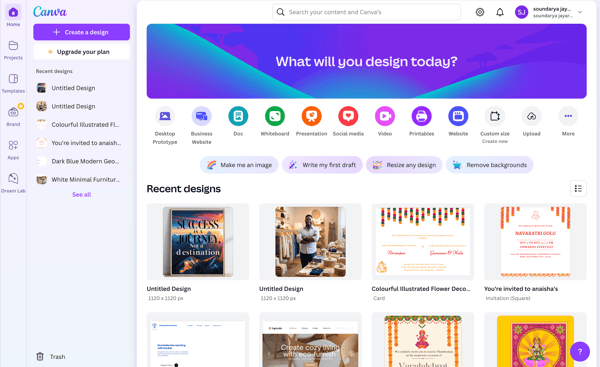
The user interface of Canva
Everything in Canva is incredibly intuitive. You can click on “Create a Design” or choose from one of the icons on the home screen to get started quickly. While Adobe Express offers a similar option, I think Canva does a much better job of showcasing your existing files and guiding you toward what you need to create next.
I absolutely loved the variety of templates it offered when designing my logo, poster, and whatever I set out to create, and I also found them to be much classier. I could start with one of their thousands of templates, tweak it with my brand colors, fonts, and images, and have a polished design ready in minutes.
Templates on Canva for my logo design
On top of that, Canva’s massive library of elements–shapes, graphics, stock photos, icons, animations, and AI-powered tools like the image generator and background remover–gave me everything I needed to experiment and bring my ideas to life. I tried designing posters, brochures, and even web pages, calendars and magazines and could do it with ease.
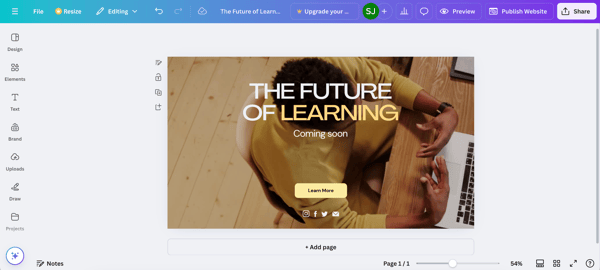 Designing web pages on Canva
The free AI image generator, like Adobe’s, comes with 50 free credits. But for me, the free video generator powered by Runway was a surprise. It comes with just 5 free credits and creates really short videos, though.
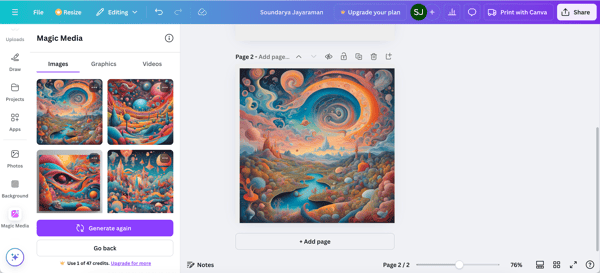 Generating images using Magic Media on Canva
However, Canva isn’t without limitations. The free version also doesn’t allow SVG downloads or high-resolution exports with transparent backgrounds, which can be a dealbreaker for things like logos or vector graphics. You need to upgrade to Pro or Teams.
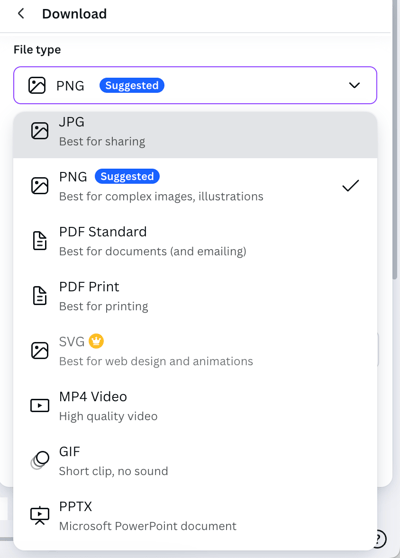 Download options on Canva free
Plus, Canva isn’t ideal for highly technical design work. You won’t find the level of precision or control you’d get with tools like Affinity Designer or Adobe Illustrator.
Still, for quick, professional-looking designs, Canva is unmatched. Whether I’m working on social posts, presentations, or even videos, it’s my go-to design tool for speed, and convenience.
What I liked about Canva:
- Quick and easy to use
- Unmatched collections of templates and the library of elements
What are G2 users saying:
“I love that I can quickly create professional-looking graphics. The wide range of templates, photos, and customization options make it easy to create unique designs for anything I need – be it social media posts, presentations, or personal projects. It’s also great that I can use it on my phone or laptop, so I can design on the go.”
– Canva Review, Jayaprakash A.
What I didn’t like about Canva:
- Limited download options
- Not suited for highly technical design works
What are G2 users saying:
“Some of the features I do not really like that much about Canva are its limited flexibility for advanced customization. It is great for making some quick designs, but certain aspects—like being able to accurately tweak something or to multi-layer a various range of objects—might seem restrictive in comparison with professional design tools. Besides, some features require a subscription, which isn’t that suitable for everyone.”
– Canva Review, Vamshi G.
4. CorelDRAW
CorelDRAW is a name I’ve heard for years as one of the long-standing competitors to Adobe Illustrator, and I finally gave it a try with its 15-day free trial of the CorelDRAW Graphic Design Suite.
The UI looks a bit dated, but right off the bat, I noticed that it’s a powerhouse for vector graphic design. In my opinion, it’s well-suited for professional designers, especially those working on logos, illustrations, and print materials.