


When I launched my blog, I wasn’t overwhelmed by options. I had already narrowed it down to Wix and WordPress
That’s what made it stressful.
Both promise a professional website. Both claim to be beginner-friendly. And both power millions of sites. But choosing between them felt like choosing the foundation my entire site would sit on.
Because once your page is live, indexed, and ranking on Google, migrating means redirects, broken layouts, and hours of cleanup. So instead of guessing, I built on both.
I tested how each platform handles setup, customization, SEO control, ongoing maintenance, and long-term flexibility, not as a developer, but as someone investing in a site meant to grow.
If you’re comparing Wix vs. WordPress and want a clear answer on which website builder software deserves your time, money, and commitment, this breakdown will help you make that call with clarity.
Wix vs. WordPress: Which should you choose?
Wix is the best choice if you want to launch a website quickly with minimal technical effort. It’s ideal for beginners, small businesses, and simple projects, with design, hosting, security, and mobile optimization built in. WordPress is better suited if you want more control and plan to build a larger or more complex site, making it great for blogs, content-heavy sites, and custom designs.
In short:
- Wix works best for simplicity, speed, and hands-off site management.
- WordPress works best for flexibility, scalability, and long-term customization.
Wix vs. WordPress: At a glance
Here’s a quick feature comparison of both Wix and WordPress to see the difference in capabilities.
| Feature | Wix | WordPress |
| G2 rating | 4.2/5 | 4.4/5 |
| Pricing |
|
|
| Best for | Building a simple, low-maintenance website with minimal technical effort. | Creating scalable, customizable websites with full control over functionality and SEO. |
| Ease of setup | Everything is built in, so you can launch a site in hours with no technical setup. | Initial learning curve in navigation and where key settings and tools are located. |
| Long-term scalability | Everything is built in, so you can launch a site in hours with no technical setup. | Initial learning curve in navigation and where key settings and tools are located. |
| Customization and flexibility | Easy to customize visually, but limited control over advanced features. | Full control over design, functionality, and code. |
| SEO capabilities | Great for small sites and local SEO, but limited access to advanced technical SEO and custom site architecture. | Deep SEO control with plugins like Yoast or Rank Math and full access to the site structure. Better suited for content-heavy sites. |
| Maintenance and updates | Hosting, security, and updates are handled for you automatically | You are responsible for hosting, updates, security, and backups. (unless you get a hosting plan). |
| Performance and site speed | Wix delivers good performance with built-in optimization, but limited advanced control can affect speed on larger websites | WordPress performance can be good, but site speed depends heavily on hosting, themes, plugins, and optimization choices. |
| E-commerce capabilities | Easy to use, built-in e-commerce platform for small to medium businesses. | Scalable e-commerce via WooCommerce with advanced customization. |
| Templates/theme | Offers a wide range of polished, customizable templates with a drag-and-drop editor. | Provides thousands of themes and templates with deep customization via themes and plugins. |
Note: Both Wix and WordPress roll out new updates to their platform. The details below reflect the most current features as of March 2026, but may change over time.
Did you know?
WordPress powers over 43% of all websites on the internet, making it the most widely used platform across all site types. To learn more about WordPress as a website builder, read Webflow vs. WordPress.
Wix vs. WordPress: What’s different and what’s not?
Before diving into the nitty-gritty of my experience using the two website builders, let’s first explore the unique features of each platform, along with the core capabilities that Wix and WordPress share.
Wix vs. WordPress: What’s different?
Let’s compare how Wix and WordPress differ when it comes to ownership, flexibility, SEO control, editing experience, and feature management.
- Set up and ownership: Wix manages it all. It handles updates, security, and all the behind-the-scenes stuff. You basically just log in, build your site without ever worrying about the backend. With WordPress, things work differently. You need to pick a web hosting platform, set up WordPress, and manage your themes and plugins yourself unless you are using managed hosting by WordPress.org.
- Platform type and customization: Wix is a closed, all-in-one website builder that makes setup and maintenance easy by handling hosting, security, and updates, but it limits customization and scalability. WordPress is an open-source content management system (CMS) that gives users full control over a site’s structure, features, and integrations as it grows. Its open-source nature allows functionality to be extended with custom code, themes, and plugins without being restricted to a single platform’s ecosystem.
- Pricing: Wix uses a bundled pricing model. Its paid plans include hosting, security, templates, customer support, and core features in one monthly or annual subscription. This makes costs predictable and easier to budget, especially for small teams. WordPress itself is free open-source software, but running a WordPress site involves separate costs. You must pay for hosting, and depending on your needs, you may also purchase premium themes, paid plugins, security tools, backup services, and performance optimization.
- SEO capabilities: Wix covers the SEO basics really well. You can edit page titles, add meta descriptions, customize URLs, insert alt text to images, and manage redirects, all from the settings function. WordPress offers similar core features but stands out for powerful SEO plugins (Yoast SEO, RankMath) that enable deeper control over metadata, schema, site structure, and technical SEO, making it better suited for advanced content sites.
- Editing experience: Wix uses a drag-and-drop function. You can move elements anywhere on the page, layer them, and tweak spacing. What you see is exactly what you get. WordPress is block-based by default. You build pages by stacking blocks in a structured layout.
- Plugins vs. built-in features: With Wix, a lot of the stuff people need is already there from day one, things like contact forms, basic SEO tools, e-commerce, and analytics. If you need additional features, they do have an app market for add-ons. But WordPress takes the opposite approach. The core platform is pretty lean, and most features come from plugins. You can pick exactly what you want, but it also means you’re responsible for choosing the right plugins and keeping them updated.
Wix vs. WordPress: What’s similar?
In my experience, Wix and WordPress are similar in that they both make it possible to build a fully functional website without coding. Let’s dive into some of their common capabilities.
- No-code platform: Wix is very much like “what you see is what you get” platforms. You drag things around, drop them where you want, tweak colors, add buttons, and hit publish. You don’t need to understand how websites work. WordPress is also no-code, but it approaches design differently. You build with blocks inside a defined layout system. You stack sections, customize them, and refine settings through menus rather than direct visual movement. It’s still code-free, but it expects you to think a bit more about structure before styling.
- Templates and themes: Both Wix and WordPress offer a wide range of ready-made templates and themes, making it easy to launch a site without designing from scratch. Wix templates come pre-designed with layouts, fonts, and sample content and can be customized within the platform, while WordPress themes also provide flexible design starting points that can be adapted and extended with plugins or custom code. The platforms now provide an AI assistant that can design your website in minutes.
- Built-in content management system: Both Wix and WordPress come with built-in content management systems that make creating, editing, and organizing content pretty straightforward. You can manage pages and posts through visual editors and dashboards, and update content across your site without having to rebuild everything.
- E-commerce store: E-commerce is native to the platform on Wix. You can add products, set prices, connect payments, and you’re good to go. Everything lives in one dashboard, and it’s pretty beginner-friendly. WordPress has its own e-commerce site, WooCommerce, within its platform. It’s powerful and super customizable, but it also requires additional setup. You have to choose plugins, configure settings, and occasionally update things. More suitable for advanced users.
- Mobile-friendly platforms: On both Wix and WordPress, you don’t have to worry about building a separate “mobile site.” Templates and themes are already designed to look good on phones and tablets.
How I compared Wix vs. WordPress: My prompts and evaluation criteria
I used available free versions of Wix and WordPress to test the capabilities of each platform to see which builder performed the best.
- Website setup: Creating a site from scratch using templates or themes
- Designs and flexibility: Editing layouts, fonts, and colors, adding animations or visual elements
- E-commerce: Adding products and setting up payments and checkout
- SEO and blogging: Editing titles and meta descriptions
- Customer support: Accessing help docs and support
- Apps and plugins: Adding third-party tools
I ensured I followed the same testing guidelines when testing each feature of the two website builders.
I evaluated their responses based on:
- Ease of use: How intuitive was the setup and day-to-day editing experience?
- Design flexibility: Could I customize the site beyond the template without friction?
- Scalability: Could this site realistically grow without hitting limitations?
- Performance: How fast did pages load, and how well did the site perform
- Usability: Could I build and manage the site without constantly fighting the tool?
I also looked at G2 reviews during my research process to get a better understanding of how other users view features within Wix and WordPress.
Wix vs. WordPress: How they actually performed in my tests
I decided to have fun with it and create a website for a dummy yoga studio called InnerTide Yoga to test what worked, what didn’t, and all the unexpected things that came along for the ride.
Rather than building everything manually, I used the same AI prompts and setup instructions on both platforms to generate the initial site structure and design. This allowed me to see how each tool performs when a complete beginner relies on built-in AI or guided setup to get a website off the ground.
The test site included:
- A homepage introducing the yoga studio
- An About page with brand philosophy and positioning
- A blog post to test SEO and content layout
- A simple e-commerce product (a 10-class yoga pass)
- Class descriptions and basic business details
You can view the full prompt set here!
1. Website setup
For the website setup test, I focused on which builder was easiest and fastest to set up with little to no outside help. My goal was simple: get a functional website up and running as quickly as possible. Since speed and ease were the priority, I decided to use the AI setup feature for both Wix and WordPress.
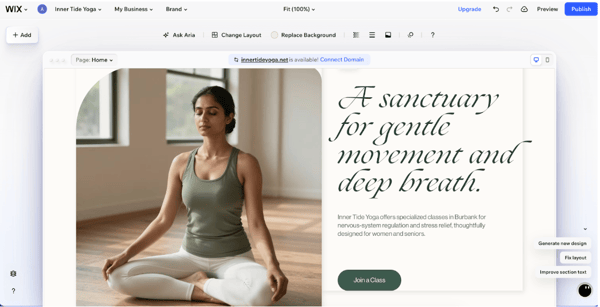
With Wix, I was asked a series of questions about Inner Tide Yoga, related to its services, hours, and location, which took under 5 minutes. After that, the setup was fairly easy and required no technical expertise or skill. I was given an option of either adding my business details manually or just giving prompts to AI.
Once the skeleton of the site was generated, I spent under 30 minutes refining the design until it looked like a fully functioning website. For users in a time crunch or interested in designing a lean website, this is a great option for you.
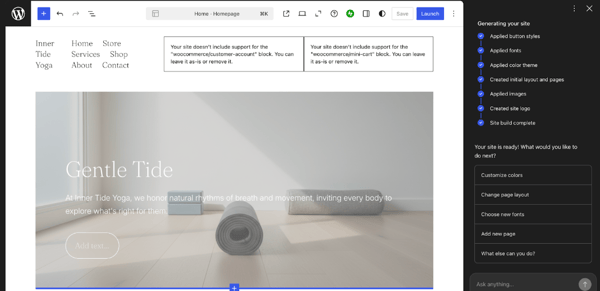
WordPress asked me two questions related to my business for setup: what my business does and the exact location. Then I was given the option of expanding my prompt. Since I had responded to a couple of follow-up questions with Wix, I added the same responses to WordPress to even the playing field.
WordPress’s design was swift (under three minutes), quicker than Wix. While website generation was quicker, the experience was less intuitive overall. It took me some time to figure out how to navigate between different sections to set up the site. Wix had clearly labelled its sections and tools, making it easy to find exactly what you’re looking for. WordPress, on the other hand, relied more heavily on icons and its own navigation system, which may feel less beginner-friendly at first.
In terms of ease of setup and intuitive navigation for beginners, I would say Wix is the way to go. I was able to build a website without any guidance or resources. If you don’t have a technical team or just want to build a website on your own, this is the best option for you.
Winner: Wix
2. Design and flexibility
Here, I wanted to see how quickly I could create a beautiful design for my yoga studio, Inner Tide Yoga, without any design expertise — just based on prompts. I also evaluated how much control I had over the landing page after the AI generated the initial design.
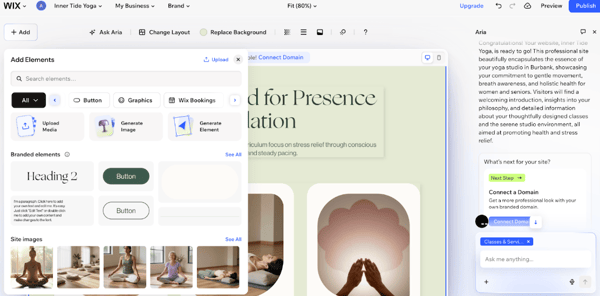
With Wix, designing the website was built into the setup. The initial prompt I gave was used to design the website. If I didn’t like something, I could either adjust the AI instructions or manually tweak specific sections of the layout.
The entire generation took less than 10 minutes. From there, I could drag and drop features, change layout, color, and brand elements with no hassle. The built-in sections reduced significant manual effort both for design and copy. My brand colors were accessible directly from the sidebar, which made consistency simple. I could also update CTA buttons, insert graphics, and add forms with just a few clicks.
Based on such a basic prompt, I was shocked by how complete the site looked — even better, the content perfectly aligned with my earlier responses for what my Yoga studio was about.

With WordPress, the design felt more minimalistic and structured. I liked that the interface separated content into sections, such as the homepage, blog, and pricing plans, which I could customize individually using the block editor. Everything was built in blocks — headings, images, buttons, columns, spacers — which made the layout feel more organized.
Having layouts, color palettes, fonts, and templates accessible from the sidebar made it easier to adjust the design without rebuilding sections from scratch. The Global Styles panel was especially helpful on the free plan because I could change typography, brand colors, and spacing sitewide without editing every individual page.
I did try their AI design prompt and tested a few variations. I specified that I was building a yoga studio website and selected style preferences. The AI-generated layouts including relevant sections like class schedules, instructor bios, and call-to-action areas. However, the designs felt more like structured templates rather than fully fleshed-out brand experiences. The spacing, imagery style, and visual flow didn’t fully match the calming, earthy, and immersive aesthetic I had in mind.
Overall, the AI gave me a solid foundation, but it required refinement to better reflect my vision. The free plan allowed meaningful customization through blocks, global styles, and patterns, but achieving a highly specific aesthetic required more manual adjustment.
Winner: Wix
3. E-commerce
Factors like adding products, creating payment plans, and looking at analytics are essential for any store, and I wanted to see which platform made the job easier.
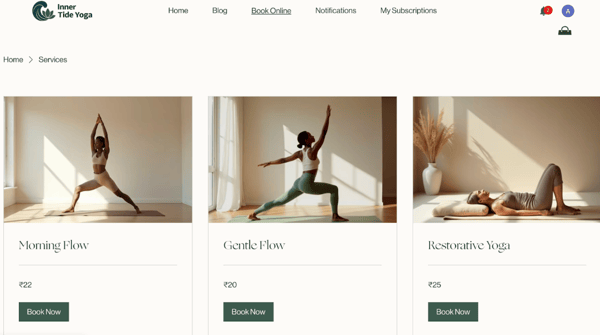
With Wix, my original prompt automatically generated an online store with three types of yoga classes and a product store for selling wellness essentials — complete with pricing and descriptions. That was a strong starting point and felt surprisingly complete for an AI-generated setup.
Adding additional information, like connecting payment methods, setting operating hours, and creating discounts, was straightforward. The store features were fully functional out of the box. I didn’t need to install any plugins, extensions, or third-party integrations to enable core e-commerce capabilities.
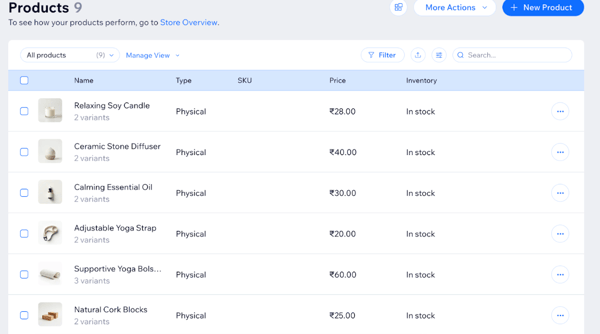
Adding products and organizing them into categories was equally simple. The dashboard provided clear fields for pricing, inventory, product images, and descriptions, making the setup process intuitive even without prior experience. I also appreciated how the platform automatically handled essential store elements like checkout flow, tax settings, and order tracking.
Payment processing, product listings, inventory management, shipping settings, and basic tax configurations were all built directly into the platform. Analytics were clearly visible and easy to understand, and I was able to find additional insights like abandoned cart tracking without needing extra tools.
Overall, the e-commerce experience felt tightly integrated and beginner-friendly, especially for someone who wants to focus more on running the business than managing the technical backend. Everything worked within a single dashboard, which made the process feel streamlined and efficient.
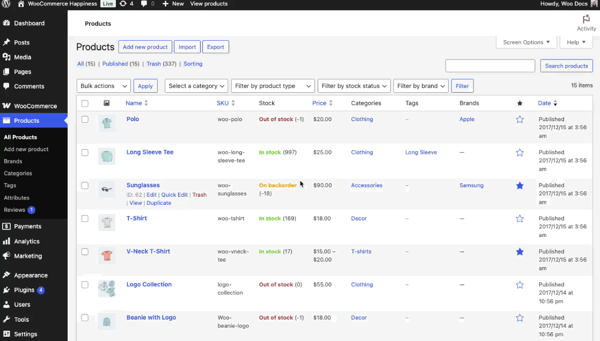
Since the WordPress free plan doesn’t include built-in e-commerce features, I’m referring to recurring G2 feedback on WooCommerce. The strongest and most consistent advantage users mention is flexibility. WooCommerce integrates seamlessly with WordPress, allowing businesses to combine content, SEO, and commerce in one ecosystem. It’s open-source, highly customizable, and supported by a massive plugin and theme marketplace.
Another recurring point users appreciate about WooCommerce is how easy it is to get started while still offering room to grow. Many reviewers mention that the initial setup is quick, with core features like product listings, inventory management, shipping options, and payment gateways working out of the box.
You can sell both physical and digital products, integrate with tools like Google Analytics and email marketing platforms, and tailor the checkout experience, giving users the confidence that the platform can adapt to their specific needs over time.
Many users mention that the platform allows them to extend functionality through third-party plugins and tools, adding features such as payment gateways, shipping calculators, CRM integrations, and marketing tools only when needed. This is especially helpful because it lets them build their store step by step, adding only the capabilities required for their specific operations without overwhelming the initial setup.
Overall, according to G2 reviews, WooCommerce is widely viewed as a flexible and reliable option within the WordPress ecosystem, particularly for businesses that value control and customization, with the trade-off being more hands-on management as complexity increases.
Winner: Split
4. SEO and blogging
I created a test blog on both Wix and WordPress to evaluate their blogging functionality in order to better understand how extensive each platform’s SEO capabilities really are.
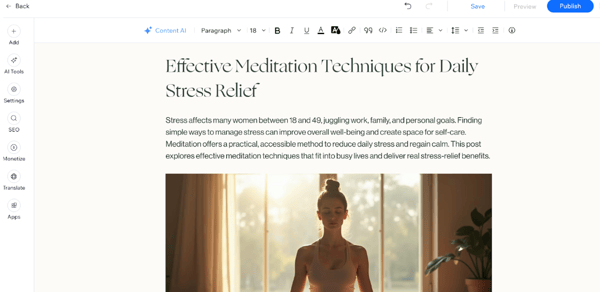
I could easily run an audit of my site pages and connect SEO tracking tools like Google Search Console without digging through settings. Since I’m testing SEO and blogging on Wix’s free plan, it’s worth noting that the free site uses a Wix-branded domain (yourname.wixsite.com/sitename). While everything functions the same, a branded domain can impact SEO perception and trust compared to a custom domain, especially for businesses trying to build authority.
Blogging felt very beginner-friendly. Wix automatically created a blog based on my earlier setup, and I could access it directly from “My Blog” in the sidebar. Adding a new post was straightforward. I could write everything myself or use their AI to generate ideas, add an outline, or starter content.
Another helpful feature is Wix’s built-in SEO checklist and guidance tools. The platform walks you through key optimization steps such as setting page metadata, connecting to Google Search Console, and improving page visibility through a guided setup process. This step-by-step approach can be especially useful for beginners who may not be familiar with SEO best practices
The blog editor also lets you schedule posts, assign categories and tags, manage comments, and customize post URLs, which helps with content organization and SEO structure. You can edit meta titles and descriptions for individual blog posts, which is important for improving click-through rates in search results.
Their SEO functions are great for any individual or business. You can edit key elements like page titles, meta descriptions, and custom URLs, add alt text to images, and manage 301 redirects all within the editor. It also provides a guided SEO setup with tips and reminders to improve visibility, plus automatic sitemaps and mobile-friendly page designs that help with search indexing. Wix also automatically generates structured data for certain page types, which can support rich results in search. You can customize URL slugs for blog posts, control indexing settings for each page, and integrate analytics tools directly from the dashboard.
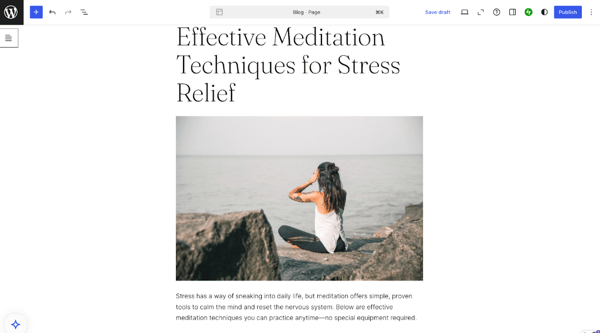
WordPress worked especially well for blogging. Their “Focus Mode” helped block distractions, and the clean, minimal interface made it easier to concentrate on writing and structuring each paragraph. The writing experience felt slightly more content-focused compared to Wix, especially if your main goal is publishing articles regularly. I was also able to schedule posts, organize them with categories and tags, and customize post URLs, which is important for maintaining a clean blog structure.
On the WordPress free plan, you can still verify your site with Google Search Console and connect basic analytics, but the process felt slightly less guided. Advanced SEO integrations and detailed SEO tracking tools typically require plugins, which are only available on higher-tier WordPress plans.
WordPress offers AI-powered writing assistance through Jetpack AI (with limited usage on free plans). It can help generate blog post drafts, suggest headlines, and improve clarity, similar to Wix’s AI content tools. However, Wix’s AI felt more integrated into the overall site-building and SEO setup process, while WordPress’s AI felt more focused purely on content generation.
WordPress has very basic built-in SEO features because most users typically install SEO plugins like Yoast or Rank Math — but on the free plan, you can’t install custom plugins. Within the editor, I could manage titles, meta descriptions for posts and pages, categories, and tags directly.
One thing Wix had that WordPress didn’t (on the free plan) was the structured, step-by-step SEO setup checklist and built-in site audit guidance. WordPress gives you control over core elements, but it doesn’t actively walk you through improving your rankings. On the other hand, WordPress felt stronger purely as a writing environment. If blogging is the main focus, WordPress feels slightly more streamlined and distraction-free. If SEO guidance and built-in optimization prompts are the priority, Wix felt easier on the free plan. So for this round, it’s going to be a split.
Winner: Split
5. Customer support and resources
To test customer support and learning resources, I ran two experiments:
- I asked live, and AI support the same question on both platforms: “Can I use my custom domain on the free plan?”
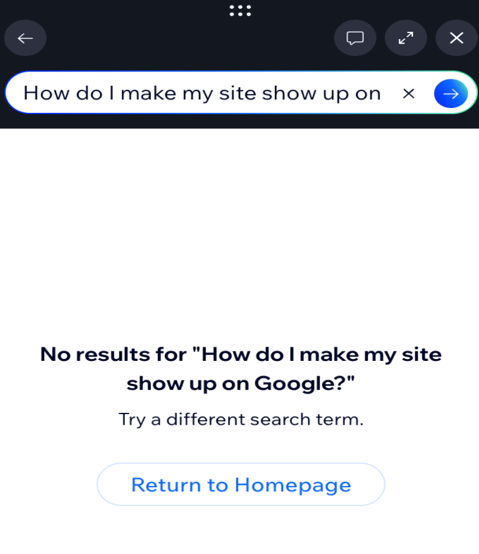
- I searched the help center for: “How do I make my site show up on Google?”
I wanted to evaluate the full support experience on both platforms, including the quality of their self-serve documentation, the effectiveness of their AI assistants, and the responsiveness and helpfulness of their human support teams.

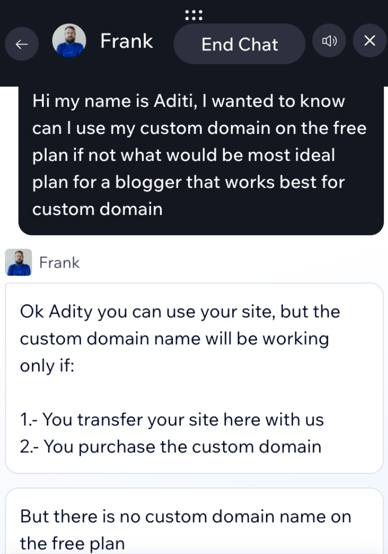
With Wix, my experience with the AI chatbot before reaching a human agent was smooth and efficient. When I asked a direct question about connecting a custom domain, the AI instantly provided a clear and accurate response: that connecting a custom domain requires a Premium plan, and that the free plan uses a Wix-branded subdomain (username.wixsite.com/sitename). The answer was concise, correct, and didn’t require follow-up clarification.
To test the experience for users who might want to escalate an issue to a human, I requested to speak with a support agent. The AI put up a bit of resistance and asked for a valid reason before allowing me to proceed (no actual feelings were hurt). Within a few minutes, I was connected to a human support expert who was warm, friendly, and gave me an answer to my query quickly. No notes here. I’ve also included screenshots of the actual human chat conversation for added context.
With the second test, things were different. I entered the question “How do I make my site show up on Google?” in the help center. The AI initially attempted to summarize an answer but struggled to provide a complete, actionable response. After a couple of tries, I was able to get a clear response from the AI summary, along with additional links to connect and work with Google on Wix. I can anticipate this situation being challenging for users if it happens more than once.

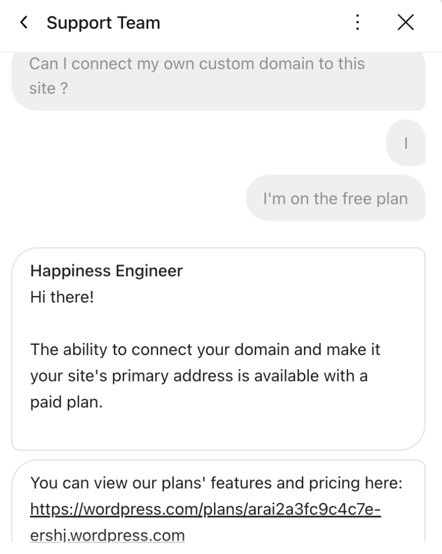
With WordPress, the AI assistant also responded clearly when I asked about connecting a custom domain. It explaine