


Hands on Writers rely on the humble em dash (—) and en dash (–) to add flavor and function to their sentences. But typing these characters, which are slightly longer than a hyphen, has been a challenge in Windows, up until now.
The latest Windows Insider builds in the Dev and Beta channels include a new feature that allows you to type either kind of dash with simple keyboard shortcuts that even work if you don’t have a number pad. Once users activate the feature, they can hit:
- Windows key + dash key (-) for en dash
- Windows key + Shift + dash key (-) for em dash
While it seems likely that Microsoft will soon add these keyboard shortcuts to production versions of Windows 11, right now, you need to be running an Insider build in the Dev channel (build 26200.5761 or higher) or the Beta channel (26120.5770 or higher). You also need to activate the shortcuts using the ViveTool.
ViveTool is a free utility that activates hidden features of Windows that Microsoft hasn’t turned on yet for everyone (perhaps they are A/B testing with some users getting it turned on).
To enable the shortcuts to create em and en dashes, first make sure you are running the latest Beta or Dev channel build. You can see your build number by running the winver command and you can join the Insider program, if you’re not in it already, by navigating to Settings->Windows Update->Windows Insider Program, clicking Get Started, and choosing the Beta or Dev channel. Be warned that Insider builds can have bugs and stability issues that the release build of Windows does not.
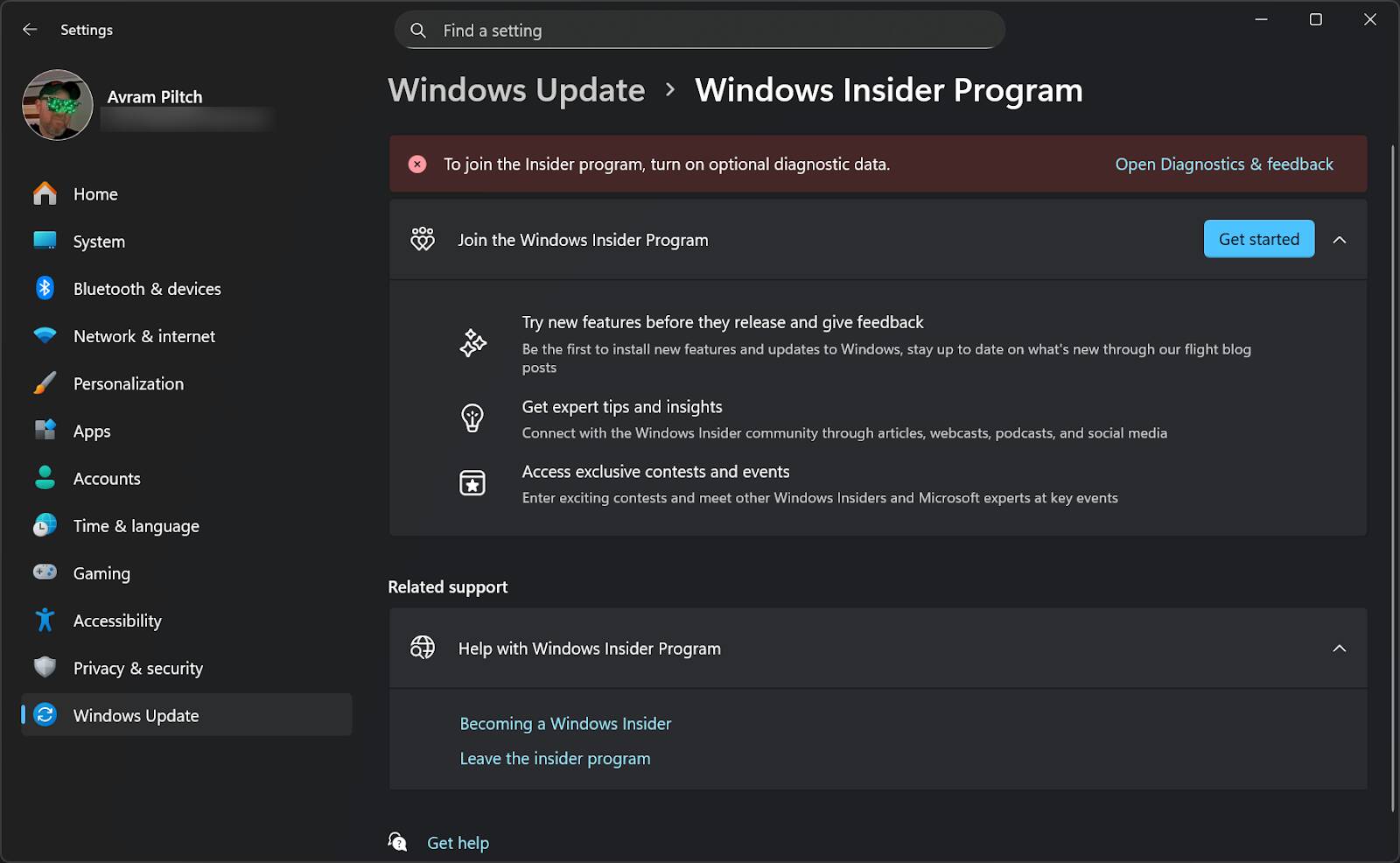
Windows Insider Program – Click to enlarge
Then download the latest version of ViveTool. Unzip it to an easily-accessible folder on your C drive. I put mine in C:\vive.
Open a Windows elevated command prompt. You can do this by typing “cmd” into the Windows search bar, which produces a shortcut to the Windows command prompt and an option to Run as Administrator. Click on that option.
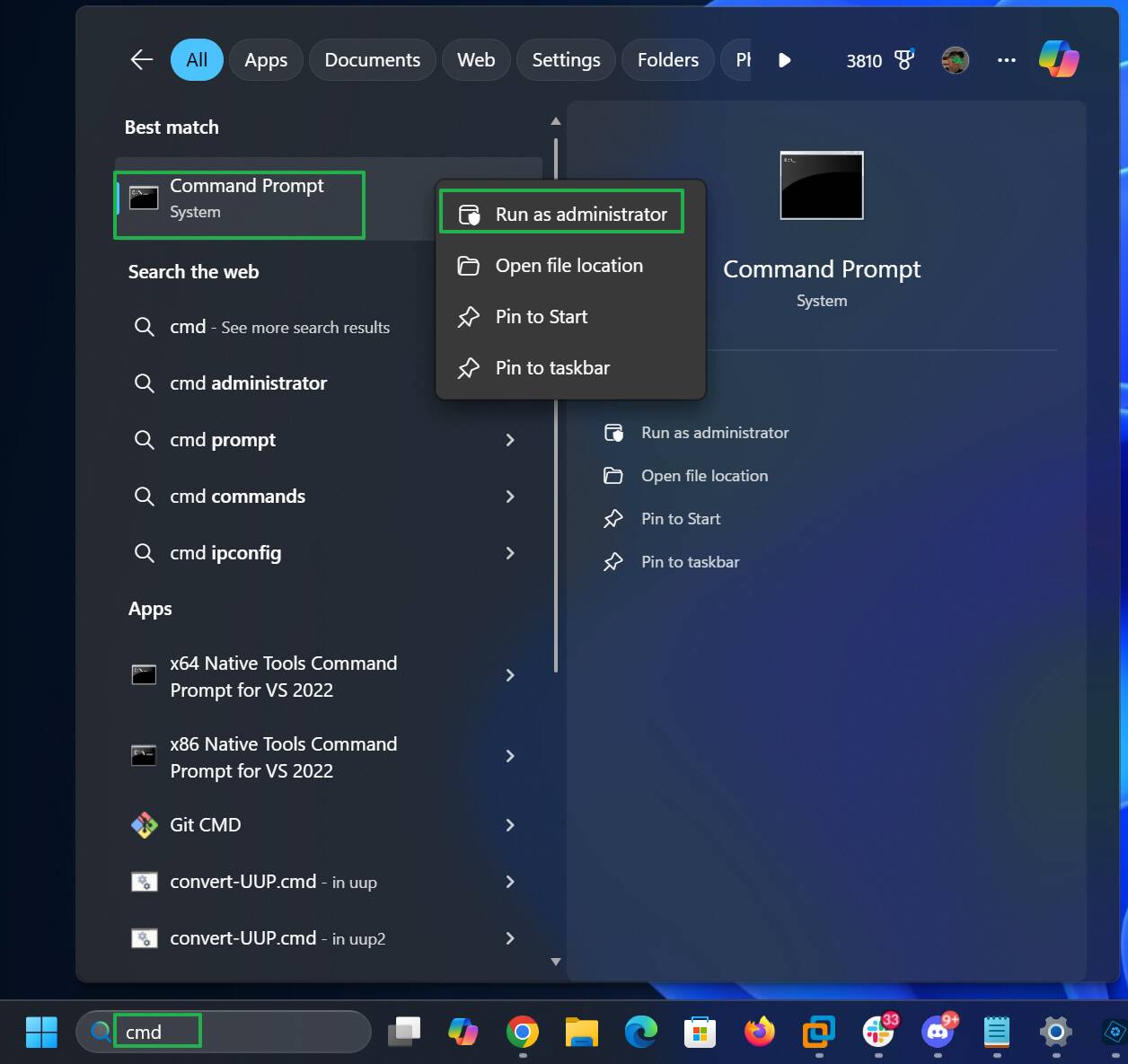
Open an elevated command prompt – Click to enlarge
Next, navigate to the folder where you downloaded the ViveTool. If you used the same path as me, it’s C:\vive.
cd C:\vive
Type the following text, which will activate the dash creation shortcuts.
vivetool /enable /id:58422150
Once this is done, reboot your PC and you’re good to go. Credit goes to Windows Insider expert phantomofearth for finding the right ID number and sharing it on X.
Other ways to get en dash and em dash
If you don’t have a Windows Insider build, there are other ways to use em dash and en dash in Windows today. If you have a keyboard with a number pad, hitting ALT + a number combo works pretty well. This does not work with the number keys that sit above the QWERTY row, however.
- ALT + 0150 for en dash
- ALT + 0151 for em dash
If you don’t have a numeric keypad or a photographic memory to recall these codes, install Microsoft PowerToys and enable Quick Accent under Input / Output.
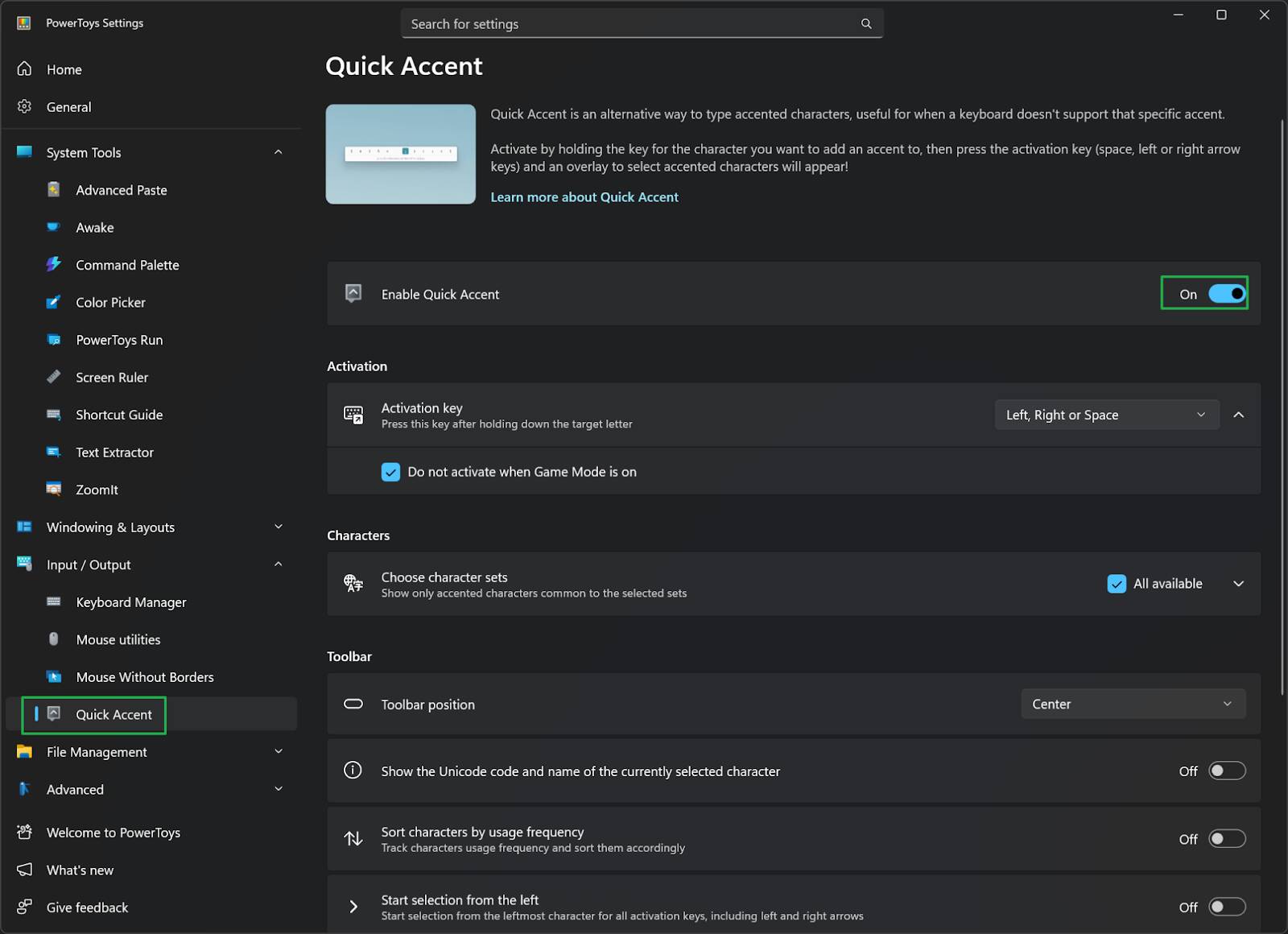
Enable Quick Accent in PowerToys – Click to enlarge
Then, when you’re typing, hold down the dash key and hit the spacebar at the same time. A bar with several different symbols will appear on-screen and you can hit the spacebar a few more times to select the en or em dash.
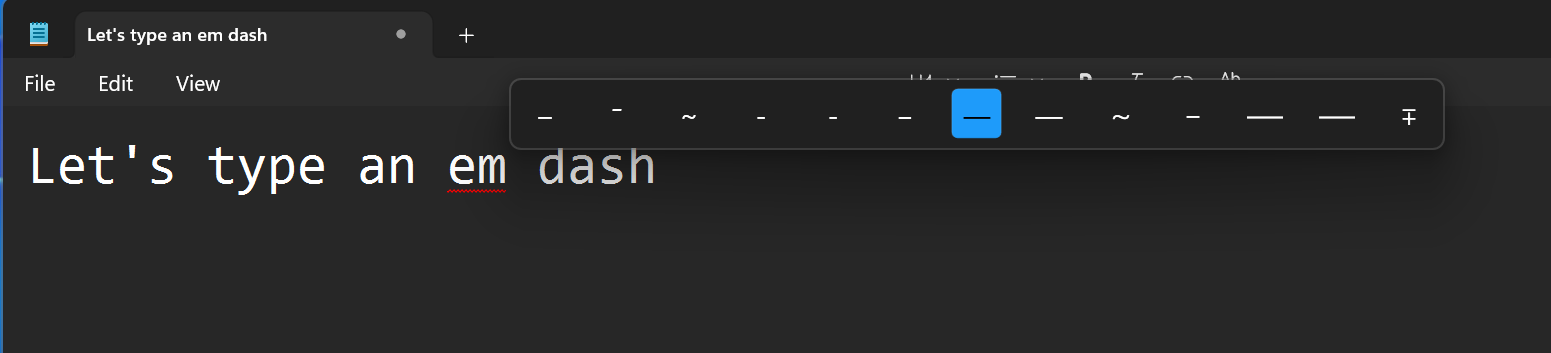
Quick Accent feature in action – Click to enlarge
This second method is a bit slow and tedious. It shows why having the new keyboard shortcuts would be quite a boon for writers. Just don’t use those extra-long dashes when a comma will do. ®

